Unlock HIDDEN iOS 26 Features! Enable Dynamic Island, AOD & More with Nugget
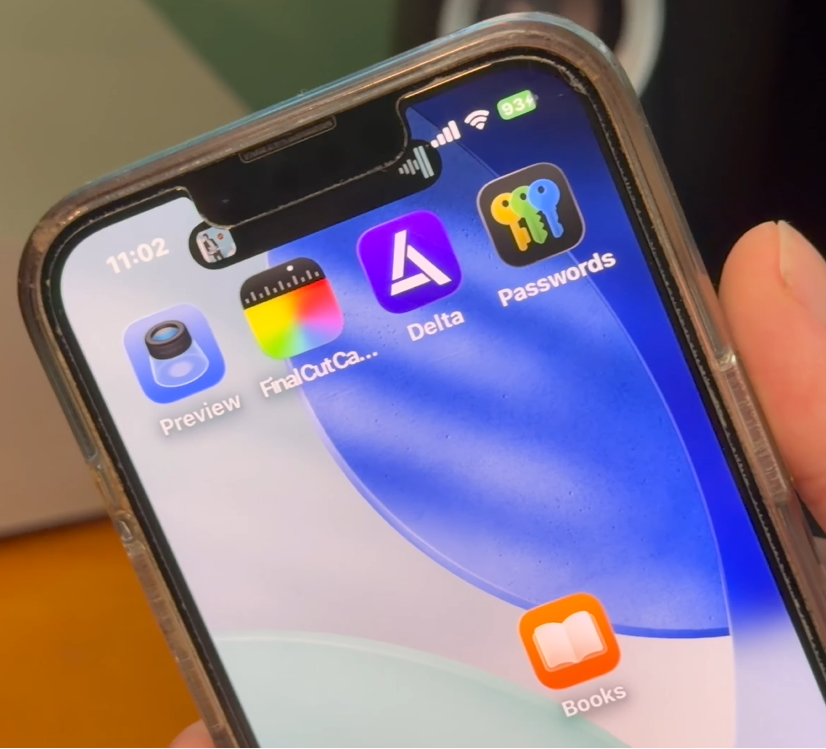
This guide provides a comprehensive tutorial on enabling unsupported system features on an iPhone, such as Always-On Display and the Dynamic Island on notched phones. By using the desktop utility Nugget, you can modify configuration keys within your device's settings to bypass standard software restrictions.
| iOS Feature | Primary Function | Layout Configuration |
|---|---|---|
| Dynamic Island | Interactive status overlay on notched iPhones | iPhone Air Preset |
| Always-On Display | Displays clock, notifications & widgets on locked screen | System-wide UI |
| MobileGestalt Customization | Alters device configurations using plist patches | Desktop App Injection |
| iPadOS Features | Landscape app orientation & Stage Manager window controls | Tablet Interface |
Compatibility and Core Requirements
Before modifying any configuration files, confirm your system meets these technical specifications:
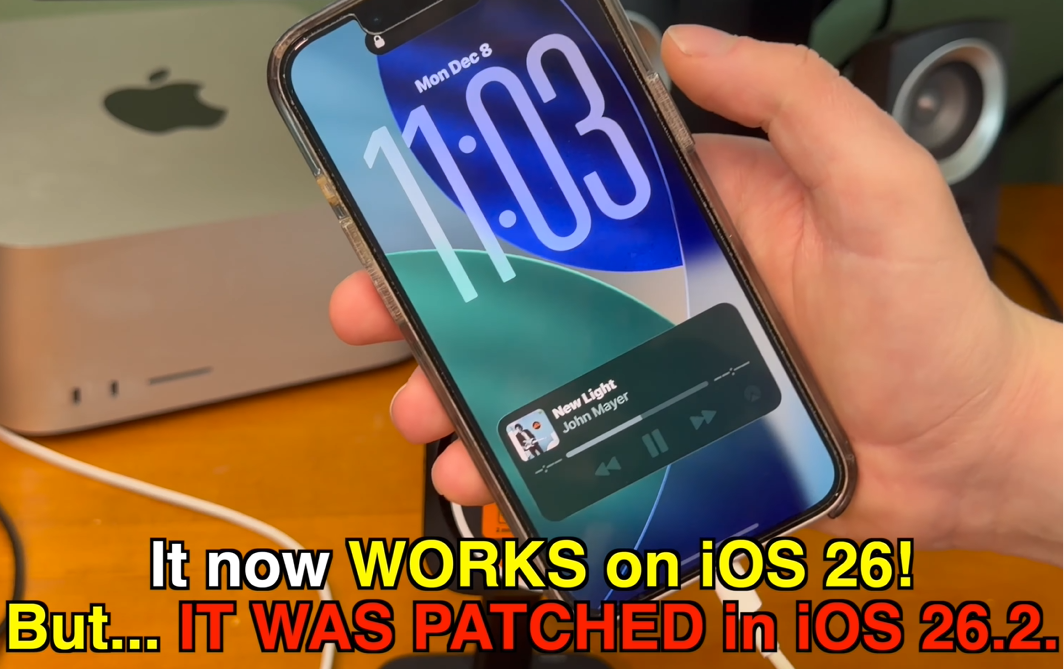
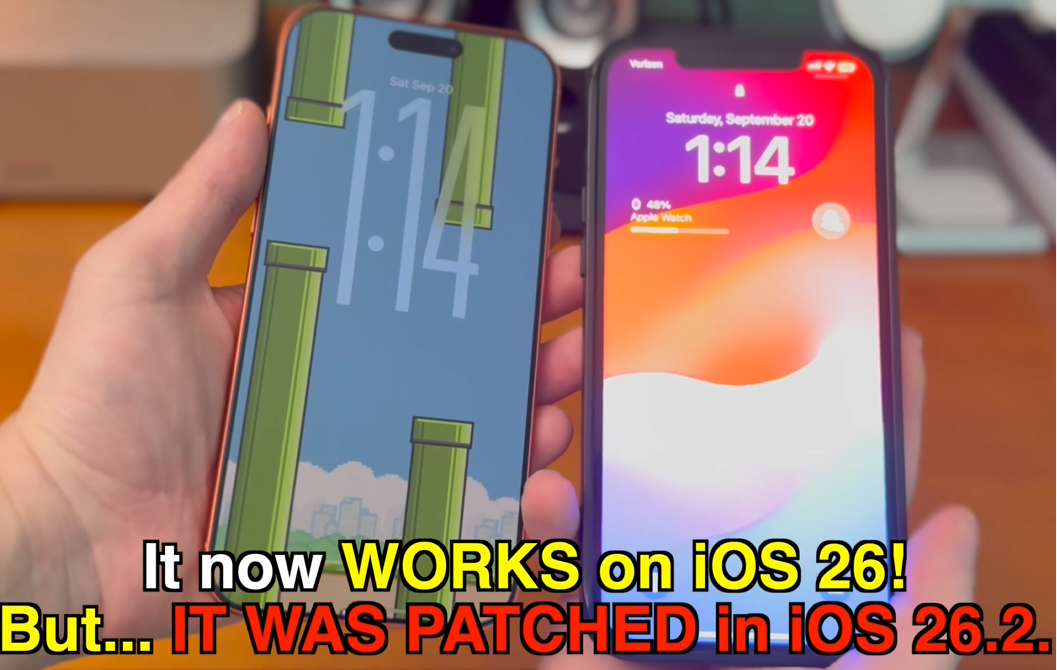
- iOS Compatibility: This customization is supported on any iPhone running iOS 17.0 through iOS 26.1. These exploit configurations were patched by Apple starting with the release of iOS 26.2, meaning the methods will not work on that version or later.
- Computer Requirements: You will need a computer running macOS, Windows, or Linux to host the Nugget client.
- Pre-installed Applications: Your iPhone must have the default Apple Books and Shortcuts applications downloaded from the App Store.
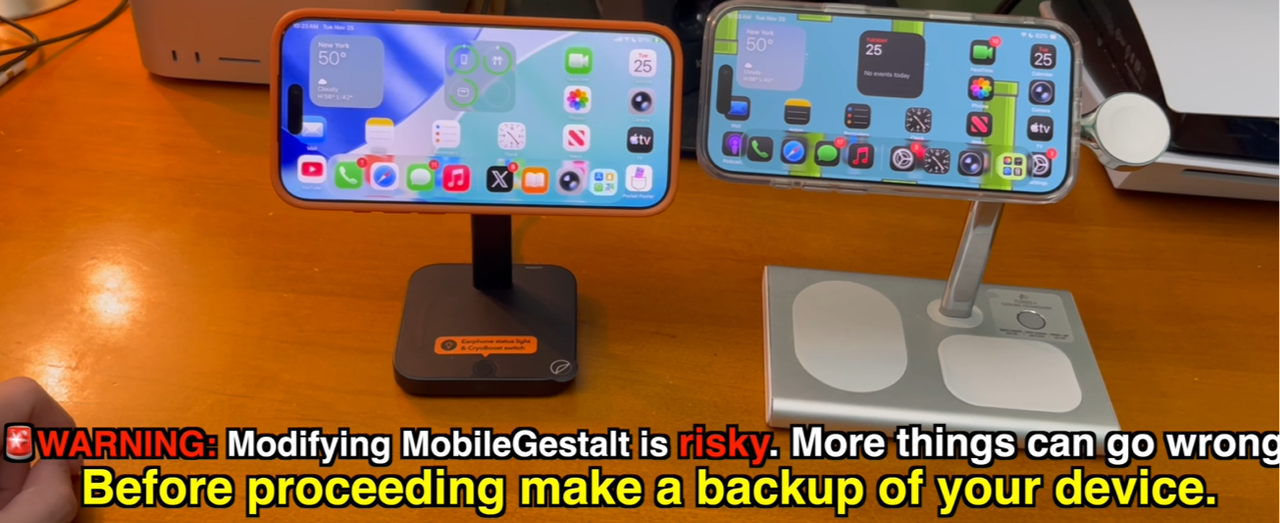
- Risk and Device Safety: Editing your device's core configuration files carries risks, including system-level crashes or bootloops. You must create a complete backup of your personal files on your computer or iCloud before proceeding.
Step 1: Downloading Nugget on the Computer
To begin, set up the desktop client on your computer.
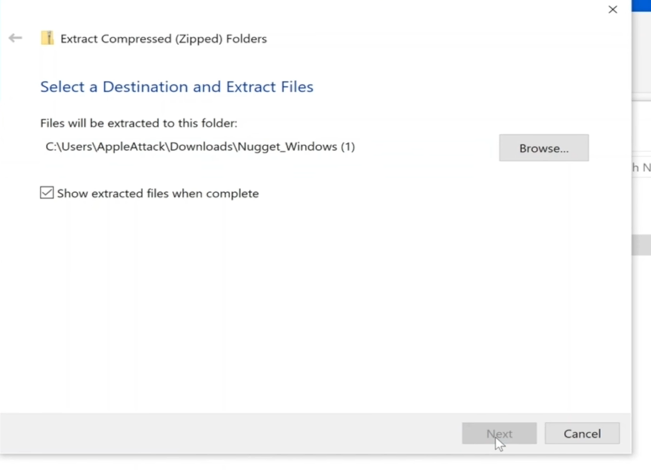
Open your browser and navigate to the Cowabunga downloads directory. Select the proper version of Nugget for your operating system. For macOS, choose "macOS (ARM)" if you are using an Apple Silicon computer, or "macOS (Intel)" if your Mac has an Intel processor.
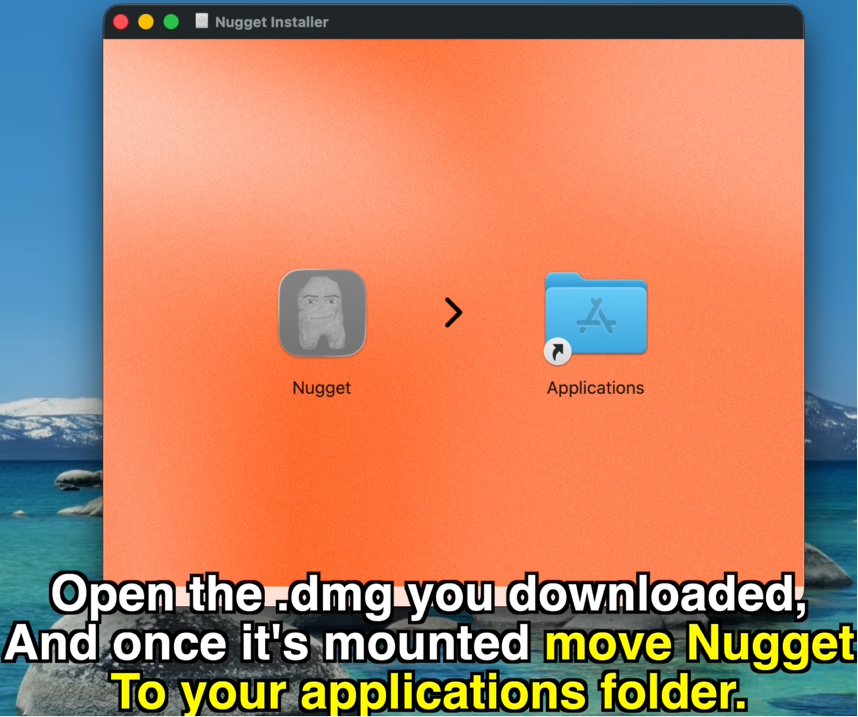
Open the downloaded disk image and drag the Nugget application icon into your local Applications folder.
Open the Settings app on your iPhone, select your Apple ID banner, and go to the Find My settings page. Turn off Find My iPhone and enter your Apple ID password to confirm. This step is required because system-level restore features cannot edit configurations while active tracking is turned on.
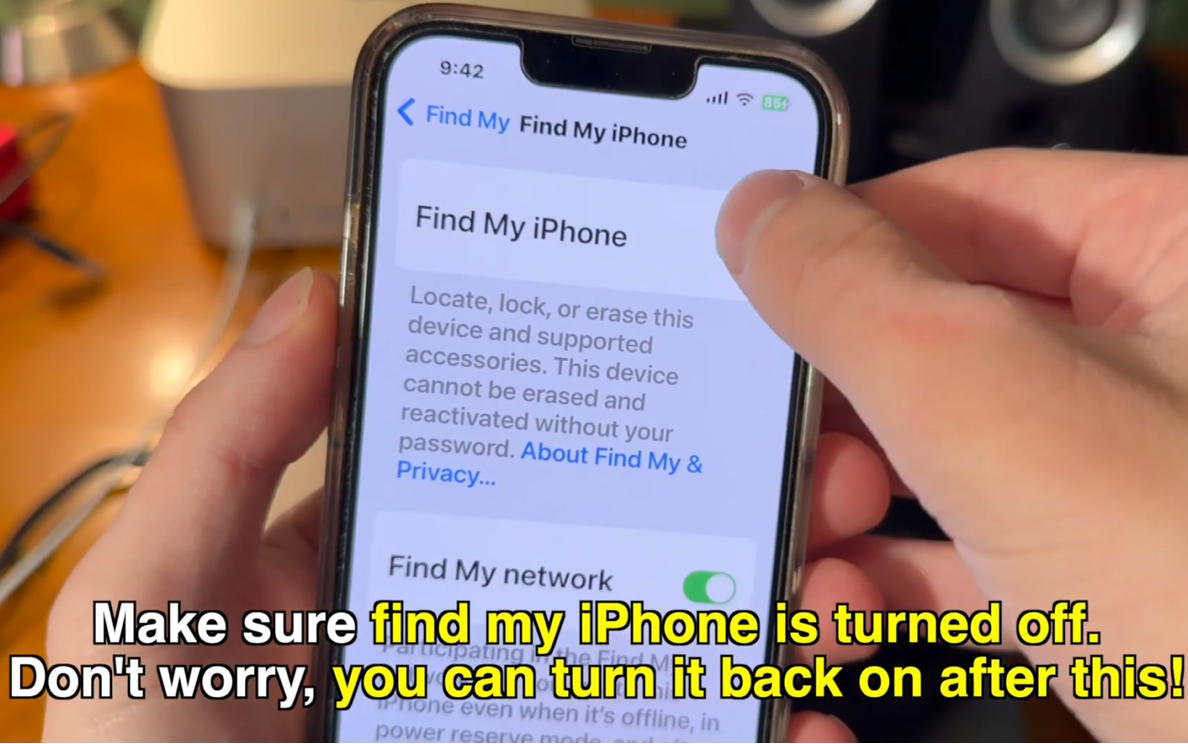
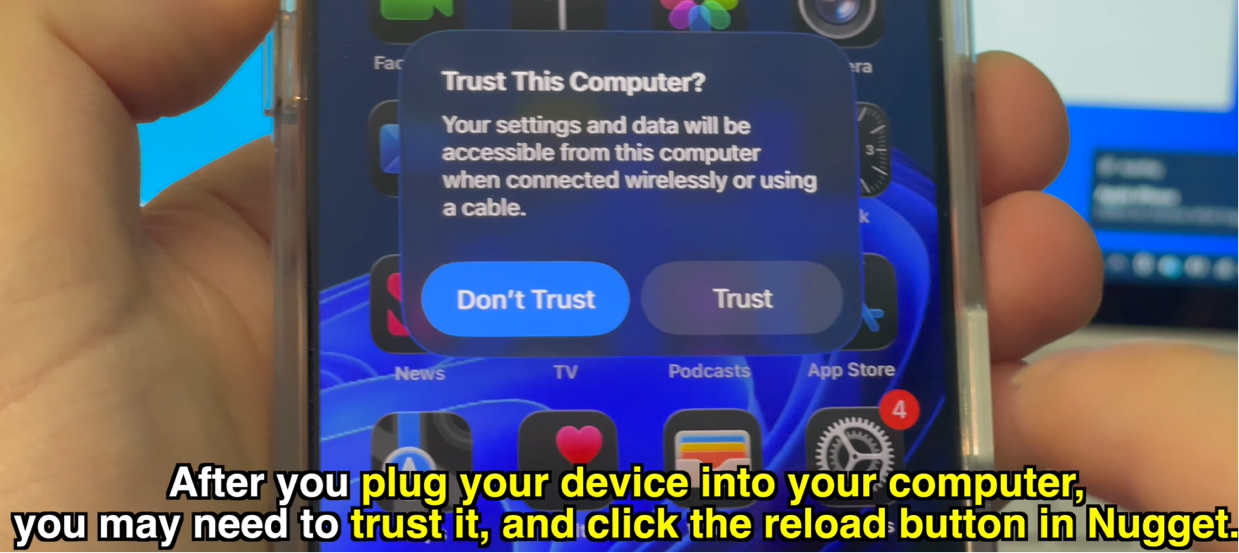
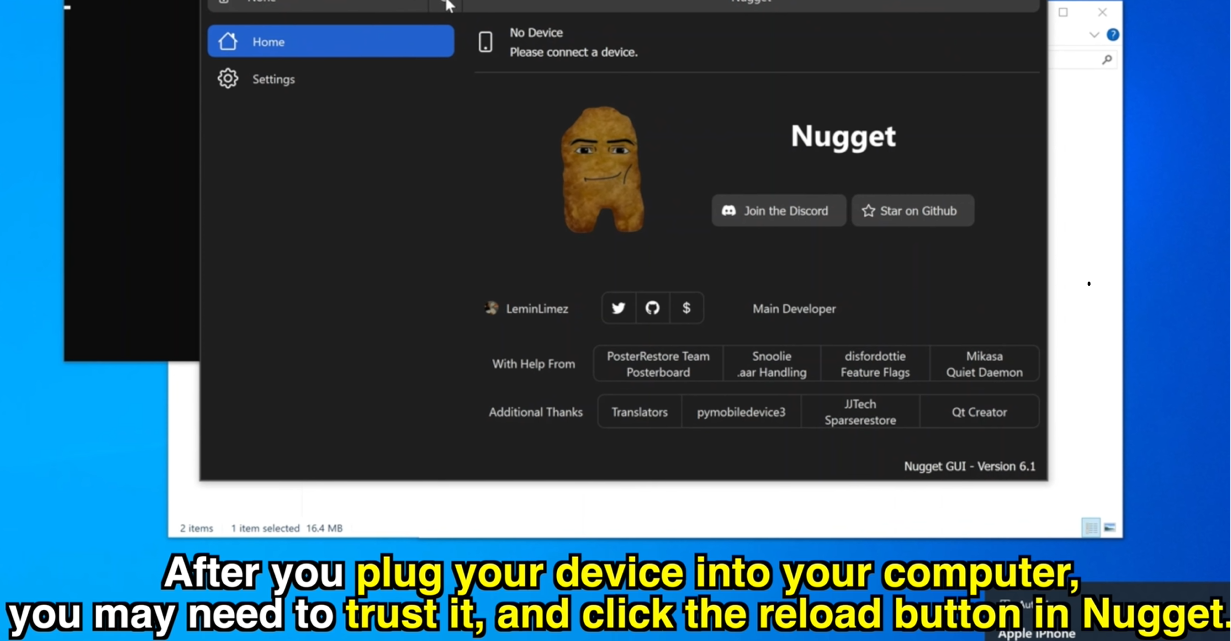
Connect your iPhone to your computer using a compatible USB cable. Launch Nugget and tap the Trust button on your phone screen if a secure prompt displays. Click the reload button at the top of the Nugget app window to ensure your phone model is registered.
Step 2: Extracting Your MobileGestalt File (Two Methods)
Nugget requires your device-specific com.apple.MobileGestalt.plist file to run. The setup provides two different shortcuts to extract this file from your device.
Method A: Using Shortcut #1 (The Manual Graph Method)
This is the recommended method because it is highly reliable on all compatible iOS versions.
- Open the "Save MobileGestalt" shortcut from the provided link on your device.
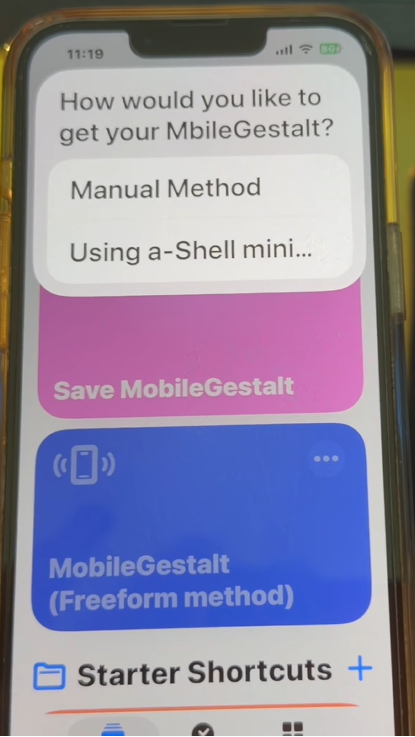
- Run the shortcut and choose Manual Method from the popup option list.
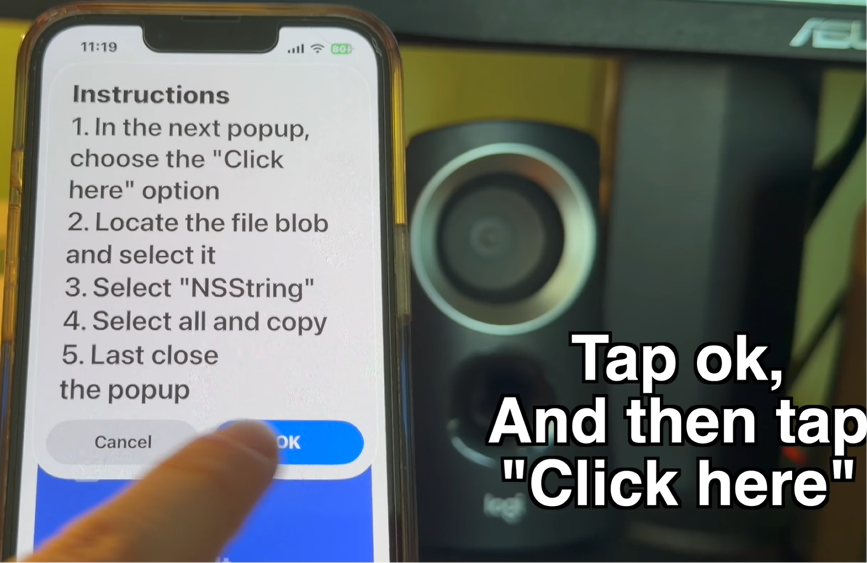
- Tap OK on the instructions card.
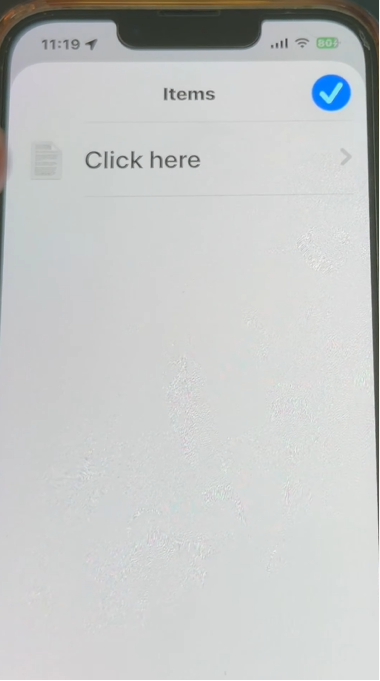
- On the folder list screen, tap the file labeled Click here.
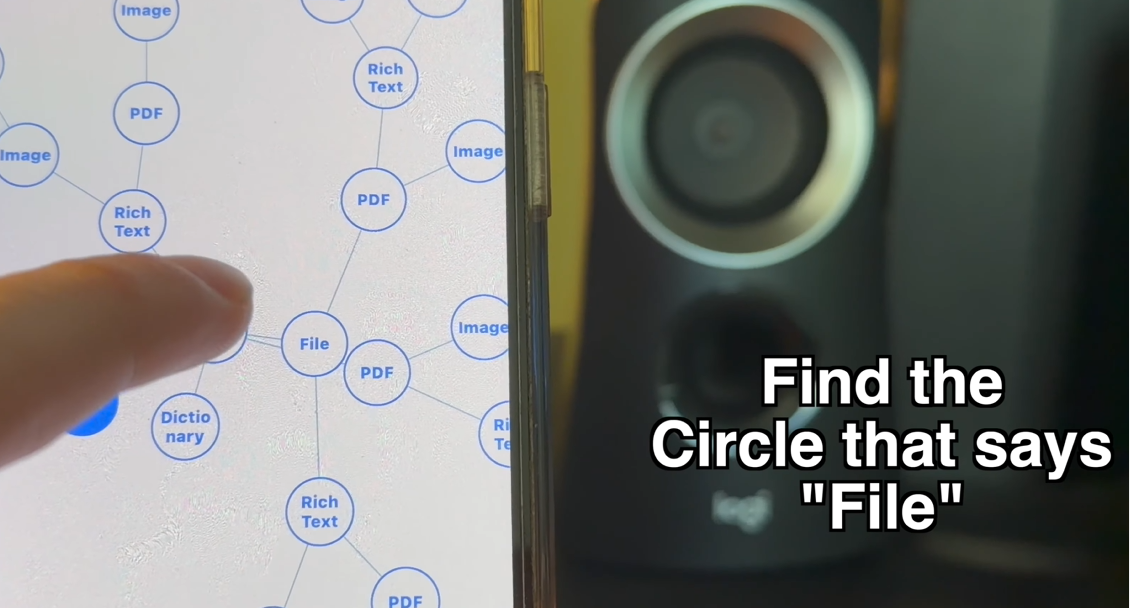
- On the node graph page, locate and tap the circular bubble labeled File.
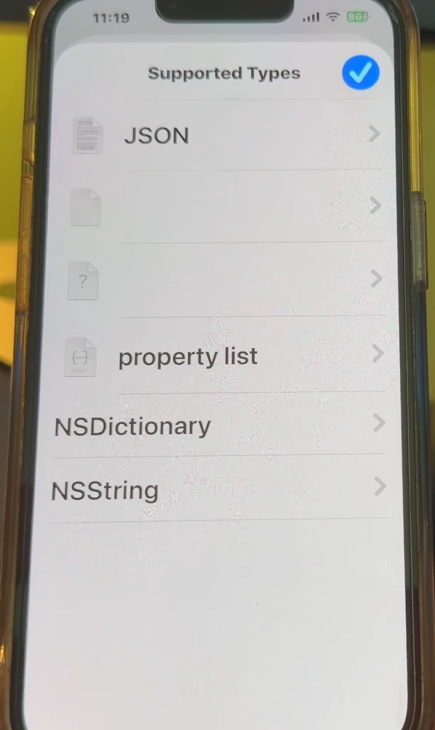
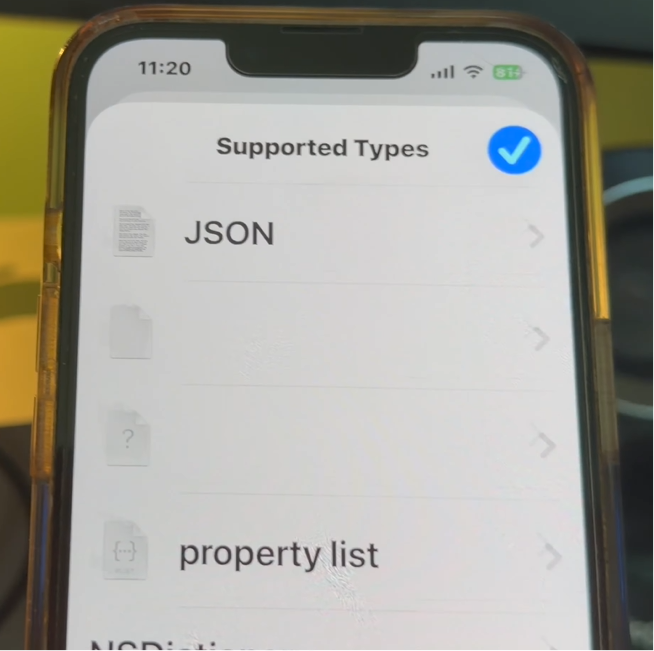
- On the supported types list, tap NSString.
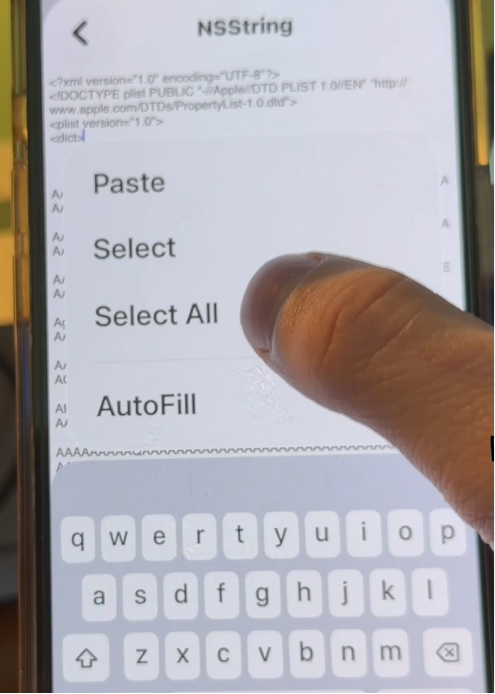
- Tap the text field, select all the raw configuration code, and copy it to your clipboard.
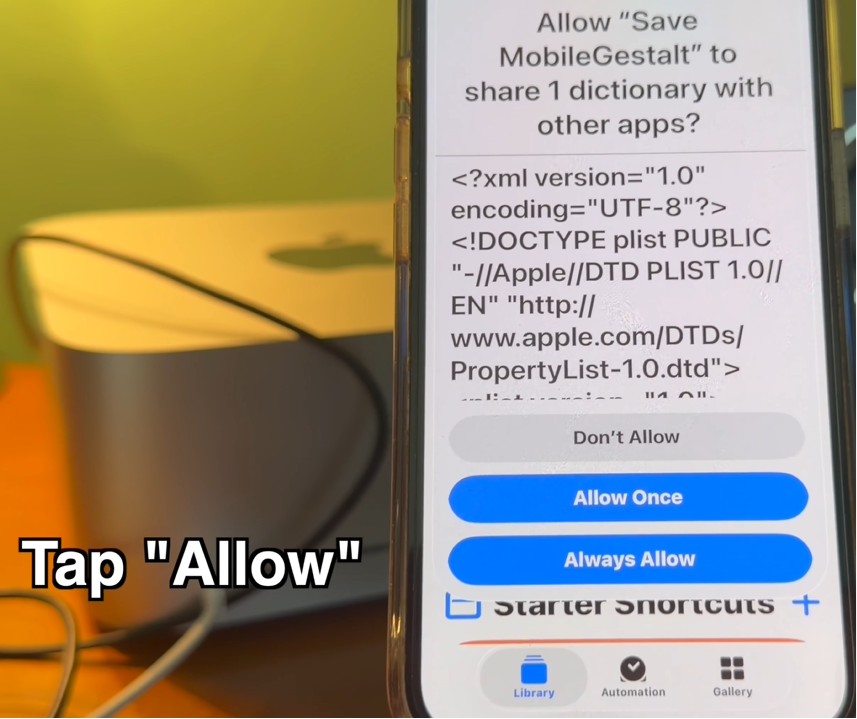
- Navigate back by tapping the back arrow and the checkmarks in the top corner of the screen until you return to the permission prompt.
- Tap Allow Once or Always Allow to save your customized file.
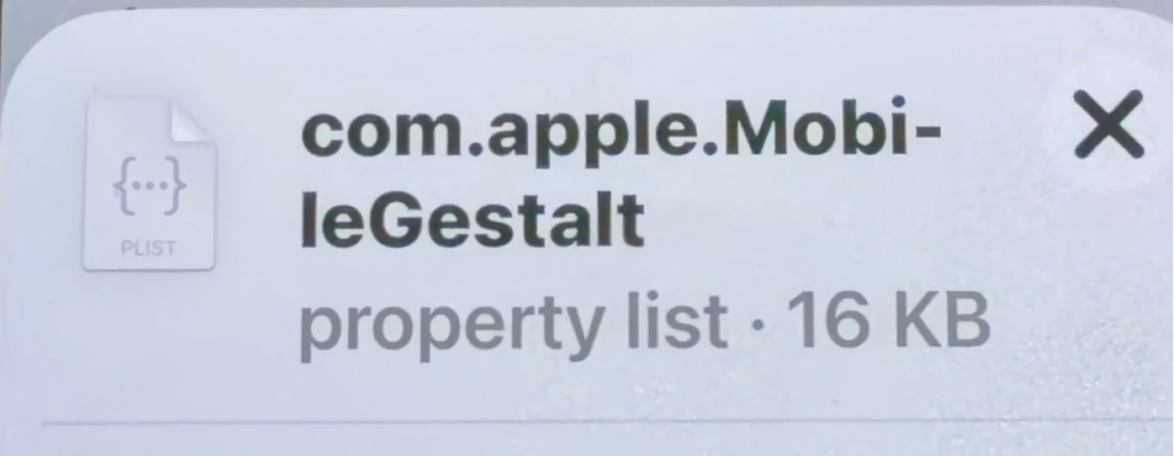
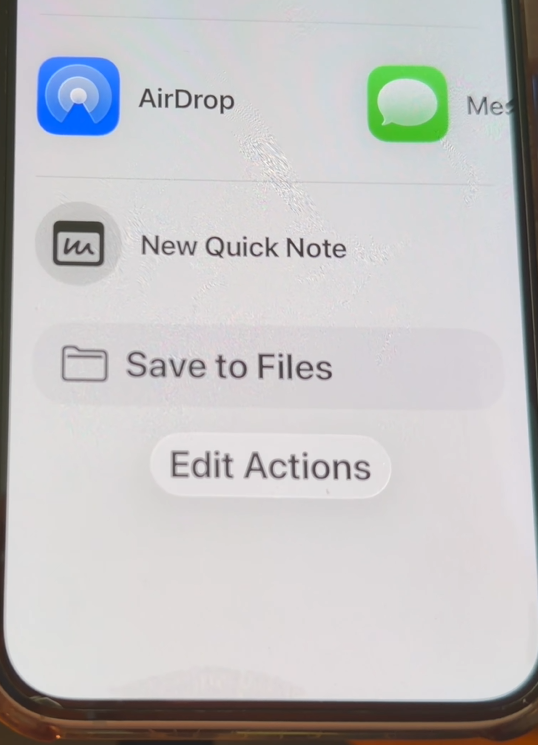
- The shortcut will generate your
com.apple.MobileGestaltfile. Use AirDrop or email to send this file to your computer.
Screenshot Timestamp to Capture:
Show the interactive node graph on the iPhone screen highlighting the File bubble.
Method B: Using Shortcut #2 (The Freeform Canvas Method)
If the first method fails or your device is older, use the second shortcut option.
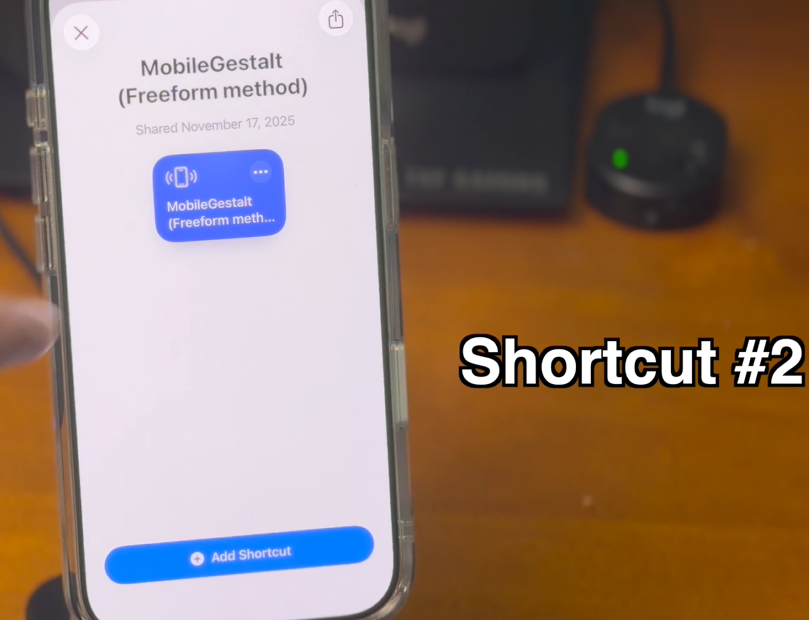
- Download and run the second extraction shortcut to copy your file path to your clipboard.
- Tap Allow when the system asks for clipboard access.
- The shortcut will automatically open Apple's native Freeform app. Tap OK on the initial popup.
- Tap the paperclip icon in the bottom menu bar inside the Freeform workspace.
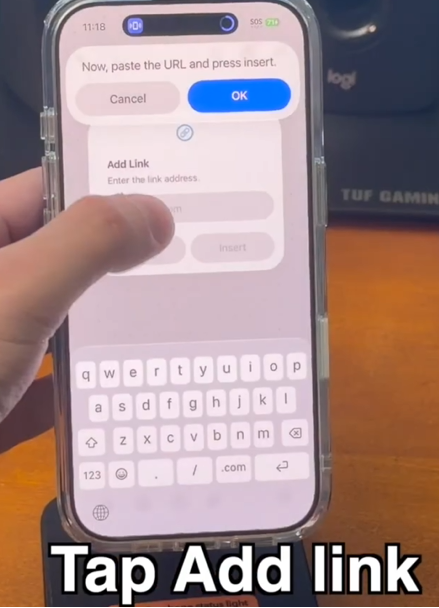
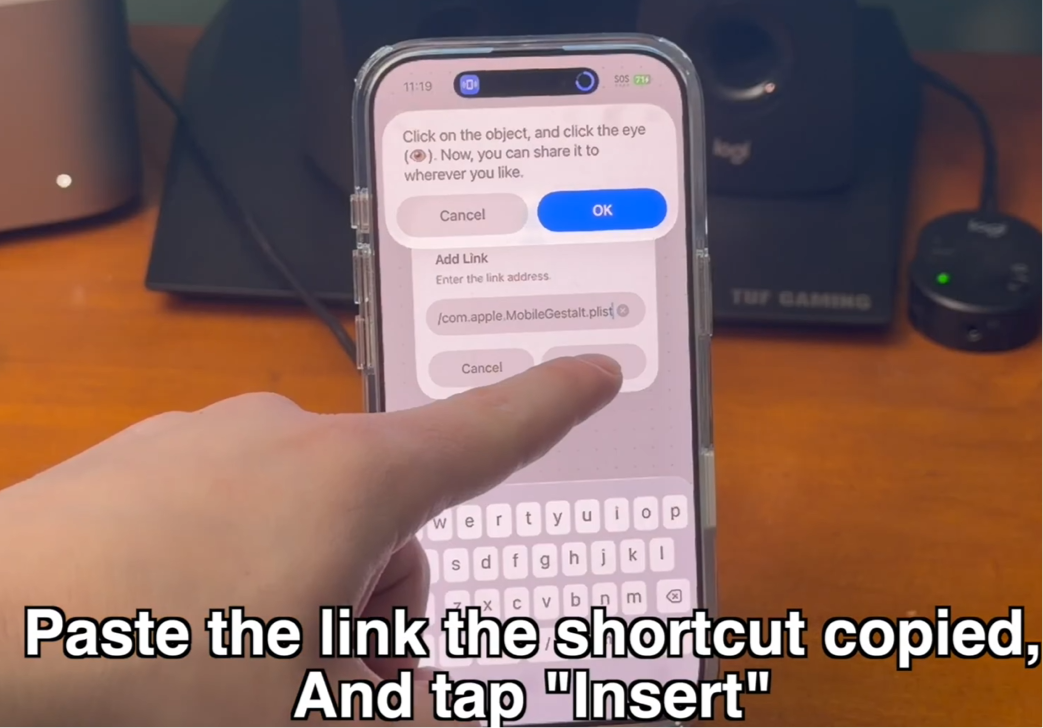
- Tap Add Link from the options list, paste your clipboard content into the field, and click Insert.
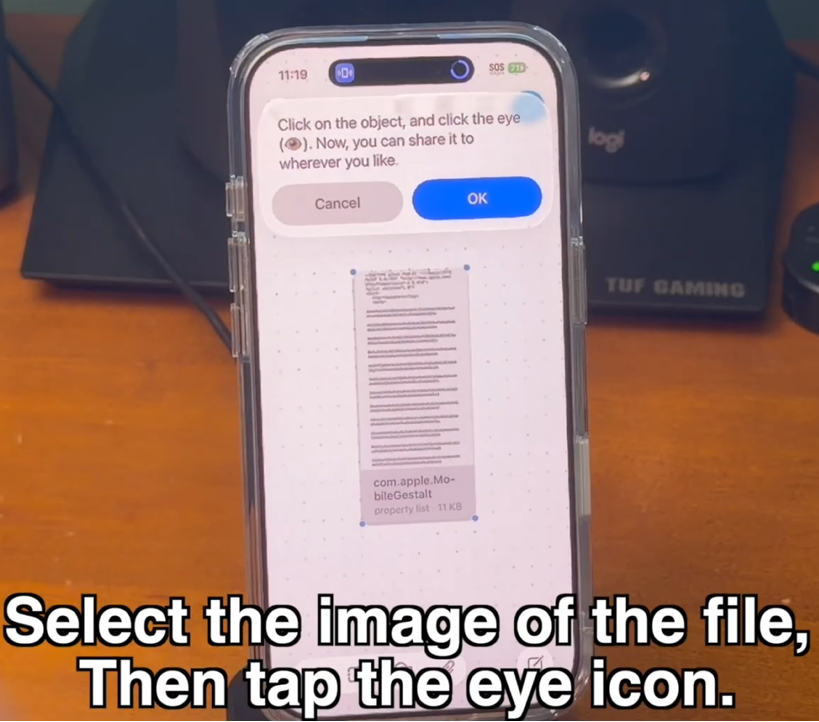
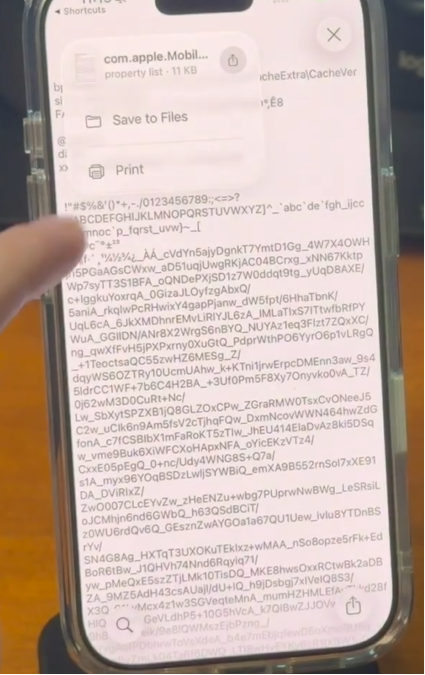
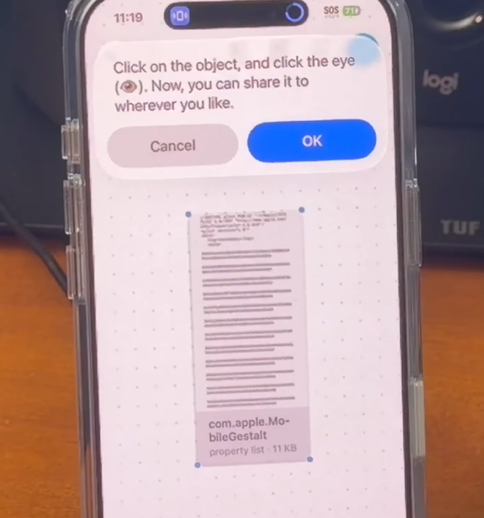
- Tap the white file block on the canvas, select the eye icon in the bottom menu, and save the raw file to your local computer directory.
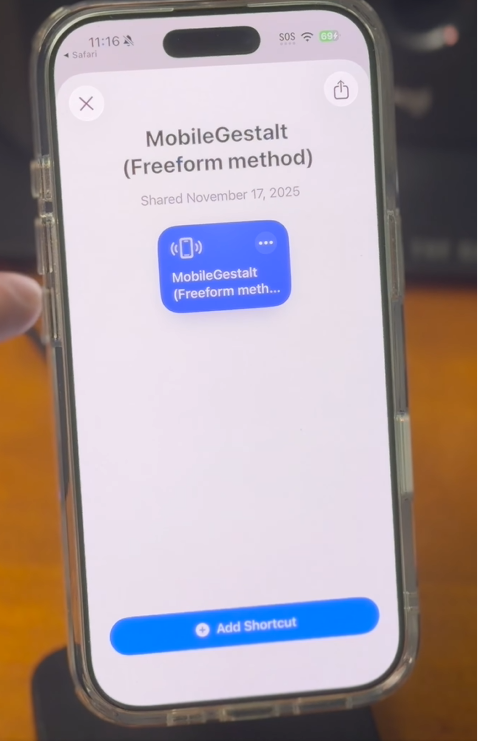
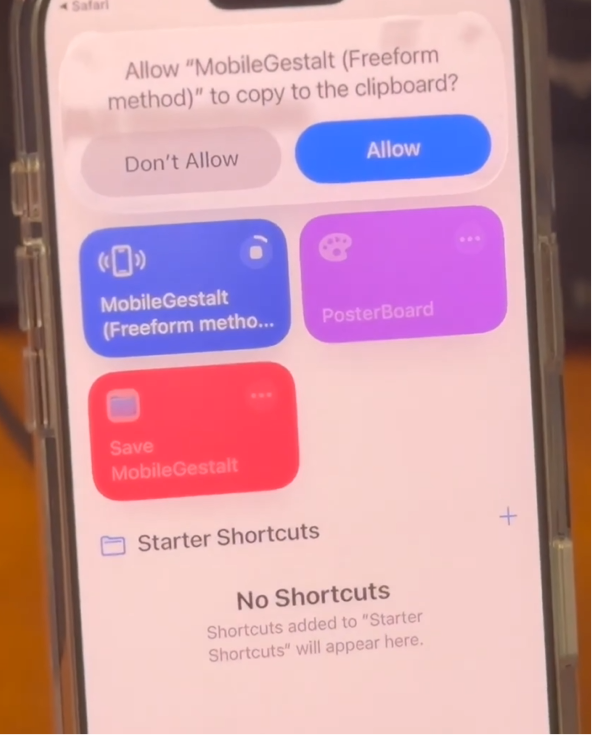
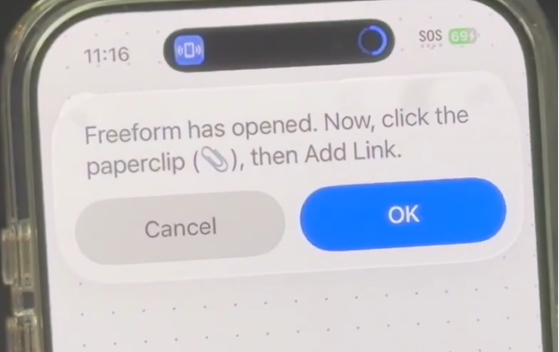
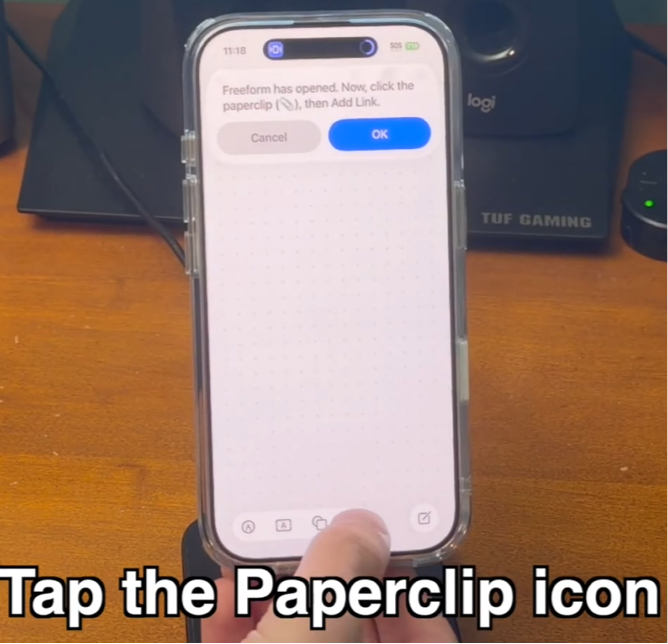
Screenshot Timestamp to Capture:
Show the white file representation block inserted on the Freeform canvas page.
Step 3: Activating Hidden Features in Nugget
With your hardware-specific file saved to your desktop, you can select the features you want to inject into your phone.
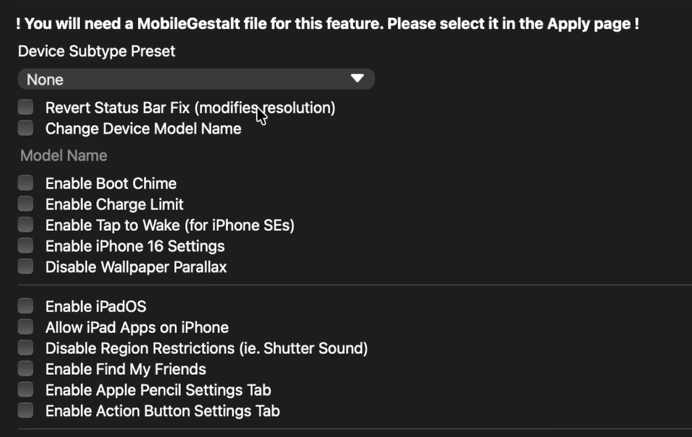
- Open Nugget on your computer and select the Mobile Gestalt tab in the left sidebar menu.
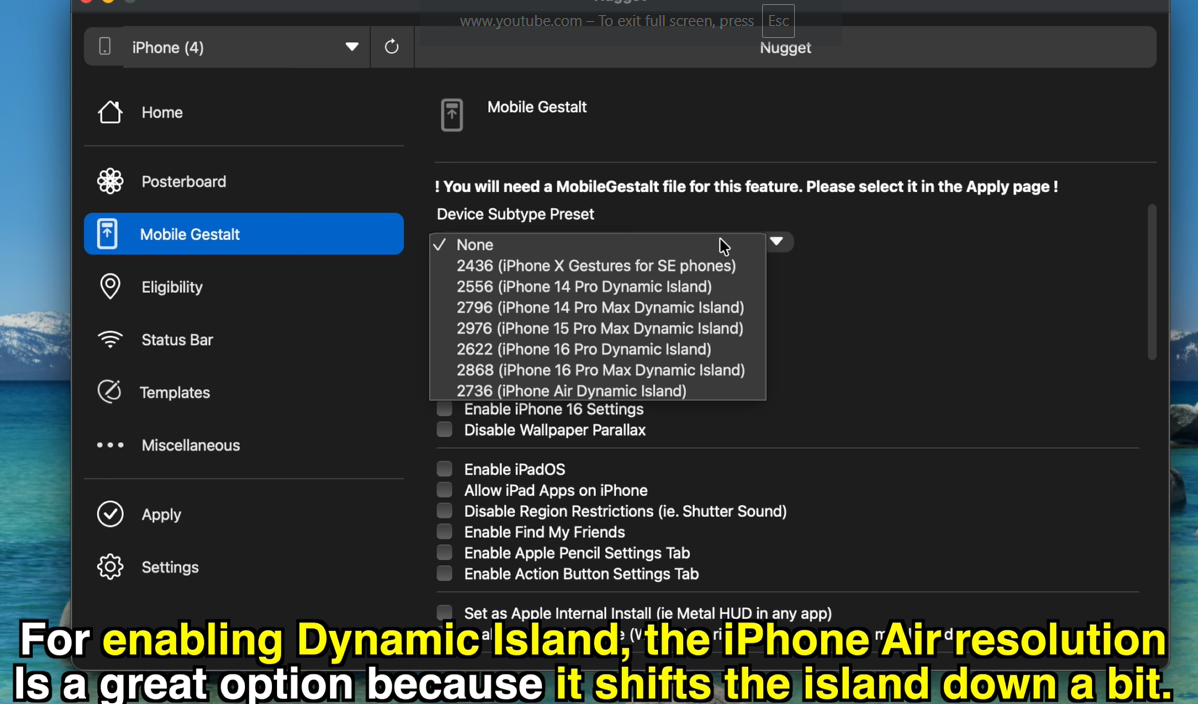
- Locate the dropdown menu under the Device Subtype Preset category.
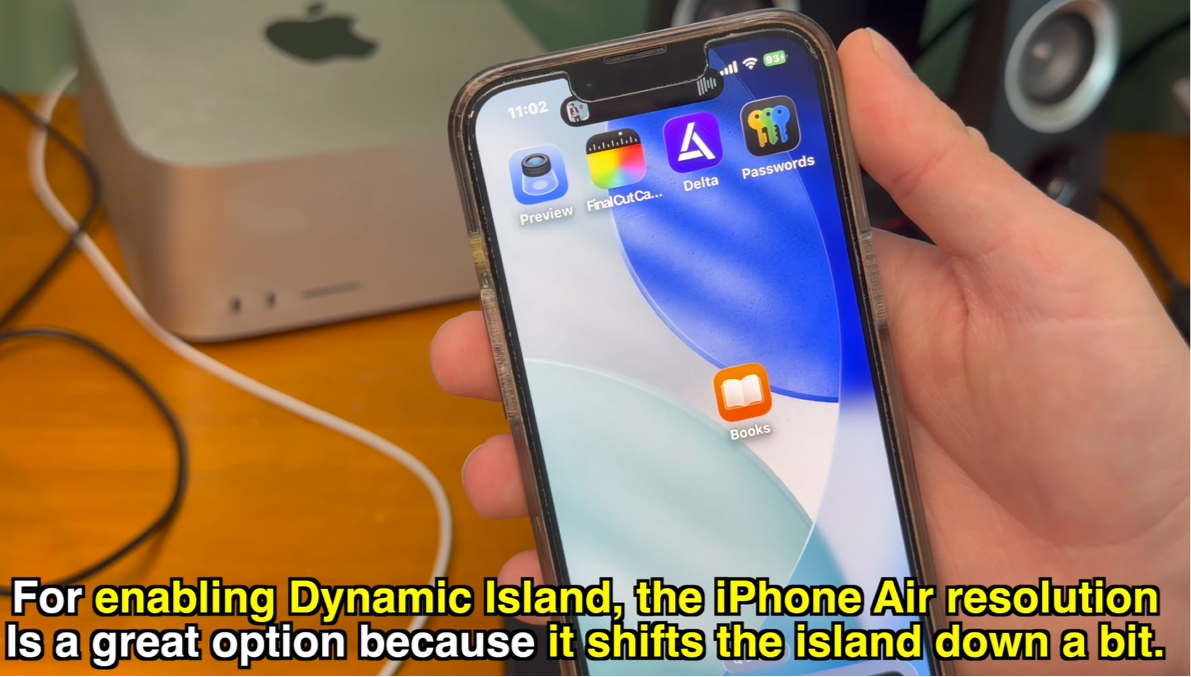
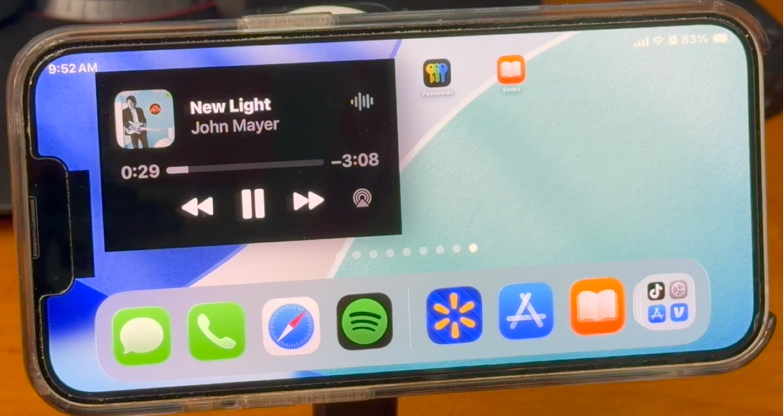
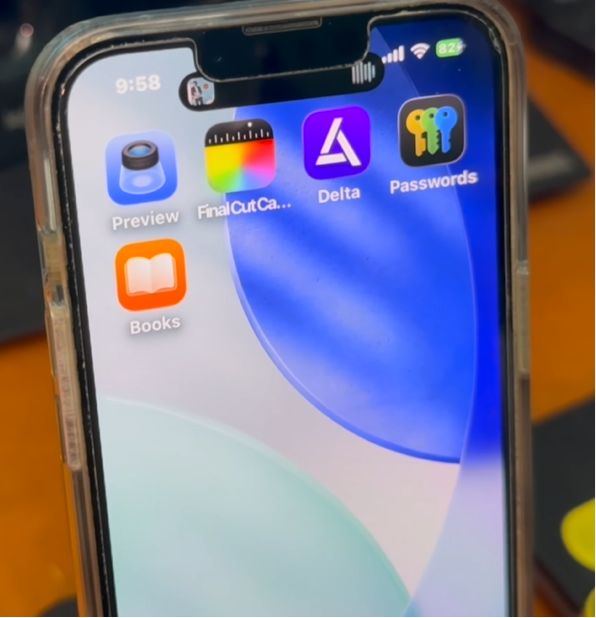
- To enable the Dynamic Island on a notched phone, select iPhone Air Dynamic Island from the dropdown list. This specific layout shifts the island down slightly so that it does not overlap with your camera notch, resulting in a cleaner look.
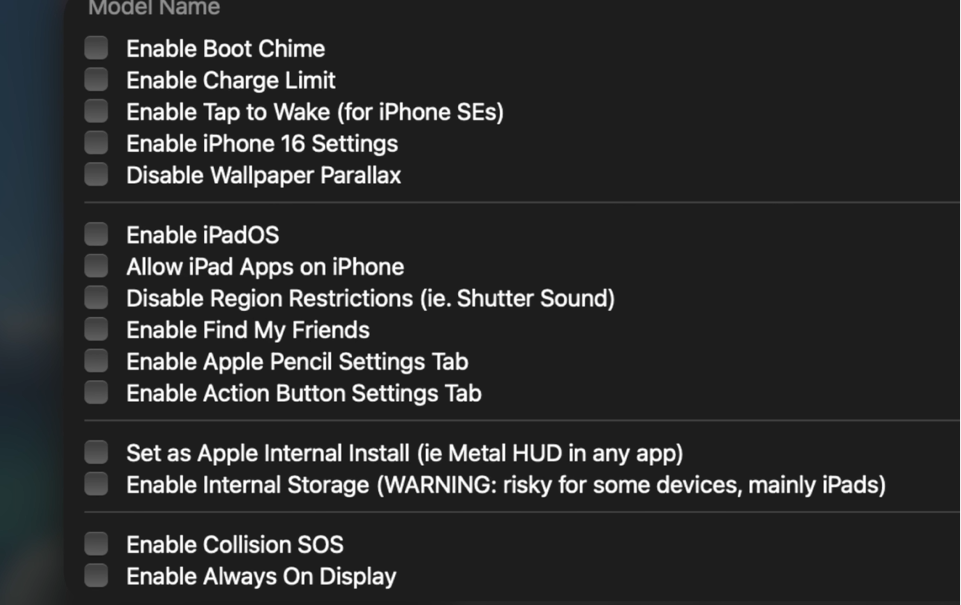
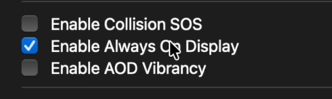
- Scroll down the panel and check the box next to Enable Always On Display.
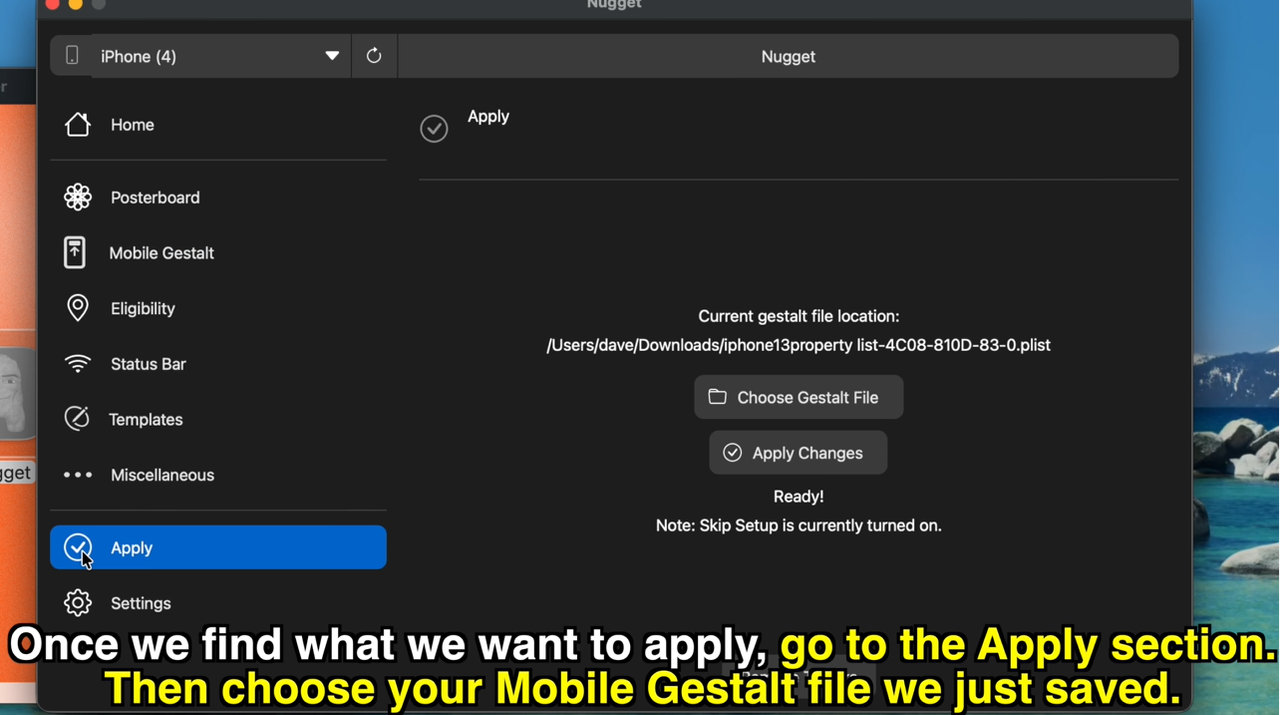
- Navigate to the Apply tab on the left sidebar menu.
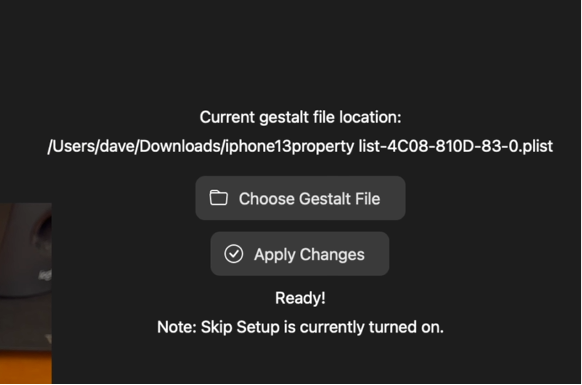
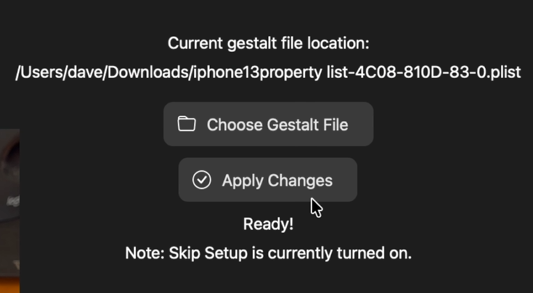
- Click Choose Gestalt File and load your custom MobileGestalt file.
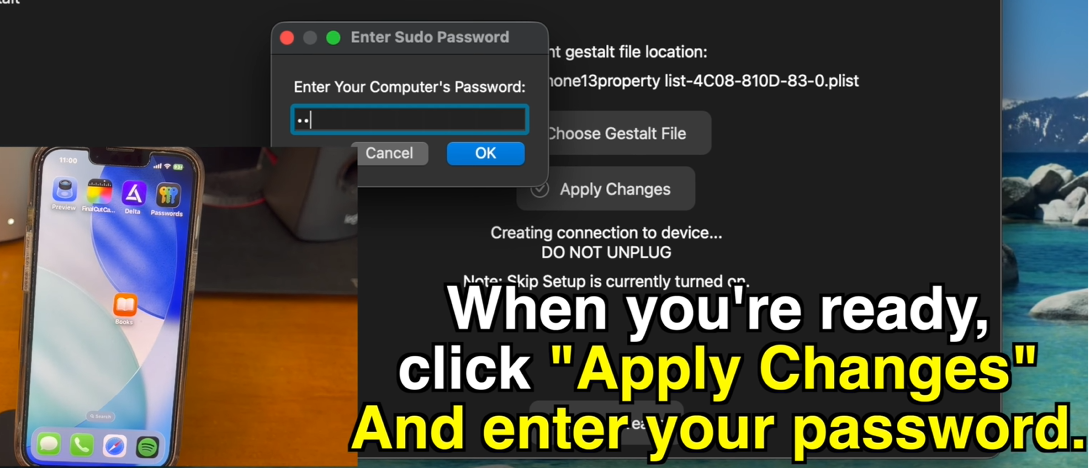
- Check Apply Changes and click the button to proceed.
- Enter your computer's administrator password on the secure prompt and click OK.
Screenshot Timestamp to Capture:
Show the desktop Nugget GUI window with the Device Subtype Preset dropdown list open.
Step 4: Running the Overwrite Exploit
To finalize the file injection, you must trigger the system restore pathway on your handset.
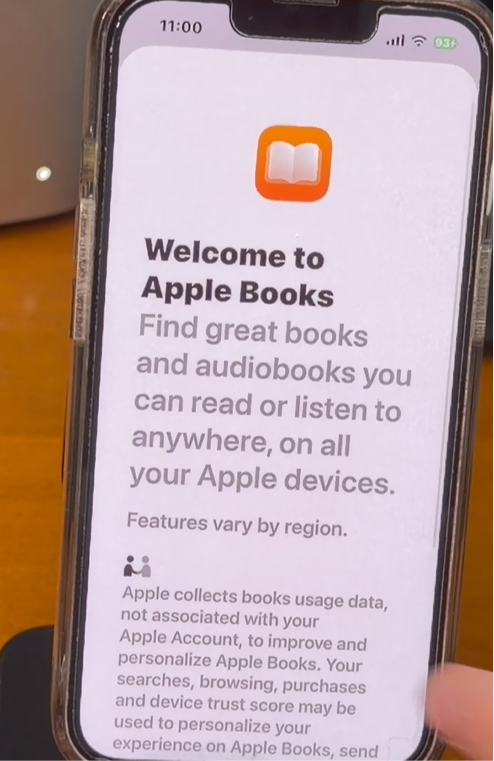
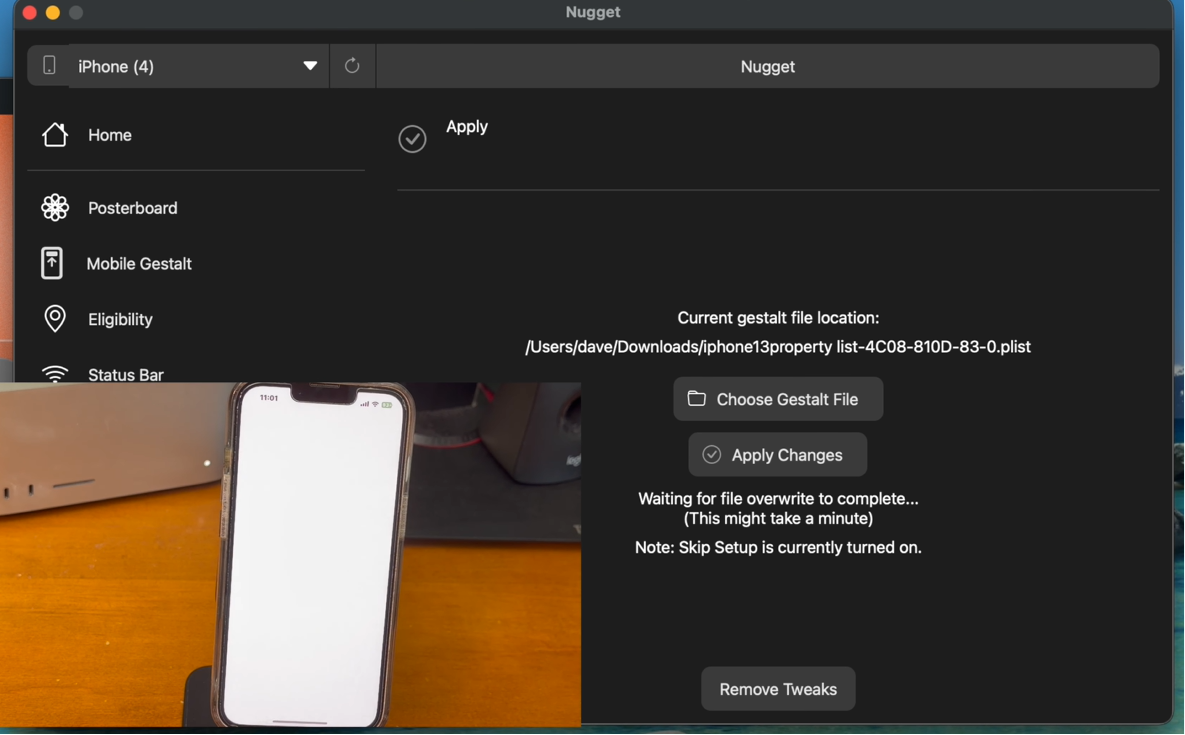
- Wait for Nugget to automatically open the Apple Books app on your iPhone screen.
- Open the catalog and select any title. Tap on the Sample button (or choose a free book if available) to run the exploit.
- Your phone will immediately exit to the home screen and trigger a device reboot.
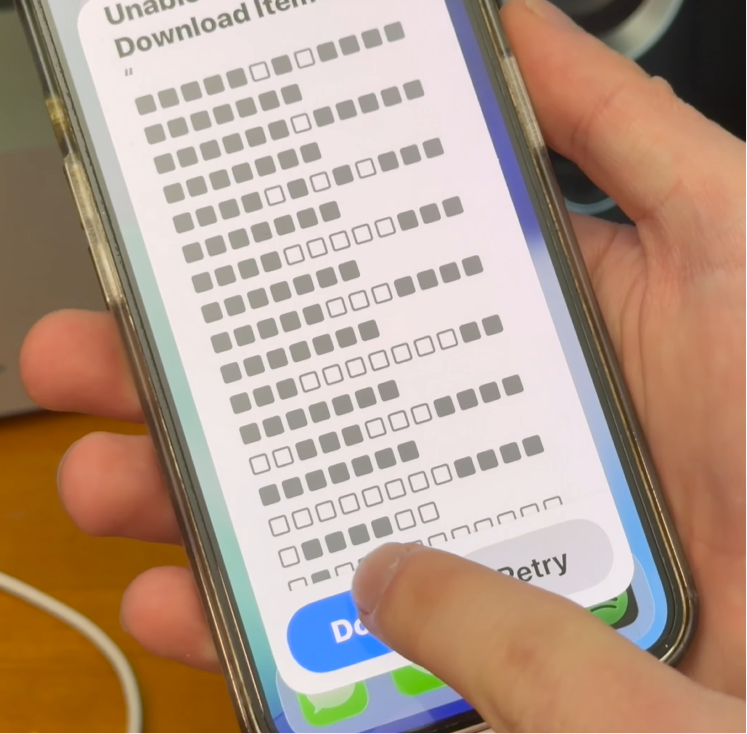
- Once the phone restarts, unlock your screen and tap Done on the "Unable to Download Items" popup, which confirms the exploit worked.
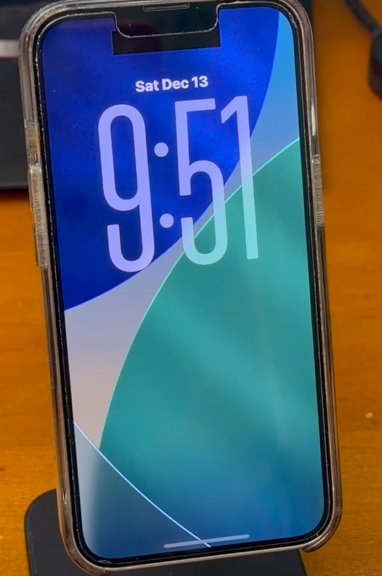
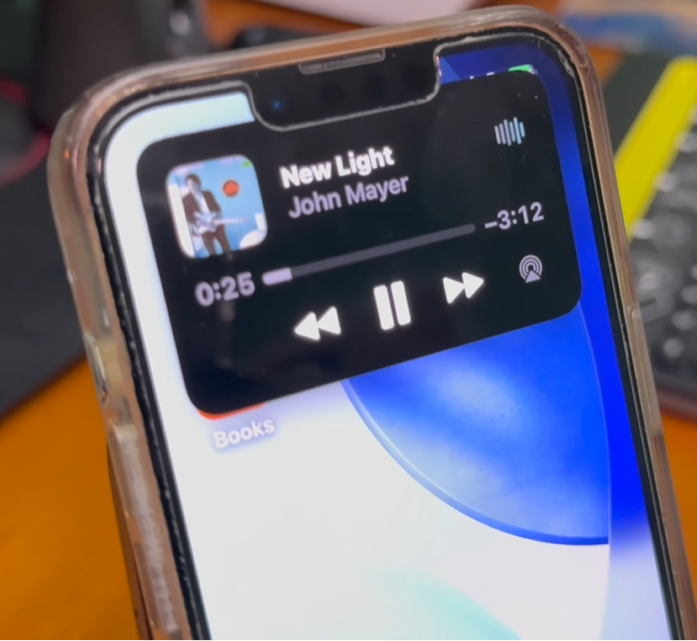
- You can now use your newly activated Dynamic Island and your customized Always-On Display, complete with lock screen music widgets.


Screenshot Timestamp to Capture:
Show the desktop Nugget progress status next to the iPhone screen triggering the Apple Books exploit.
Screenshot Timestamp to Capture:
Show the notched iPhone lock screen with the newly activated Dynamic Island overlay.
Step 5: Removing Your Custom System Tweaks
If you experience performance lag or want to remove the changes, you can safely revert your device back to standard iOS.
- Keep your phone connected to your computer and launch the Nugget application.
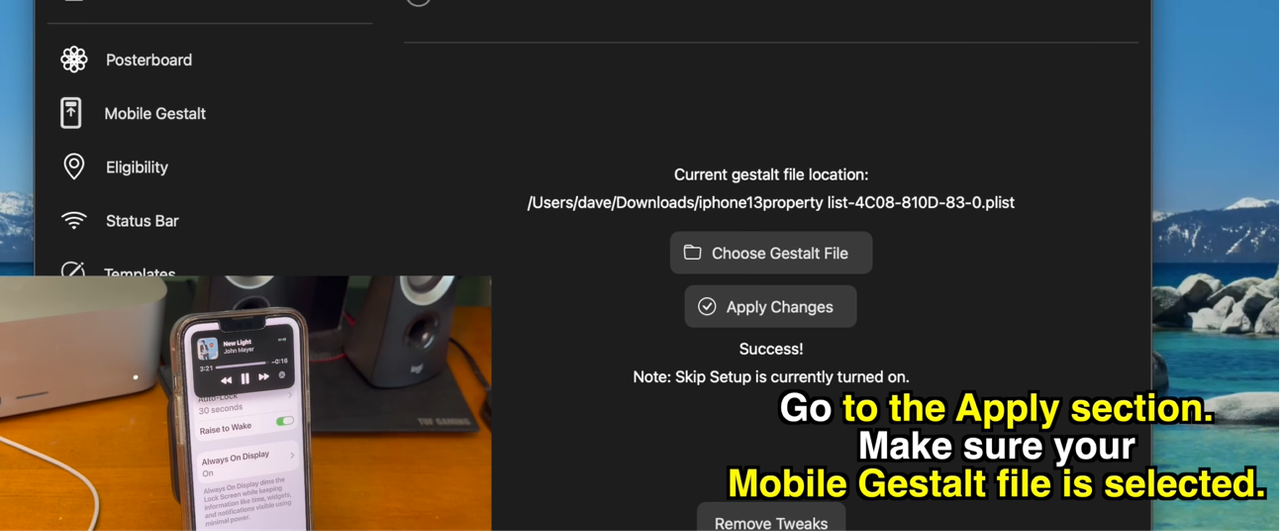
- Navigate to the Apply section and ensure your device-specific configuration file is selected.
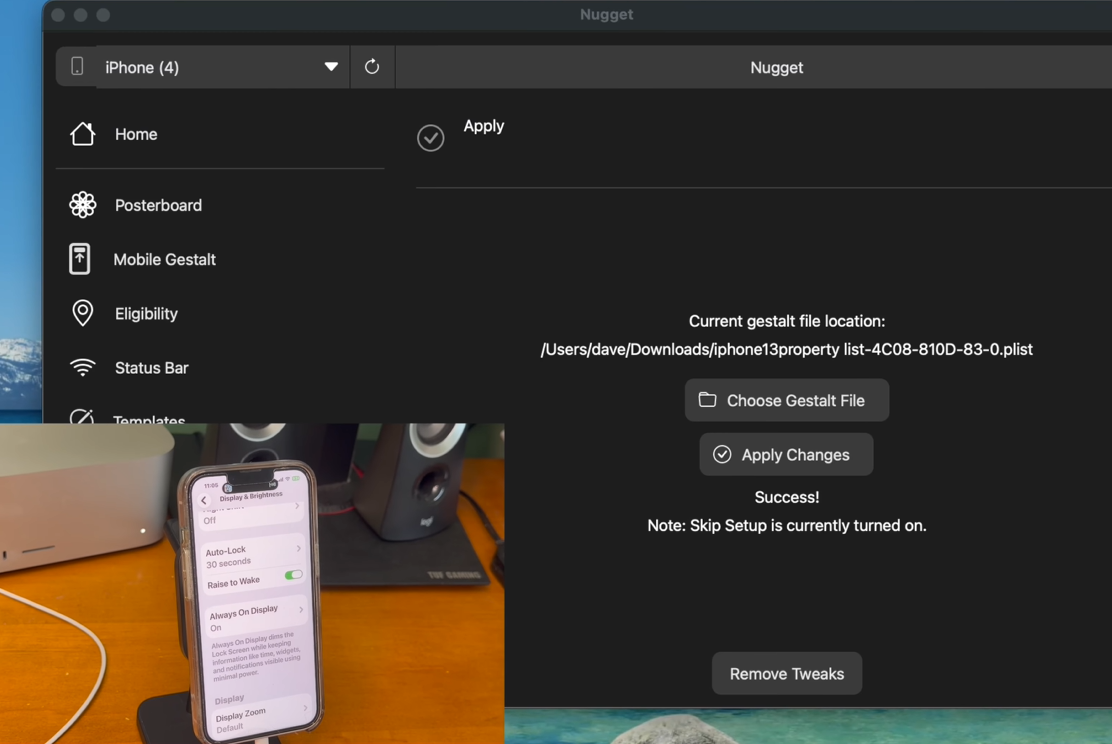
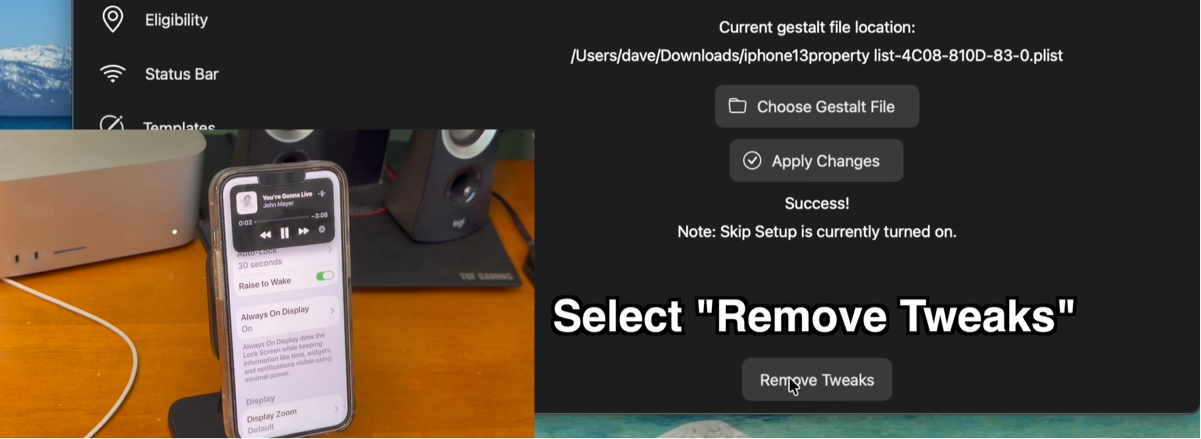
- Click the button labeled Remove Tweaks in the lower right-hand corner of the window.
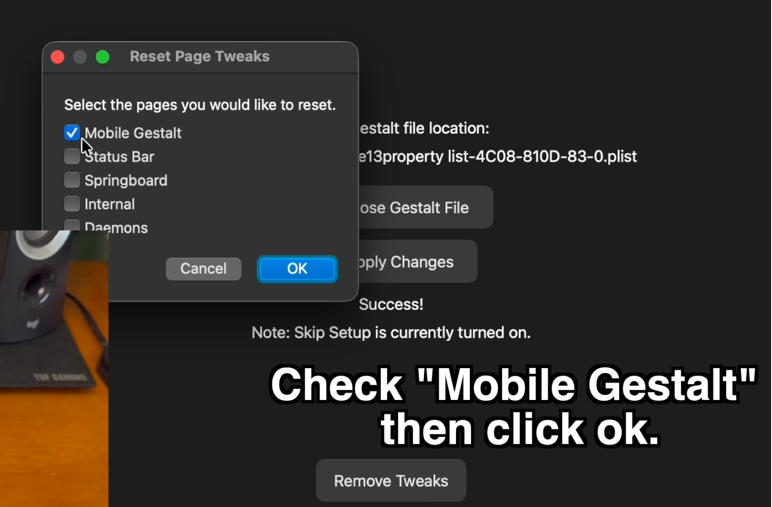
- On the pop-up menu, check the box next to Mobile Gestalt and click OK.
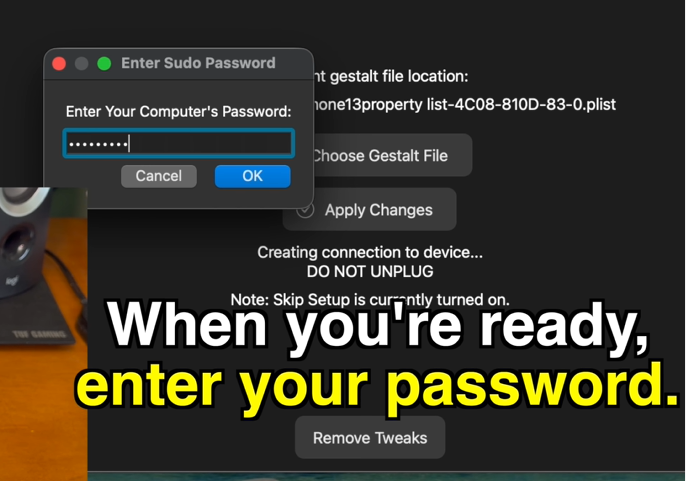
- Enter your computer's password to authorize the change.
- The exploit will run in reverse and your phone will restart. Once your device reboots, all hidden features will be removed.
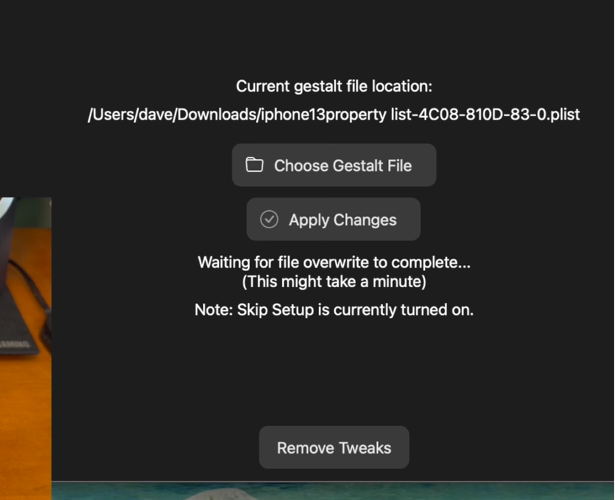
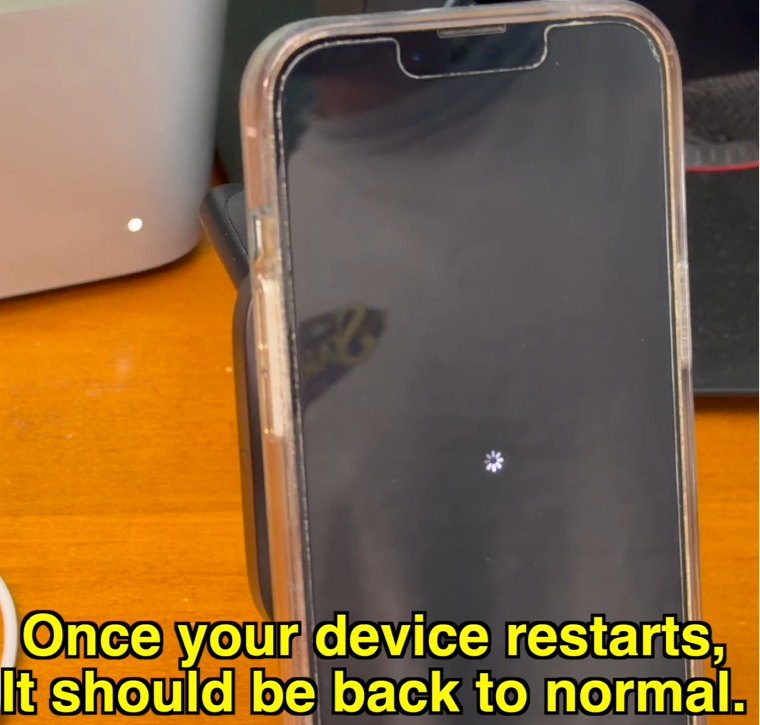
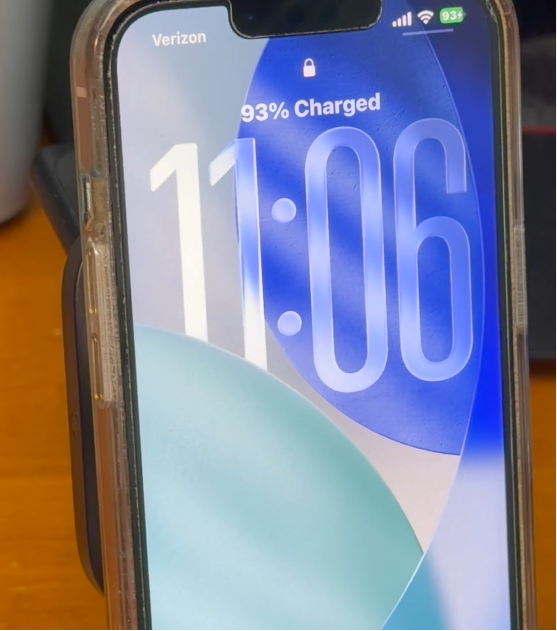
Screenshot Timestamp to Capture:
Show the Reset Page Tweaks checklist menu with the Mobile Gestalt option ticked.
Frequently Asked Questions (FAQ)
No. This customization method uses Nugget and the MobileGestalt file exploit. It does not write files to your device's core system directories, which keeps your phone running on official stock iOS firmware.
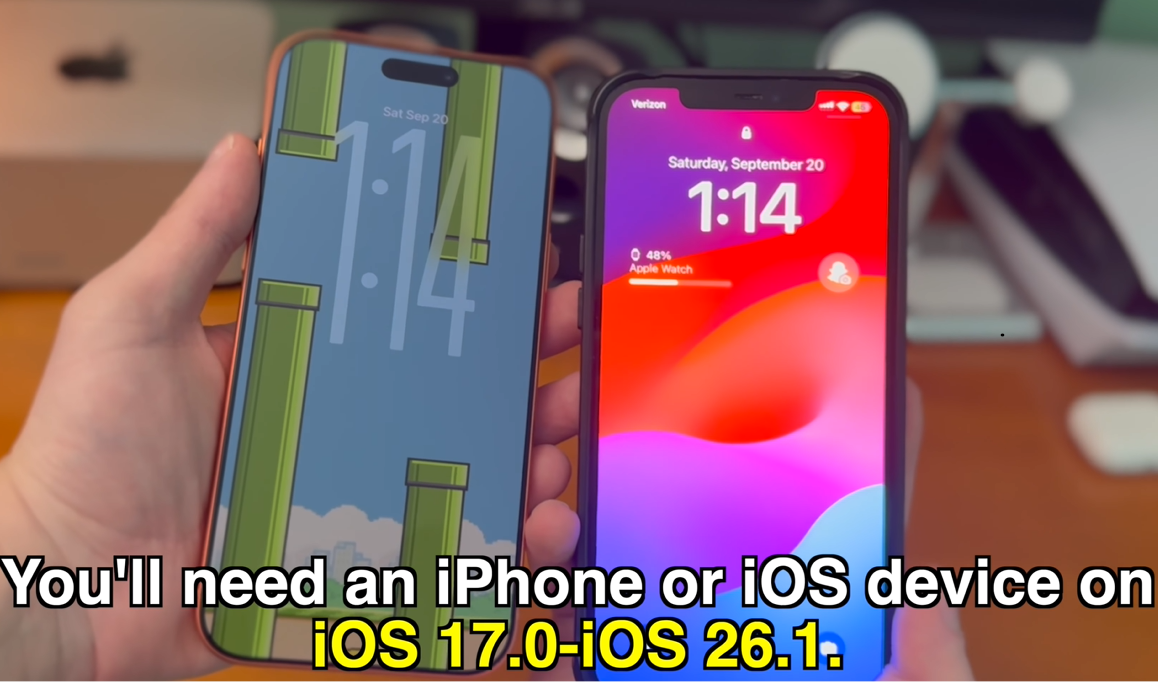

This exploit works on any device running iOS 17.0 through iOS 26.1. It is fully patched on iOS 26.2 and later, meaning the program will not write changes on newer iOS builds.
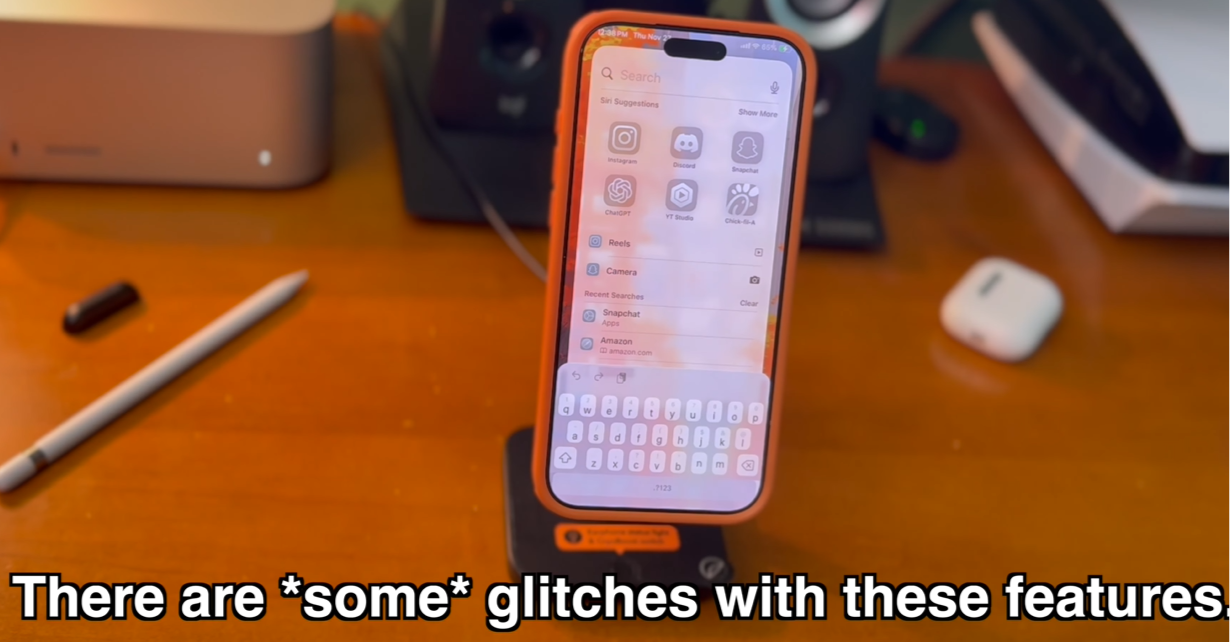
If you enable features like iPadOS mode on a notched phone, Nugget forces your system resolution to scale to tablet proportions. Because the screen width of an iPhone is much narrower than an iPad, the keyboard margins are pushed off-screen, hiding the spacebar.
Yes. Editing MobileGestalt is a highly experimental process. If your file gets corrupted during loading, your iPhone can get stuck in a bootloop on the Apple logo. Always keep a complete backup of your device so you can restore your files if an error occurs.
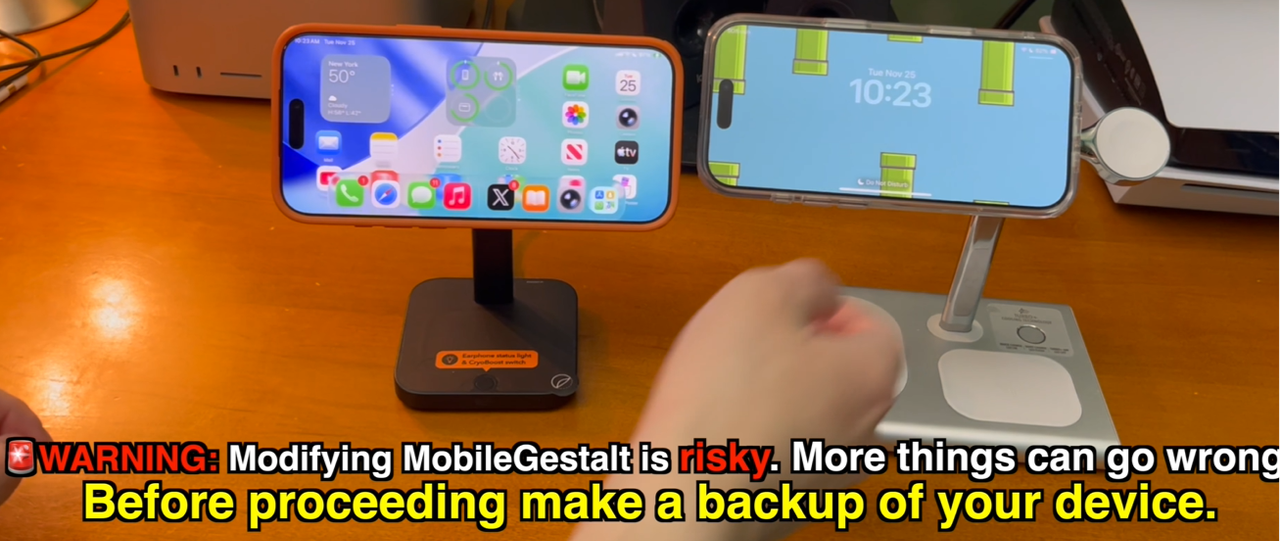
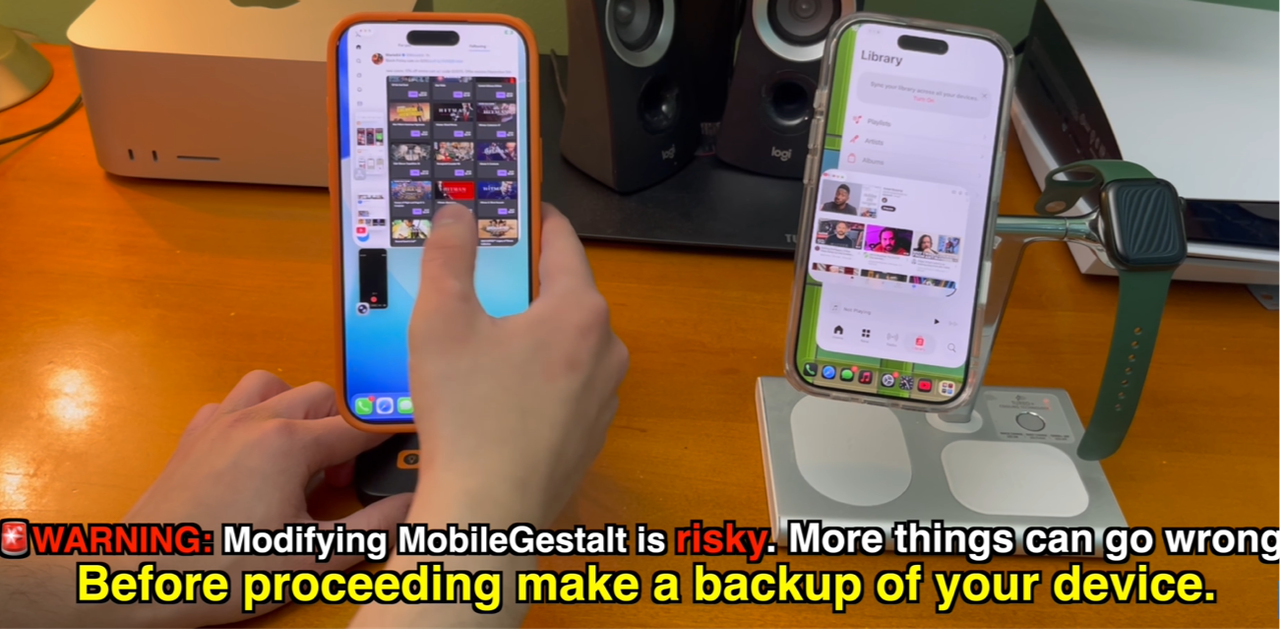
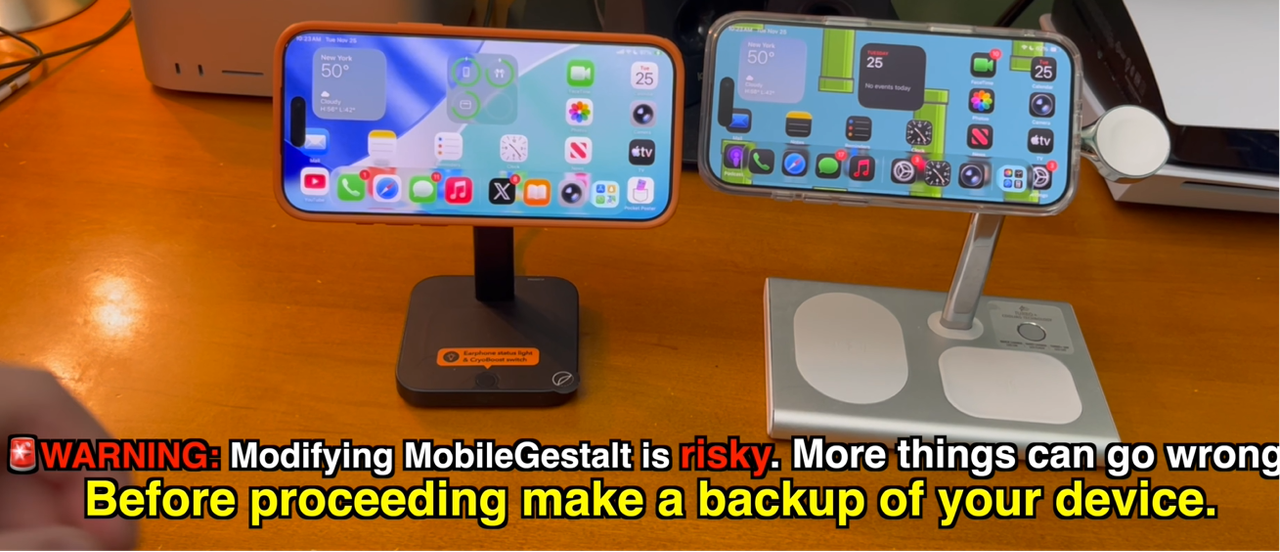
On notched phones, the default Dynamic Island layout aligns too high on the screen, causing your camera notch to cover the interface. Setting your device preset to the iPhone Air Dynamic Island option in Nugget shifts the layout down so it clears your notch and displays properly.
Conclusion
Using Nugget to configure your MobileGestalt file is a simple, non-jailbreak method to run advanced interface options like Always-On Display and the Dynamic Island on unsupported notched iPhones. While issues like misaligned keyboard layouts can occur depending on which changes you enable, the process remains easy to revert using the desktop client. As long as your phone is running a compatible software version, this utility offers a straightforward path to test restricted iOS features without permanently altering your device's firmware.