Nugget iOS – Troubleshooting Guide
Nugget iOS is a tool that helps you customize your iPhone in so many ways. You can set live wallpapers and have different settings to totally personalize your iPhone. But sometimes, for new users or beginners it can be a little difficult to manage it on your phone or sometimes it can be a little overwhelming.
Nugget works in different ways and thus, there might be problems in using it for the first time. So we’ve added a few common issues with solutions to help you.
Issue 1: Nugget iOS Not Opening
If you face issues like Nugget iOS not opening or not launching there are a few settings that you need to do and if the issue still persists, try these solutions:
Solution: Uninstall & Reinstall
The most common solution to fix a bug is to uninstall the app and then reinstall it. Most of the issues are fixed by this one method only. But if you still face problems then try this:
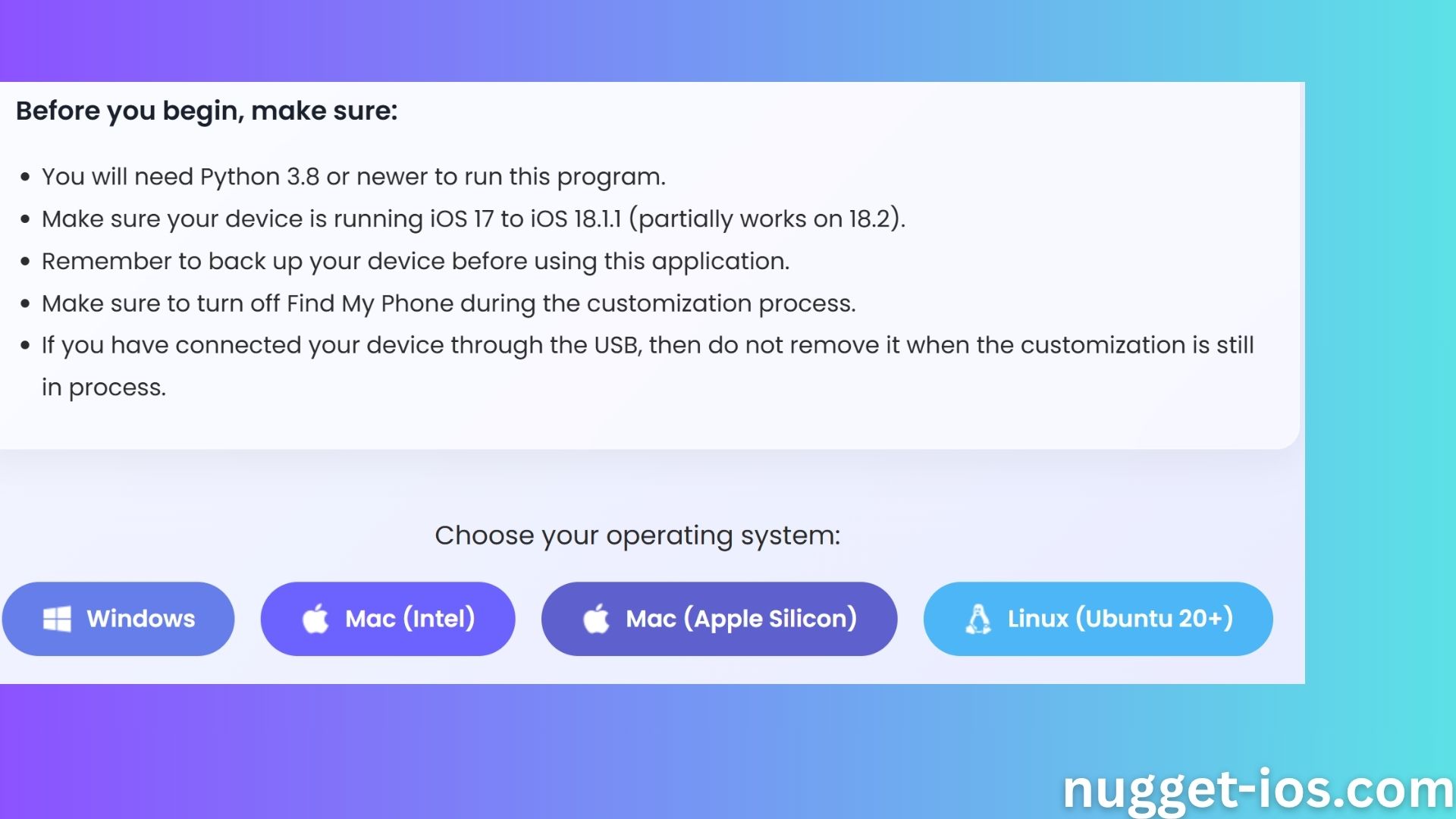
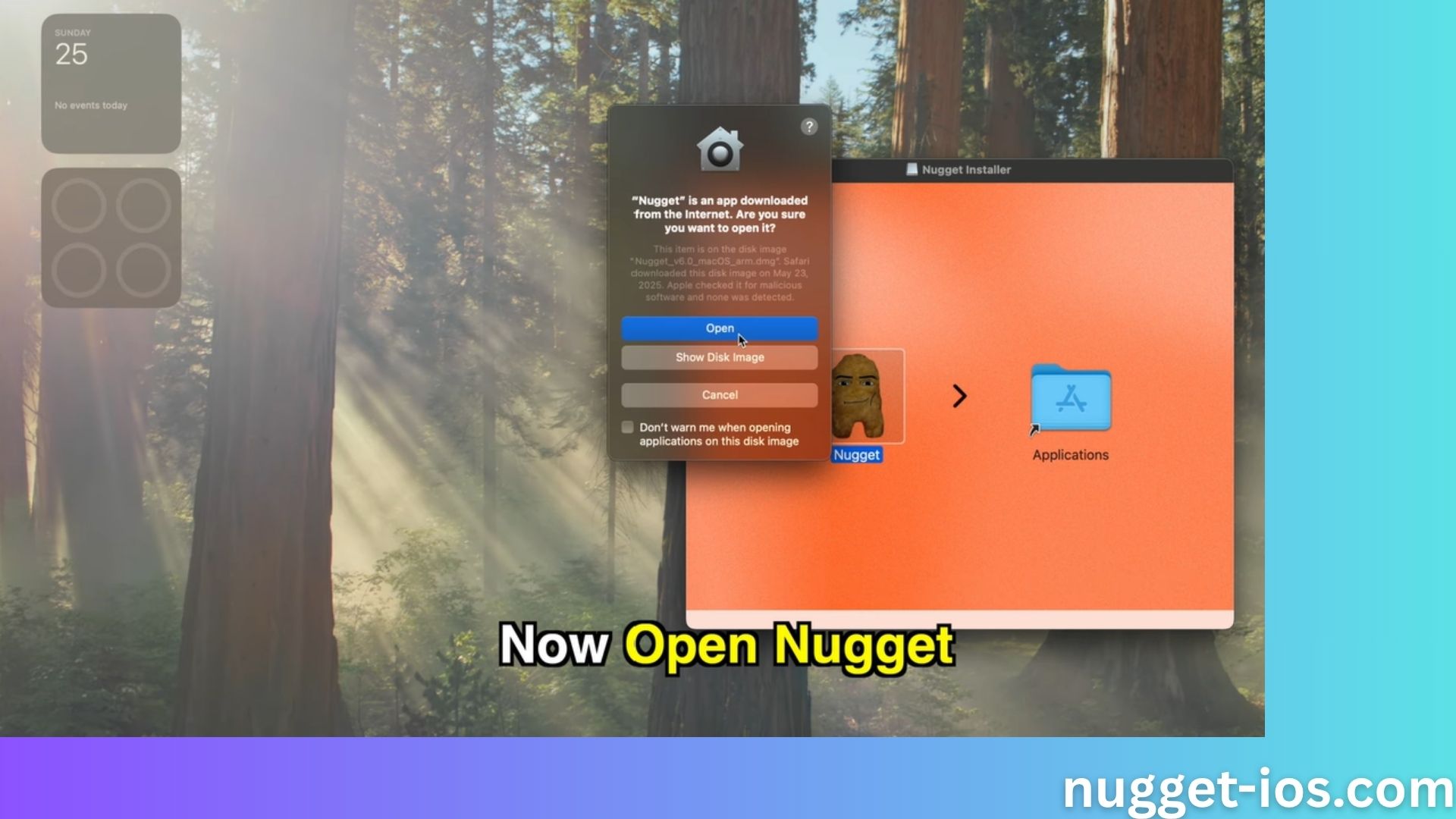
- Nugget is a third party application and takes permission to install. So you need to connect the iOS device to a PC and make sure the device is “trusted.”
- For Mac desktop client users go to System Settings > Privacy & Security > Open Anyway if it’s blocked from opening by the operating system.
- You can also try clearing the cache in the App Settings or System Settings and restart the phone.
Issue 2: Nugget iOS Wallpaper Not Working
After updating you see the wallpapers are still there but you can’t use them. Here’s what to do:
Solution 1: Re-add Them
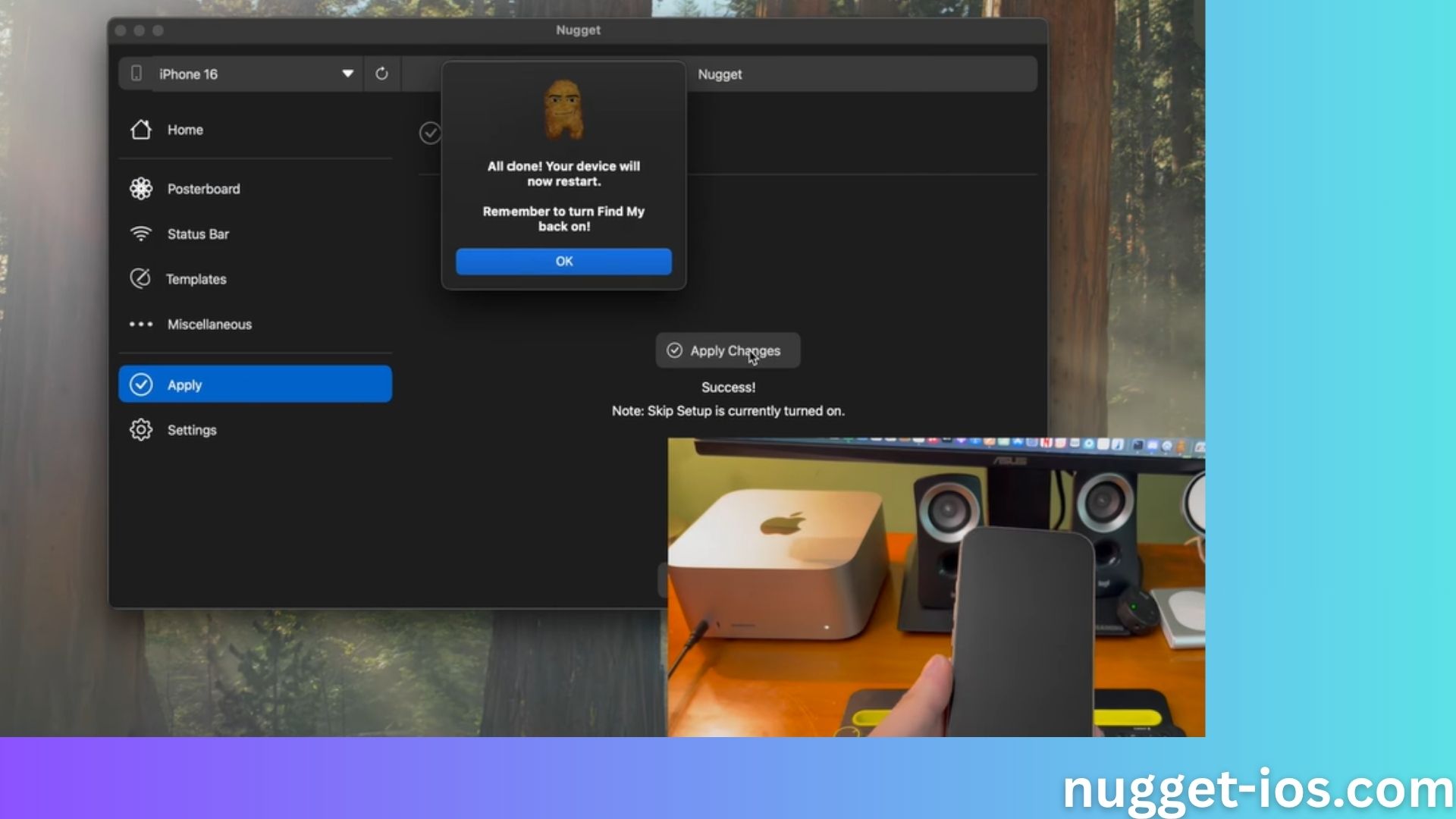
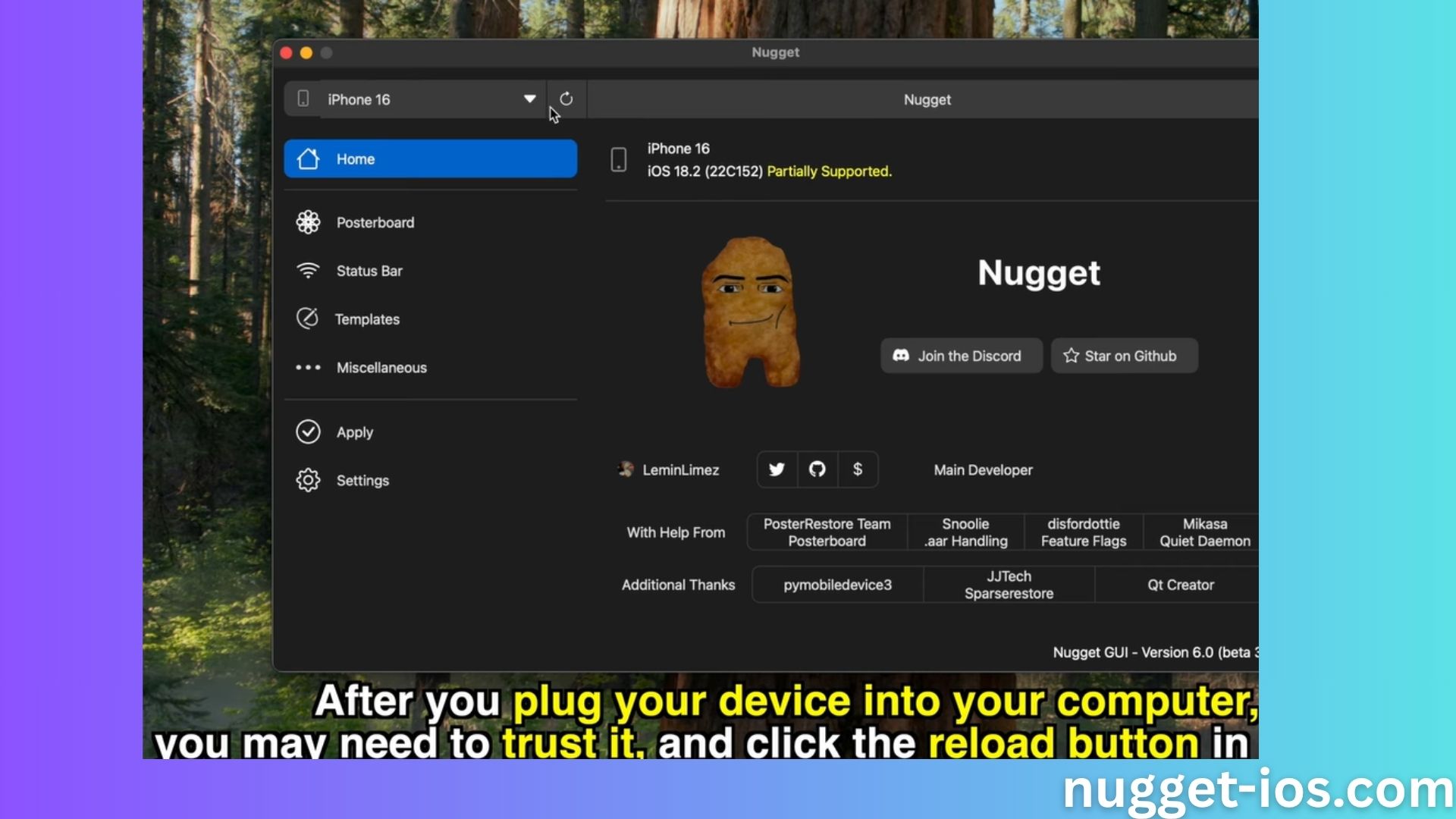
- Connect your phone to a PC and run the latest version of the Nugget desktop application.
- Go to the Poster Board section.
- If your .tendies wallpaper files are no longer visible, go to the Import Files section the custom wallpaper of your choice.
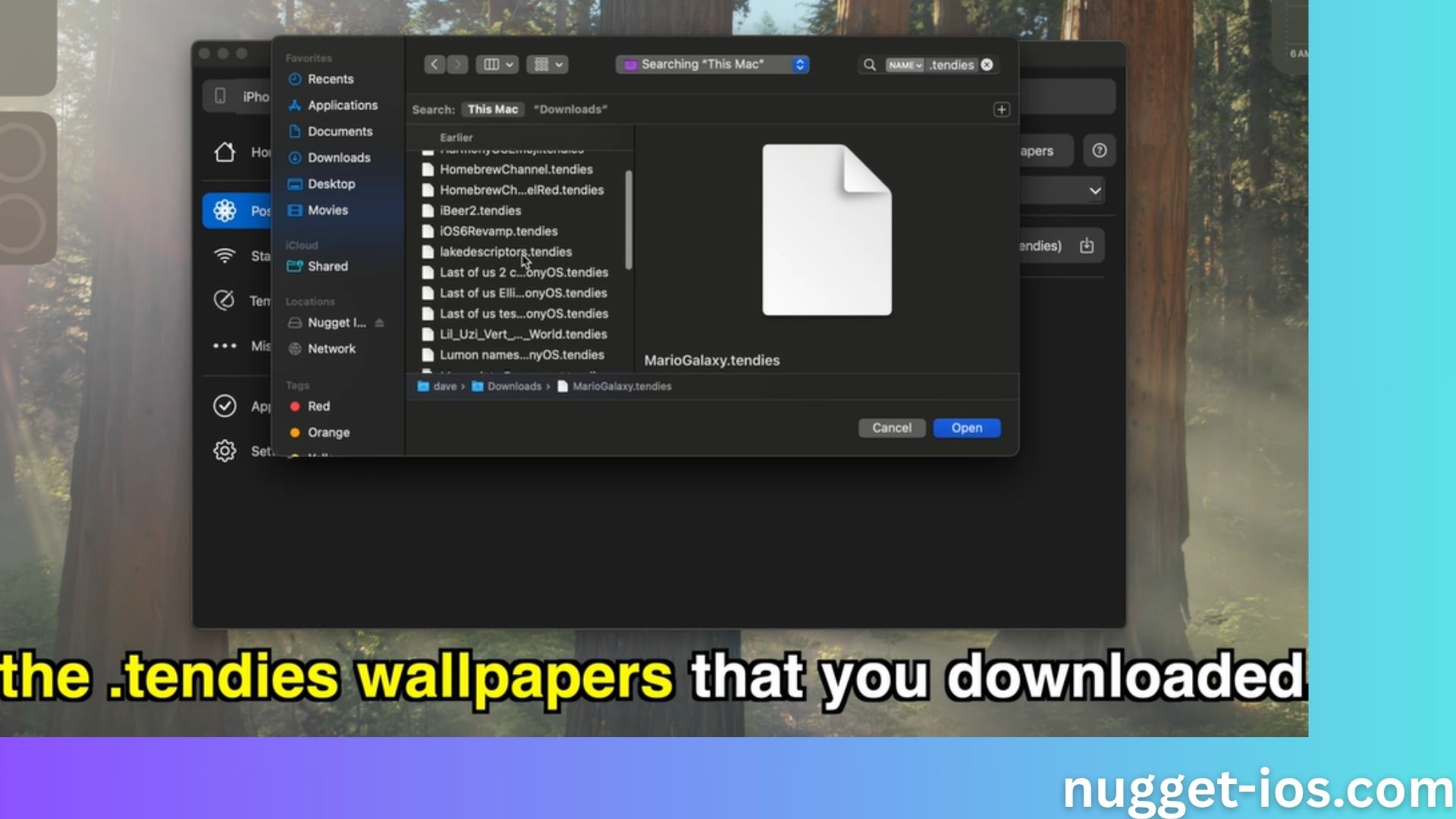
- To reapply the wallpaper, go to the Poster Board section and select the desired wallpaper.
- Click Apply and Apply Changes.
- Your phone will restart automatically.
- After restarting go to the Lock Screen
- Open Wallpaper Gallery and tap the + button to add a new wallpaper.
- Scroll down to the Collections Section and you can see the Poster Board wallpaper.
- Select and set the new wallpaper.
Solution 2: Wallpaper Collection Missing
If the whole Collection section is missing from your wallpaper section it is not your fault but it’s a bug and can be fixed by changing the language. As weird as it may sound but yes changing the language can surely help and here’s how to do that:
- Go to Settings and General and then Language and Region.
- Change the language from English to anything like German or French or anything.
- iPhone will restart with the same language.
- Now go to Settings and change it back to English and wait for it to restart.
- After this go to Wallpapers from Lock Screen and check if the Collection you want is back and reapply it.
Issue 3: Square Dynamic Island on iPhone Below XR
Dynamic Island on your iPhone 7 or 8 shows a rectangular bar instead of a cylindrical shape.
Solution:
There’s only one solution to fix this issue and that is to change your iPhone. Because the Dynamic island border radius matches the border radius of your iPhone, that’s why it’s rectangular in shape instead of a cylindrical shape. On newer models like XR or above, you won’t see this issue because it matches the radius and is shown more rounded.
Issue 4: Nugget iOS Not Detecting Phone
When you plug in the phone and press the reload button, it can’t detect your iPhone on the desktop application.
Solution 1: Install Apple Devices
You need to make sure that you download iTunes or the Apple Devices App from the App Store or the Microsoft Store on your computer and then sign in with your account. This way it’s easy for your PC to detect the device.
Solution 2: Change the Port
You can also try using a different USB cable or try changing the port and using a different port of the PC.
Solution 3: (A Little Risky)
Try installing a third party jailbreaking tool which is WinRa1n Jailbreak. Though the iPhone doesn’t support jailbreaking, its “Fix iPhone” feature can solve the detection issue by forcing the computer to detect it. We don’t support it as it may or may not cause some damage to your phone. Try it at your risk. Or you can try updating Nugget iOS or turning off Find My Phone to see if it works.
Issue 5: Continuous Rebooting
You see your iPhone going into reboot mode and then instead of coming back to your lock screen, it goes blank again. The continuous cycle makes your phone go blank after each reboot attempt.
Solution:
If you unplugged the iPhone before it completed restoring, you might see a problem like this. Make sure you don’t unplug the device at any cost. Once it’s done, the phone will automatically reboot and revive. If you accidentally unplugged then you need to:
- Get a computer and back up all the data, because it will now be deleted. The only way to get your phone back is to erase the data and set up a fresh new system.
- Quick press the volume up and down buttons on your iPhone.
- Press and hold the power button for 10 seconds or more and wait for the screen to go blank.
- Hold the Power button and press and hold the volume down button.
- Hold both the buttons and wait for 5 seconds.
- Now release the power button.
- Continue to hold the volume down button and wait for 10 seconds.
- Once you see the iTunes or Apple Devices application show a message that your phone is found in “Recovery mode”, release the Volume down button.
- Make sure the iPhone screen is blank or do this again.
- Select Restore on your computer in iTunes or Apple Devices and follow the instructions.
- Now the computer will wipe and install a fresh iOS system and revive your iPhone.
Issue 6: Can’t Find the Change Date Text on iPad
When the iPad is connected, you can’t find the button to change the date text in Nugget iOS.
Solution:
You need to update Nugget iOS and move to v6.1. The developer has added a fix in this latest version and by downloading it, you can see the problem solved.
Video Overview
Watch this comprehensive video guide to learn how to use Nugget iOS on macOS