How to Install iPadOS Features on iPhone Using Nugget
This guide shows you how to install iPadOS features on an iPhone using a computer program called Nugget. This process allows you to customize your iPhone with features like a landscape home screen, the iPad application dock, Stage Manager window controls, and side-by-side multitasking.
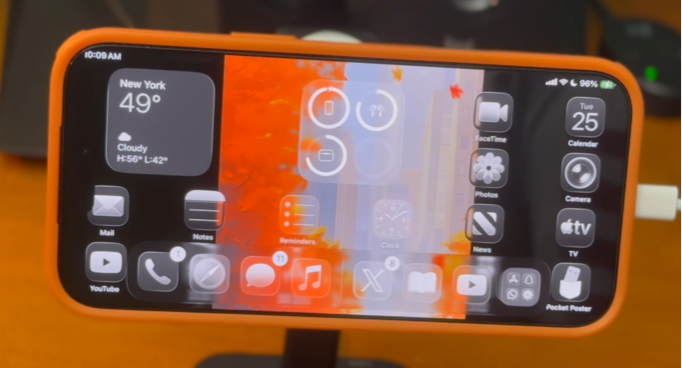
| iPadOS Feature | Primary Function | Layout Configuration |
|---|---|---|
| Landscape Home Screen | Allows home screen to rotate horizontally on iPhone | Automatic Rotation |
| iPad Application Dock | Adds tablet-style persistent app dock at bottom | System-wide UI |
| Stage Manager | Enables draggable window controls and app grouping | Multitasking Gestures |
| Side-by-Side Multitasking | Allows split screen apps to run concurrently | App Stacking |
Compatibility and Requirements
Before attempting to enable iPadOS features on your iPhone, ensure your hardware and software meet the following requirements.
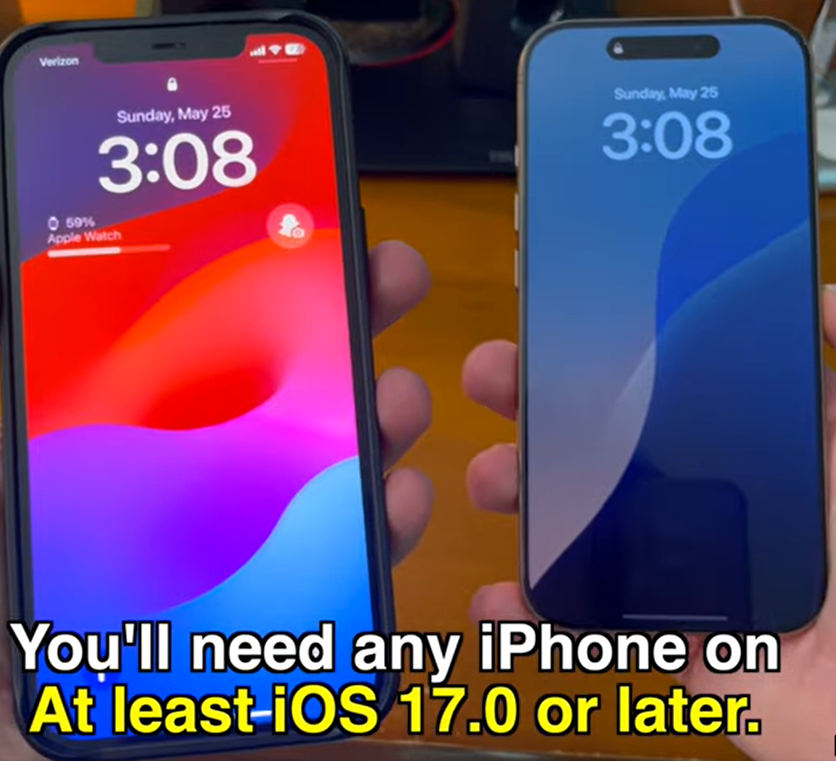
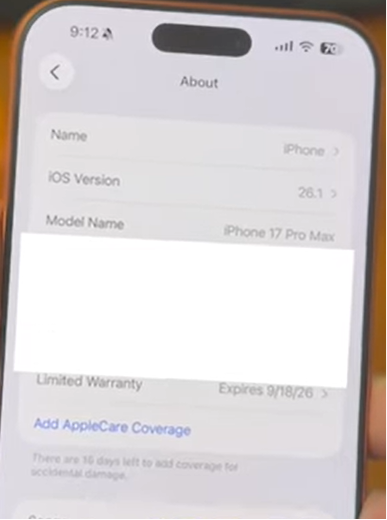
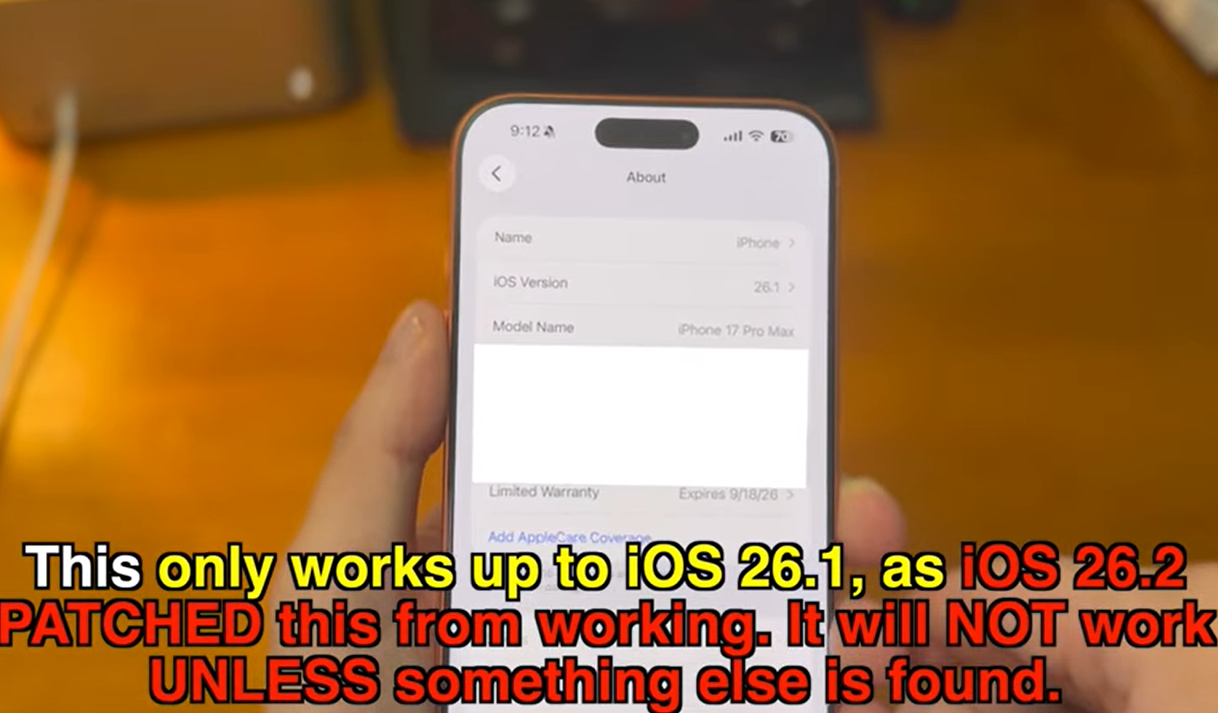
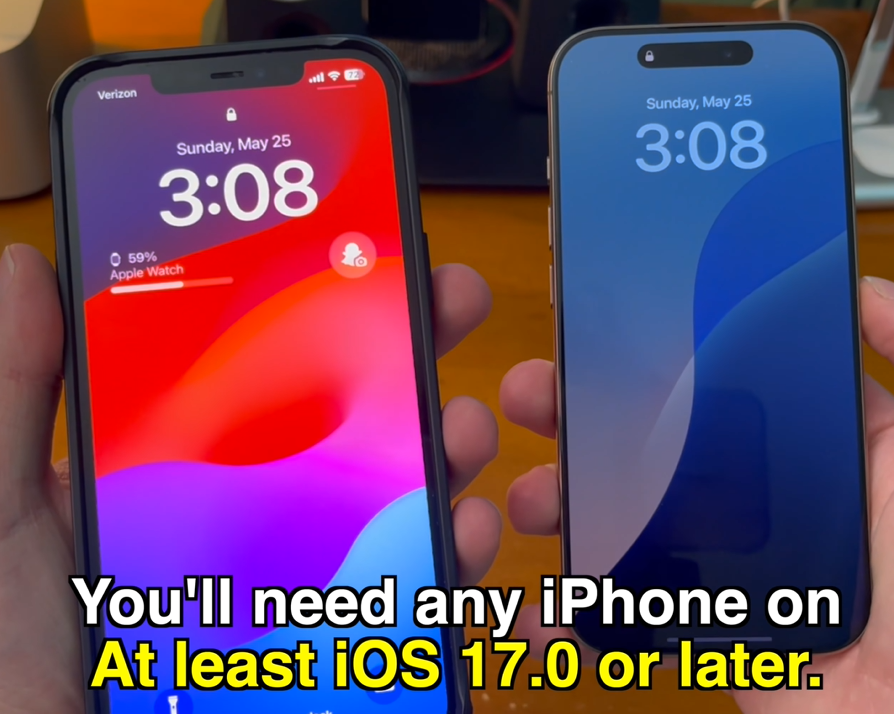
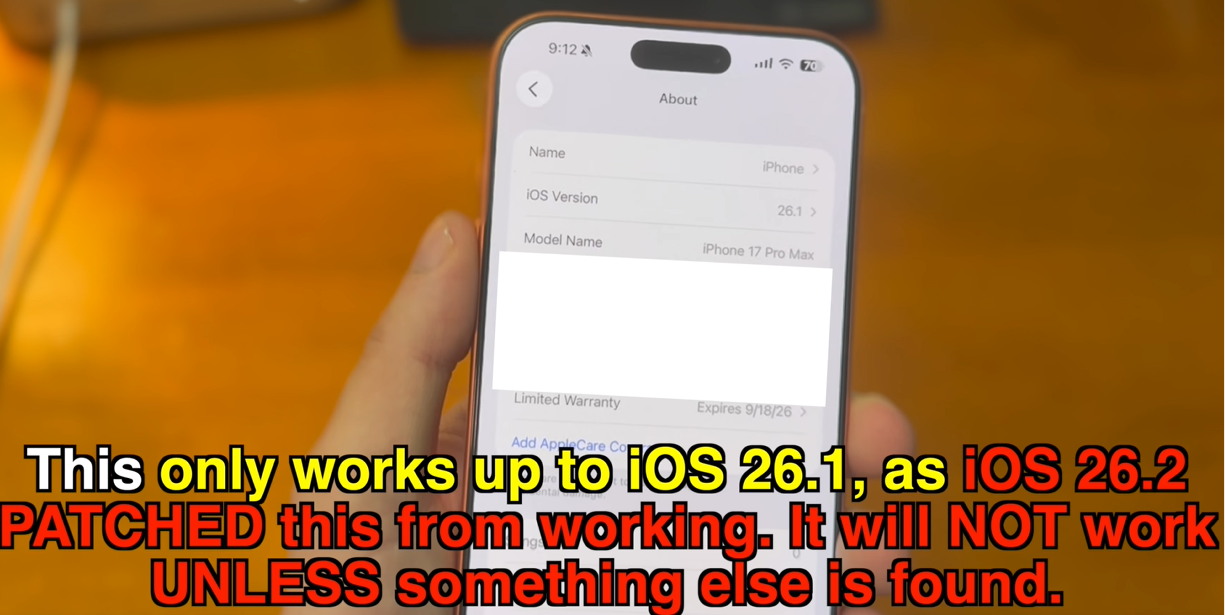
- iOS Compatibility: You need an iPhone running iOS 17.0 or later. This setup works up to iOS 26.1. The exploit was patched in iOS 26.2 and will not work on that version or later.
- Computer Requirements: You need a computer running macOS, Windows, or Linux to host the Nugget tool.
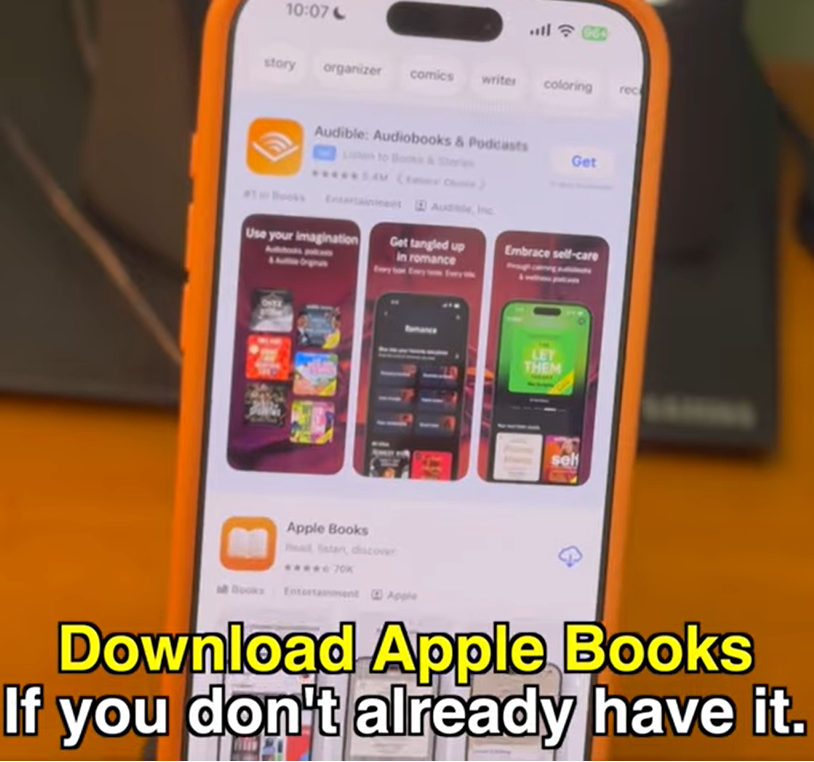
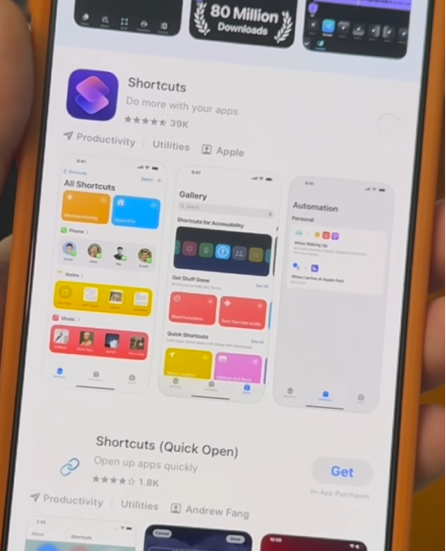
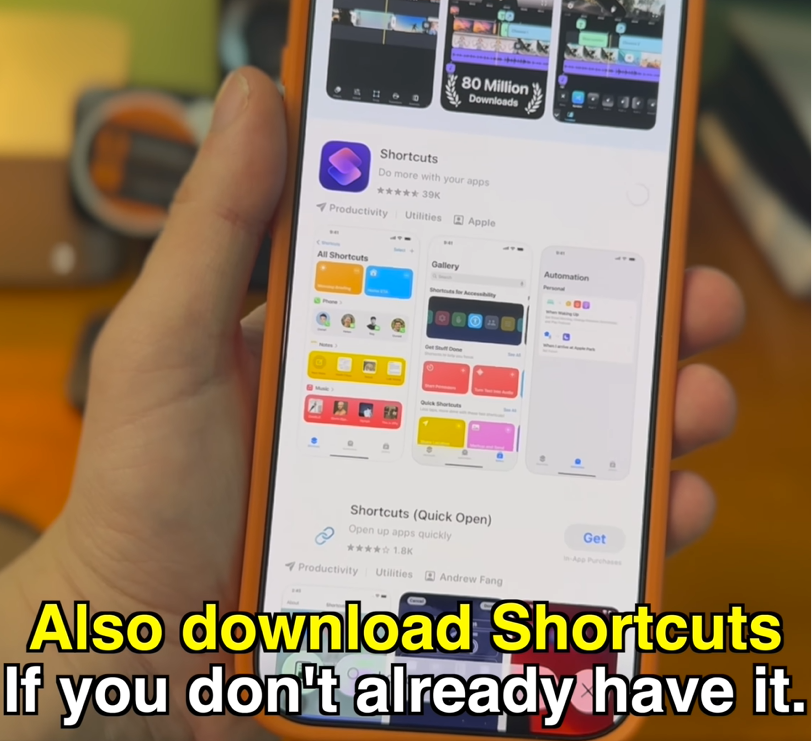
- Default Apple Apps: You must have the official Apple Books and Shortcuts applications installed on your iPhone.
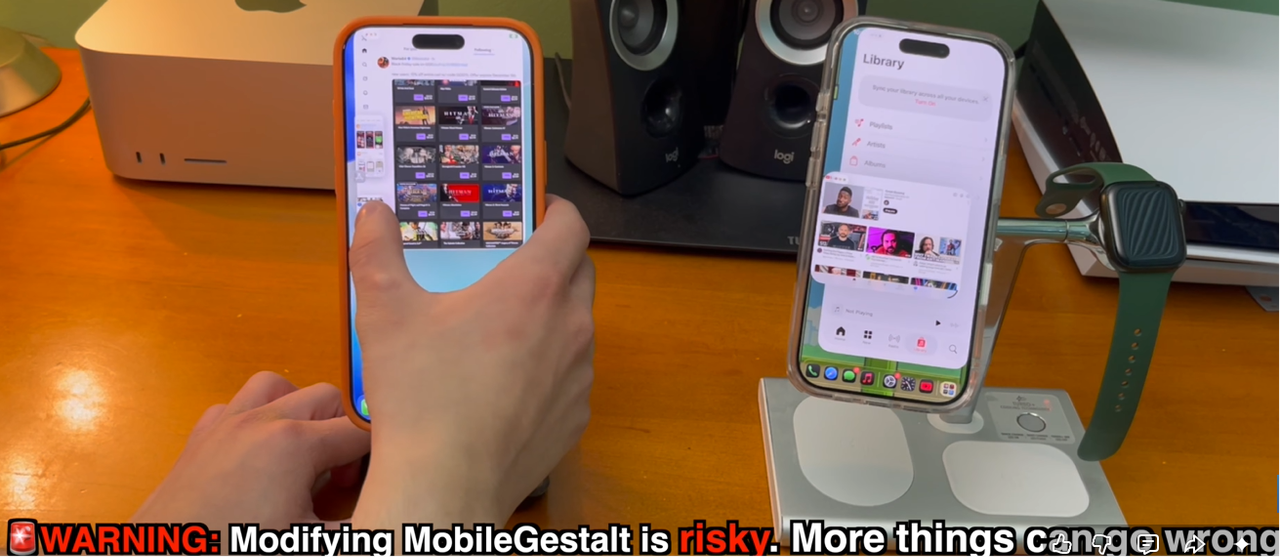
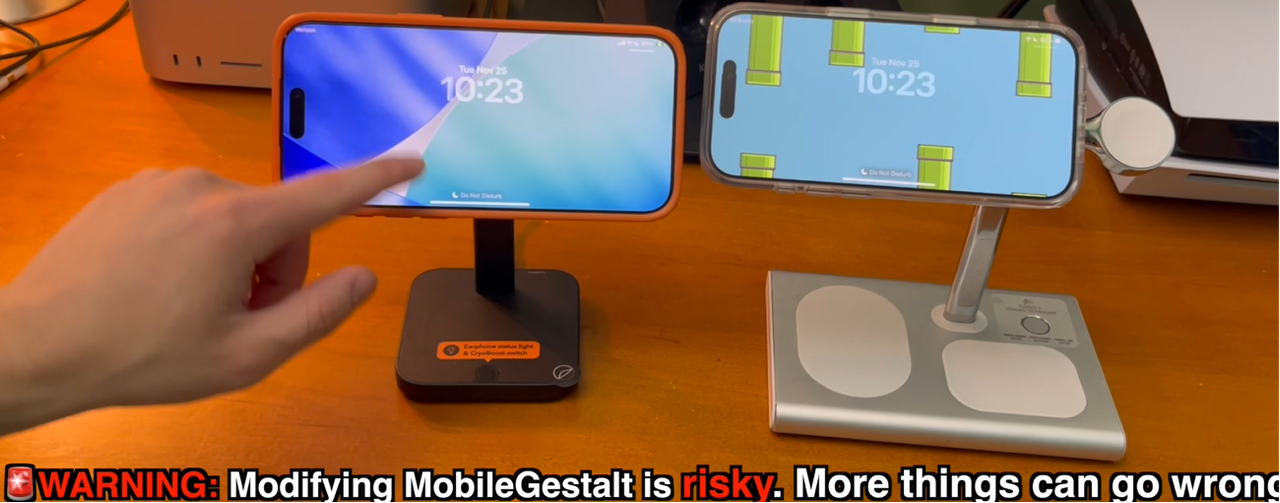
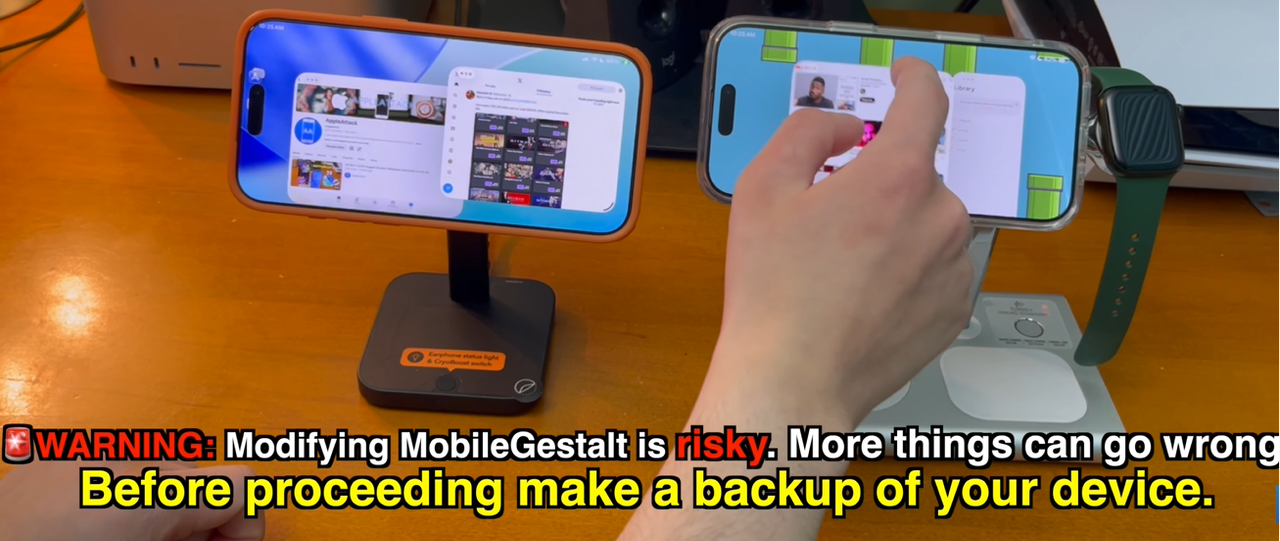
- Safety Warning: Modifying system files like MobileGestalt is risky. Errors can occur, such as bootloops and other system issues. You must create a complete backup of your device before making any changes. Stage Manager has also caused some system issues, so keep that in mind.
Phase 1: Environment Setup and File Extraction
To carry out this process, you must set up the Nugget utility on your computer, temporarily disable tracking on your iPhone, and extract your device-specific configuration file.
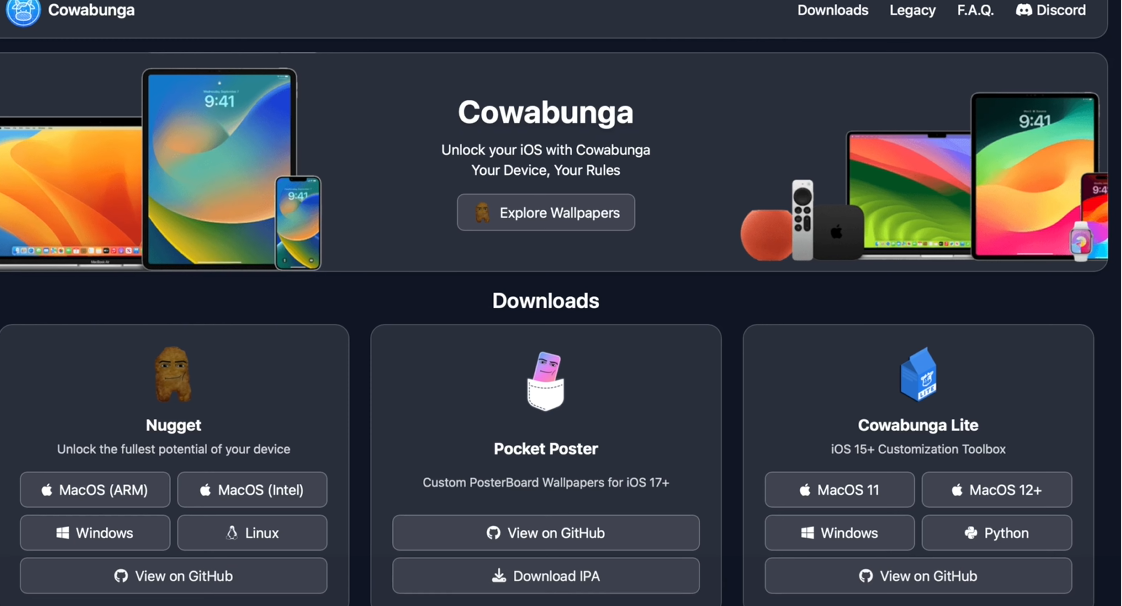
- Open a web browser on your computer and go to the official Cowabunga downloads page. Download Nugget. For macOS, choose "macOS (ARM)" if you have an Apple Silicon Mac made after 2020, or "macOS (Intel)" for older Mac models. Open the
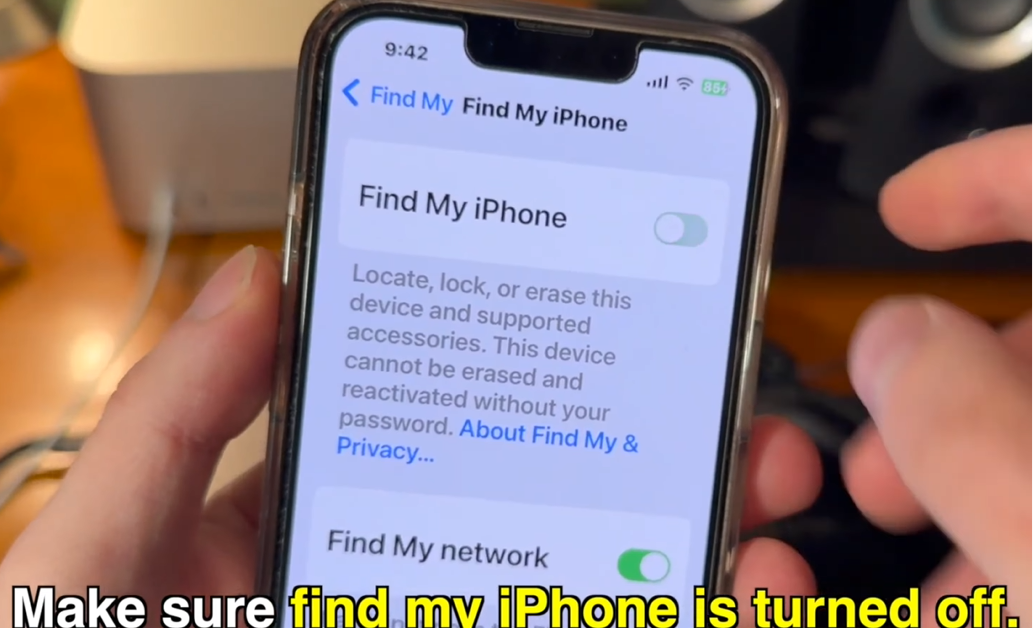
.dmgfile and drag the Nugget icon into your Applications folder. - On your iPhone, open the Settings app, tap your name at the top to access your Apple ID page, and select Find My. Tap Find My iPhone and switch the toggle to the off position. Enter your Apple ID password to confirm. Disabling this function allows the backup restore exploit to overwrite system settings.
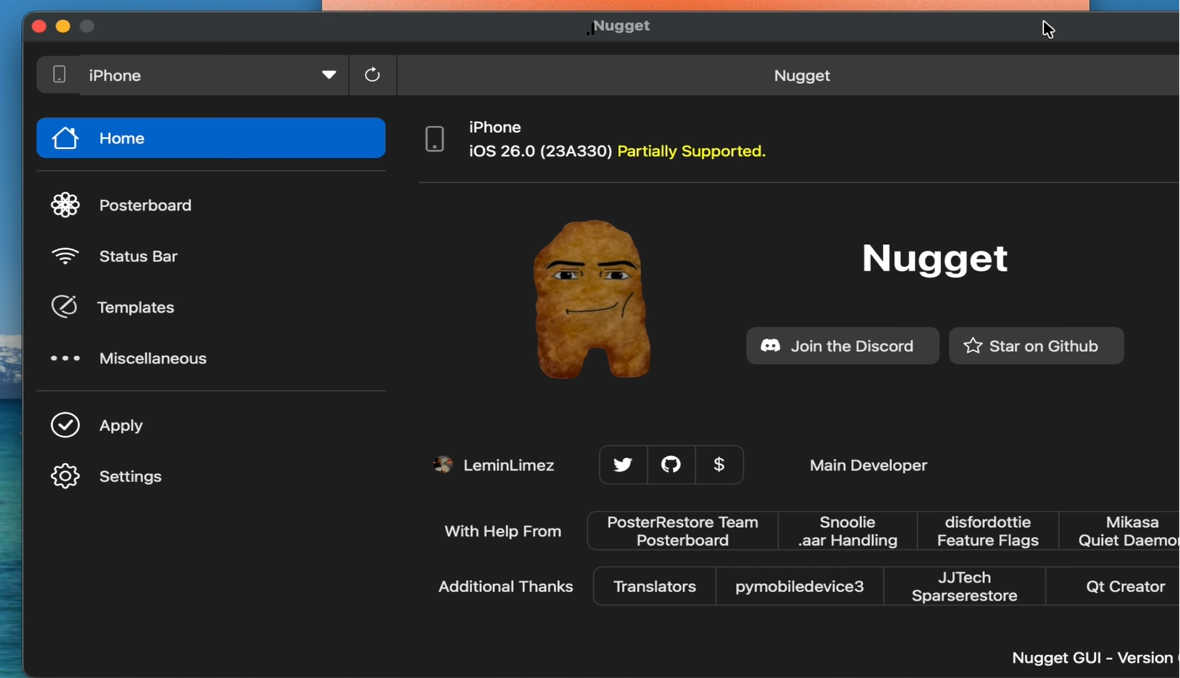
- Connect your iPhone to your computer using a compatible USB cable. Launch Nugget on your computer and tap Trust on your phone screen if a prompt appears. Click the reload button inside Nugget to confirm that your connected device specifications display in the program.
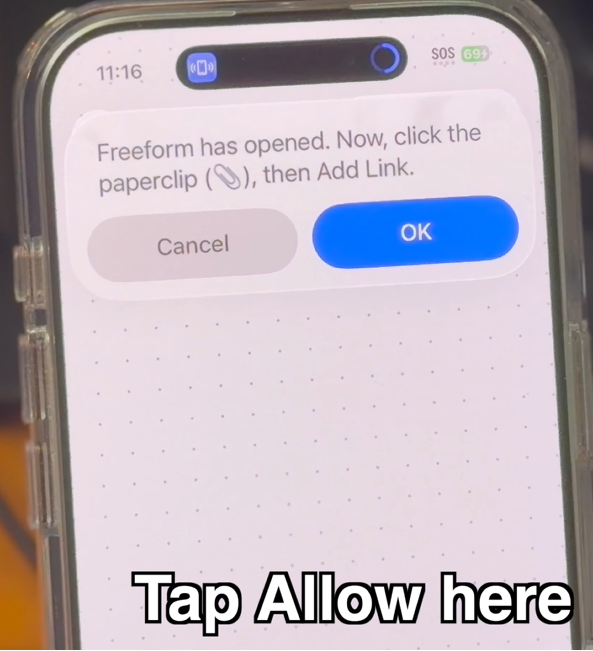
- On your iPhone, open Safari and add the "MobileGestalt (Freeform method)" shortcut to your device. Open the Shortcuts app and tap on the MobileGestalt shortcut block to run it. Tap Allow on the clipboard permission popup.
- The shortcut will copy the system folder directory path to your clipboard and open Apple's native Freeform app. Tap OK on the Freeform popup.
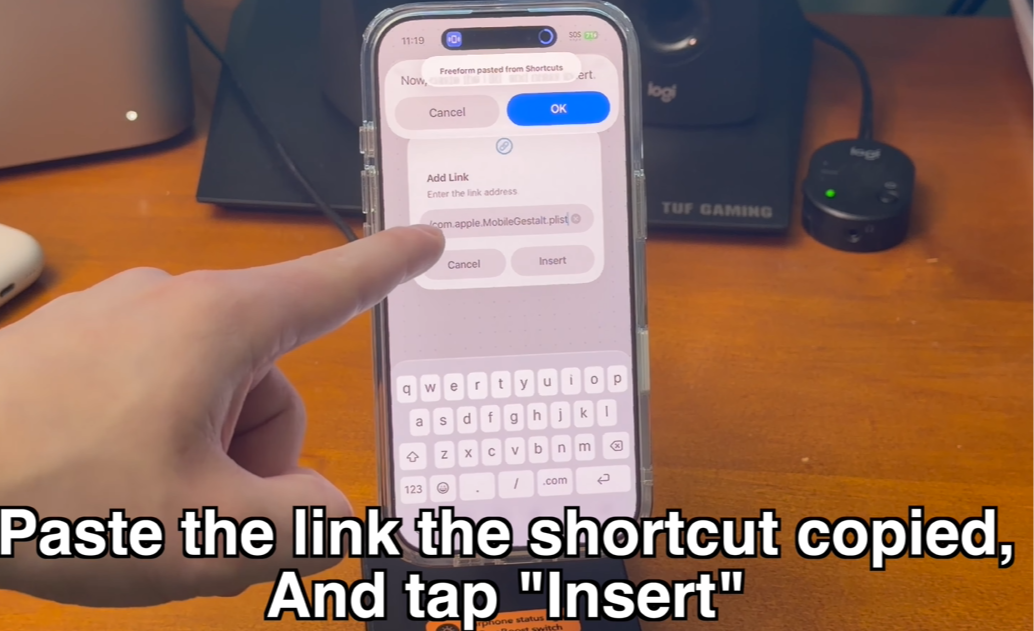
- Inside the Freeform canvas, tap the paperclip icon in the bottom toolbar, select Add Link, paste the copied path from your clipboard, and tap Insert.
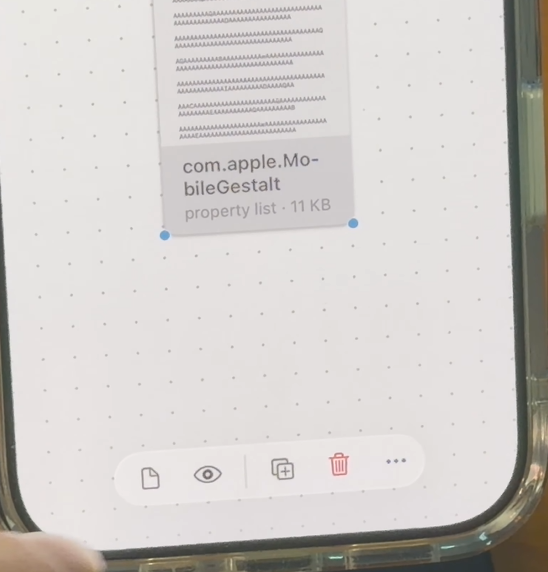
- Tap once on the white document preview icon that appears on the canvas. Tap the eye-shaped preview icon on the bottom action menu to open the file.
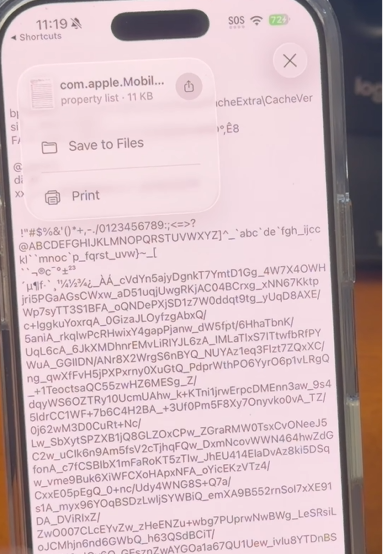
- The screen will display the raw text of your
com.apple.MobileGestalt.plistfile. Tap the Share icon in the top-right corner to save the file or send it to your computer using AirDrop or email.
Phase 2: Applying the Tweak and Triggering the Exploit
With your configuration file saved on your computer, you can prepare Nugget to write the iPadOS interface changes and run the exploit.
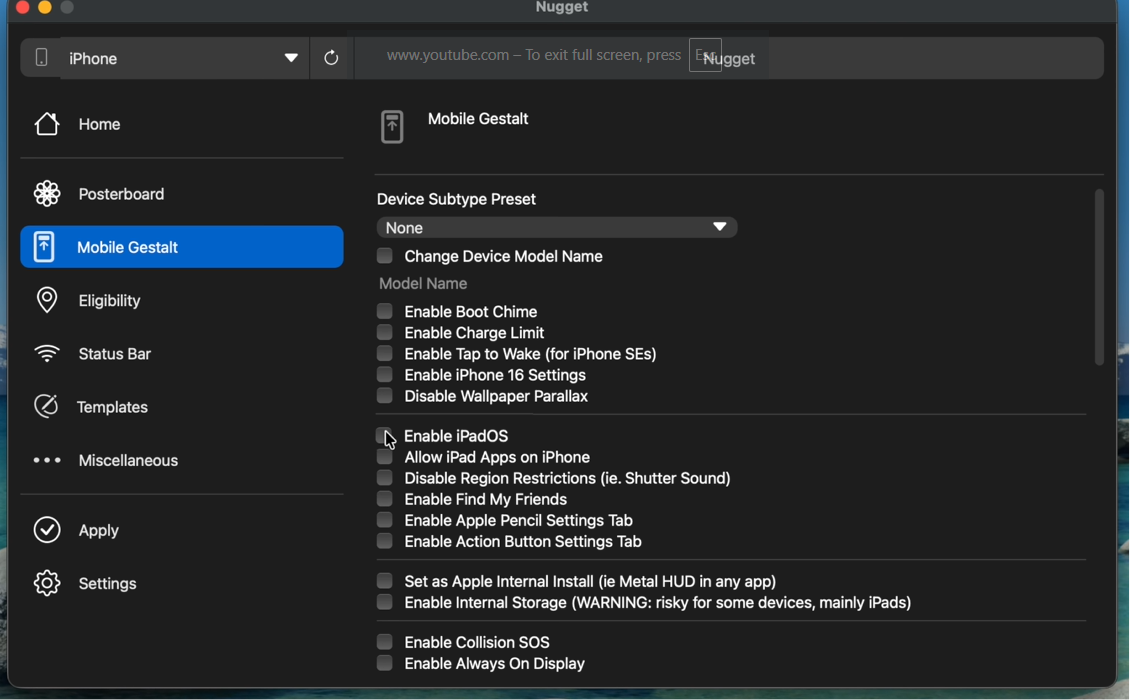
- Return to Nugget on your computer and click on the Mobile Gestalt tab in the left sidebar menu. Scroll down through the options panel on the right side and check the box next to "Enable iPadOS".
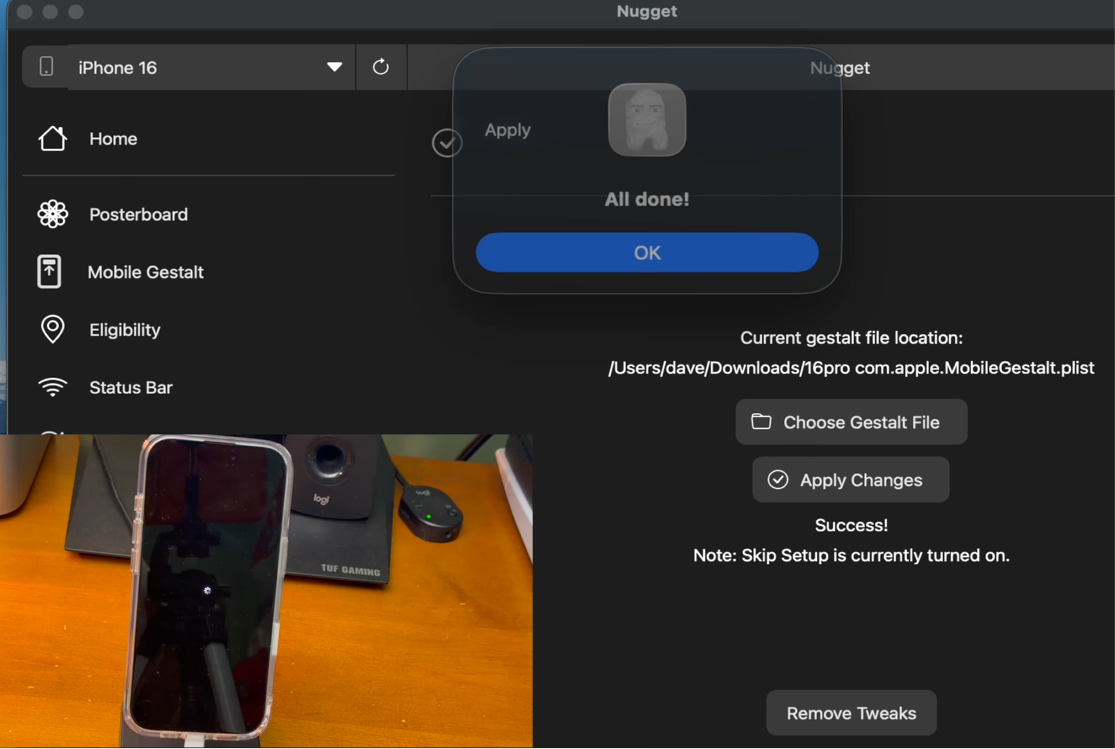
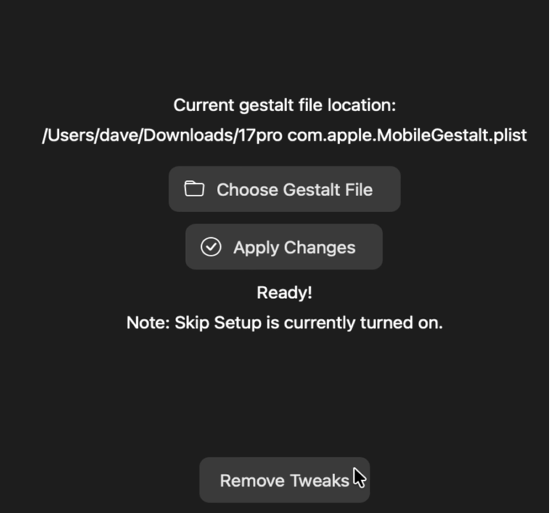
- Click on the Apply tab in Nugget's sidebar. Click on the Choose Gestalt File button and load the
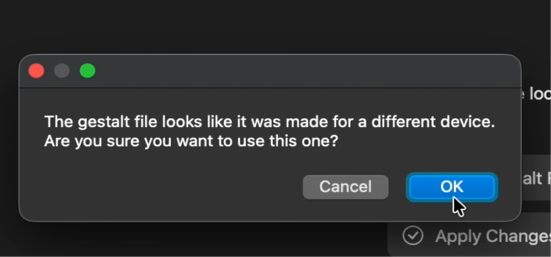
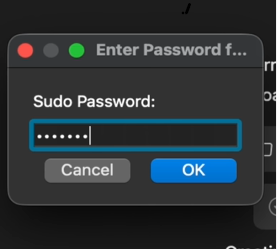
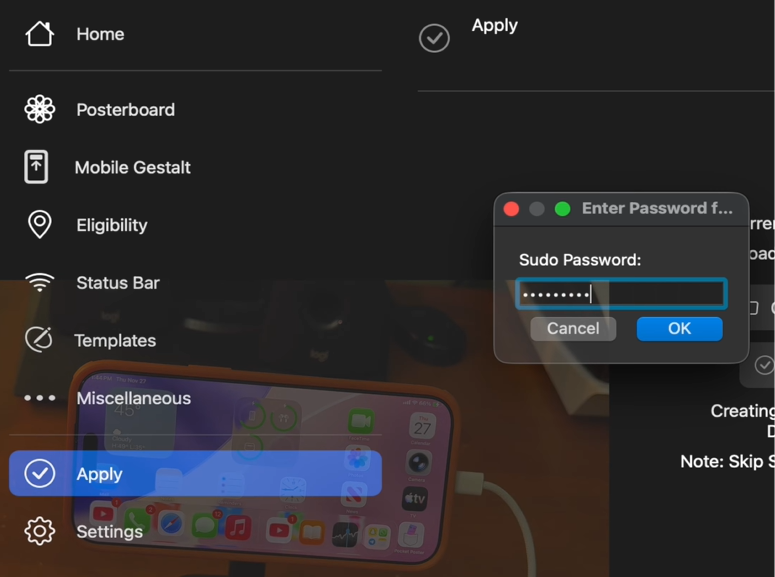
com.apple.MobileGestalt.plistfile you transferred to your computer in Phase 1. If an error popup says the file belongs to a different device, click OK to ignore the warning. - Click the Apply Changes button. Enter your computer's administrator password in the system security window and click OK to proceed.
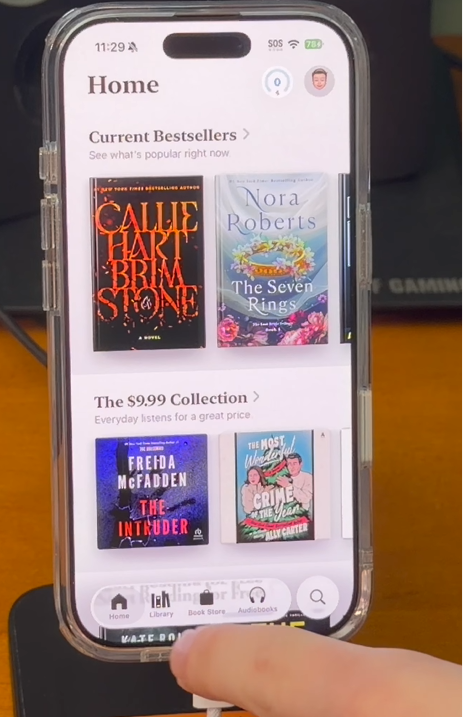
- Keep your iPhone connected to the USB cable. The application will trigger the background exploit and automatically open the official Apple Books app on your phone.
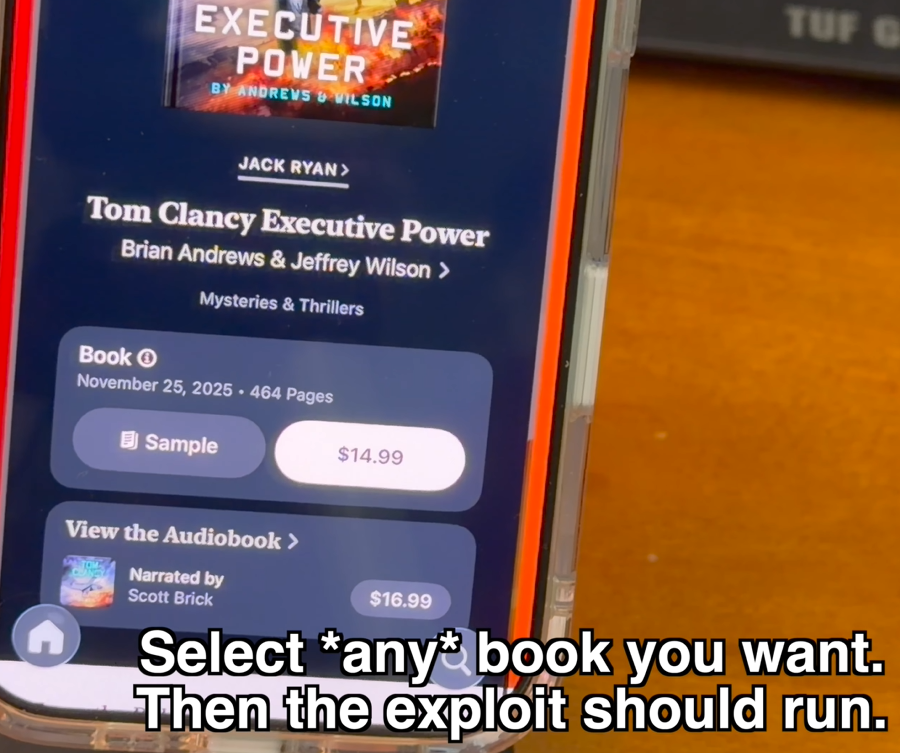
- Browse the store catalog inside the Apple Books app, select any book title, and tap the Sample button to download a sample. This action executes the file overwrite exploit in the background.
- The Nugget application on your computer will show progress logs indicating that it is overwriting the system files. Your iPhone will restart automatically.
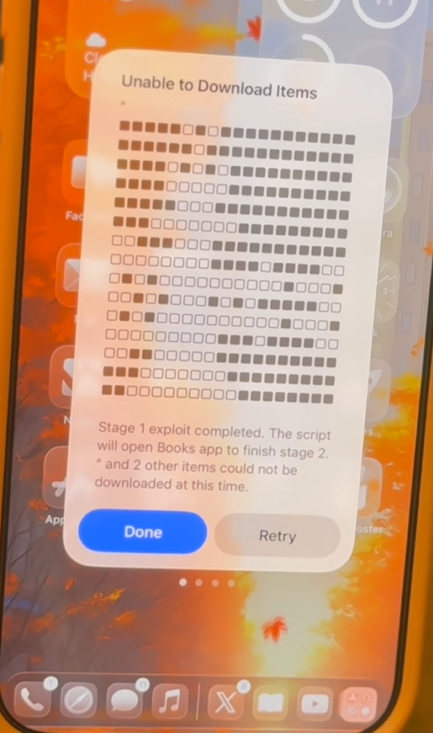
- Once your iPhone restarts, unlock your screen. Tap the Done button to close the "Unable to Download Items" popup, which confirms that the exploit was successful.
Phase 3: Navigating the Interface and Reverting
With the changes applied, your phone will use tablet parameters to manage screen orientations and multitasking features.
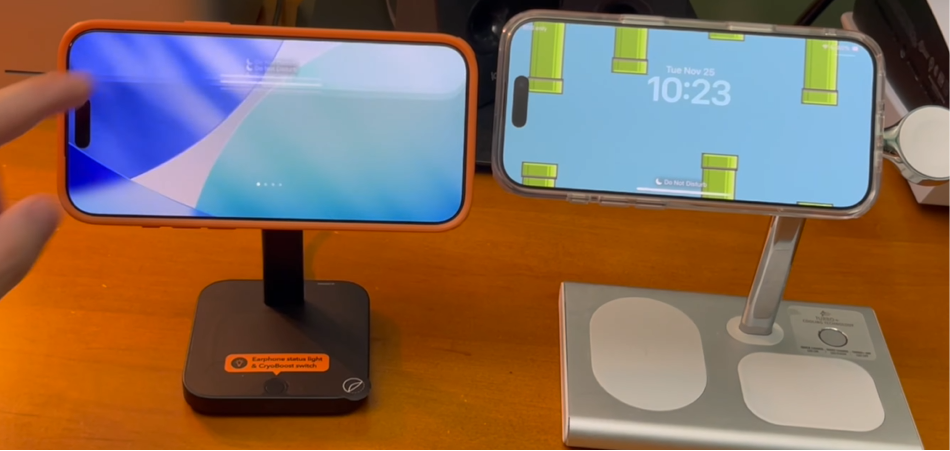
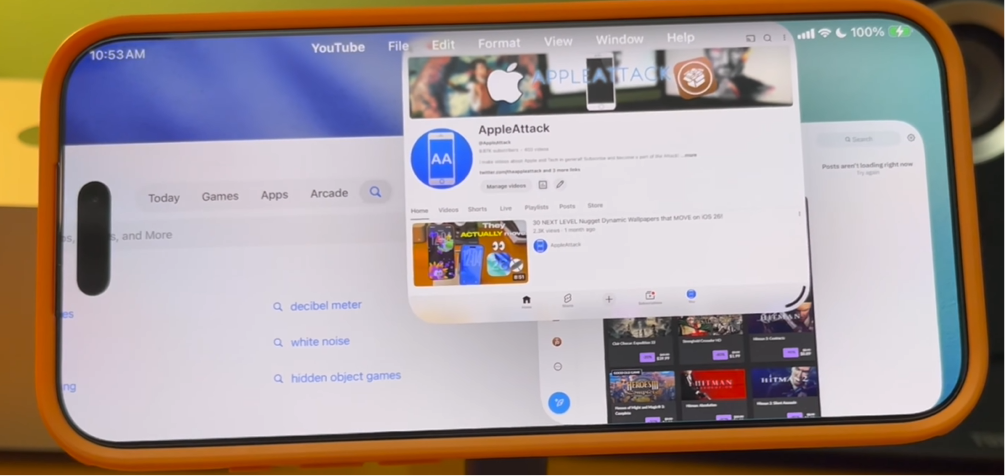
- Rotate your iPhone horizontally to view the landscape home screen and the bottom iPad dock navigation panel.
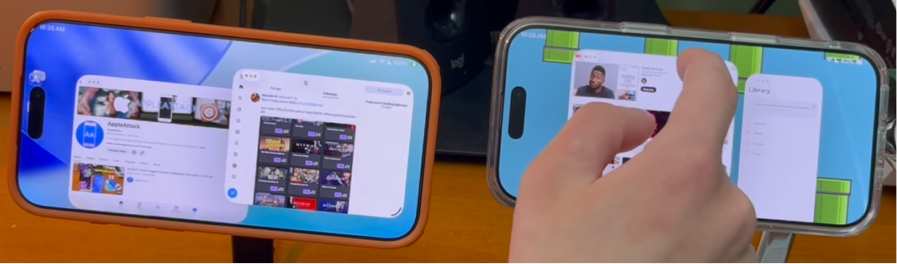
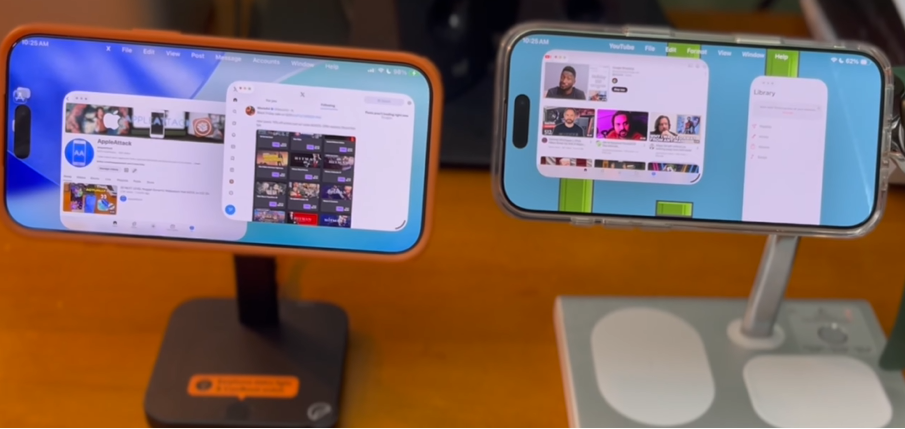
- Swipe down on the home screen to access the iPadOS Spotlight search menu. You can also open applications to use Stage Manager features, such as running multiple apps side-by-side or stacking windows.
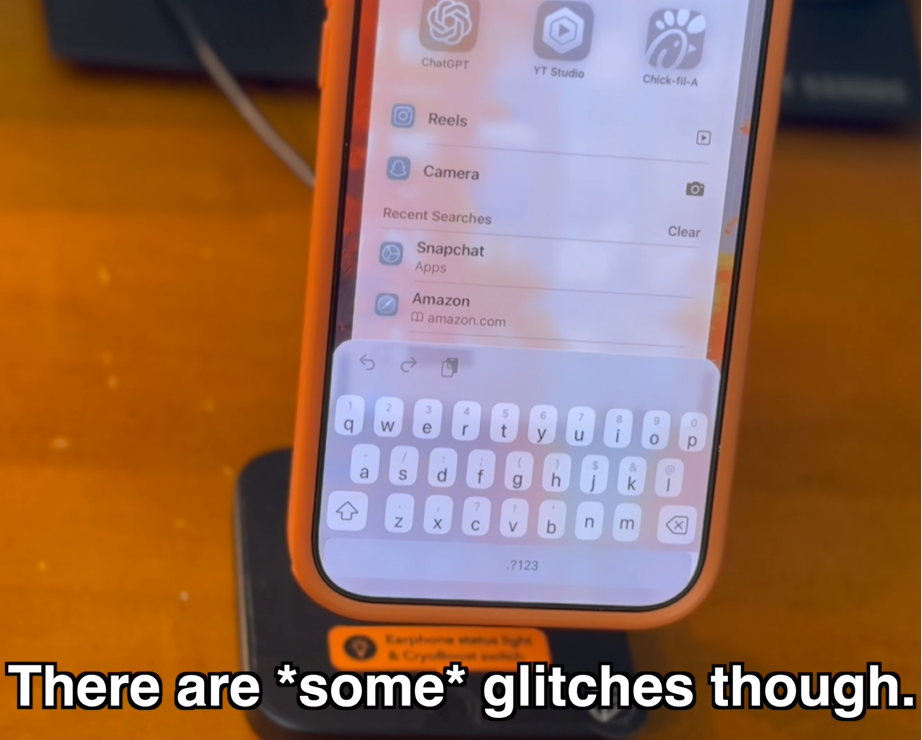
- Tap any text entry box to launch the keyboard. You will notice that the spacebar is placed below the visible boundary of the screen, which is a common scaling error on phone displays.
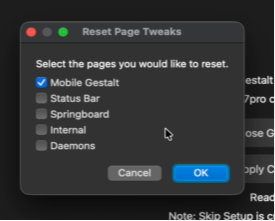
- To remove the iPadOS features and return your phone to normal, connect your phone to the computer and open Nugget. Go to the Apply tab and click the Remove Tweaks button.
- In the Reset Page Tweaks checklist menu, check the box next to Mobile Gestalt and click OK.
- Enter your computer's administrator password on the secure prompt and click OK to confirm.
- Wait for the program to apply the reset settings. Your iPhone will restart automatically. Once your phone turns back on, verify that the default standard layouts are restored.
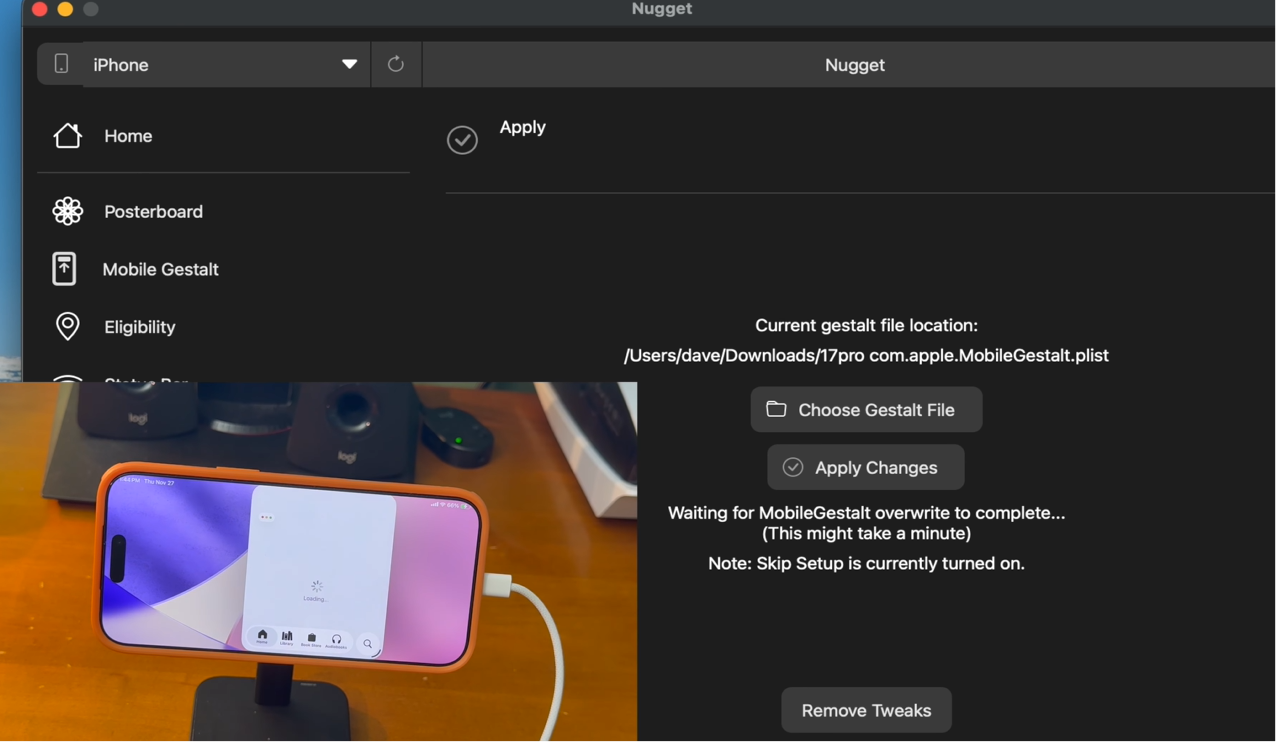
Official Video Walkthrough
To see this installation process in action and follow along visually, watch the comprehensive video guide below:
Be sure to support the creator by subscribing to their channel for more awesome iOS customization guides, tips, and tutorials.
Frequently Asked Questions (FAQ)
No. Nugget works through system backup exploits. It modifies target settings by mimicking a standard system restore action, meaning your iOS platform remains stock with all core security systems active.
MobileGestalt modifications are supported on iOS 17.0 or later. It works up to iOS 26.1.
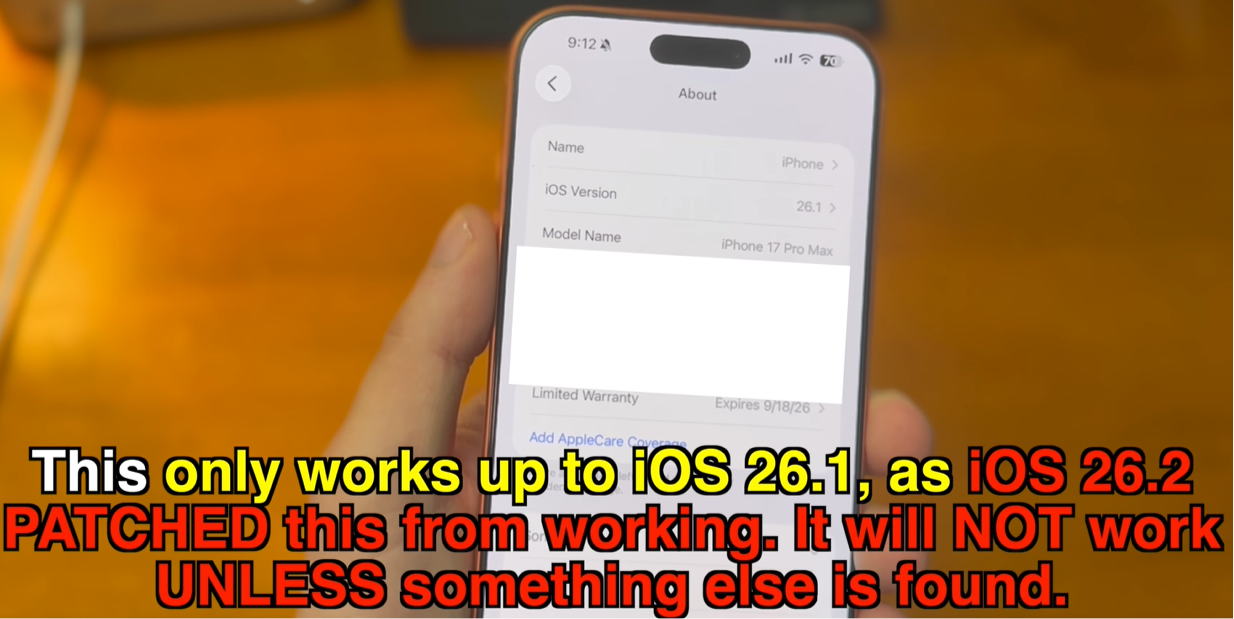
The exploit is patched starting in iOS 26.2, meaning it will not work on that version or later.
This is a standard scaling limitation. Because the layout configures the phone screen to render elements using iPad resolution metrics, the wider keyboard configuration is pushed off the bottom and side borders of your physical screen, leaving the spacebar inaccessible.
Yes. Altering plist configurations carries a real risk of bootlooping your device if something corrupts during the file overwrite.
If your iPhone enters a bootloop, you must force restart the device and put it into Recovery Mode. Once in Recovery Mode, connect it to your computer using a USB cable and run a full system restore using Finder (macOS) or iTunes (Windows) to restore it to working order using your pre-saved backup files.
Conclusion
Modifying the MobileGestalt configuration file on your iPhone using Nugget offers a unique way to try out tablet-exclusive features like Stage Manager and a landscape dock on a smaller screen. While the visual changes are interesting, the scaling issues, such as the inaccessible spacebar, mean this setup is generally not practical for daily use. However, because the exploit process is fully reversible, it remains an accessible customization project for users running compatible iOS builds who want to test the boundaries of their device's default interface.