Best Nugget iOS Wallpapers and Templates
Take lock screen personalization to a whole new level. Browse, preview, and download custom community-made live wallpapers and Posterboard layouts rendered natively by your iPhone.
Introduction: Personalizing iOS Beyond Default Limits
Apple has always taken a controlled approach to the iOS visual experience. For a long time, customizing your iPhone meant choosing between minor visual tweaks permitted in settings or taking the risky step of jailbreaking. Fortunately, tools like Nugget iOS have completely changed that dynamic. Nugget uses native iOS capabilities to interact directly with internal configurations, unlocking deep aesthetic modifications that were previously unreachable. You can check out the source code and development details on the official Nugget GitHub repository.
One of the most exciting aspects of this tool is its support for high-quality live wallpapers and custom Posterboard templates. Standard system customization limits you to static images or heavily compressed Live Photos. Nugget breaks these barriers by letting you apply complex, smooth animations that run at full hardware-accelerated speeds.
To help you find the absolute best options, we have gathered the ultimate collection of wallpapers and templates. Whether you want deep OLED setups, minimal designs, or interactive live cards, this comprehensive gallery has you covered.
Why People Use Nugget Wallpapers
Standard iOS custom options have always been frustratingly rigid. The default wallpaper selector frequently stretches images, forces bad crops, or applies awkward blur effects that ruin a carefully chosen layout. Nugget changes all of that by giving you direct, unconstrained access to custom image scales. You get pixel-perfect alignments that look exactly the way you intended them to.
The real power of Nugget lies in how it handles dynamic lock screens. Instead of running heavy background processes or battery-draining custom layers like third-party App Store apps, it interacts directly with Apple's native Posterboard engine. That means high-speed 60FPS fluid loops, interactive gyroscope parallax movements, and automatic light/dark mode shifts run seamlessly at a system level, with zero battery drain or performance lag.
Customizing your iPhone is about expressing your personal style. Having a fluid animation, a nostalgic retro gaming dashboard, or a clean minimalist artwork greet you every single time you unlock your device makes the daily interaction with your screen feel incredibly satisfying and custom. For community discussions, guides, and sharing custom designs, customization enthusiasts gather in the official Cowabunga Discord community.
Best Types of Wallpapers for Nugget
To get the most out of your customization setup, it is helpful to understand the different visual categories available. Each category brings a distinct feel to your lock screen.
OLED Wallpapers
OLED displays are famous for their ability to turn off individual pixels to display true, deep blacks. Wallpapers optimized for OLED screens feature vast areas of absolute black combined with sharp, vibrant colored elements. Not only do these setups look incredibly striking, but they also significantly reduce your screen's power consumption, helping you squeeze more battery life out of every charge.
Minimal Wallpapers
If you prefer a clean, distraction-free interface, minimal wallpapers are the way to go. These designs rely on simple geometric art, subtle line-work, and soft pastel palettes. By keeping the background quiet, minimal wallpapers ensure that your lock screen widgets, notifications, and clock remain highly legible and easy to read at a quick glance.
Nature Wallpapers
For a more serene aesthetic, nature wallpapers bring the beauty of the outdoors to your screen. From calm forests and rolling hills to scrolling cosmic stars and desert landscapes, these designs are perfect for creating a relaxing visual anchor. Many nature themes also support dynamic time-of-day shifting, shifting their colors based on whether it is day or night.
Abstract Wallpapers
Abstract wallpapers are all about motion, color, and texture. This category includes flowing liquid simulations, multi-colored neon wave patterns, and rotating three-dimensional shapes. If you want a background that feels modern, futuristic, and highly energetic, an abstract animated setup is an excellent choice.
Animated and Live Wallpapers
These are the crown jewels of the Nugget community. Animated wallpapers feature constant, smooth visual loops, while live wallpapers respond actively to your physical touch or the built-in gyroscope. Unlocking your phone and watching the background shift as you tilt your device creates an incredibly responsive, fluid sensation.
Browse Nugget Wallpapers Collection
Explore our curated database of custom wallpapers. Hover over any card to preview its animation in real-time. Every wallpaper is equipped with a CSS watermark, individual download triggers, and local AVIF optimizations to ensure the fastest possible loading speeds.
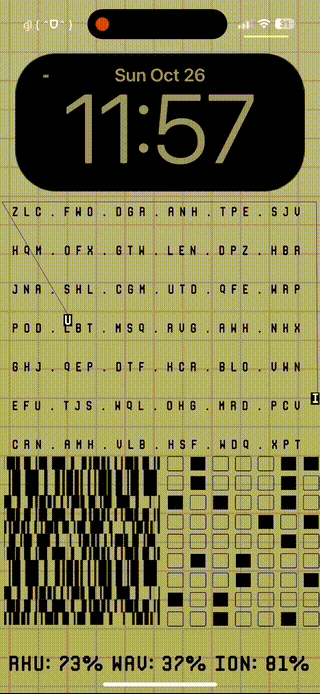
Cipher
Decoding your iPhone lock screen with an high-tech matrix styled look.
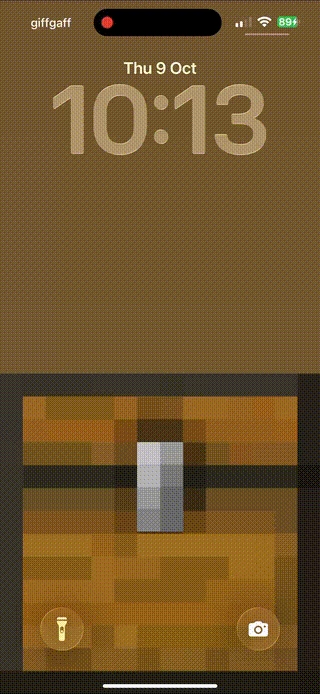
Simple Minecraft Chest
Open up the blocky chest on your phone lock screen whenever you unlock.
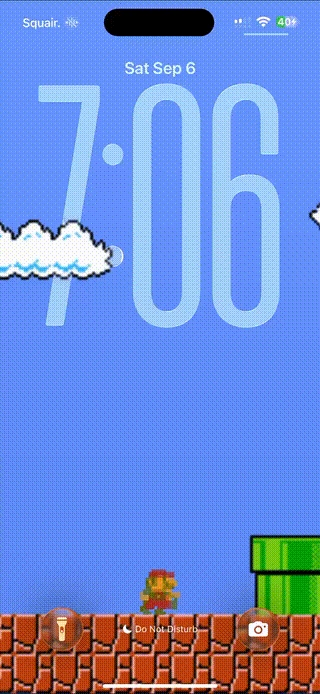
Super Mario Bros.
Enjoy a fully responsive classic Super Mario gameplay layout on your screen.
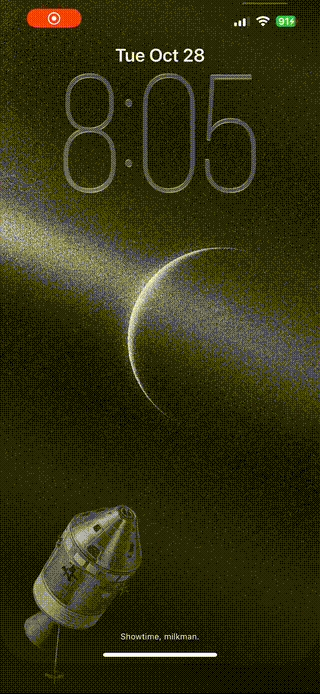
Apollo 15
A beautiful celestial tribute to the lunar surface of the Apollo 15 mission.
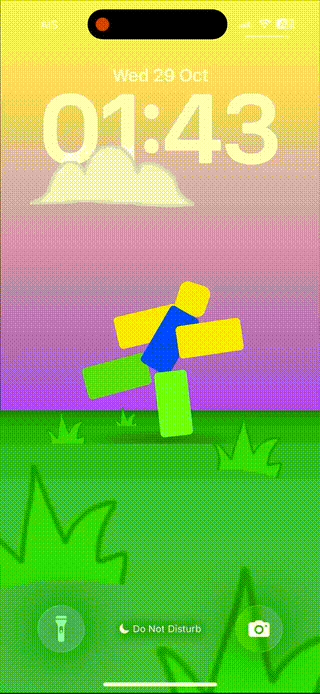
Rolling Hills
Watch these whimsical green hills bounce around using your device gyroscope.
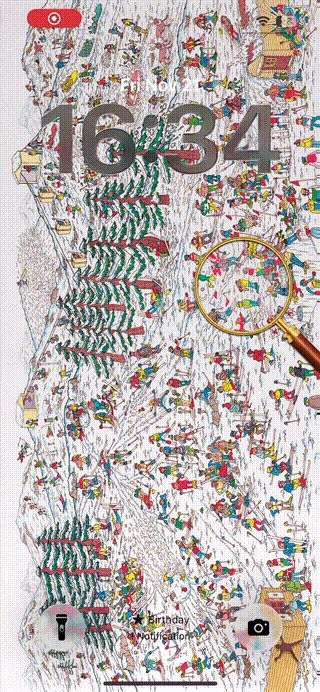
Where's Waldo?
Find Waldo hidden inside a dense winter landscape directly on your display.
 Abstract
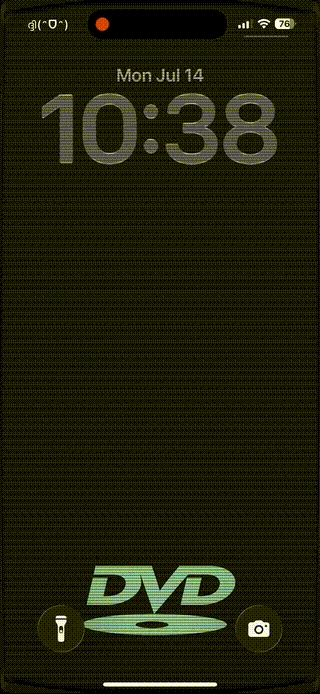
DVD Screensaver
Witness the legendary bouncing DVD logo as it drifts and hits the corners.
 OLED
OLED
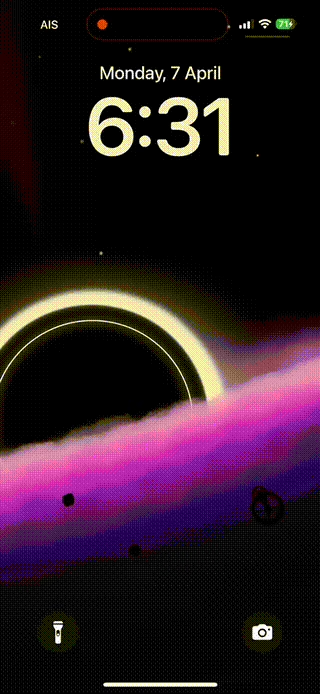
Black Hole
A gorgeous, deep space dark cosmic singularity pulling in local starlight.
 Minimal
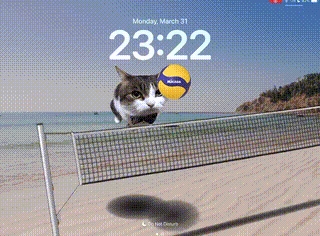
Cat Volleyball
Cute animated cats passing the ball back and forth in an energetic game.
 Nature
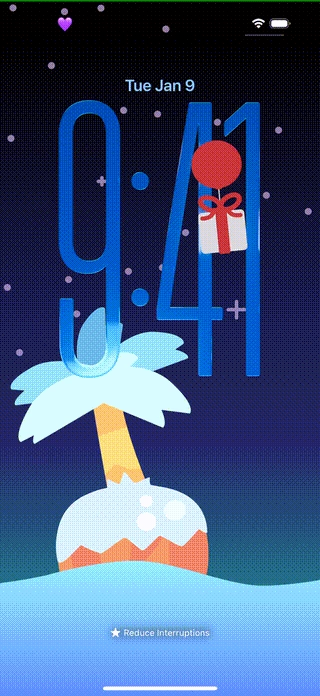
Animal Crossing Seasons
A charming, multi-seasonal loading screen inspired by the Animal Crossing series.
 Abstract
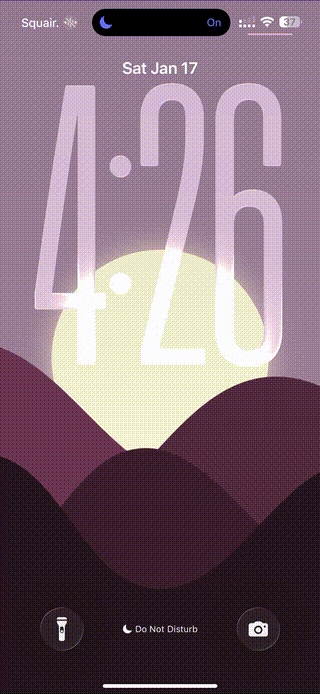
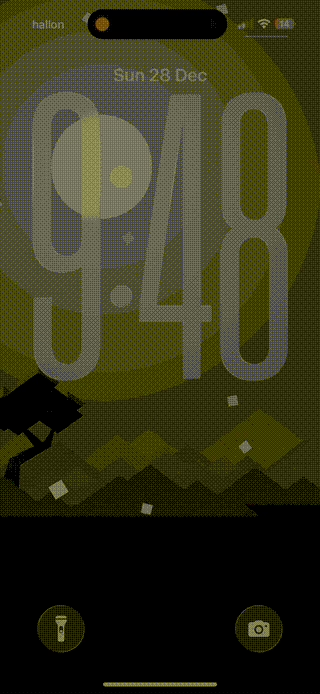
Wave Hills
Smooth rolling liquid color waves that flow beautifully across the display.
 OLED
OLED
Dark Scenery
An elegant, dark twilight forest scene filled with floating dust emitters.
How to Install Nugget Wallpapers: A Beginner Guide
Applying a custom wallpaper (.tendies) to your iPhone might seem intimidating, but the Nugget tool makes the entire process incredibly straightforward. If you ever experience issues, connection bugs, or installation errors during the process, follow our comprehensive Nugget iOS Troubleshooting Guide to fix them instantly. Follow our simple, step-by-step walkthrough to get started:
Download files
Select your favorite design from our gallery above and click the download button to grab the official .tendies file packaging.
Connect device
Launch the Nugget application on your computer and connect your iPhone using a high-quality USB lightning or USB-C cable.
Import wallpaper
Navigate to the Wallpapers tab inside Nugget, select the Import button, load your .tendies file, and click Apply.
Secure reboot
Your iPhone will perform a quick secure restart. Once it boots back up, your custom native animation will be active on the screen.
If the animation does not play immediately after rebooting, simply unlock your device, long-press on your lock screen to open the iOS wallpaper editor, select the newly added profile, and verify that the animation option is enabled in the bottom-left corner.
Posterboard Templates Explained
While custom wallpapers allow you to change the background graphic, Posterboard templates (.passthm) go a step further. They allow you to modify the actual layout configurations of the lock screen itself. Posterboard is the internal iOS engine responsible for managing font choices, color depths, widget placements, and time alignments, working alongside standard Apple iOS systems to deliver a stable native experience.
By using a custom Posterboard template, you can alter clock sizes, force deep perspective layers, change system-level blurring behaviors, and add custom toggles. These templates act as complete layout themes, transforming the general geometry of your user interface.
To install a template, save the .passthm file from our gallery below, open the Posterboard manager inside Nugget, select import, and let the tool flash the configuration onto your device. Since these layouts modify native settings, they remain completely stable and require zero active background processes to run.
Premium Posterboard Templates
 Posterboard
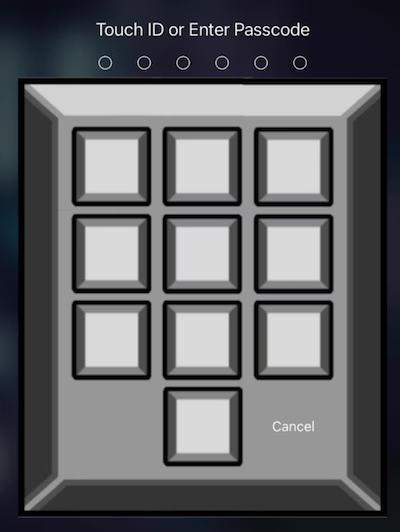
Among Us
Transform your iPhone lock screen numeric keypad into a futuristic space panel.
 Posterboard
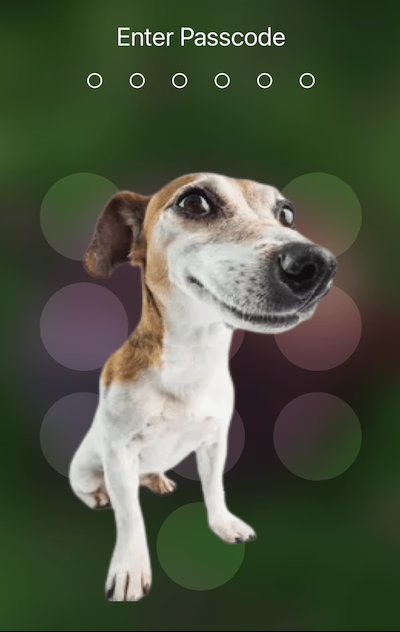
Adobe Dog
A funny and famous stock photo puppy layered neatly over your login system.
 Posterboard
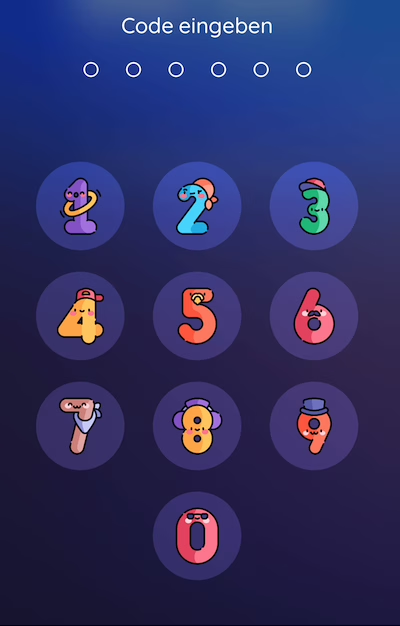
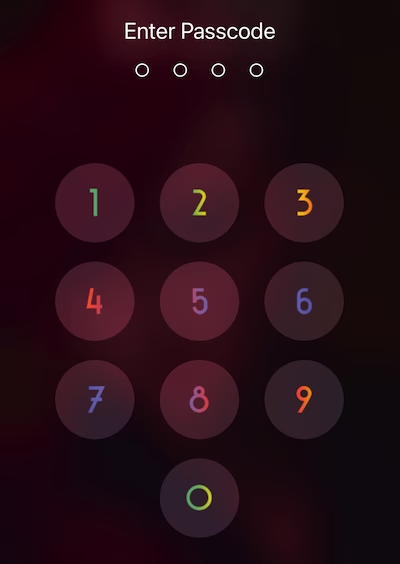
Colored Numbers
An energetic design featuring stylized numbers with custom layout configurations.
 Posterboard
Rainbow Doodle
A charming, hand-sketched colorful design that lights up the unlock display.
Expert Tips for the Perfect Lock Screen Setup
To build the ultimate customization setup, keep these community-tested tips in mind:
- Watch your battery use: Constant, bright 60FPS animations look incredible but will drain your charge faster. If you want to save battery, go for wallpapers with subtle movement or gyroscope triggers that only activate when you physically tilt the phone.
- Get the most out of OLED screens: On modern iPhones, backgrounds with deep, true blacks (#000000) look spectacular. They make the bezel, notch, or dynamic island completely disappear, making your screen look like a single piece of glass while saving a chunk of battery power.
- Make sure you can actually read the time: A brilliant design is useless if it blocks your clock. Pick layouts that have clean, simple backgrounds near the top of the display so your clock numerals remain highly visible and easy to check.
- Leave room for your lock screen widgets: If you rely on widgets for calendar entries, weather, or battery status, check the layout files before flashing. Pick designs that keep the widget area clean to prevent text overlapping and visual clutter.
Frequently Asked Questions (FAQs)
Got questions about customizing your lock screen? Find quick, direct answers below:
Nugget iOS is an iPhone Customization App that lets users apply custom tweaks, animated live wallpapers, and custom lock screen templates safely and easily. It acts like a software customization tool without requiring a jailbreak.
To install Nugget wallpapers, download the chosen .tendies wallpaper pack, open Nugget on your PC, connect your iPhone, select 'Import Wallpaper', click on 'Apply', and let Nugget perform a secure reboot to apply the custom Posterboard layout.
Yes. All Nugget iOS wallpapers, including the high-speed live animated styles, are completely free to download and use thanks to the amazing open-source community creators.
Yes. Nugget iOS supports full system animated live wallpapers. By utilising the iOS Posterboard engine, these wallpapers feature smooth fluid 60FPS loops that respond to gyro and touch motions.
You can download custom Posterboard templates (.passthm files) right from our dedicated Posterboard templates gallery section on this page.
Nugget wallpapers utilize native Apple Posterboard system rendering, meaning they have minimal battery impact compared to non-native running overlay applications.
OLED-optimized wallpapers with deep black pixels are highly recommended as they conserve battery and provide striking high-contrast visuals on modern iPhone screens.