How to Customize iOS 18 System Features Using Nugget
The release of iOS 18 introduced several major features to the Apple ecosystem. While many of these capabilities are officially restricted to newer hardware, a desktop customization utility called Nugget allows users to enable these restricted features on older iPhones and iPads without a jailbreak. This guide provides a walkthrough of how Nugget works, the prerequisites for setting it up, and how to configure its key features.
| Feature | Primary Function | iOS Settings Location |
|---|---|---|
| Dynamic Island | Enables the interactive Dynamic Island interface on older devices | System-wide UI |
| Stage Manager | Activates window-based multitasking on unsupported iPads | Settings > Multitasking & Gestures |
| Always on Display | Keeps lock screen details visible in a dimmed state | Settings > Display & Brightness |
| Action Button Settings | Maps the Action Button menu to the Back Tap gesture | Settings > Accessibility > Touch > Back Tap |
| Apple Intelligence | Accesses the waitlist and setup UI on older devices | Settings > Apple Intelligence & Siri |
| Lock Screen Footnote | Displays a custom text string at the bottom of the lock screen | Lock Screen UI |
Prerequisites and Initial Setup
Before customizing individual features, you must complete the initial setup process to generate your device's unique configuration profile.
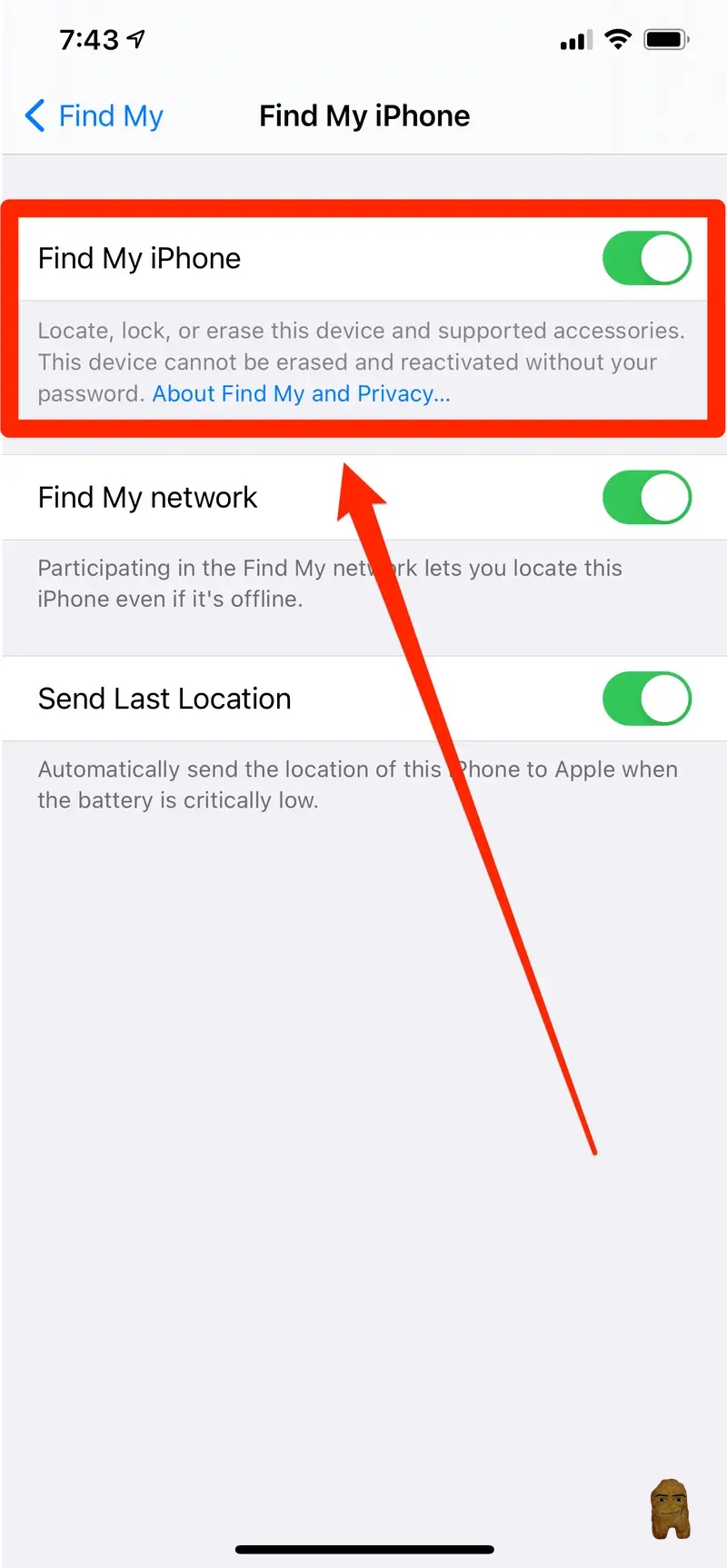
Step 1: Disable Find My iPhone
- Open the Settings app on your iOS device.
- Tap your Apple ID banner at the top, then select Find My.
- Tap Find My iPhone and toggle the setting to Off. (Note: You can safely turn this back on after the customization process is complete).
Step 2: Extract Your MobileGestalt File
Every Apple device has a unique MobileGestalt file containing its hardware capabilities. Nugget requires this file to apply modifications.
- Download the official Shortcuts app from the App Store if it is not already installed on your device.
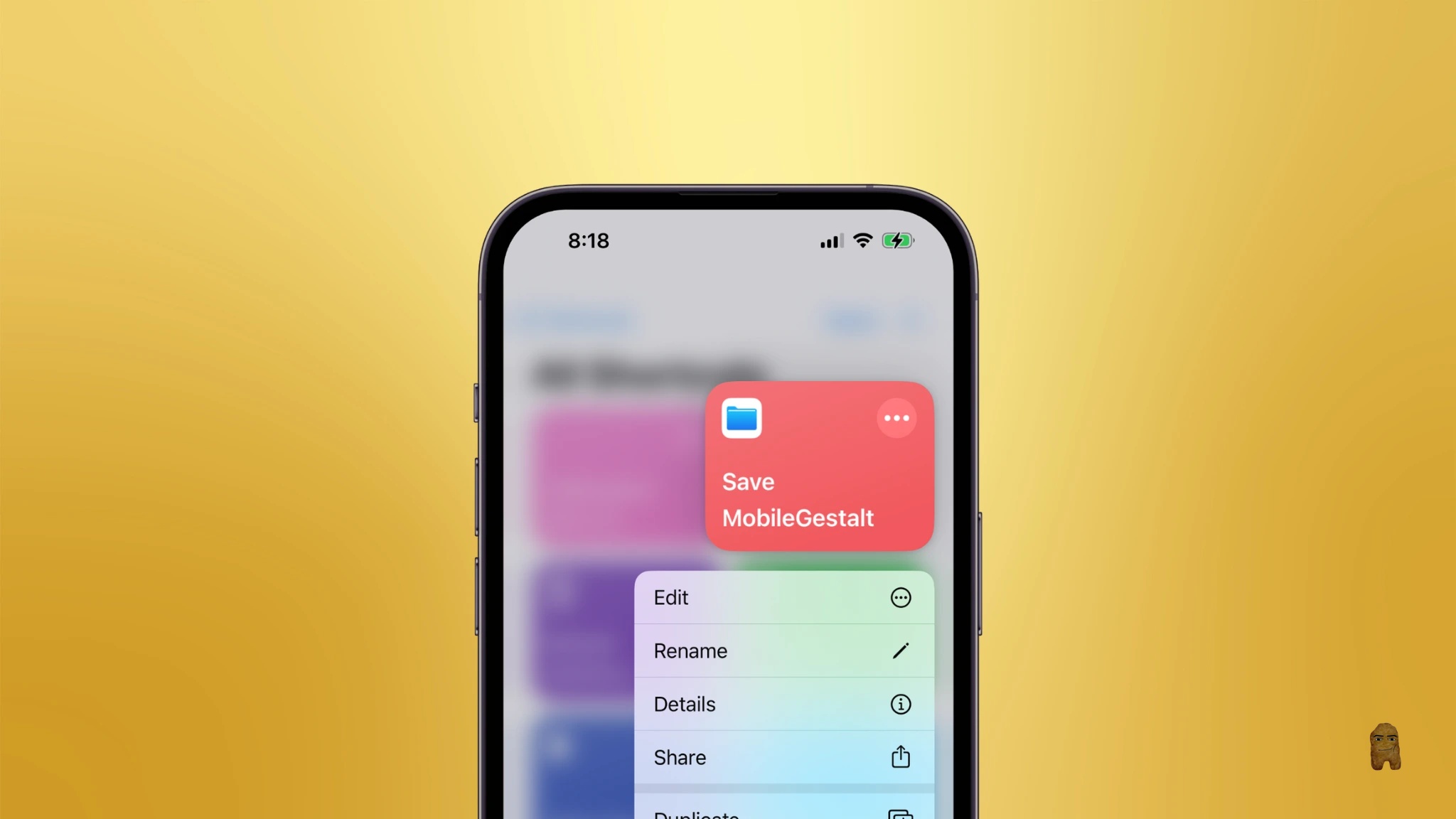
- Open the "Save MobileGestalt" Siri Shortcut link provided in the video's description.
- Tap to run the Save MobileGestalt shortcut.
- When prompted by the privacy dialog, select Allow to let the shortcut access and save your device's configuration profile.
- Save the generated
.plistfile to your device's local storage. - Transfer this file to your computer using AirDrop, email, or your preferred file transfer method.
Step 3: Install and Open Nugget on Your Computer
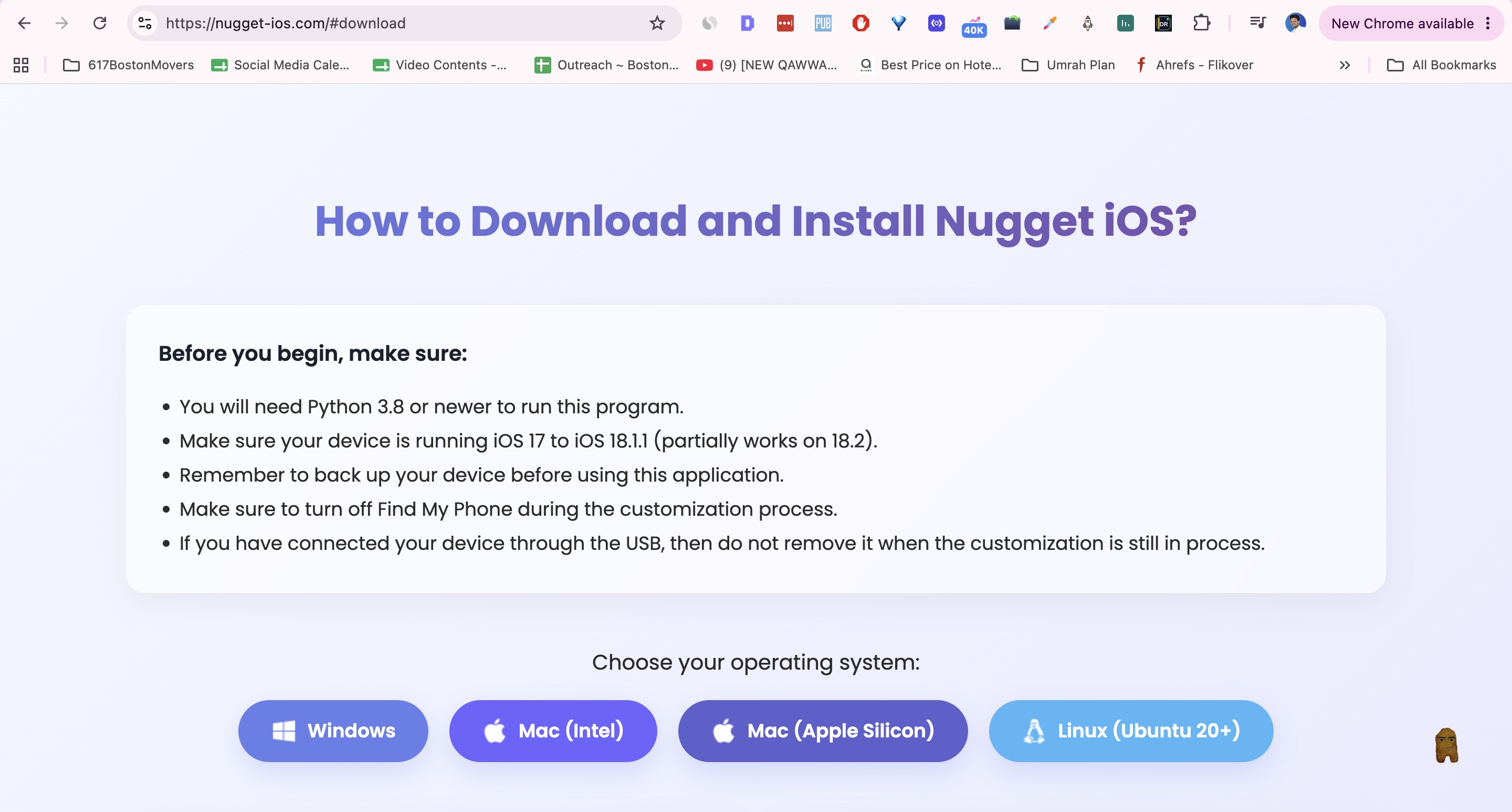
- Download the latest Nugget package compatible with your operating system from the Nugget iOS homepage or the GitHub releases page (macOS ARM for M-series chips, macOS Intel, or Windows).
- Extract the downloaded archive and open the Nugget application.
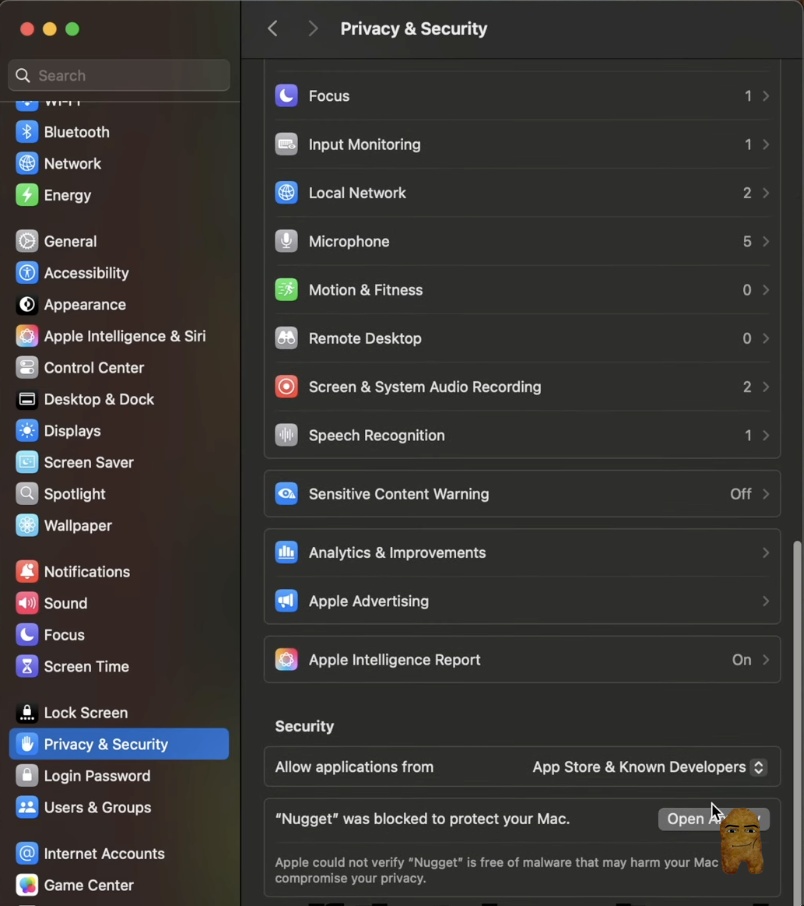
- Mac Users: If macOS blocks the app with a developer verification warning, right-click the Nugget app icon and select Open, or navigate to System Settings > Privacy & Security, scroll down to the security section, and click Open Anyway.
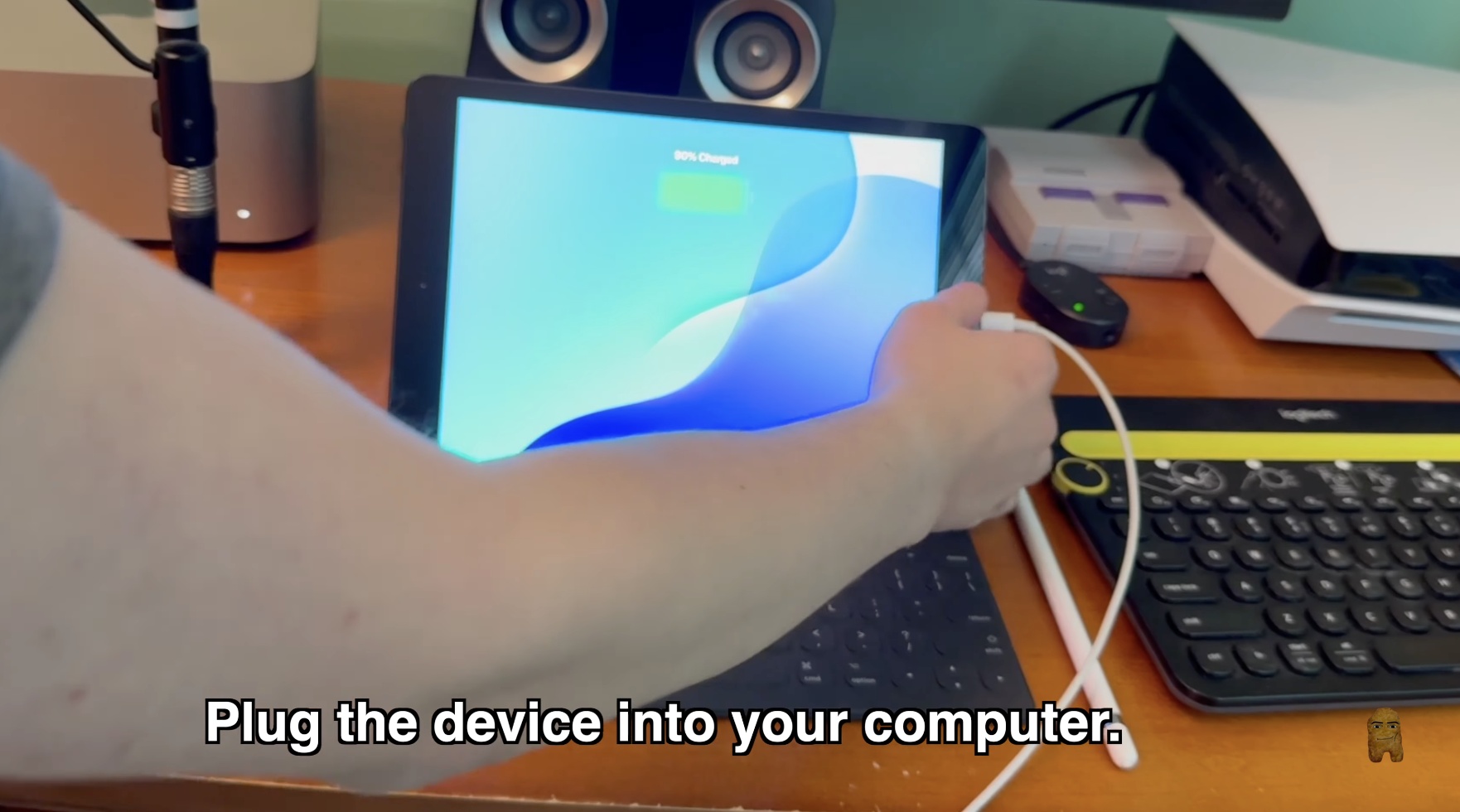
- Connect your iOS device to your computer via a USB cable. If prompted on your device screen, select Trust and enter your passcode.
Key Customization Features
With Nugget open and your device connected, you can configure the following features.
1. Dynamic Island on Older Devices
What It Does: This modification brings the Dynamic Island interface to older, notched, or home-button iPhones and iPads that do not natively support it.
Why It Matters: Dynamic Island provides immediate access to live background activities (such as active timers, media playback, and system statuses) directly from the top of the screen. While it formats uniquely on iPads (which do not have a camera cutout), it remains fully functional.
How to Configure It:
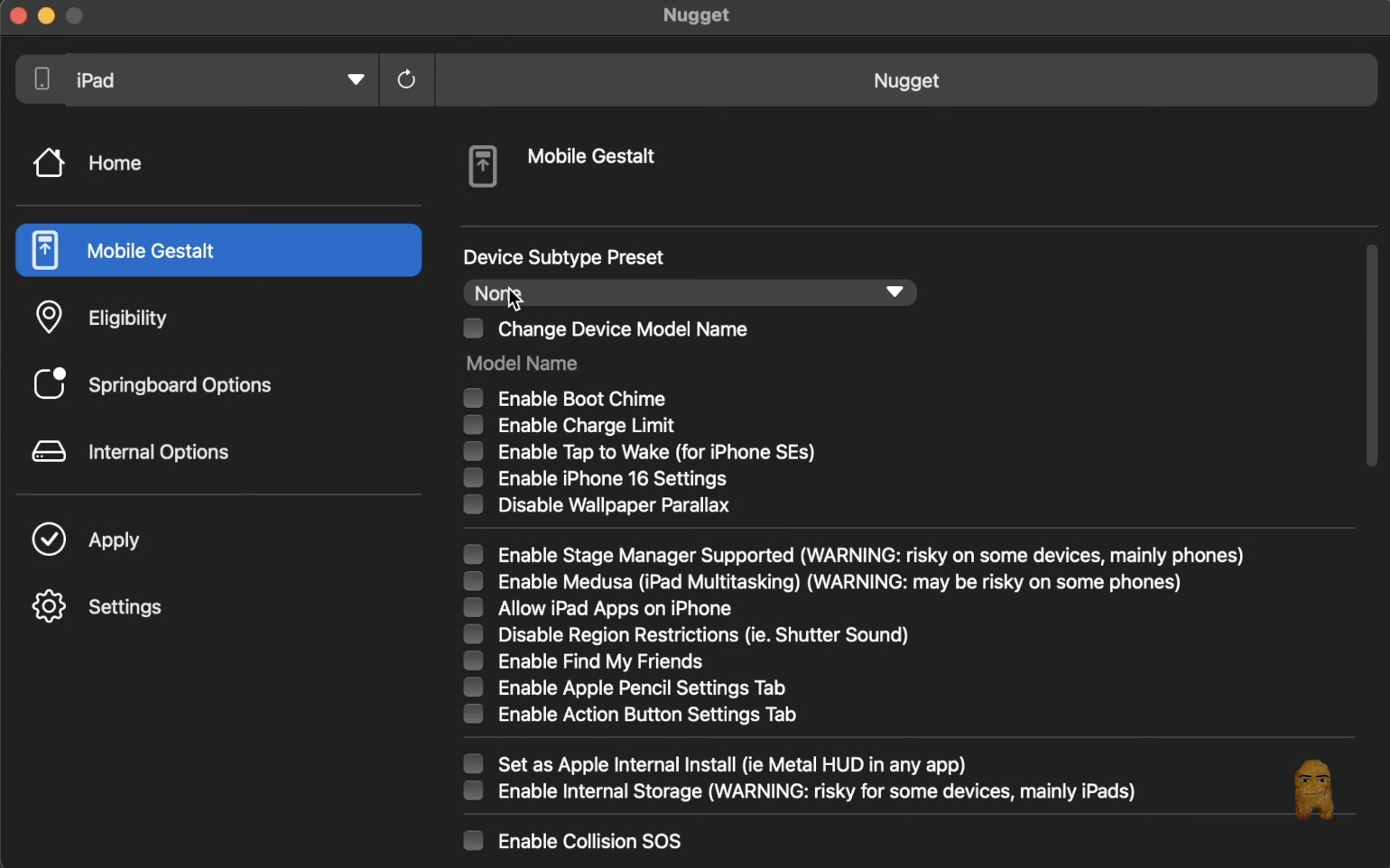
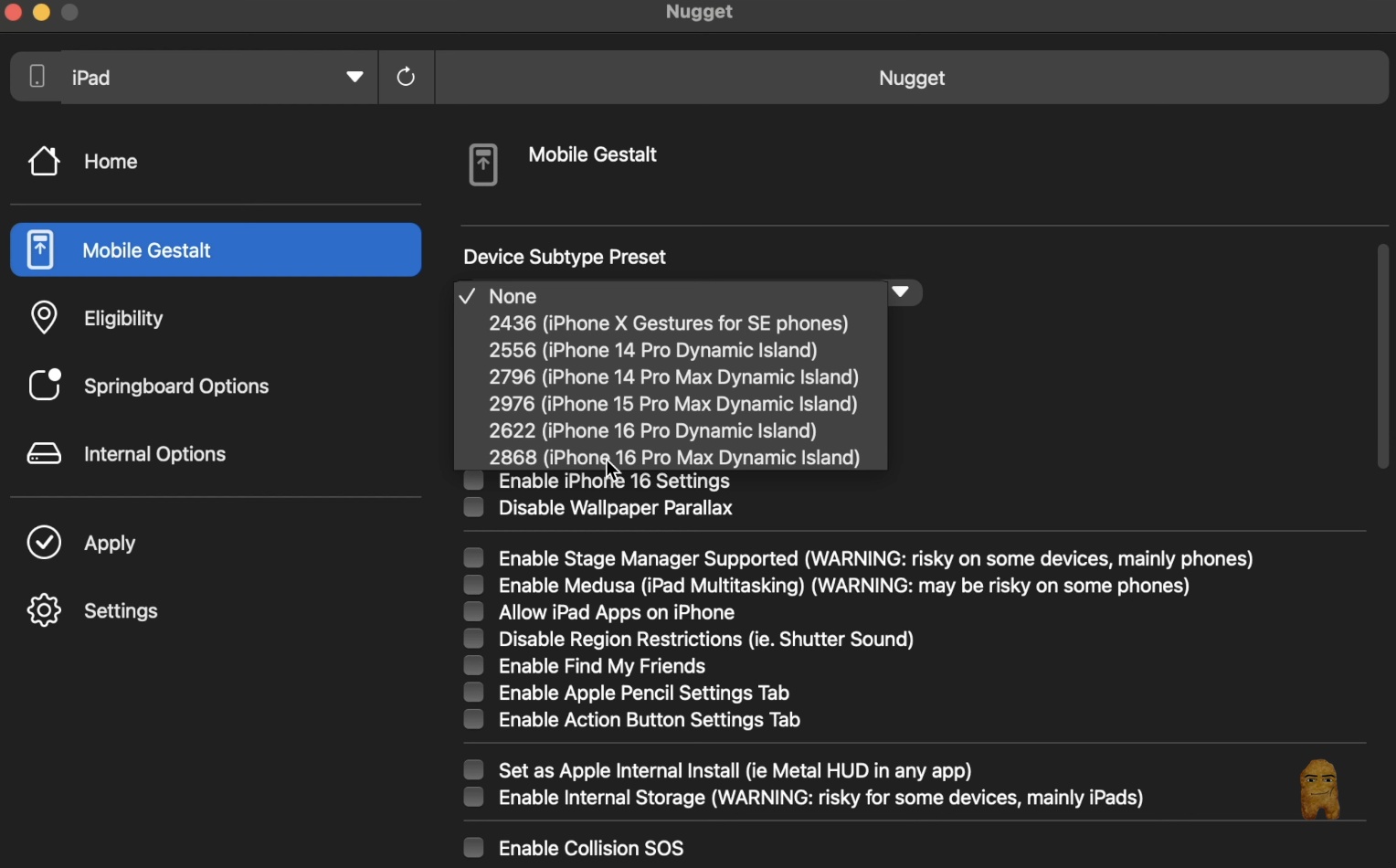
- Inside the Nugget app, select the Mobile Gestalt tab from the left sidebar.
- Locate the Device Subtype Preset dropdown menu.
- Select an option representing a Dynamic Island device, such as 2868 (iPhone 16 Pro Max Dynamic Island).
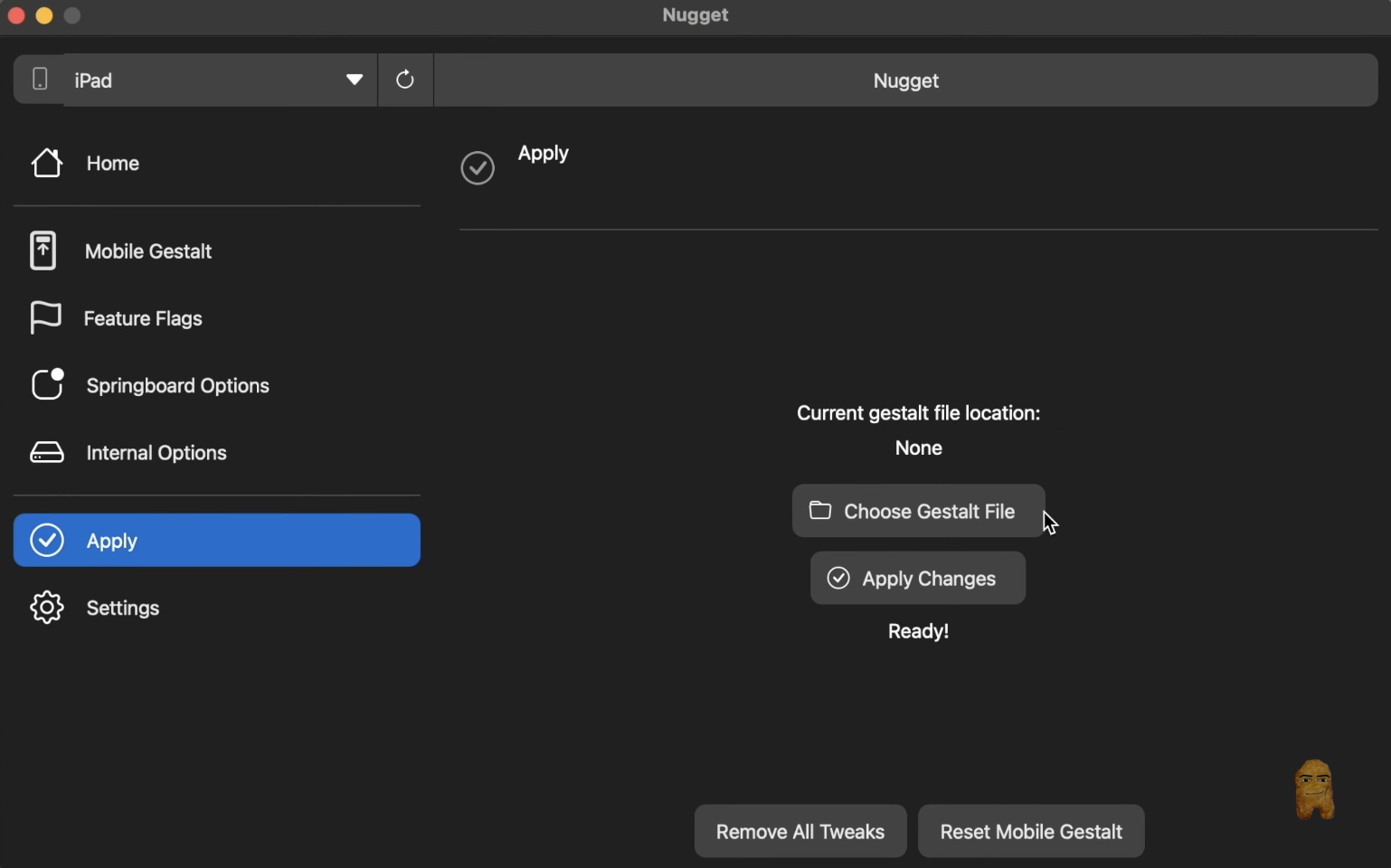
- Go to the Apply tab in Nugget.
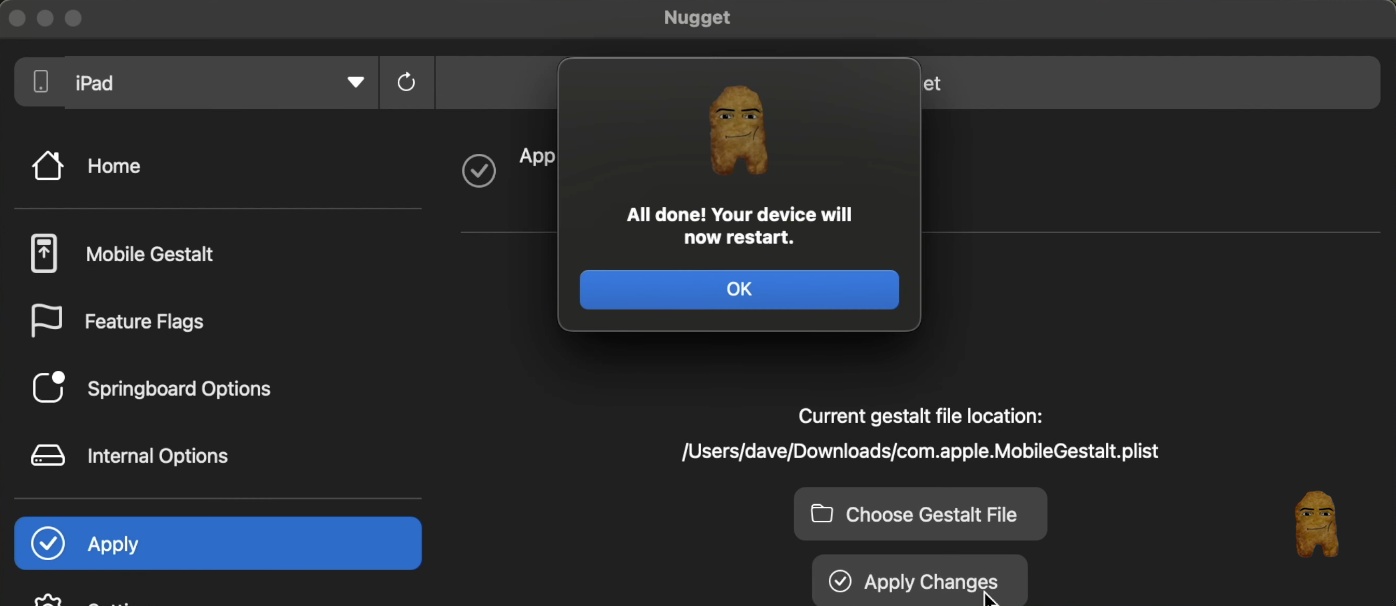
- Click Choose Gestalt File and select your saved
MobileGestalt.plistfile. - Click Apply Changes and wait for the device to automatically restart.
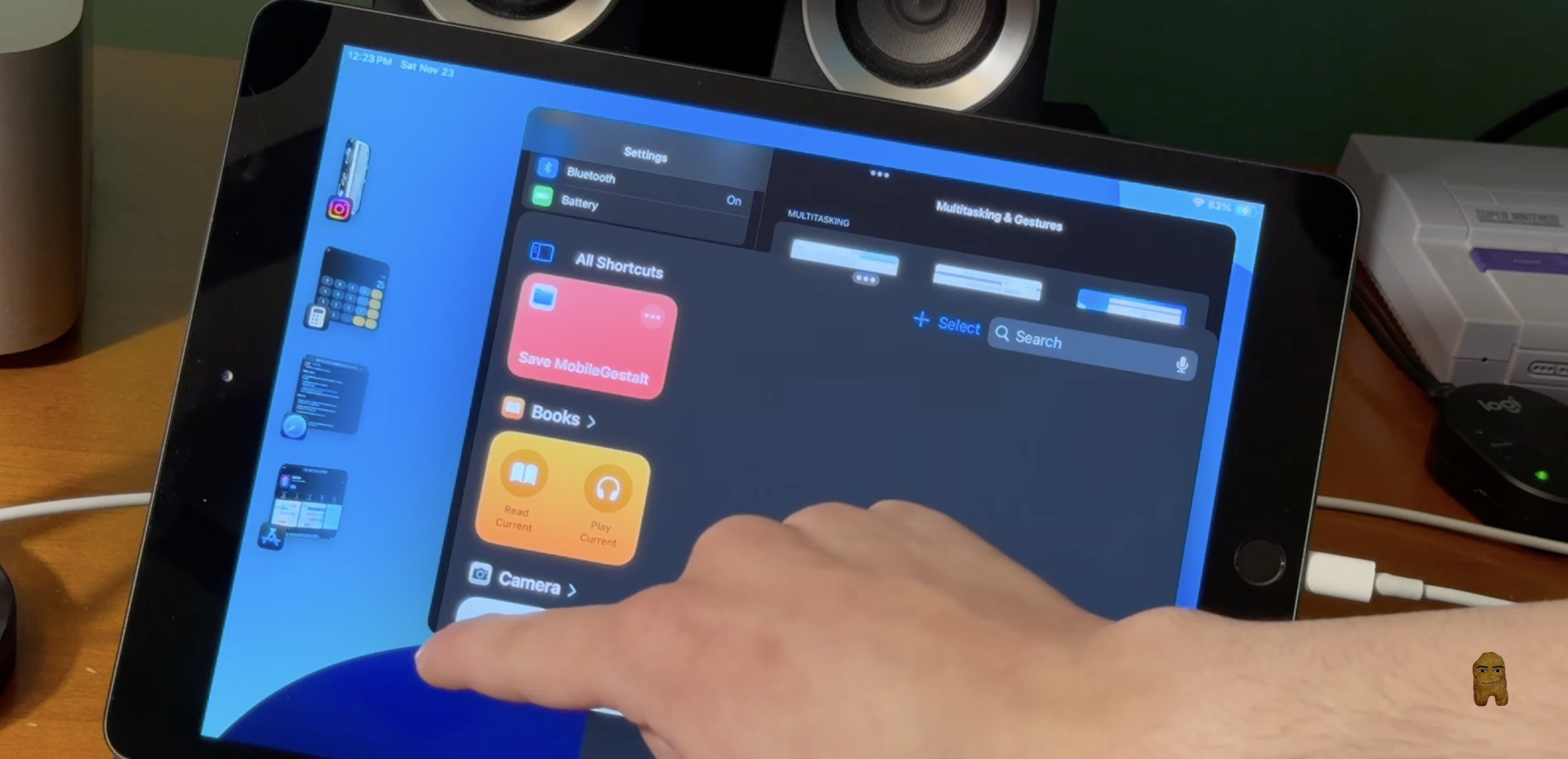
2. Stage Manager on iPad
What It Does: This toggle unlocks Stage Manager, Apple's window-based multitasking interface, on older iPad models that are officially excluded from support.
Why It Matters: It enables a desktop-style workspace on the iPad, allowing you to resize apps, arrange overlapping windows, and group programs together for a more productive workflow.
How to Configure It:
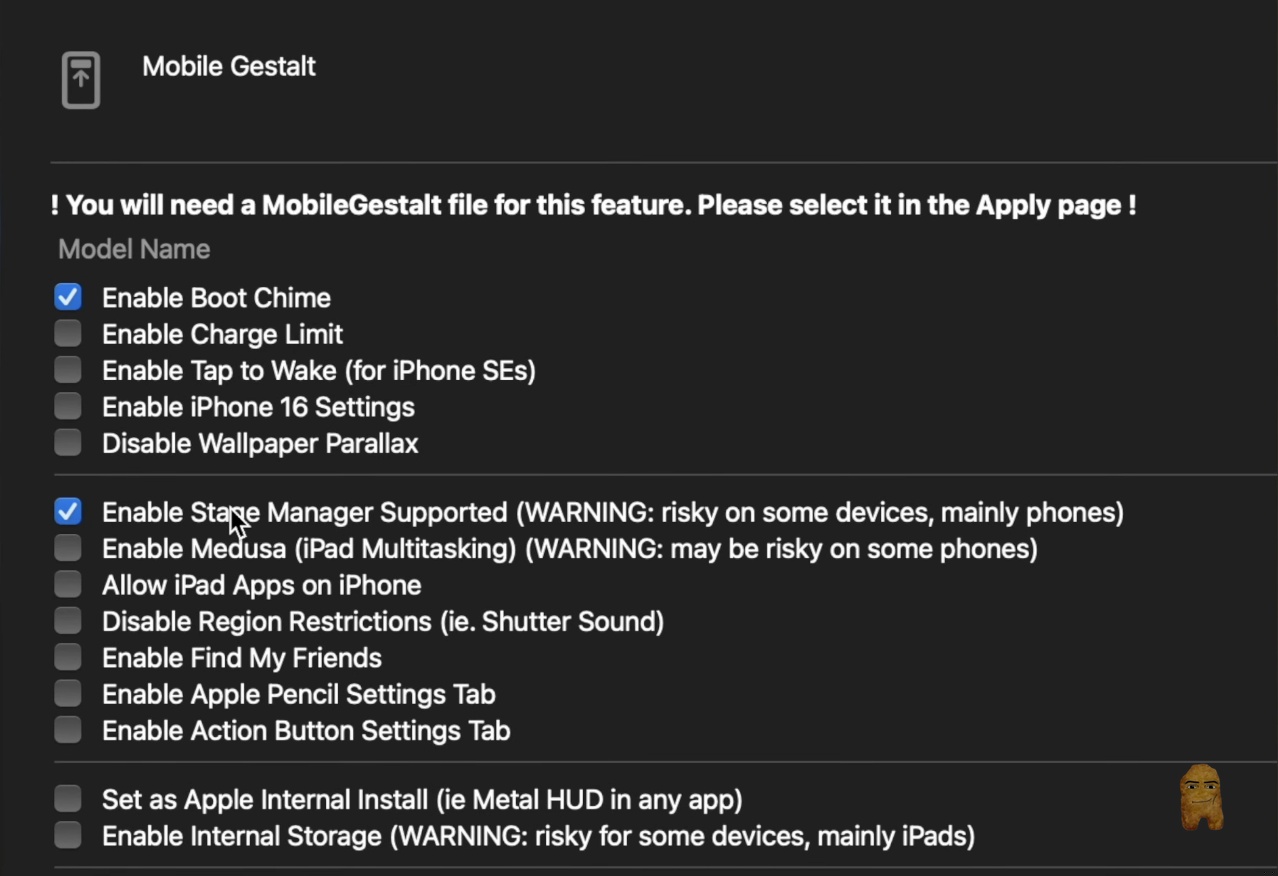
- In Nugget's Mobile Gestalt menu, scroll down to the feature toggles and check the box for Enable Stage Manager Supported.
- Go to the Apply section, load your
MobileGestalt.plistfile, and click Apply Changes. - Once the iPad restarts, open the device's Settings app.
- Navigate to Multitasking & Gestures and tap Stage Manager to turn the feature on.
3. Always on Display (AOD)
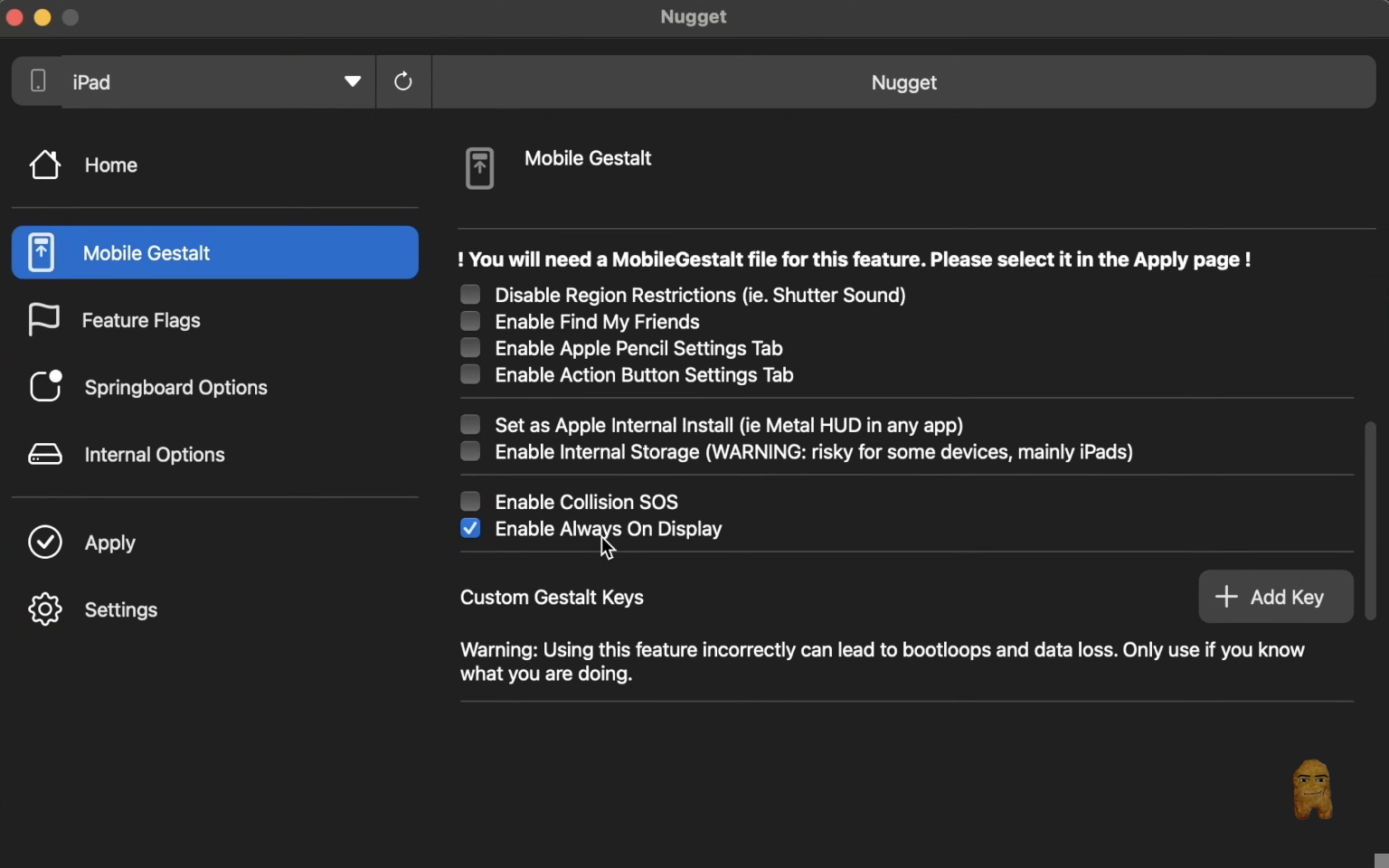
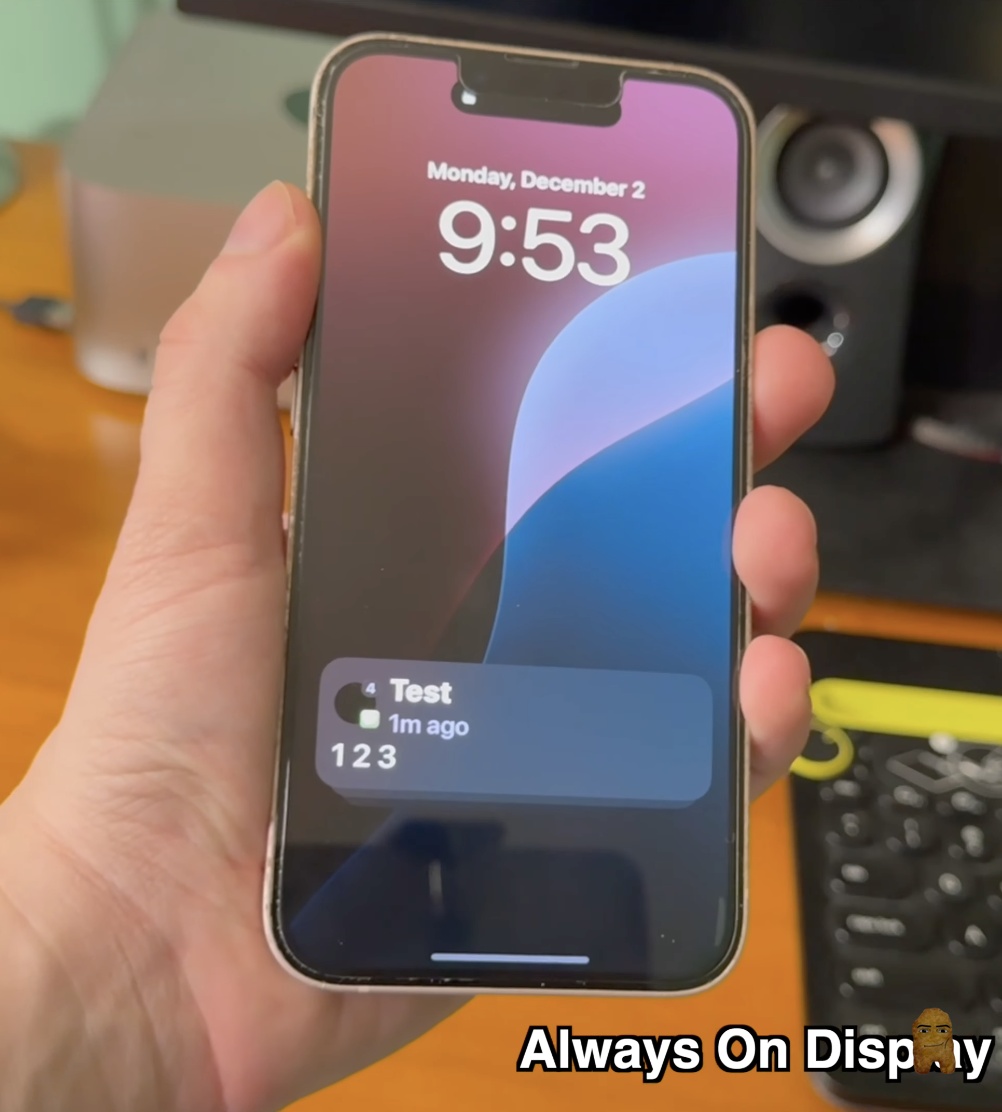
What It Does: This option activates the Always on Display (AOD) engine on older iPhone models, such as the iPhone 13.
Why It Matters: It allows the lock screen clock, widgets, and incoming notification banners to remain visible in a highly dimmed state when the phone is locked. Although older devices do not have the specialized low-refresh-rate hardware of the iPhone 14 Pro and newer, the software layout still functions.
How to Configure It:
- Under Nugget's Mobile Gestalt tab, check the box for Enable Always On Display.
- Navigate to the Apply tab, choose your configuration file, and select Apply Changes.
- Let your device restart. Lock your screen to verify that it dims rather than turning completely black.
4. Action Button Mapping via Back Tap
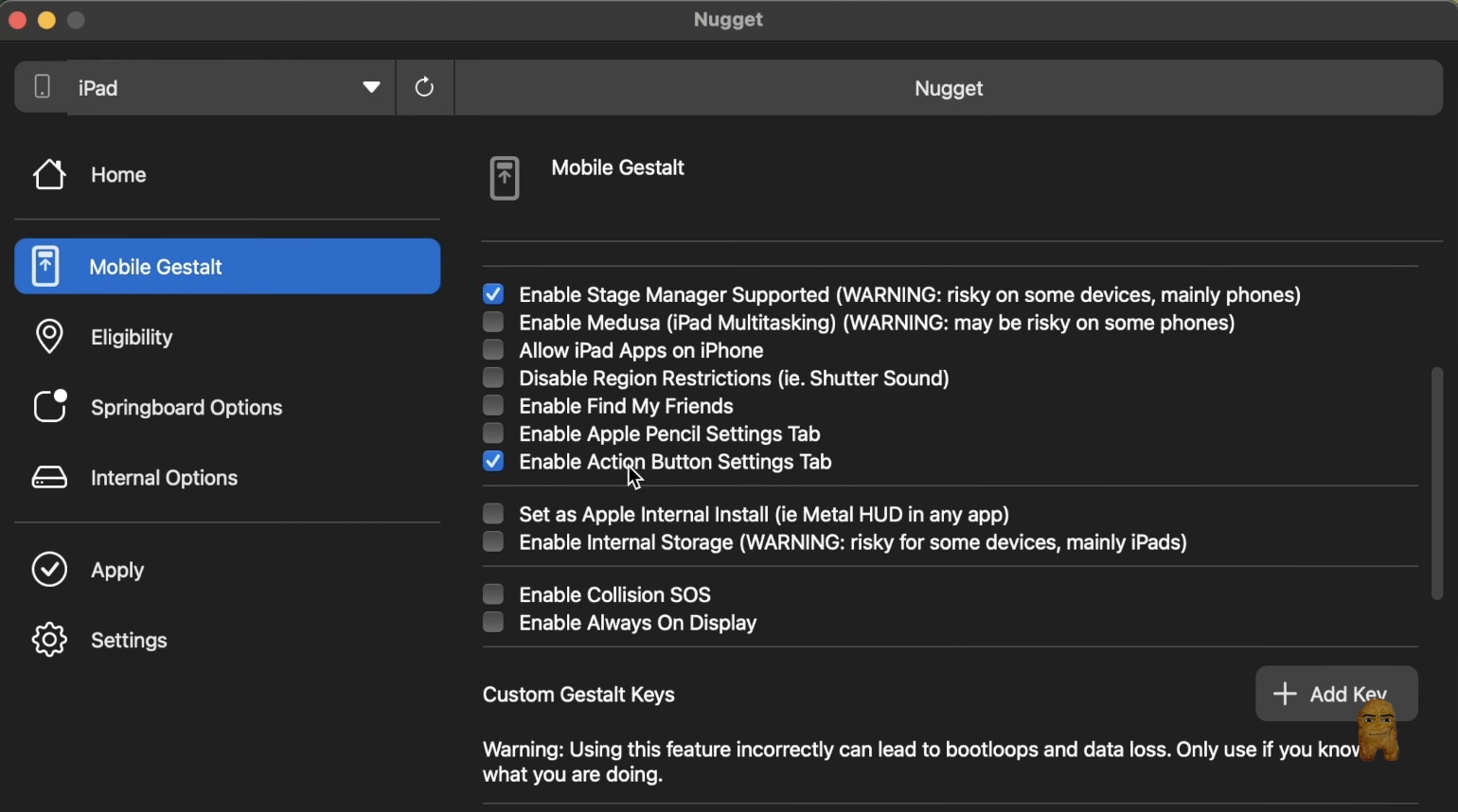
What It Does: This option enables the native Action Button configuration menu on older iPhones, linking its execution directly to the iOS Back Tap accessibility gesture.
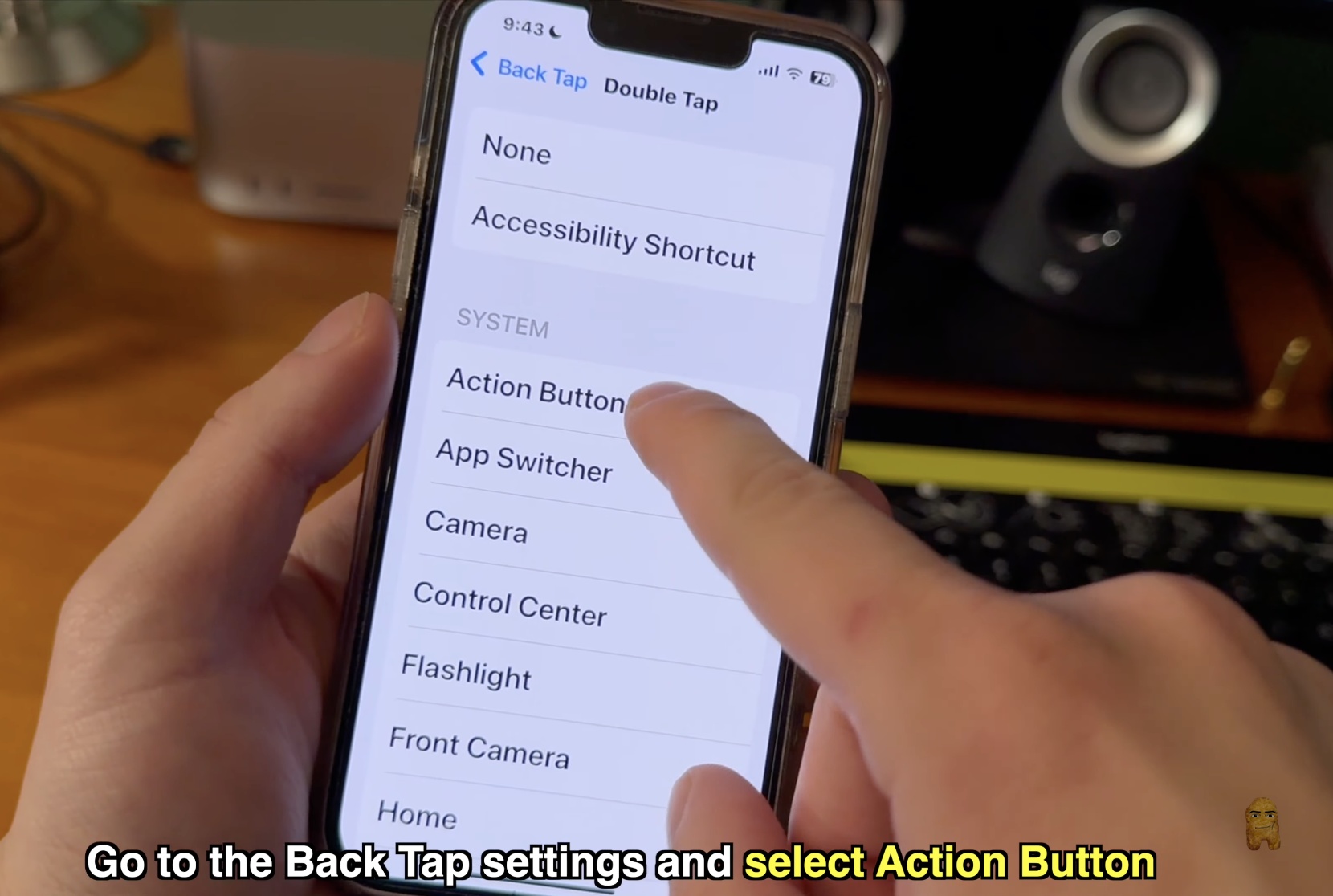
Why It Matters: Older devices lack a physical Action Button. This workaround allows you to launch custom shortcuts, toggle the flashlight, open the camera, or activate accessibility options by double-tapping or triple-tapping the back of your phone.
How to Configure It:
- In Nugget's Mobile Gestalt menu, check Enable Action Button Settings Tab.
- Apply the changes and restart your device.
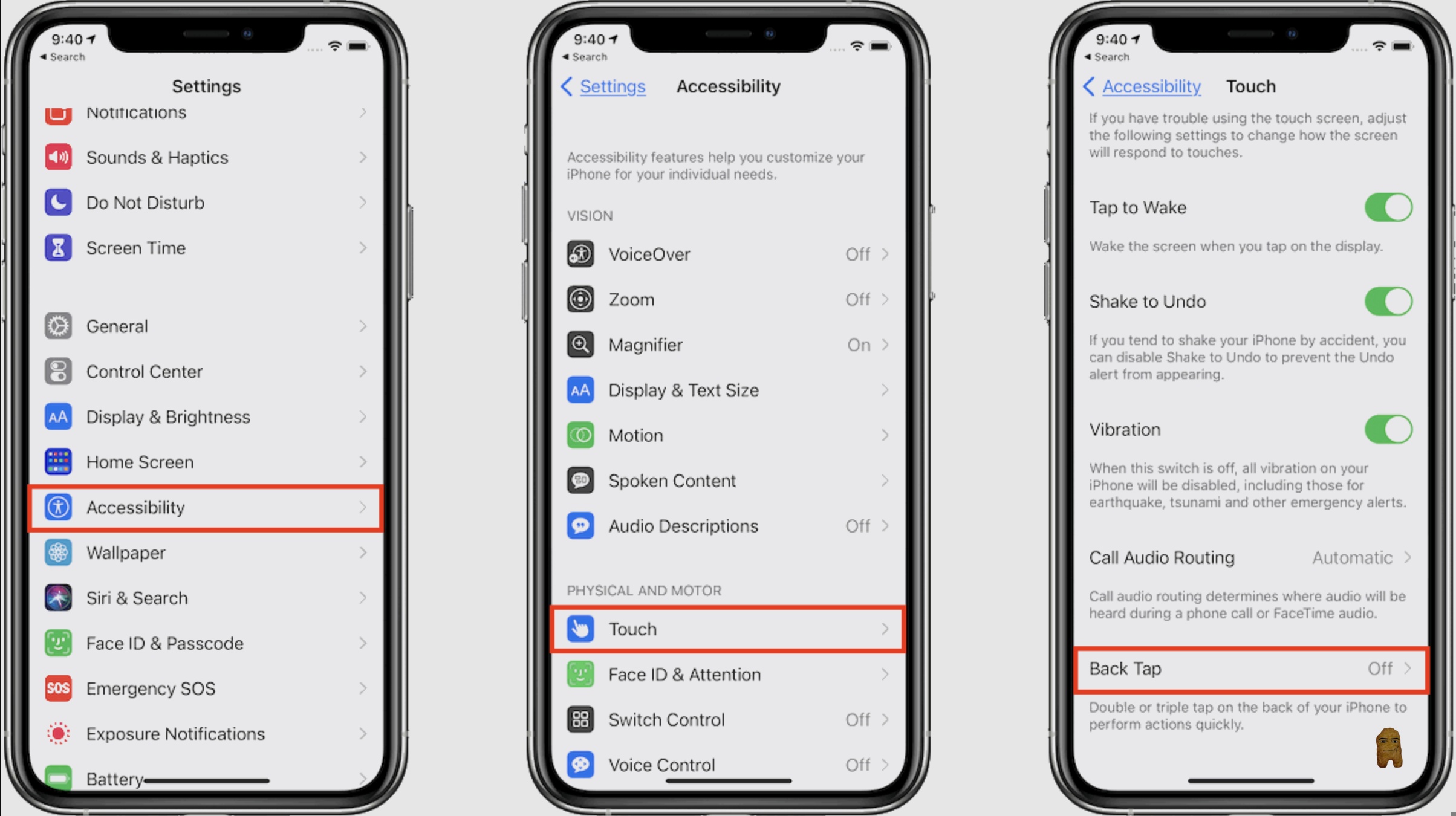
- Open iOS Settings and navigate to Accessibility > Touch > Back Tap.
- Tap Double Tap or Triple Tap and select Action Button from the list of system functions.
- Return to the primary Settings menu and open the newly added Action Button section.
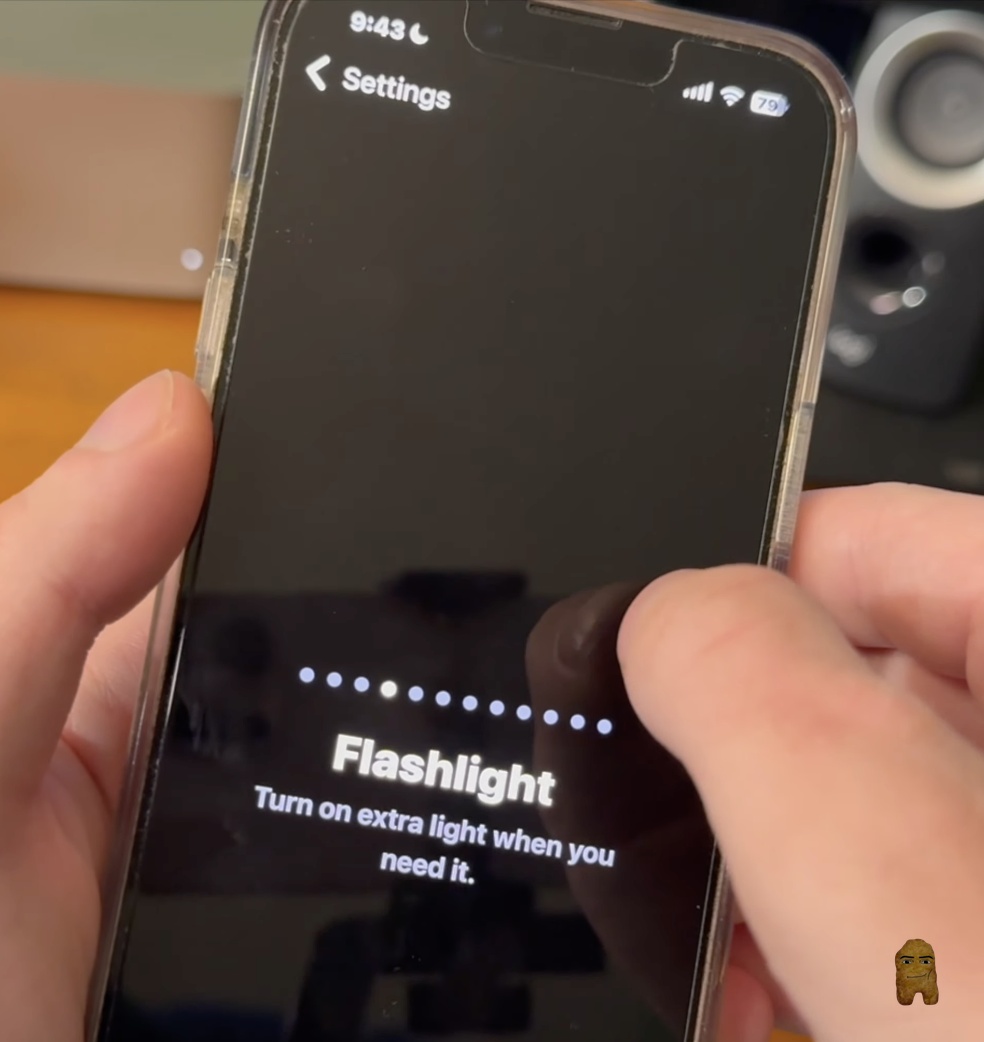
- Swipe through the interface to select your preferred task, such as the Flashlight.
5. Apple Intelligence on Unsupported Devices
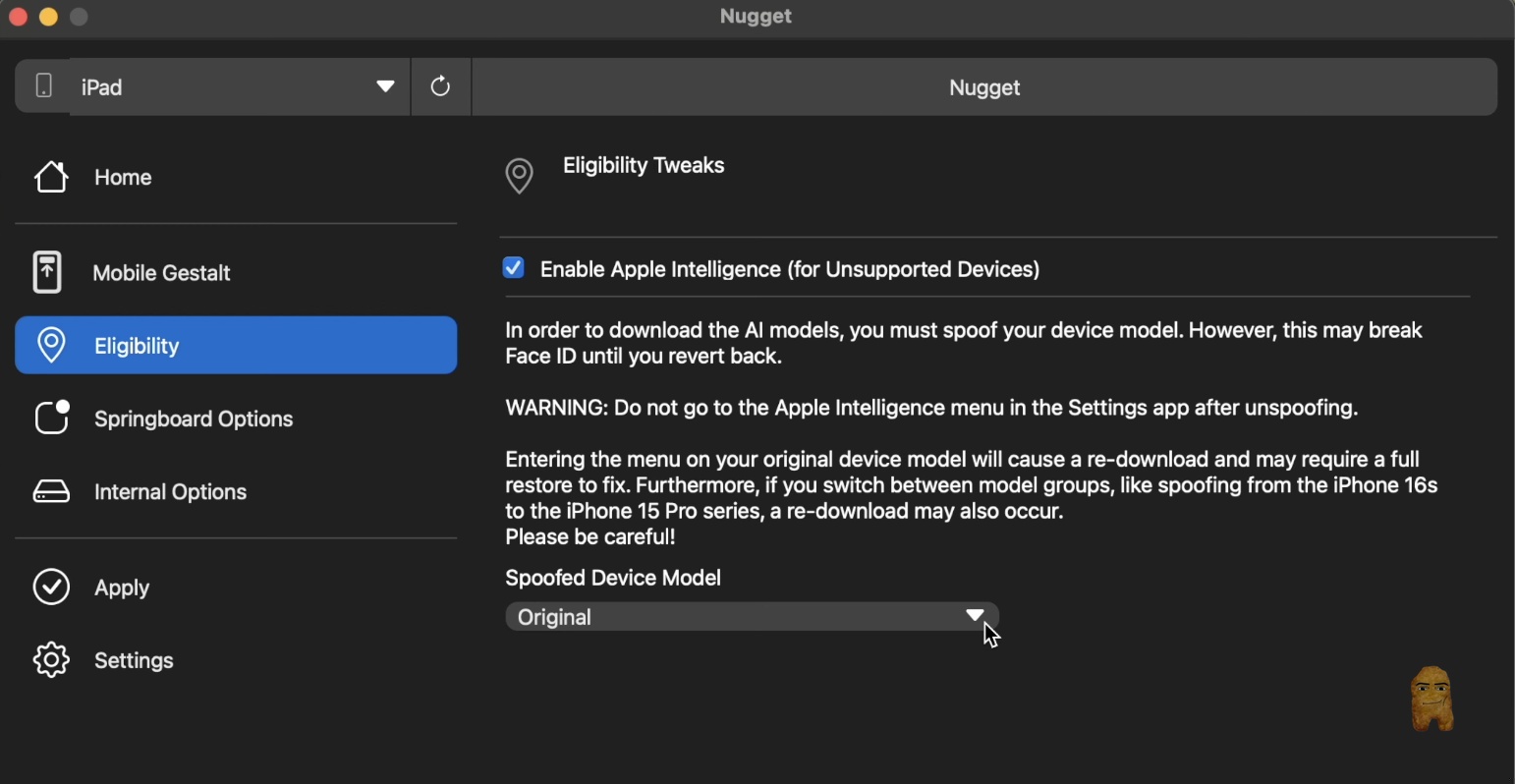
What It Does: This tool bypasses hardware checks to reveal the Apple Intelligence waitlist, setup steps, and model downloading on unsupported devices running iOS 18.1 or higher.
Why It Matters: It allows users to preview the setup flows, notification summary options, and Siri prompt animations.
Devices must have an A12 processor or newer (iPhone XS or later, iPad 8th Gen or later) to run core services like writing tools. On pre-A12 devices (such as the iPad 7th Gen), the menus will appear and attempt to download, but the features will fail to operate, displaying an error message or reverting to the legacy Siri interface.
How to Configure It:
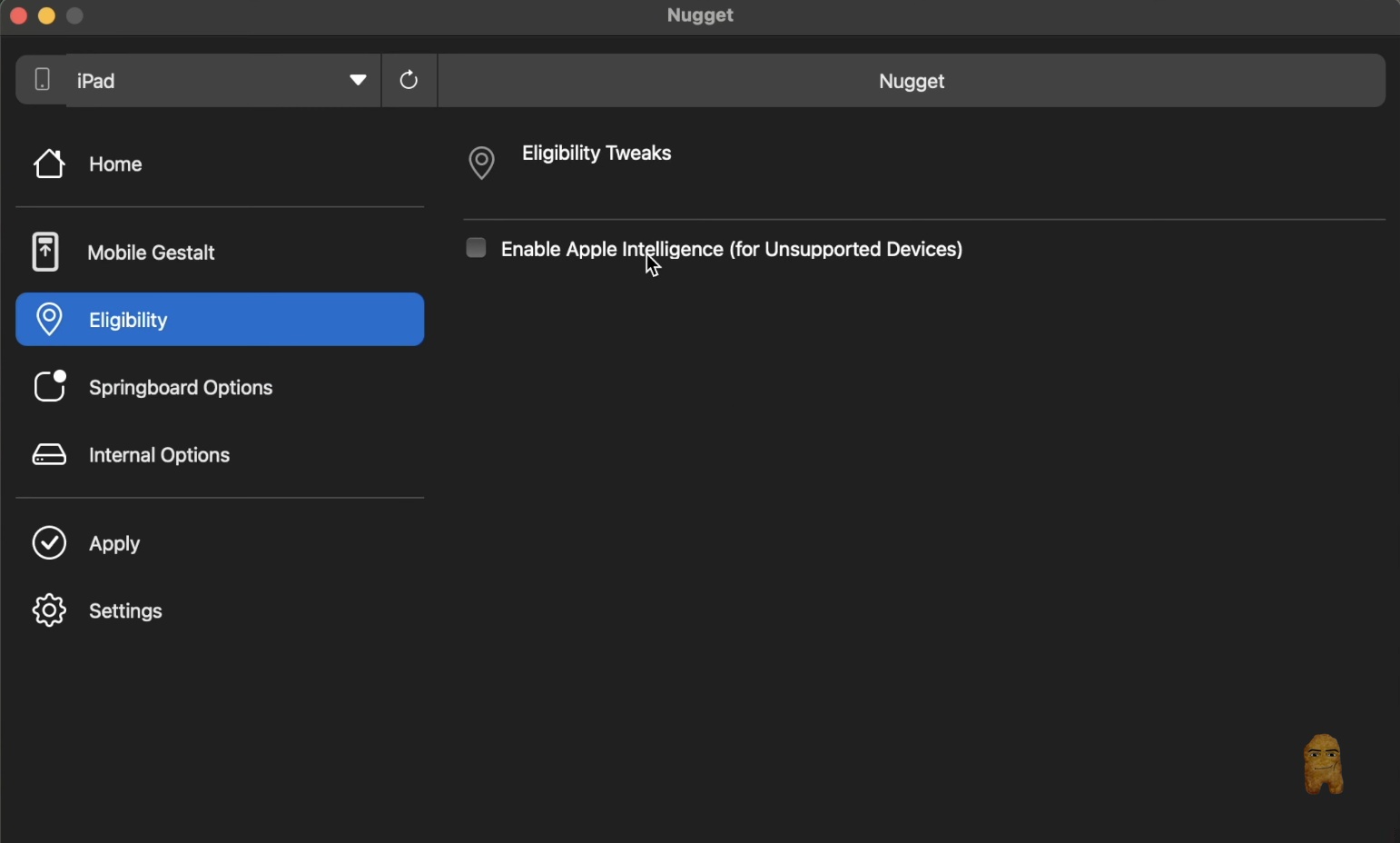
- In the Nugget app, click the Eligibility tab from the left sidebar.
- Click the Spoofed Device Model dropdown and select an authorized model, such as iPad Air (11-inch) (M2).
- Navigate to the Apply tab, select your configuration file, and click Apply Changes.
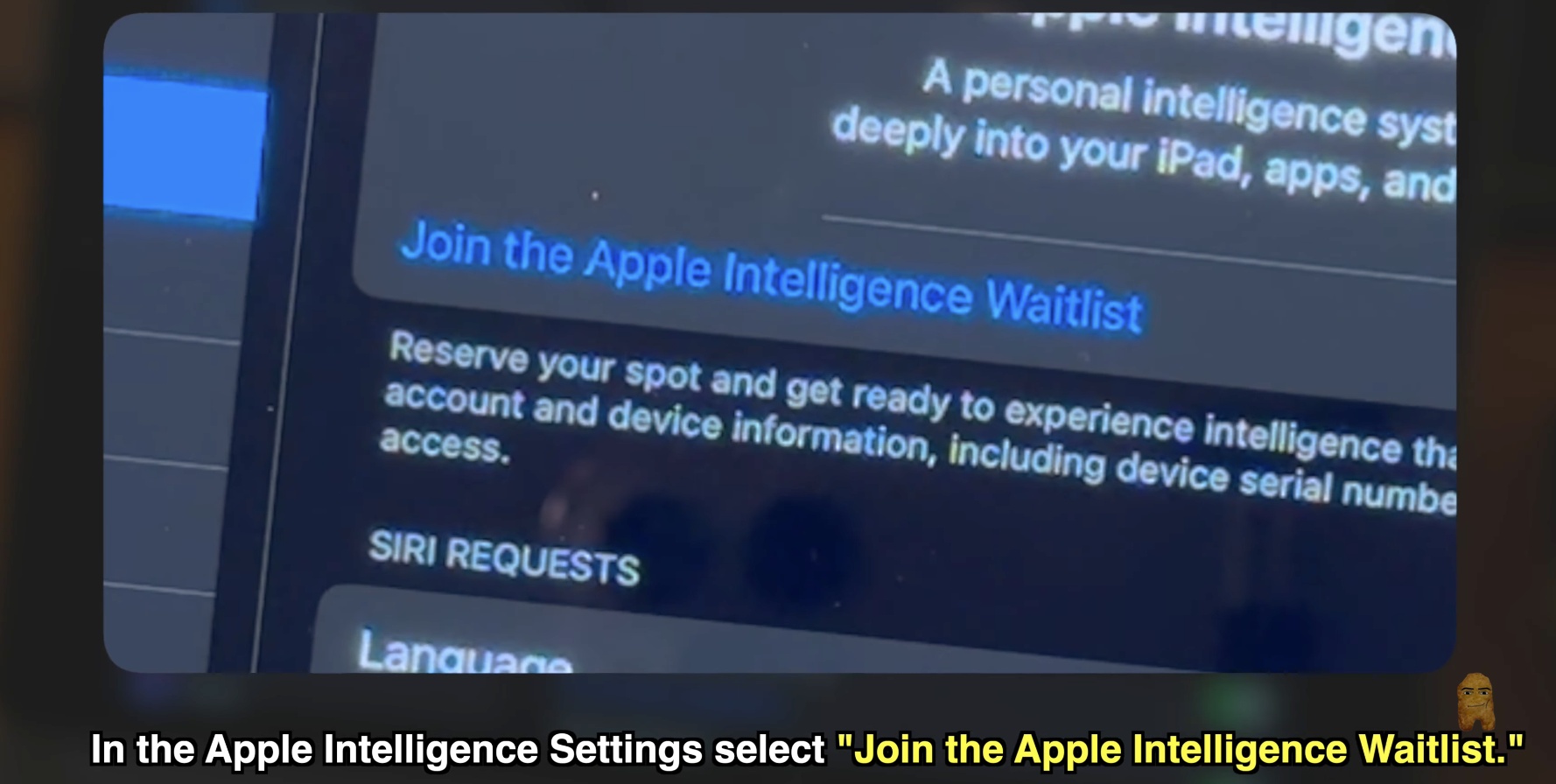
- Once your device reboots, go to Settings > Apple Intelligence & Siri.
- Select Join the Apple Intelligence Waitlist and follow the prompts to begin downloading the models.
6. Custom Lock Screen Footnote
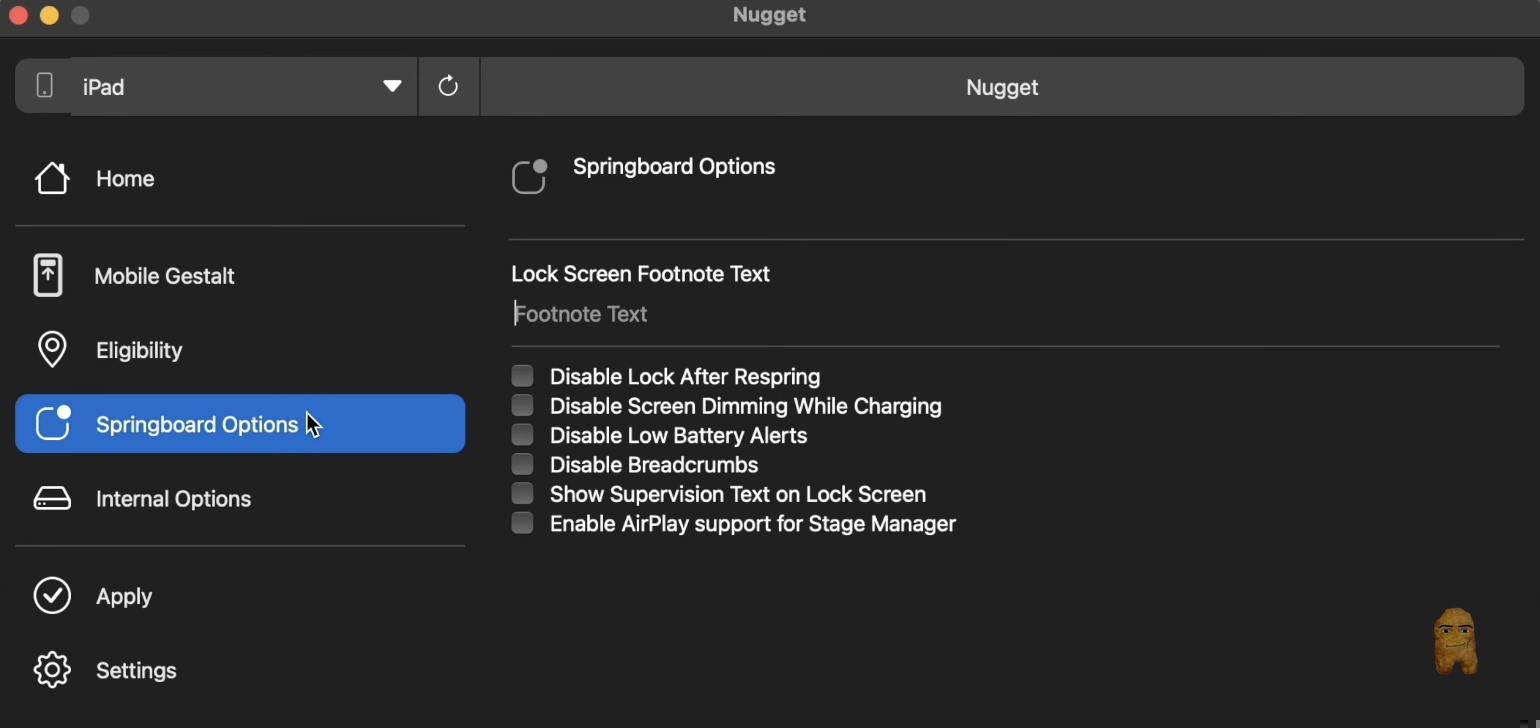
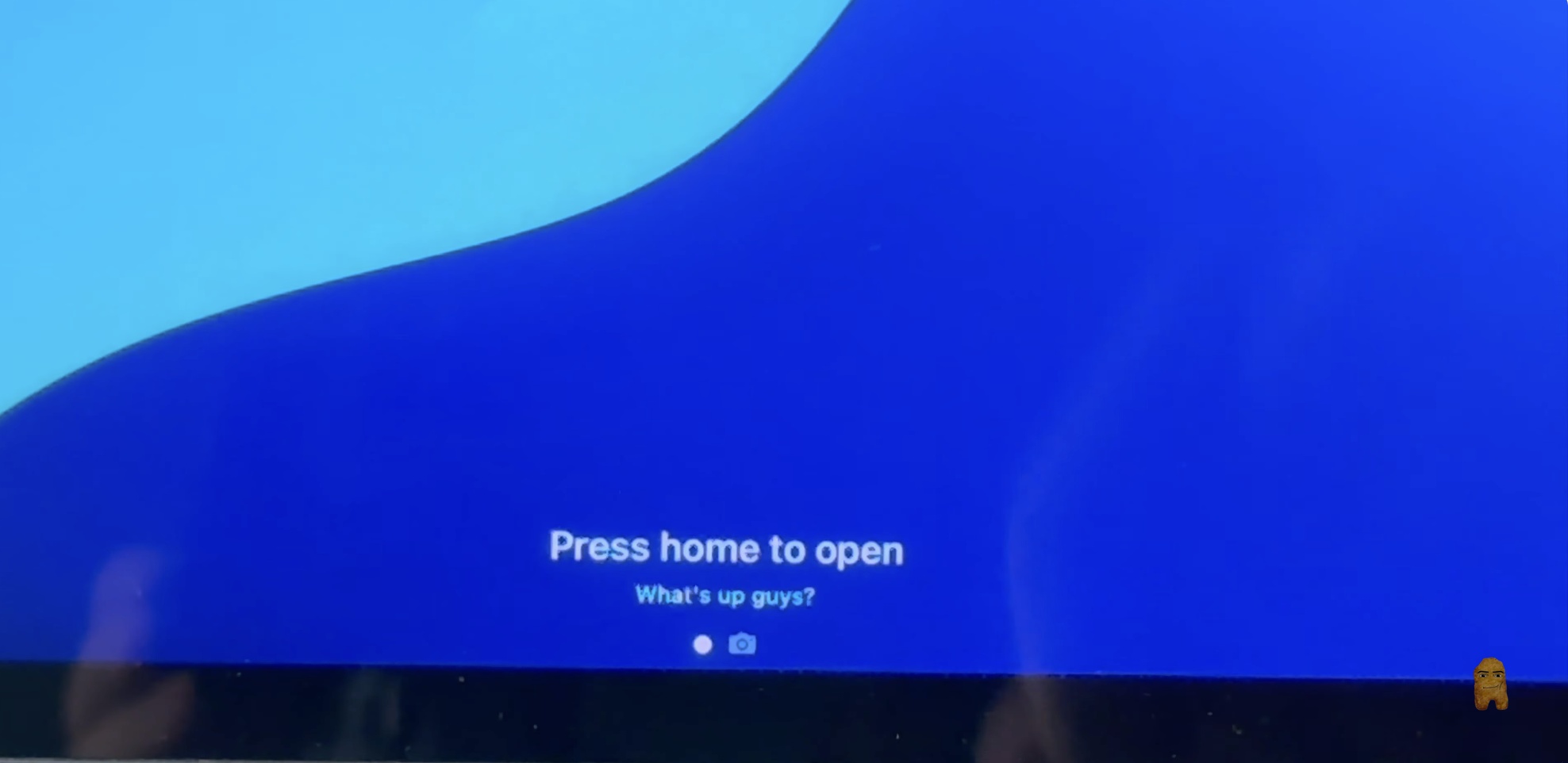
What It Does: This customization adds a custom text string to the very bottom of your device's lock screen.
Why It Matters: It offers a simple way to personalize your device with custom phrases, emergency contact details, or notes.
How to Configure It:
- Select the Springboard Options tab in Nugget.
- Go to Apply, choose your device profile, and click Apply Changes.
- Lock your screen after the reboot to see your custom text.
Important System Requirements & Risks
- iOS Version Compatibility: Nugget functions on iOS 17.0 through iOS 18.1.x, as well as select iOS 18.2 developer betas. Apple officially patched the underlying MobileGestalt modification vulnerability in the final release version of iOS 18.2, meaning this tool is completely non-functional on final iOS 18.2 builds or higher. If you encounter any connection issues or errors during the process, please read our detailed troubleshooting tutorial for quick fixes.
- Modification Risks: These settings modify system-level parameters. Enabling unsupported configurations may cause system instability, UI glitching, bootloops, or data loss. Use these features carefully. If you prefer a safer customization route, you can also find out live wallpapers guide, which relies on iOS's native Posterboard gallery instead of security vulnerabilities.
- Face ID Warning: Spoofing your device model to access Apple Intelligence can break Face ID functionality. Normal Face ID operation will only return after you revert the spoofed device model setting back to original in the Nugget interface.
Official Video Walkthrough
To see this installation process in action and follow along visually, watch the comprehensive video guide below:
Be sure to support the creator by subscribing to their channel for more awesome iOS customization guides, tips, and tutorials.
Frequently Asked Questions (FAQ)
No, Nugget operates entirely on non-jailbroken devices by using specialized USB configuration commands to update the system profiles.
Yes. You can immediately turn "Find My iPhone" back on in your Apple ID settings once your device finishes restarting and the customized features are applied.
No. The MobileGestalt file contains hardware identification keys specific to each individual physical device. Attempting to apply one device's file to another can cause severe system errors. You must run the extraction shortcut on each device individually.
Conclusion
Nugget allows users to customize their iOS experience by unlocking features like Dynamic Island, Stage Manager, Always on Display, and custom lock screen footnotes on older hardware. While these modifications require careful preparation, and are restricted to software versions below the final release of iOS 18.2, they offer a unique look at advanced features on older devices. By following our detailed setup guide and using your device's unique configuration profile, you can experience modern interface capabilities on unsupported models. Always proceed with caution, back up your critical data, and refer back to troubleshooting resources if you run into any system anomalies. Enjoy exploring the customized features of iOS 18 on your device today!