How to Get Custom Live Animated Wallpapers on iOS with Nugget
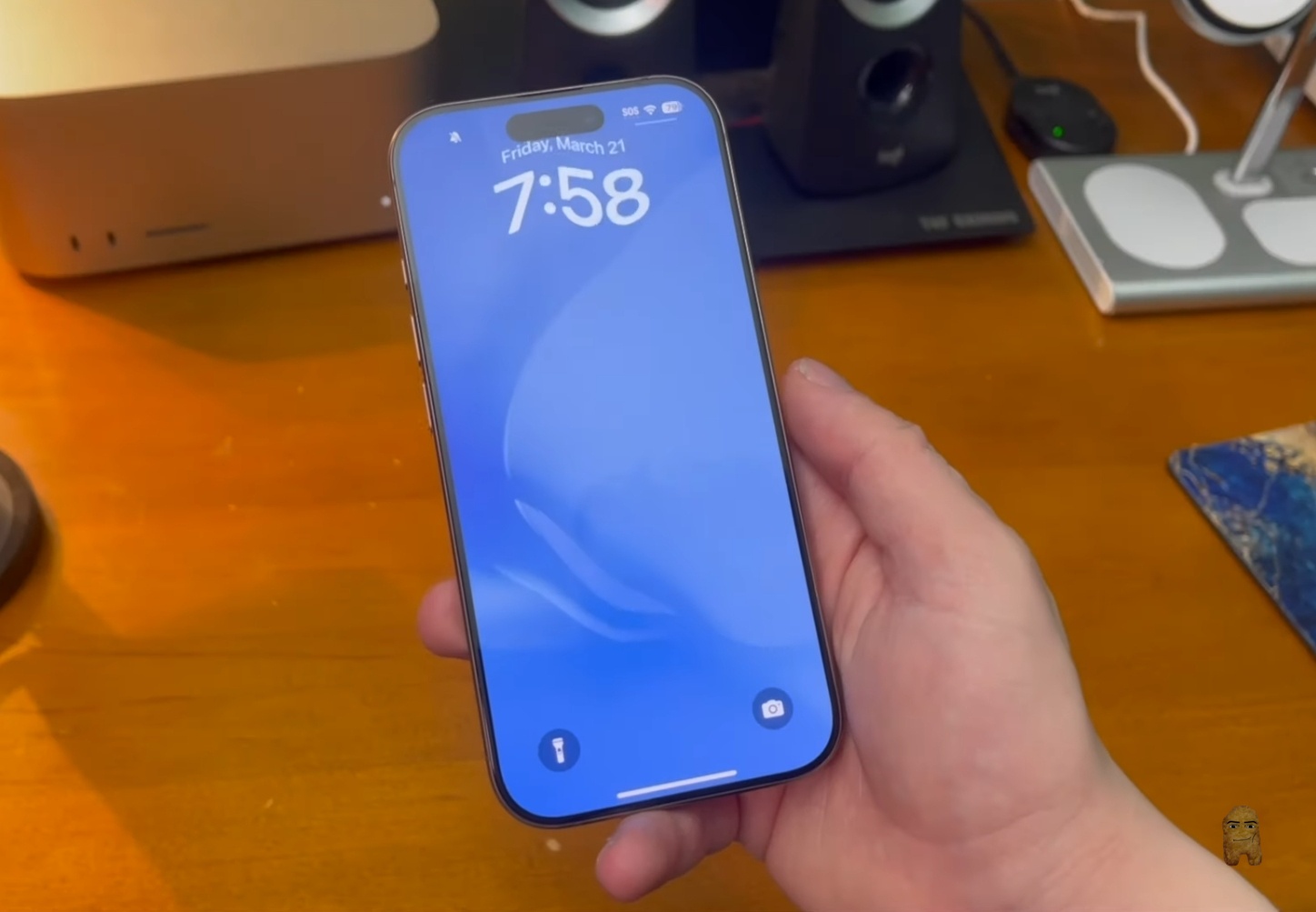
Customizing an iPhone's lock screen with active, moving background designs is now possible without resorting to a jailbreak. Thanks to a feature introduced in the Nugget utility, users can apply custom live animated wallpapers directly to their devices. This method works on modern iOS builds and newer hardware configurations, including the latest iPhone models.
The Difference Between Mobile Gestalt Patches and Posterboard
Before setting up your new backgrounds, it is important to understand how this feature operates compared to other customization tools.
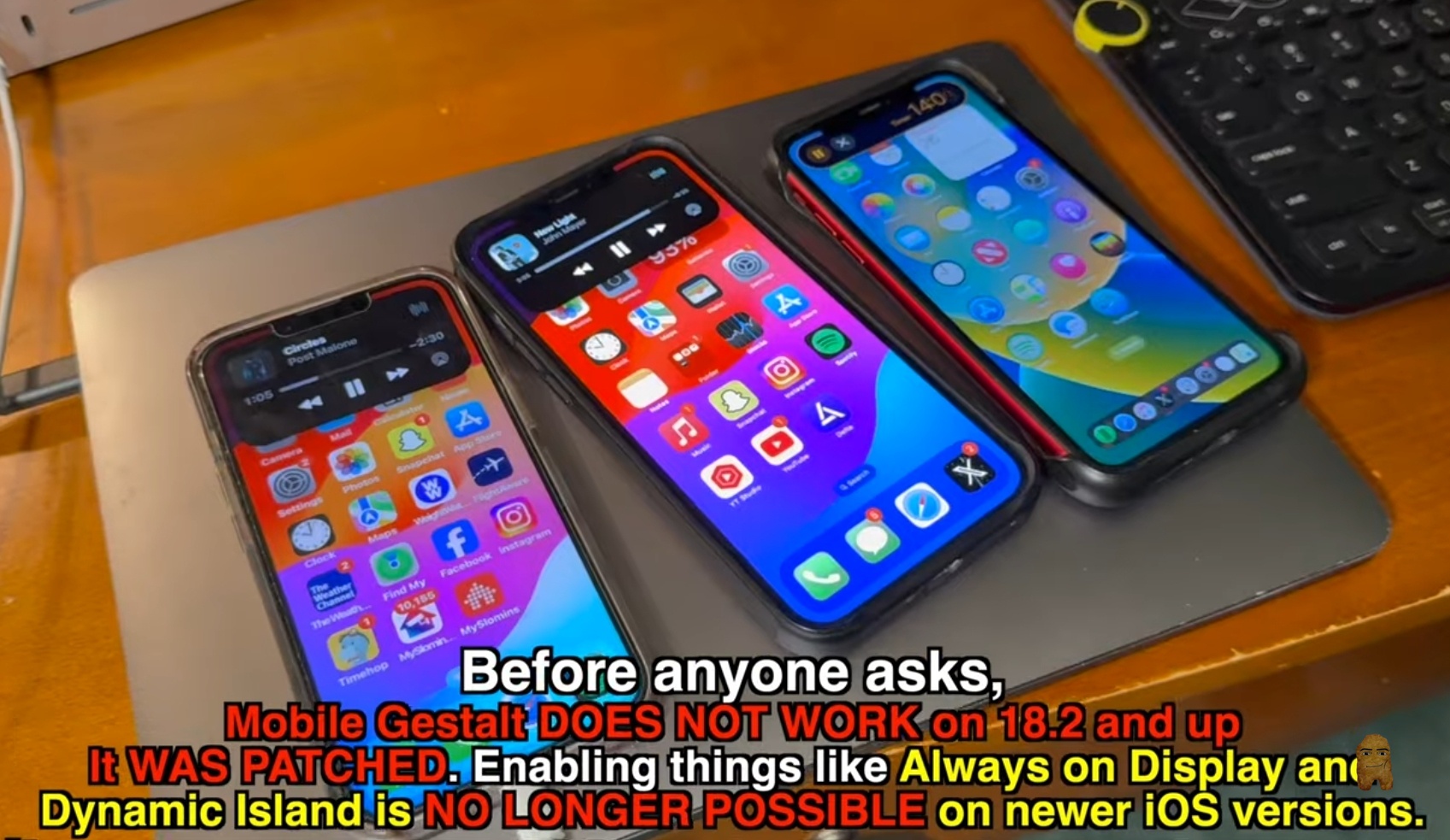
Previously, users relied on Mobile Gestalt files to enable restricted system features like Always On Display or the Dynamic Island on older devices. However, starting with iOS 18.2, Mobile Gestalt modifications have been patched by Apple and no longer function.
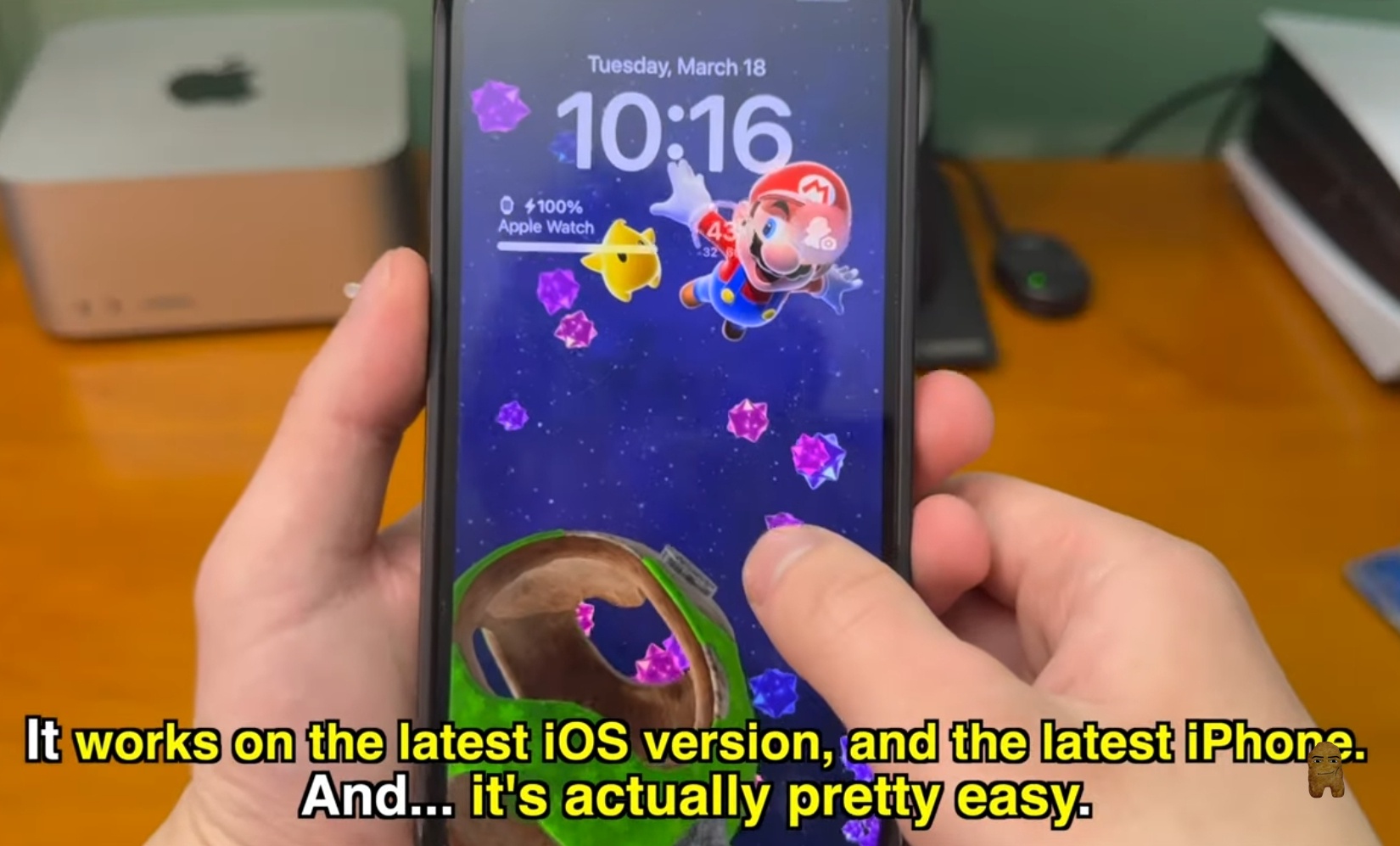
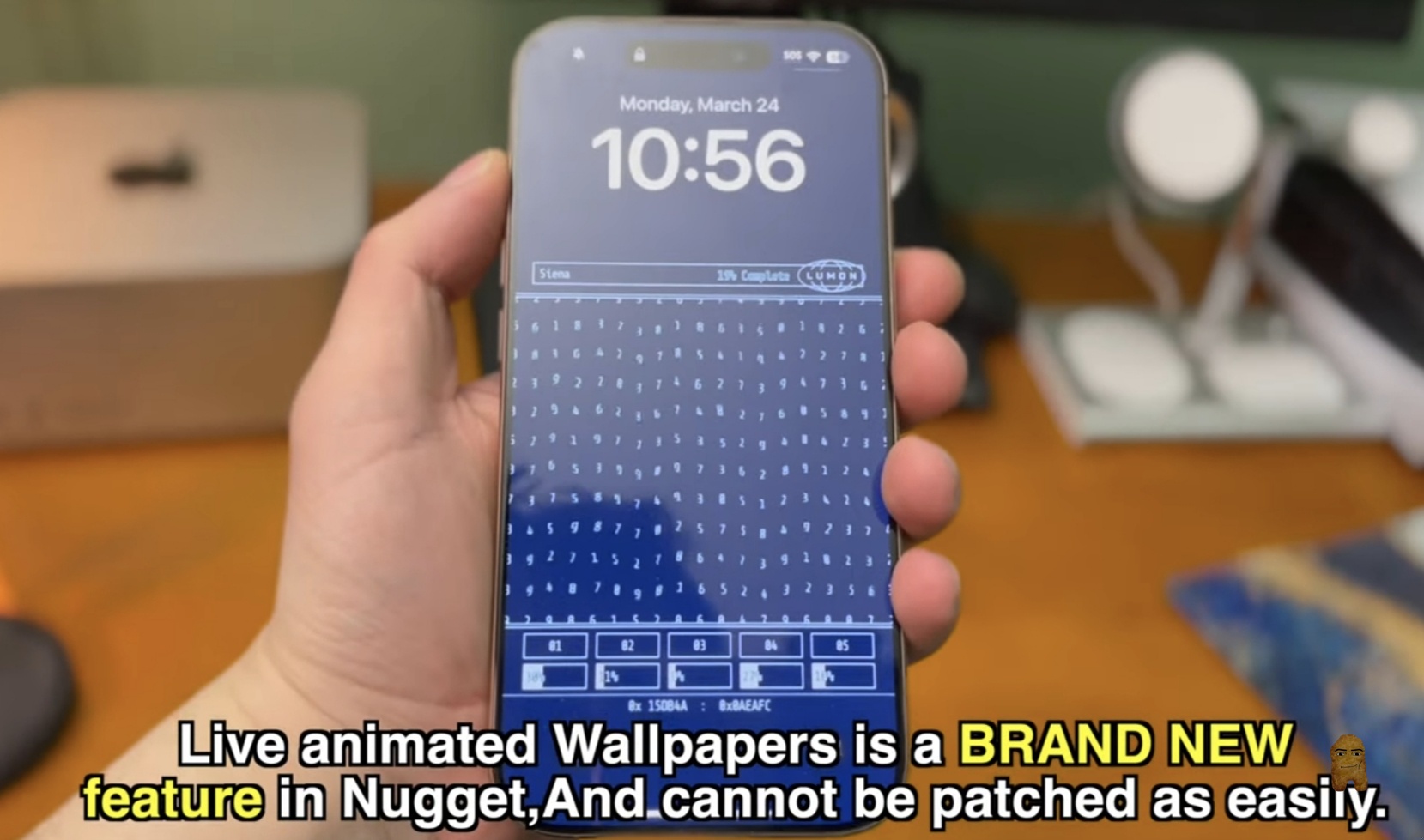
In contrast, the new live animated wallpaper feature in Nugget utilizes iOS’s native Posterboard system. Because this feature does not rely on a security exploit to function, it cannot be easily patched. This allows it to work on the latest iOS versions and the newest iPhone models.
Exploring the Custom Live Wallpaper Themes
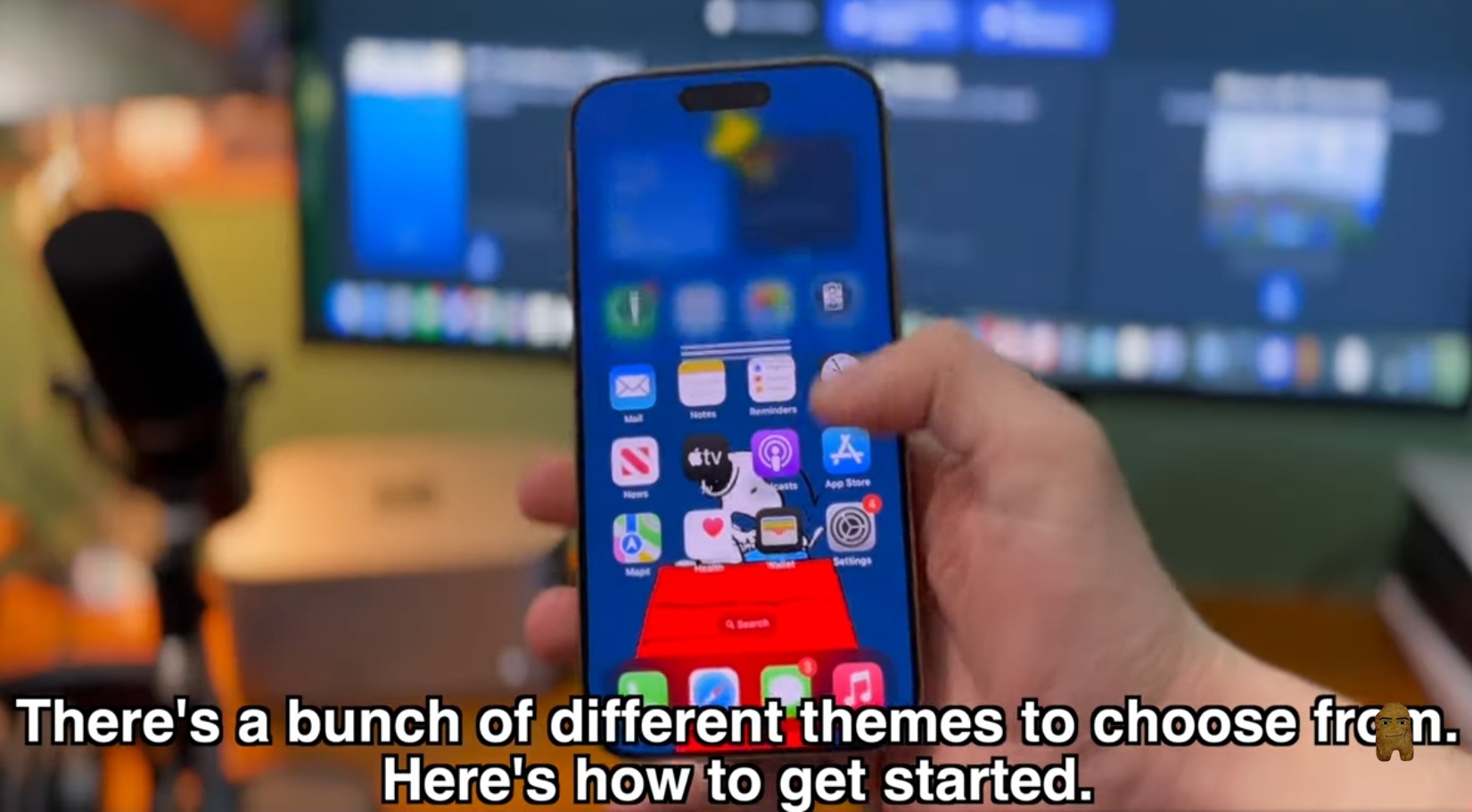
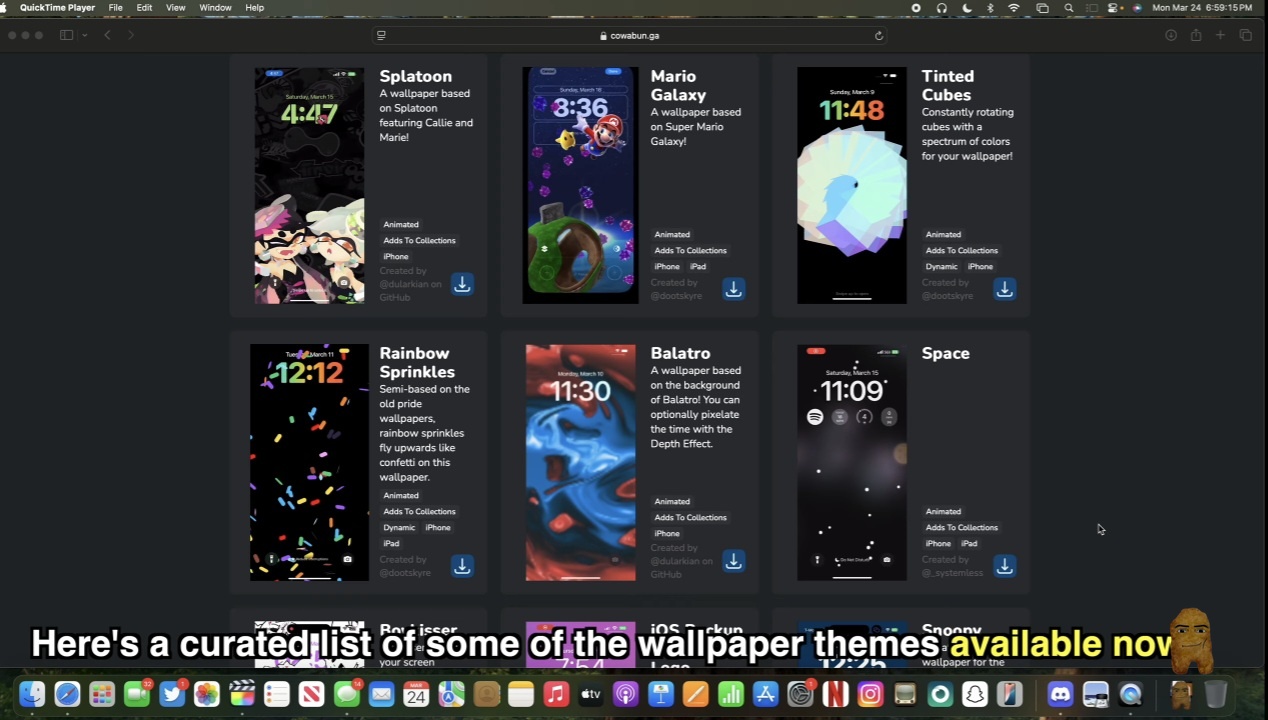
At launch, there is already a diverse selection of animated themes available. Examples of these custom designs include:
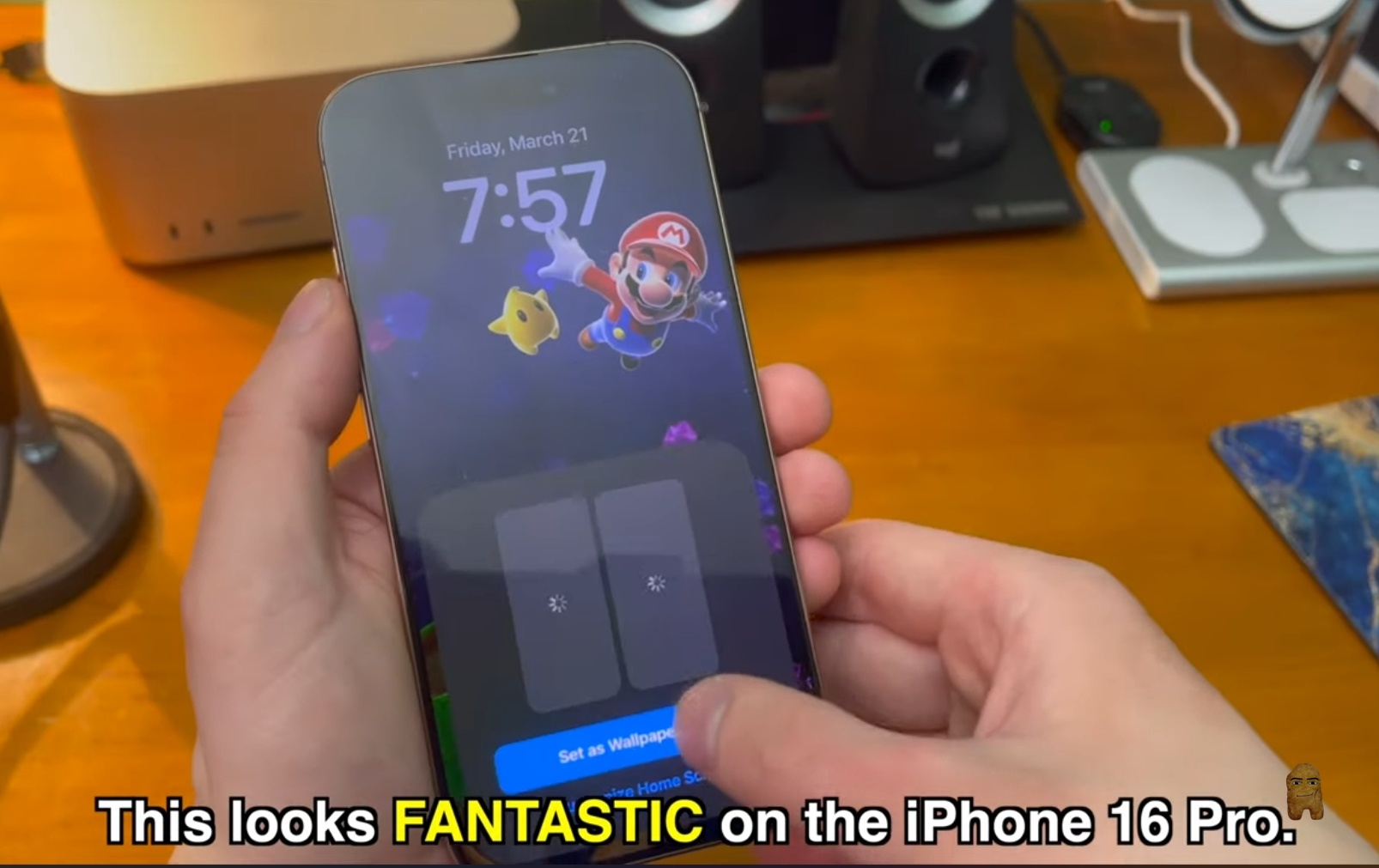
- Mario Galaxy: A space-themed design featuring Mario floating alongside Lumas.
- Liquid Waves: An interactive wave design that responds dynamically to system changes.
- Snoopy: Animated comic art featuring Snoopy on his doghouse.
- Terminal/Matrix: A falling green code design reminiscent of retro computer terminals.
- Clownfish: An underwater theme showing a swimming clownfish among anemones.
Step 1: Download Nugget for Your Computer
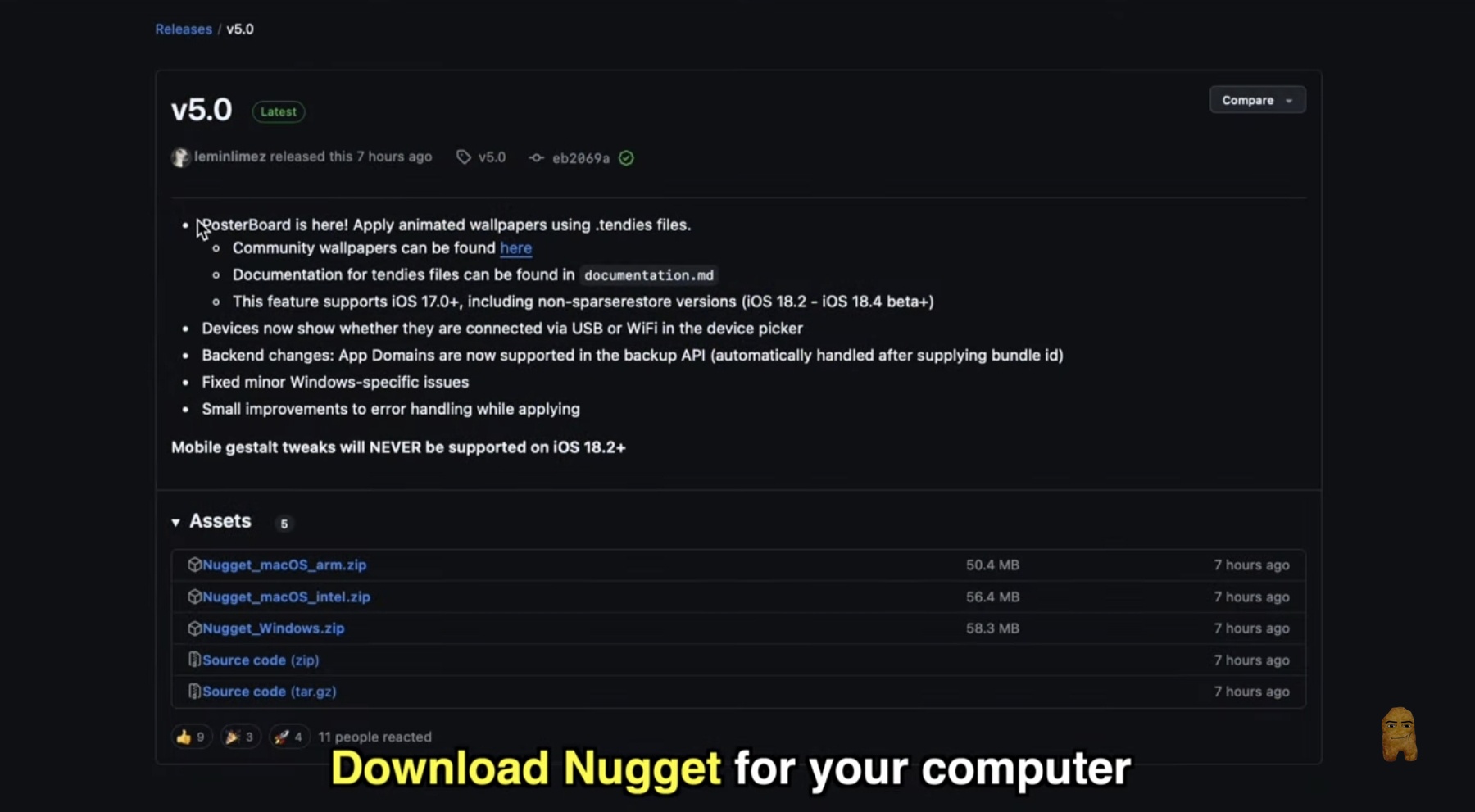
To begin, you will need to download the Nugget utility on your computer. You can download the application from either of the following official channels:
- Visit the homepage and click the download button to grab the application.
- Alternatively, navigate directly to the GitHub releases repository to locate the latest build assets.
Download the package corresponding to your platform (such as Nugget_macOS_arm.zip for Apple Silicon Macs) and extract the files to a convenient folder.
Step 2: Disable Find My iPhone
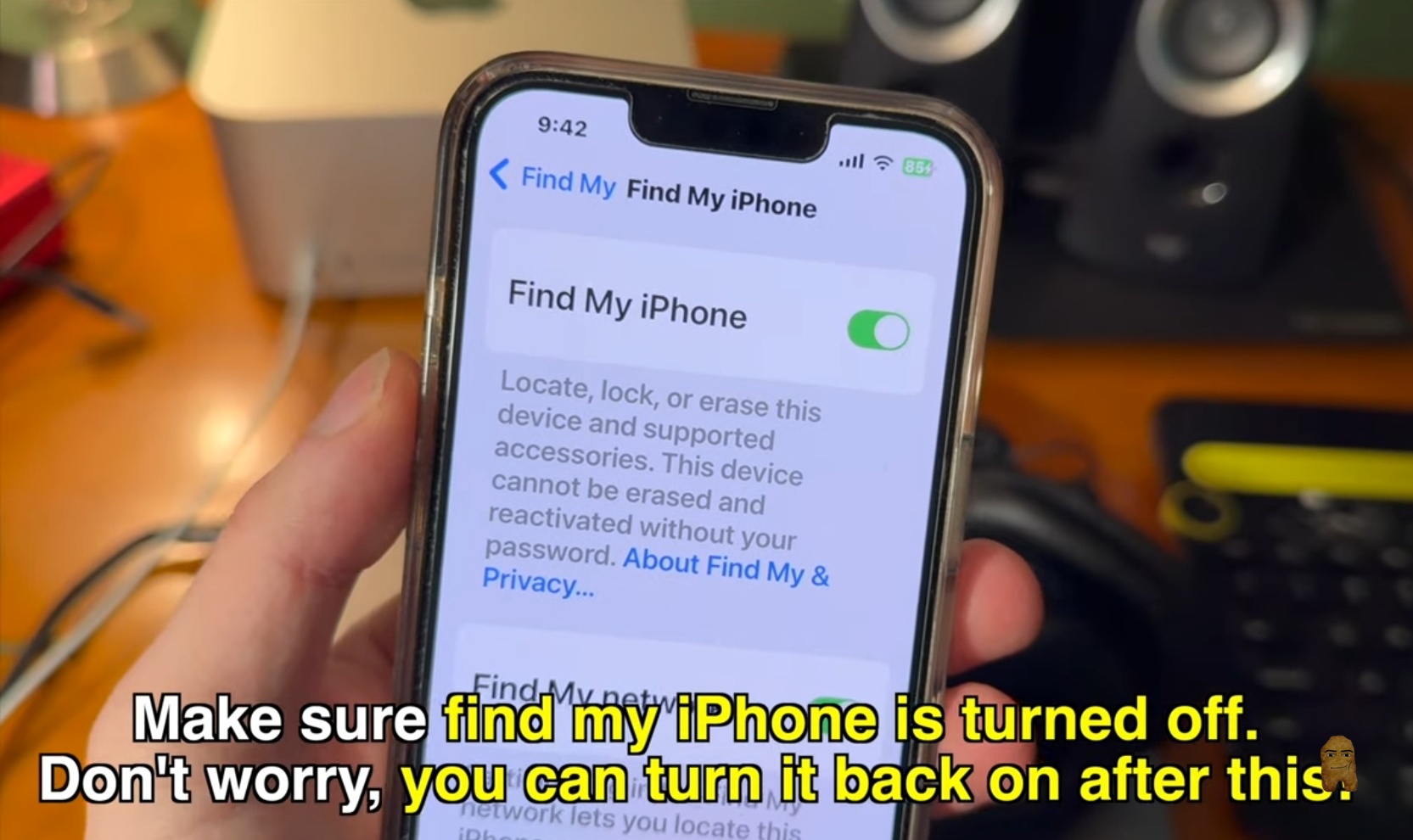
To allow the utility to apply system-level wallpaper changes, you must temporarily disable device tracking.
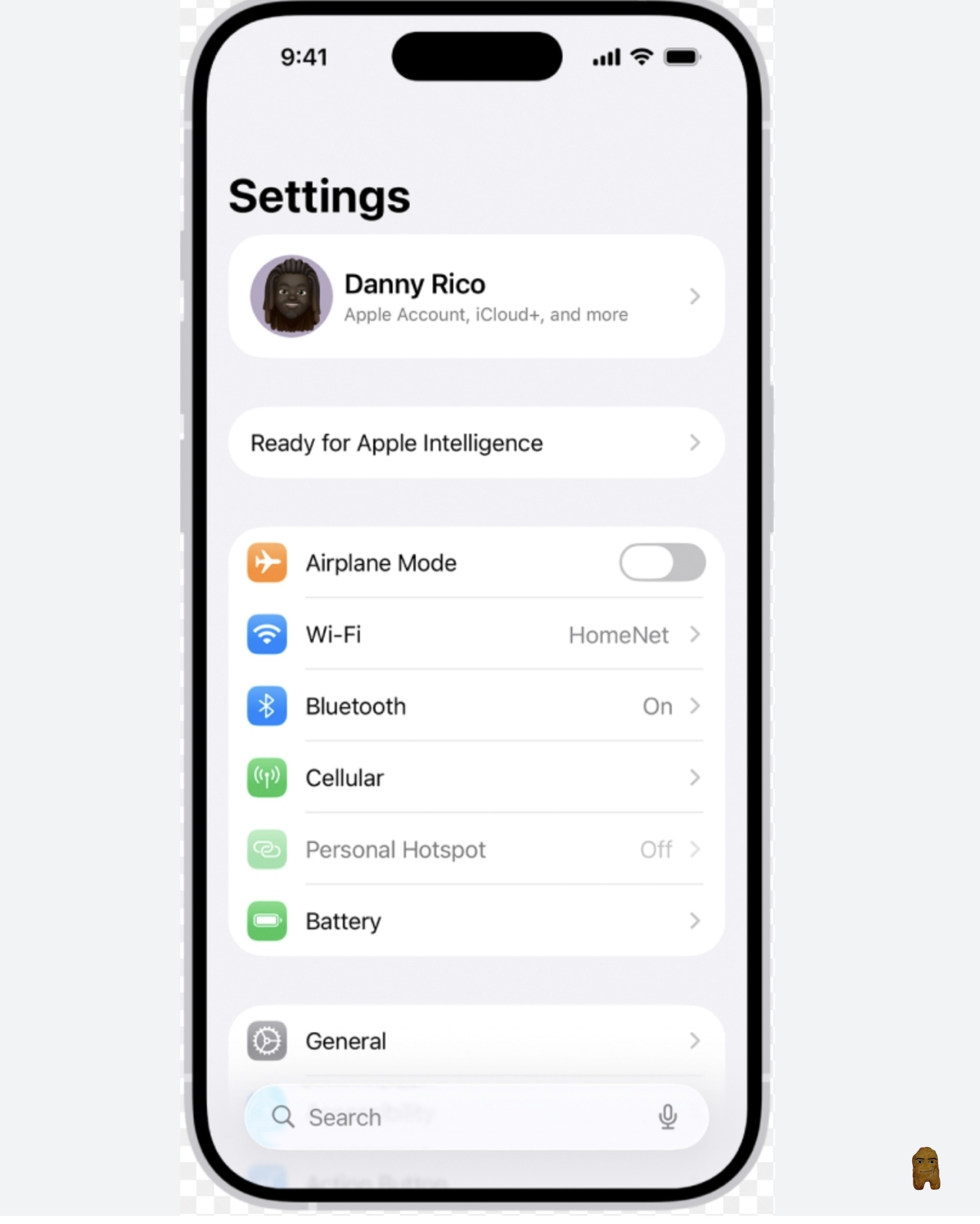
- On your iPhone, open the Settings app.
- Tap on your Apple ID banner at the top, then select Find My.
- Tap Find My iPhone and toggle the switch to the Off position. Enter your Apple ID password when prompted.
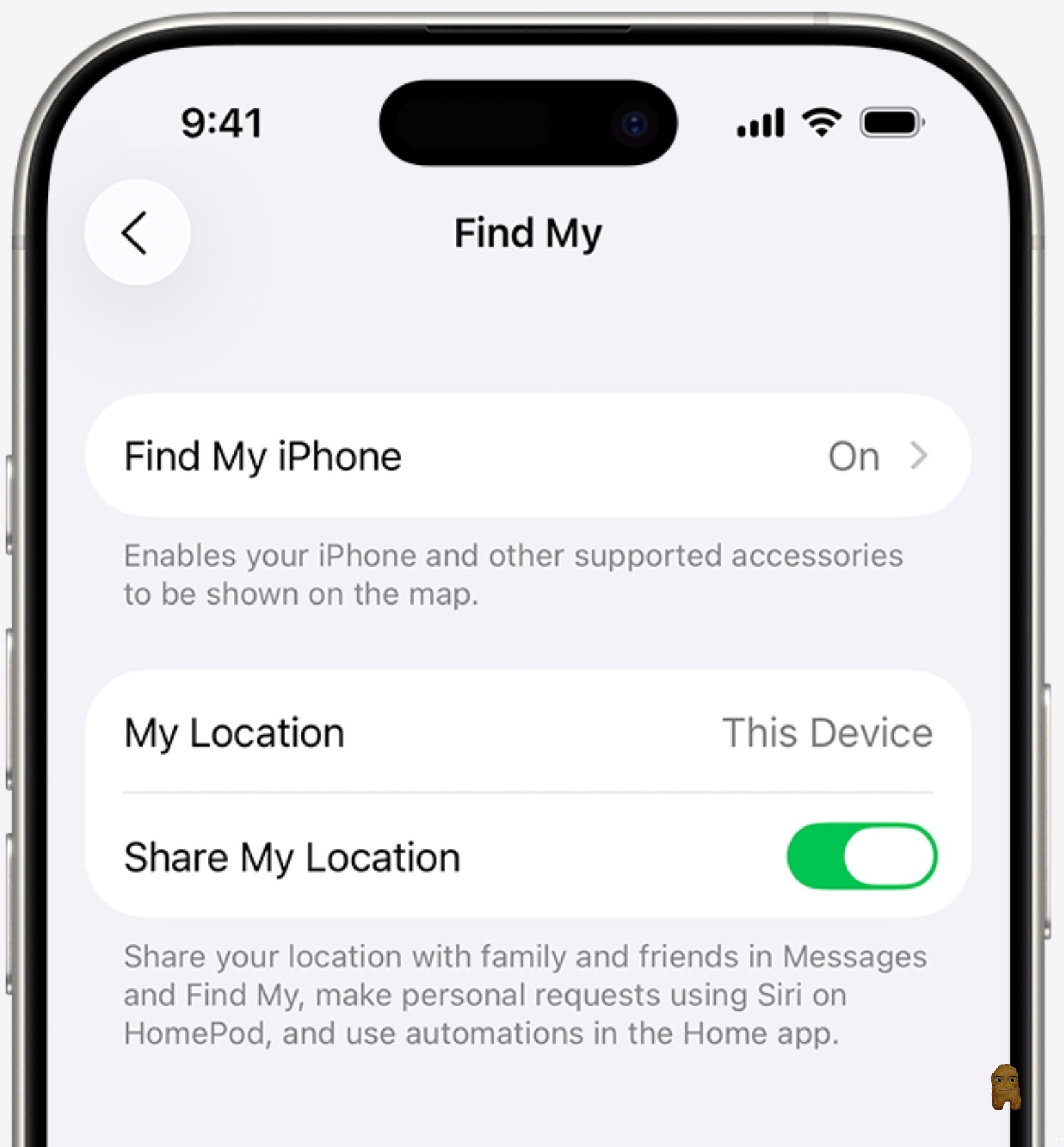
You can safely turn Find My iPhone back on as soon as the installation process is finished.
Step 3: Open Nugget and Bypass Security Warnings
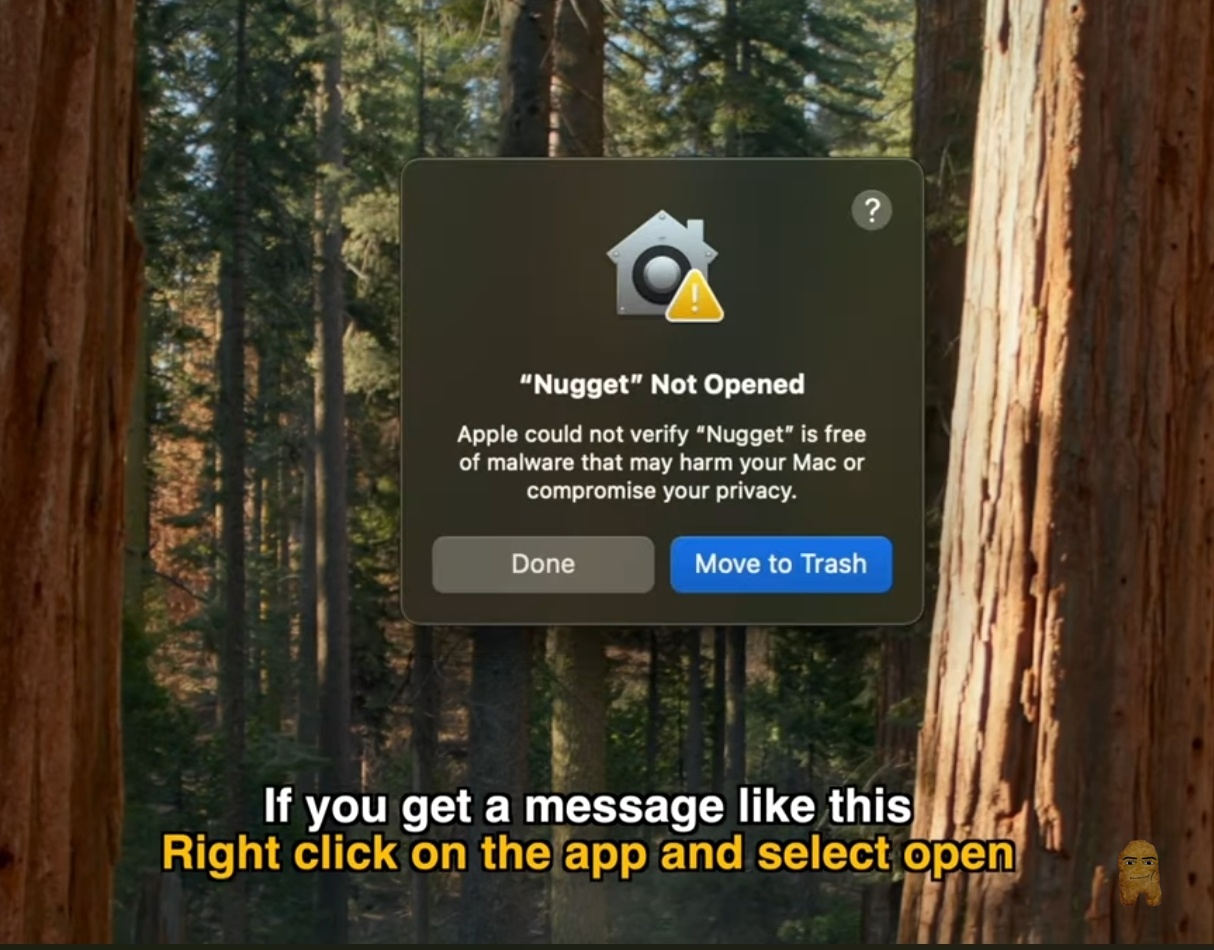
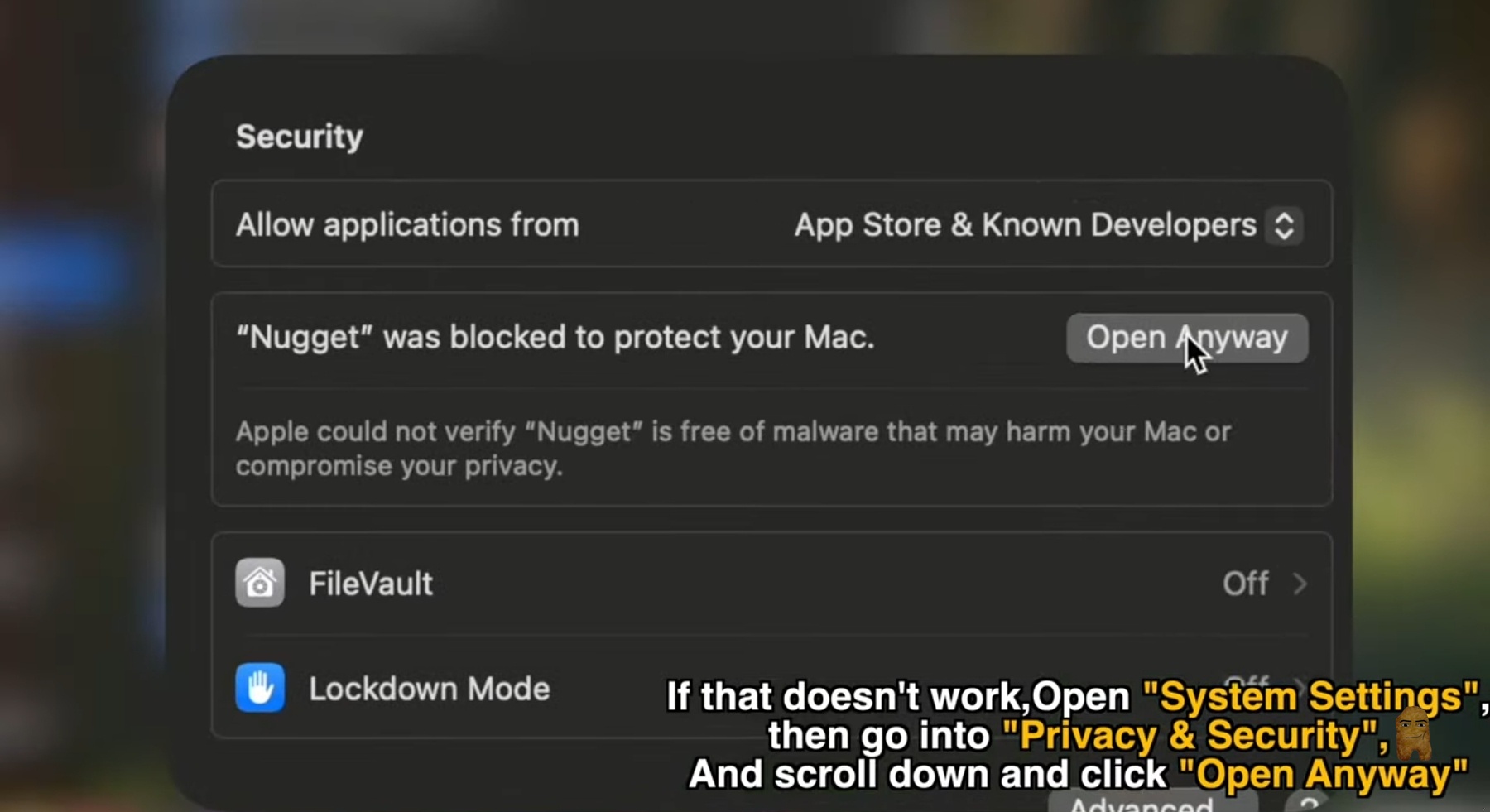
If you are running the utility on macOS, your system may block the app from launching due to untrusted developer security protocols.
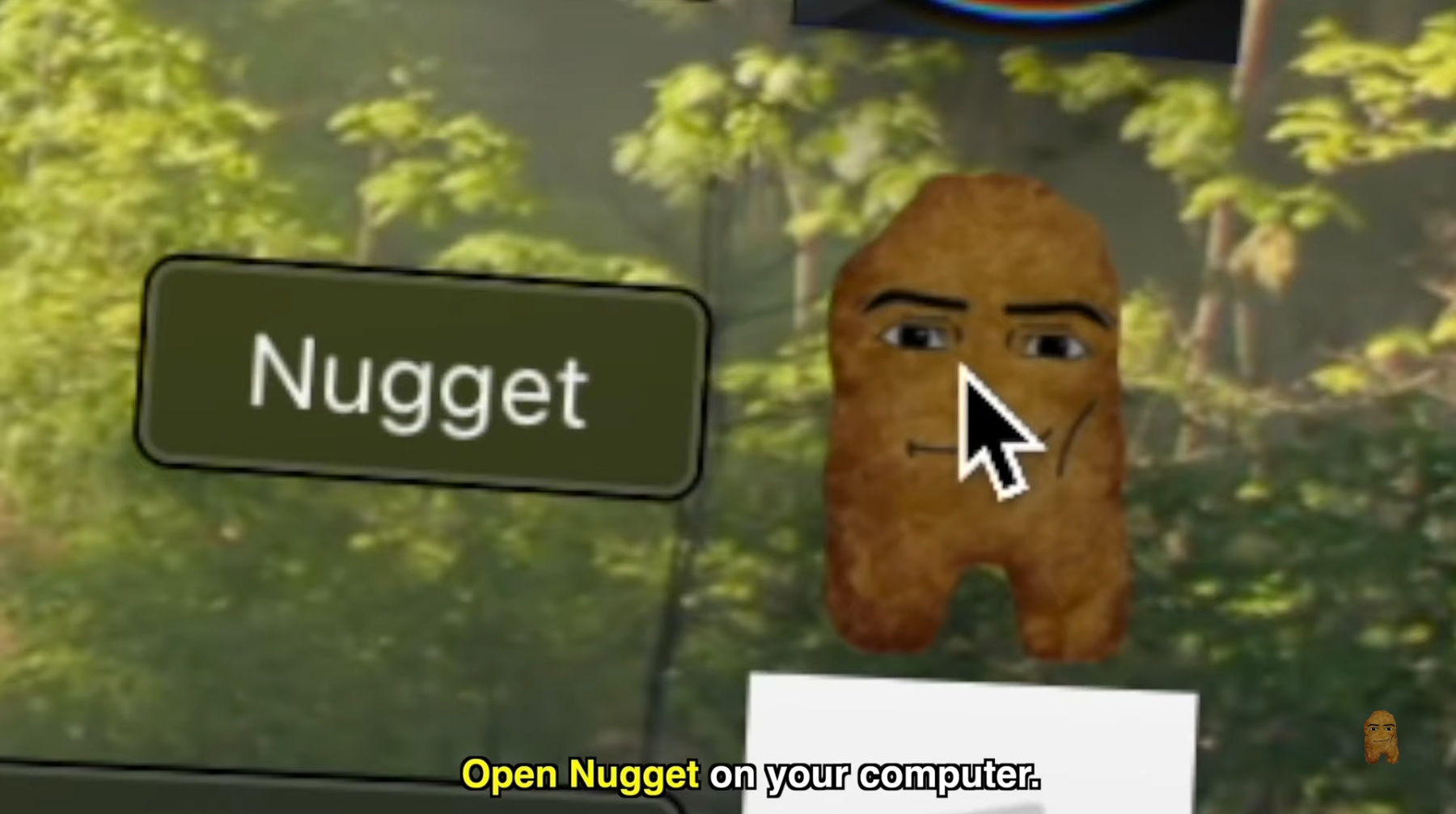
- Locate the extracted Nugget application on your computer.
- Right-click (or Control-click) the Nugget icon and select Open.
- If the app still refuses to open, open System Settings on your Mac and navigate to Privacy & Security. Scroll down to the security section and click Open Anyway next to the Nugget blockade message.
Step 4: Connect Your iOS Device
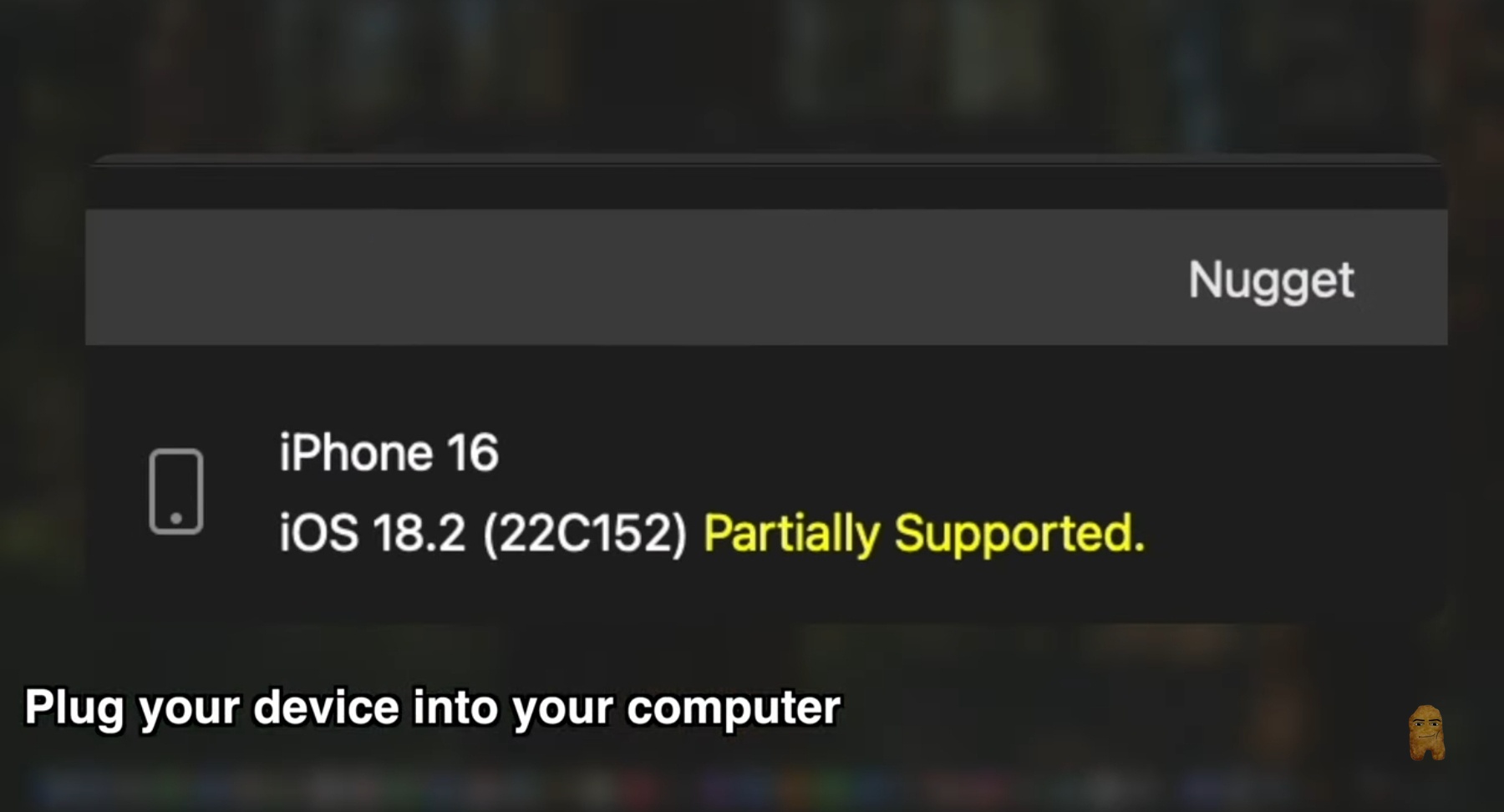
Once Nugget is open on your computer, connect your iPhone using a compatible USB cable.
Nugget will automatically detect your device and display its model, iOS version, and support status at the top of the interface.
Step 5: Download Custom Wallpaper Themes (.tendies)
With the device connected, you can now source your custom animated files.
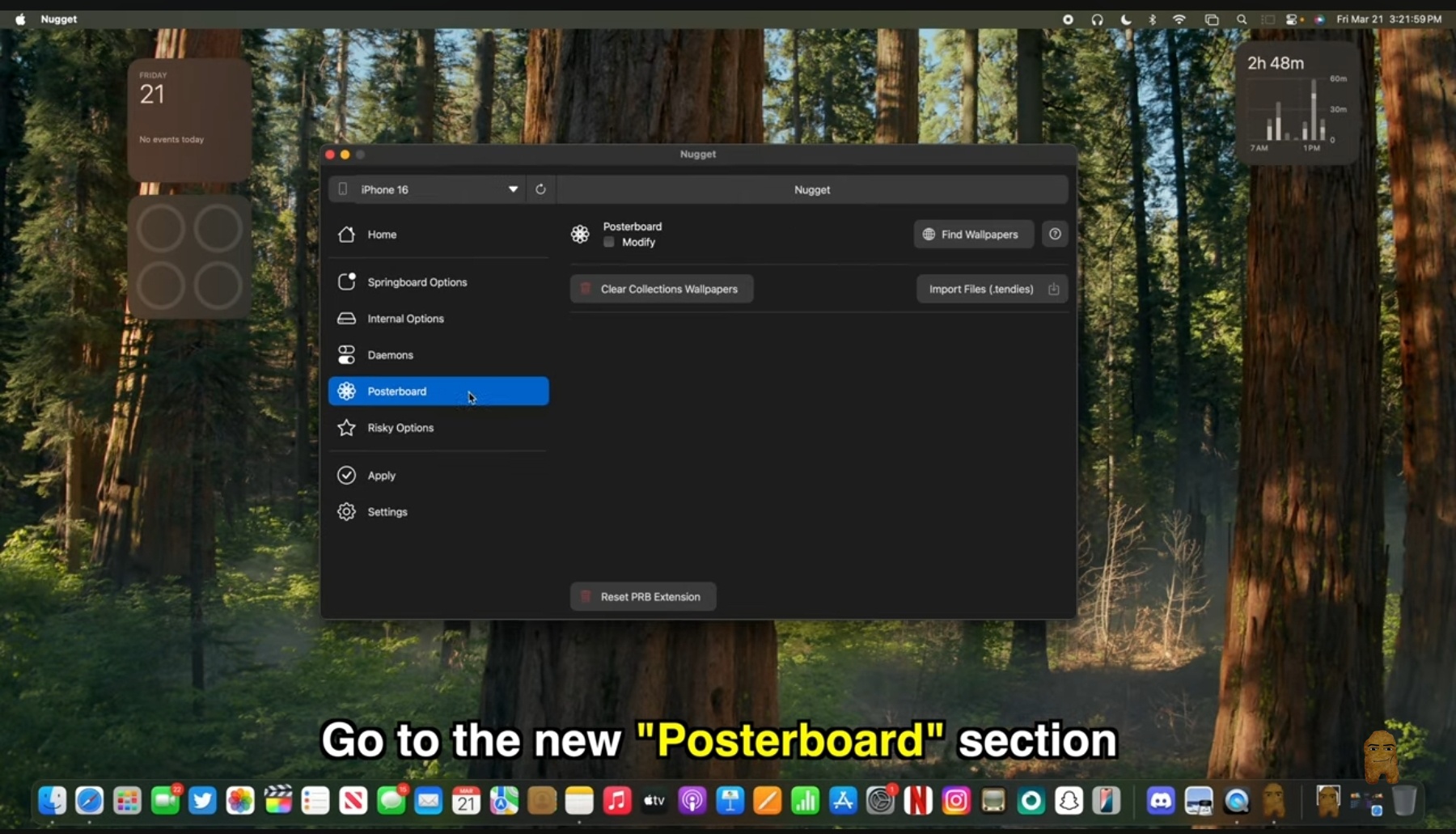
- In Nugget's sidebar, select the Posterboard section.
- Click the checkbox to enable Modify.
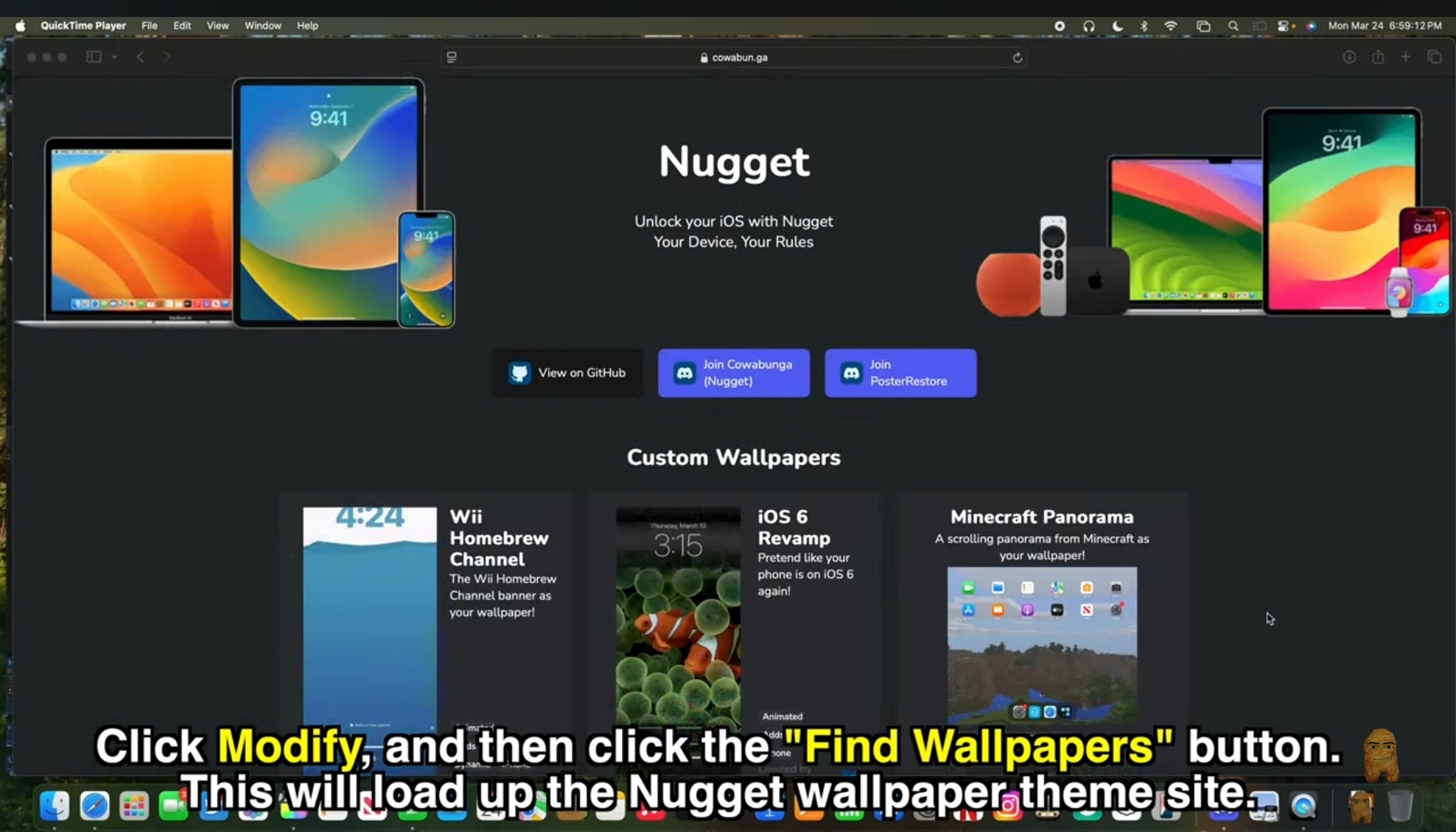
- Click the Find Wallpapers button. This will automatically open a repository of custom themes in your web browser. You can also check wallpapers and templates on our website.
- Browse the available options and download the themes you want to try. These custom wallpaper packages will save to your computer with a
.tendiesfile extension.
Step 6: Import and Apply Your Themes
Now, you will transfer the downloaded wallpaper files to your device through Nugget.
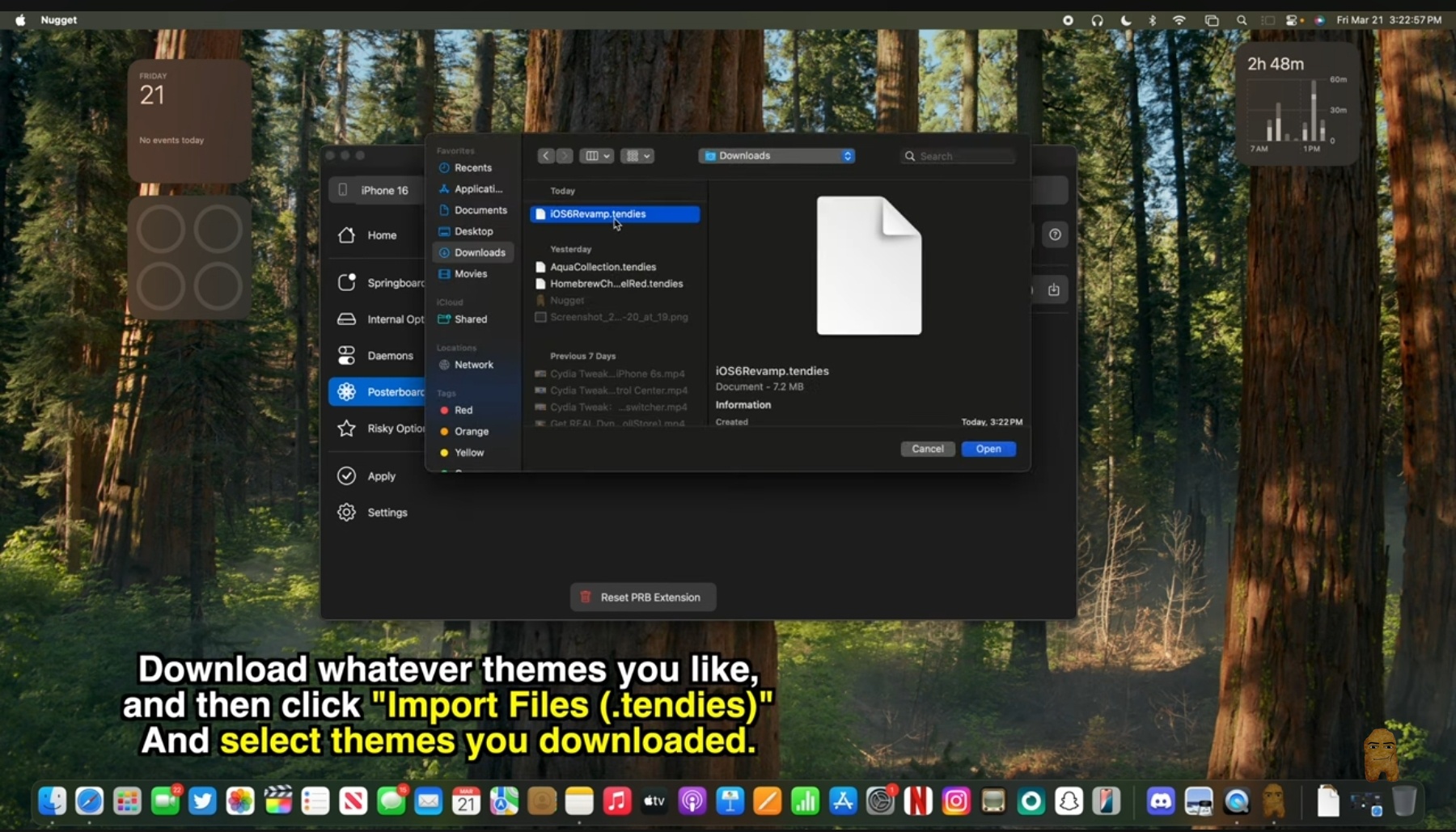
- In the Posterboard section of Nugget, click the Import Files (.tendies) button in the upper-right corner.
- Navigate to your computer's Downloads folder, select your downloaded
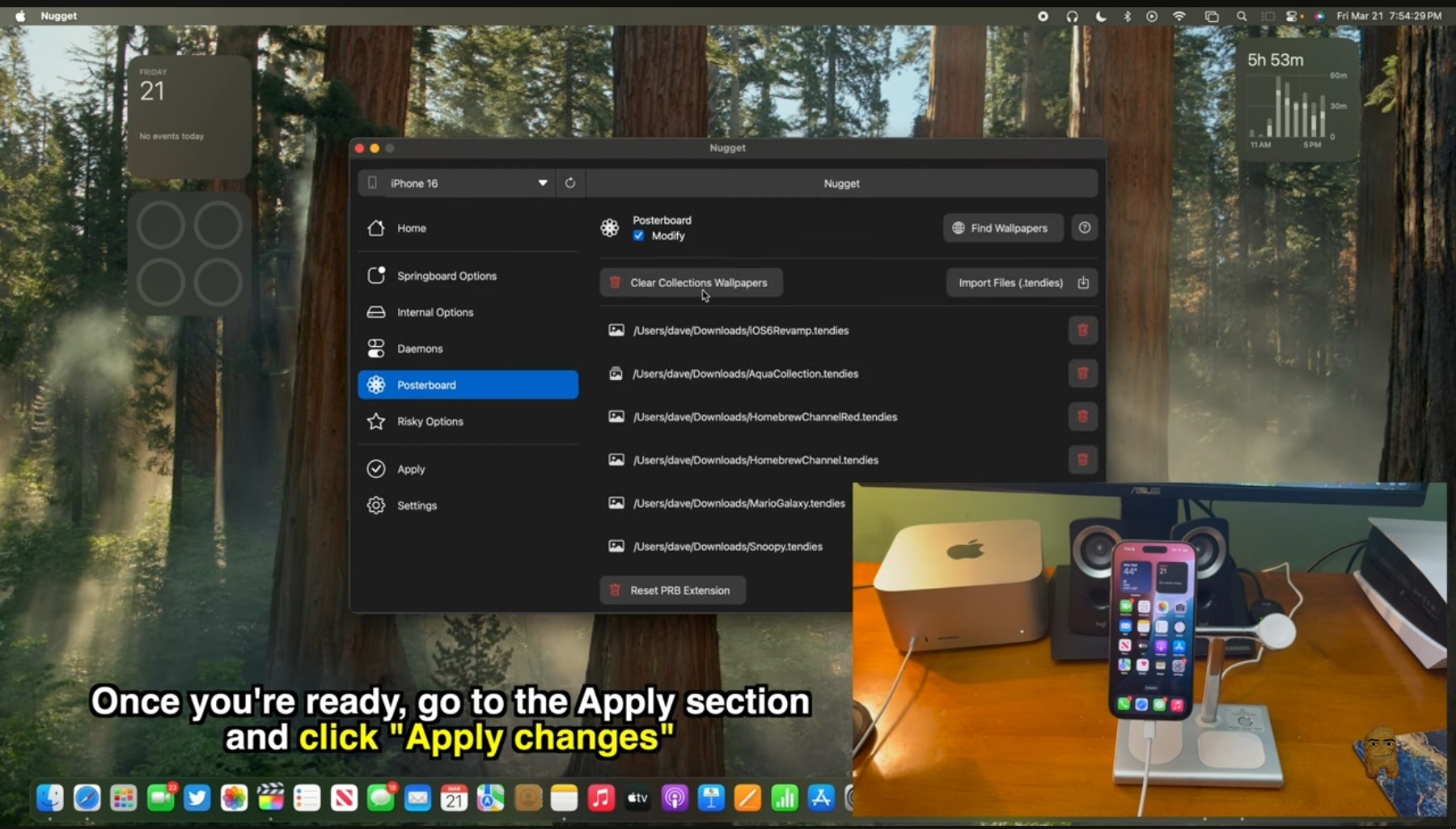
.tendiesfiles, and click Open. You can select and import multiple files at the same time. - In Nugget’s sidebar, navigate to the Apply section.
- Click the Apply Changes button.
Step 7: Complete the Device Setup
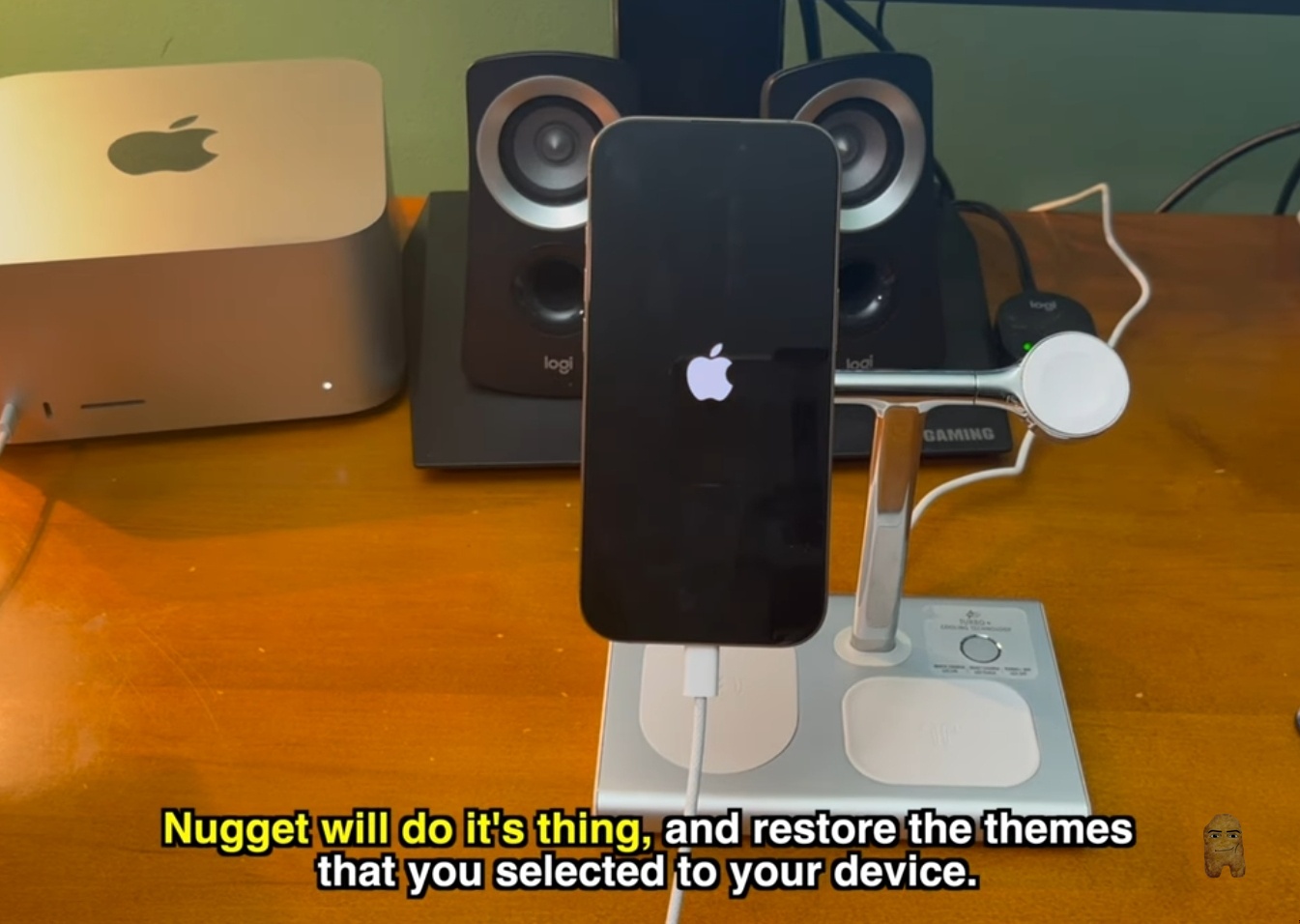
After clicking "Apply Changes," Nugget will write the files and perform a system restore on your device, causing the iPhone to reboot.
- When your phone restarts, it will display the standard setup "Hello" screen.
- Swipe up and enter your passcode.
- Follow the brief on-screen prompts to step through the basic system setup menus until you reach your home screen.
Step 8: Activate Your New Animated Wallpapers
To set your newly imported themes on your iPhone:
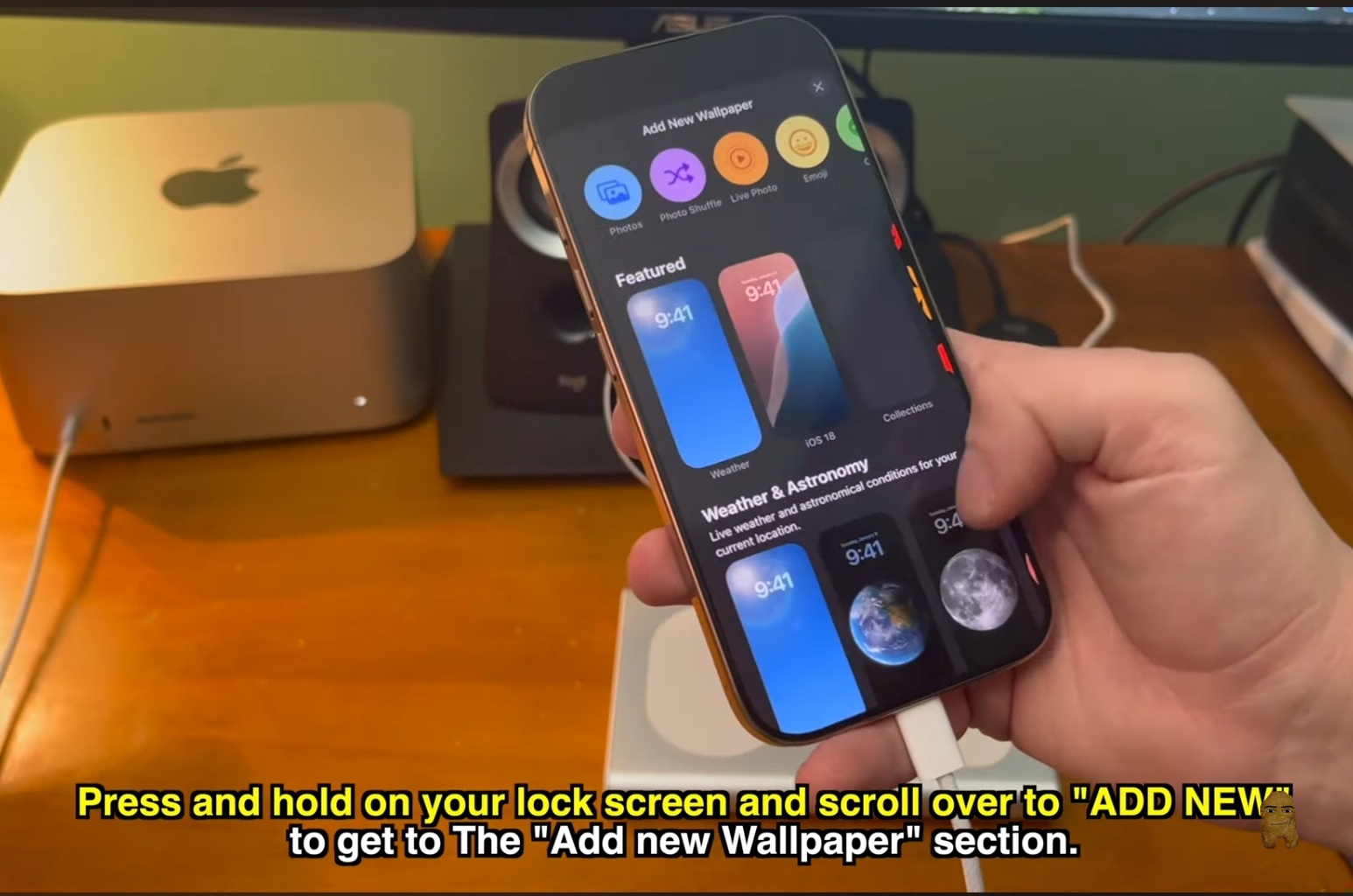
- Wake your iPhone and long-press on the lock screen to enter editing mode.
- Swipe all the way to the right and tap the blue Add New (+) button.
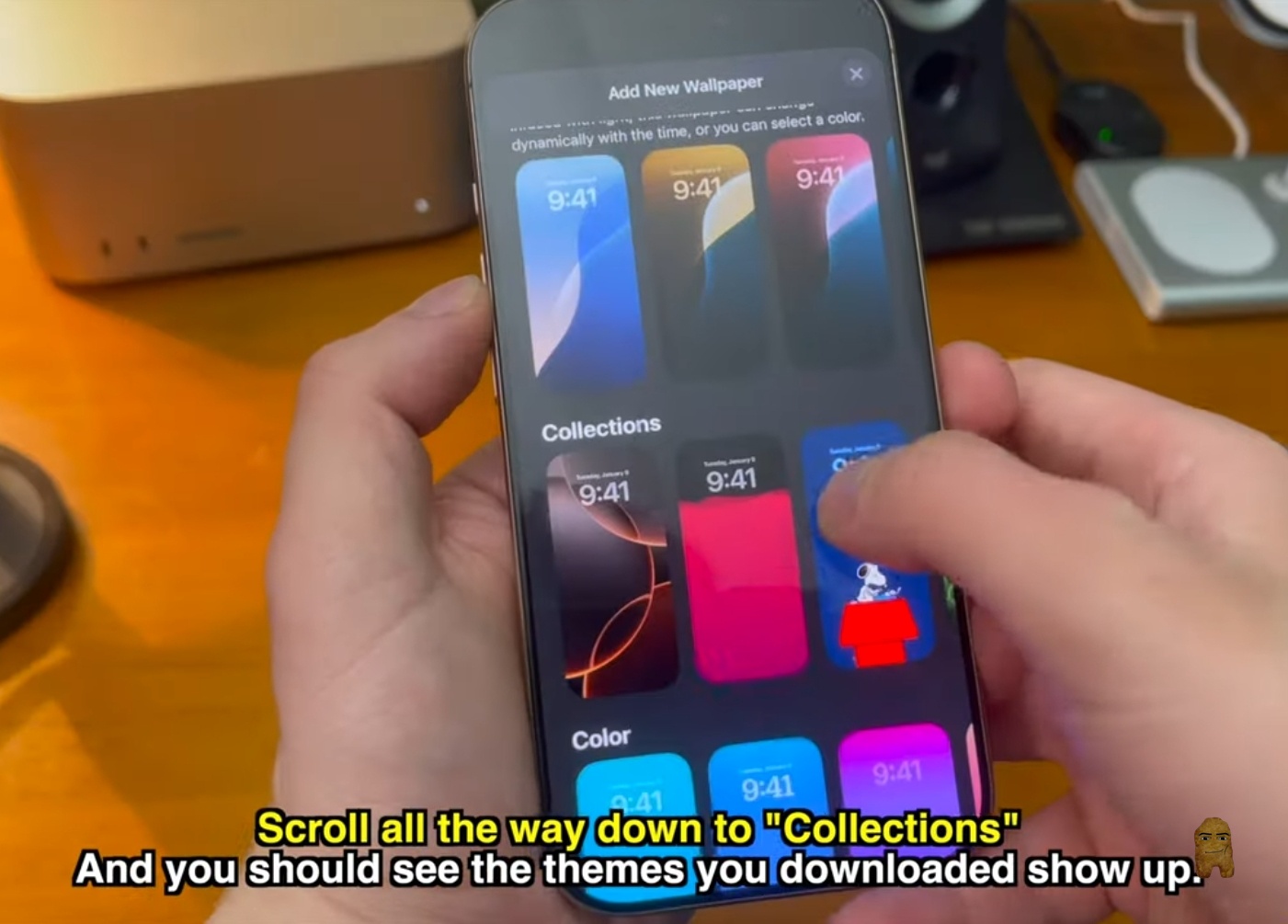
- Scroll down past the default categories until you reach the Collections section. Your imported custom live wallpapers will be visible here.
- Select your preferred theme, configure any widgets or font styles, and tap Add (or Set as Wallpaper Pair) in the top right corner.
Understanding the .tendies Format and Posterboard Framework
To understand how Nugget applies custom live animated wallpapers on stock iOS, it is useful to examine the native personalization engines running on your device. Unlike traditional customization tweaks that require root-level jailbreak exploits to inject code into Apple's rendering systems, Nugget operates entirely within the boundaries of stock iOS daemons. The wallpaper packages you download utilize a specialized .tendies extension, which is a renamed zip archive. Inside, it bundles high-definition video loops, typically encoded in HEVC or H.264 profiles to preserve device battery life, alongside a JSON-formatted settings manifest that defines transition parameters, custom typography, widgets, and color tints.
When you import these theme files using the Nugget desktop client, the utility registers the templates directly into the database managed by iOS's native Posterboard daemon. Posterboard is the system service responsible for rendering the lock screen gallery, managing widget configurations, and linking wallpaper profiles to Focus modes. By placing the .tendies assets into the official Posterboard directories, the iPhone treats the imported files as native lock screen templates rather than third-party modifications, ensuring that transition physics and animation cycles are handled directly by Apple's core rendering engine.
This integration avoids the high processor overhead and rapid battery drain associated with custom jailbreak tweaks, as no active helper application needs to run in the background to sustain the animations. It also explains why these custom animated collections continue to function on iOS 18.2, even though Apple has blocked separate customization exploits. To read more about optimizing your system, check our dark mode guide or learn how to resolve connection issues in our troubleshooting tutorial.
Understanding System Limits and Troubleshooting
Wallpaper Collection Limits
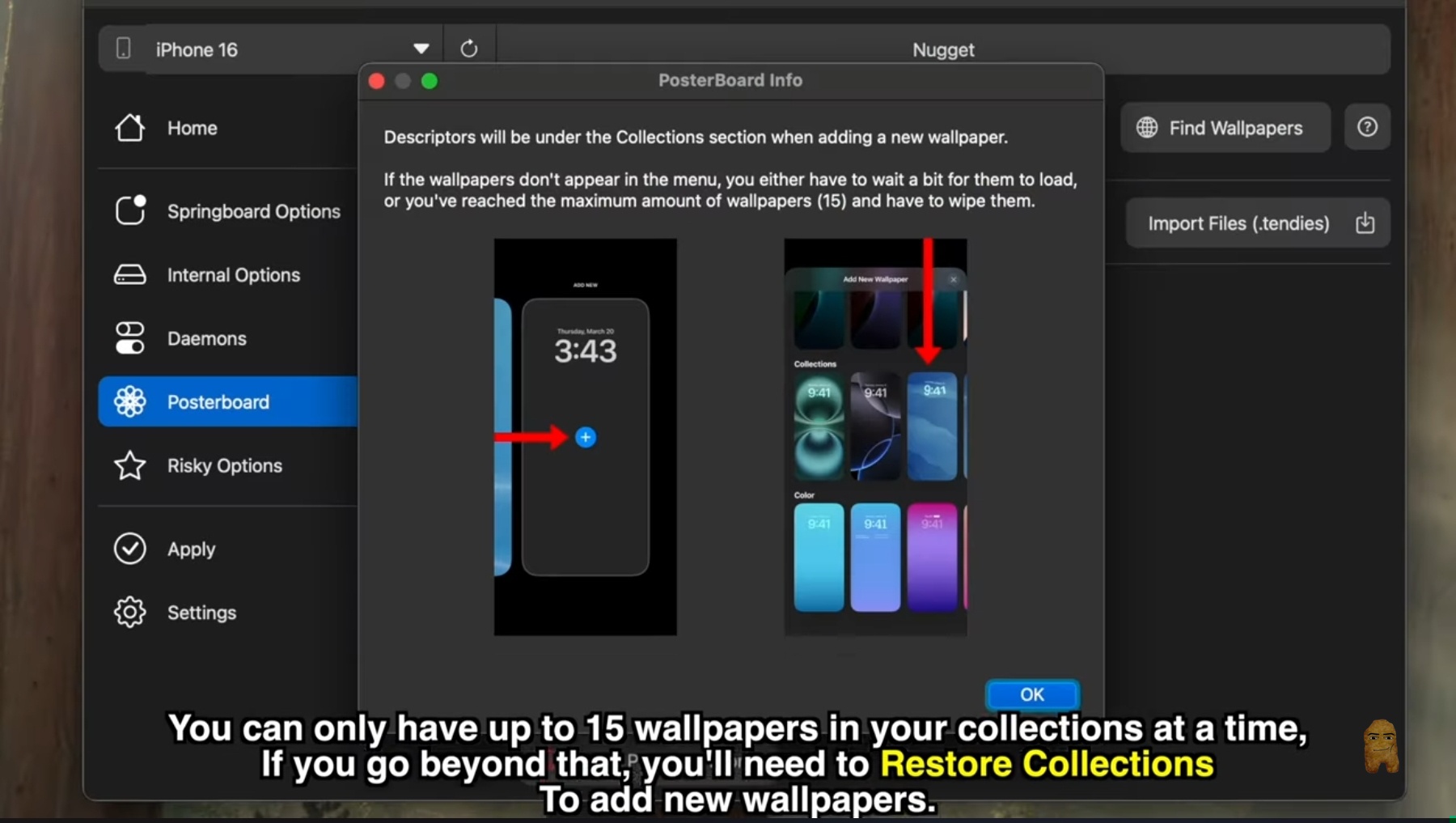
The iOS Posterboard framework limits users to a maximum of 15 custom wallpapers in the Collections menu at any one time. If you wish to install more than 15, you must clear out your existing custom themes first.
How to Uninstall Custom Wallpapers
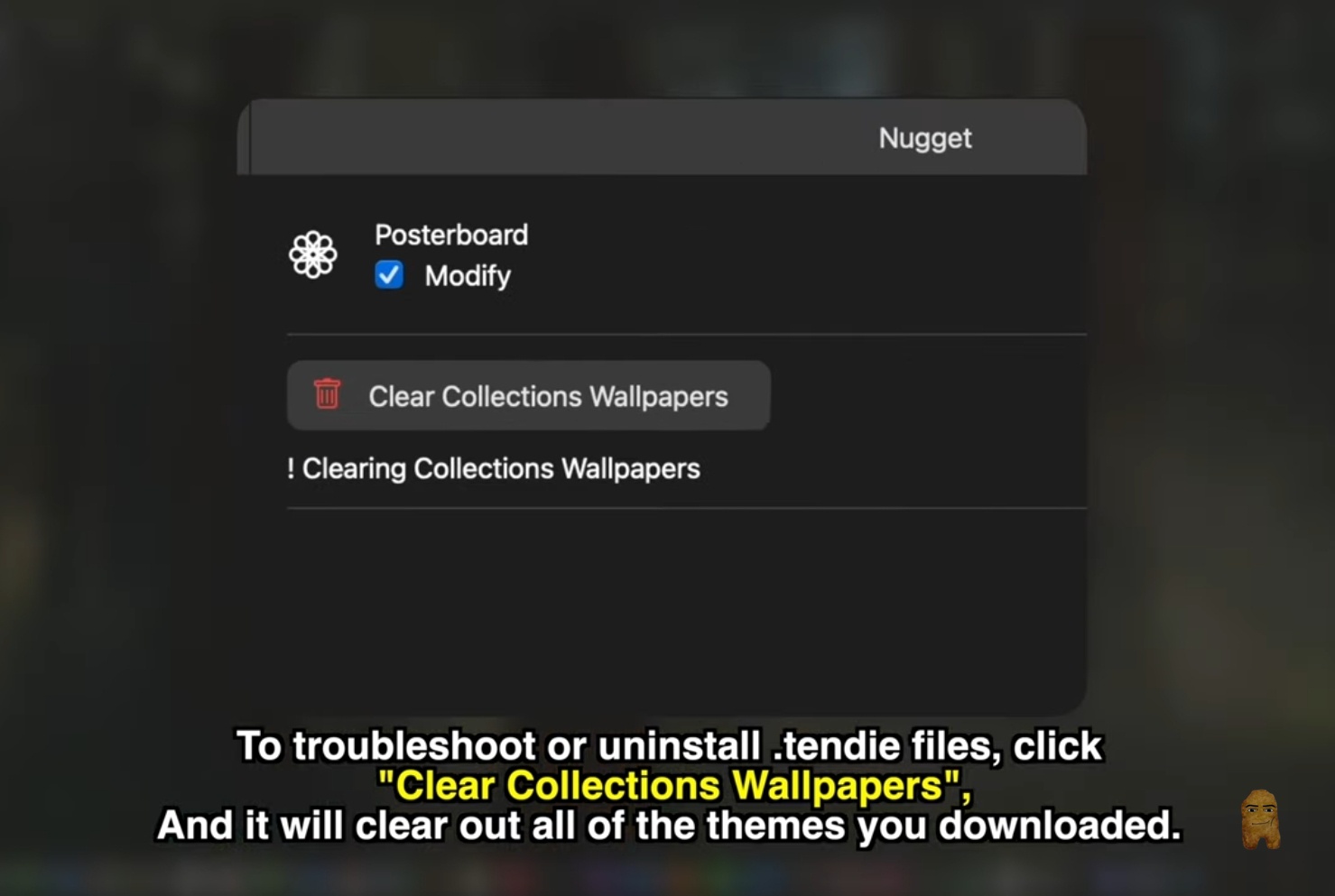
If you encounter errors or want to completely remove your imported .tendies themes:
- Reconnect your device to your computer and open Nugget.
- Go to the Posterboard section and click the red Clear Collections Wallpapers button.
- Navigate to the Apply section in the sidebar and click Apply Changes. Your device will reboot, restoring your default iOS wallpaper collections.
Official Video Walkthrough
To see this installation process in action and follow along visually, watch the comprehensive video guide below:
Be sure to support the creator by subscribing to their channel for more awesome iOS customization guides, tips, and tutorials.
Frequently Asked Questions (FAQ)
No. This method does not require a jailbreak and runs on stock, unexploited iOS versions.
Yes. Because the Posterboard theme import process does not rely on a patched Mobile Gestalt exploit, it remains fully functional on iOS 18.2 and newer versions.
Yes. Once your phone reboots and you have completed the configuration setup, you can safely return to your iCloud settings and re-enable Find My iPhone.
Conclusion
Customizing your iOS lock screen with animated moving wallpapers is an excellent way to personalize your device without sacrificing performance or system security. By utilizing Nugget and the native Posterboard framework, you bypass the need for root-level jailbreaks or battery-draining background applications. Simply follow the setup steps, keep the 15-wallpaper system limit in mind, and enjoy a dynamic lock screen experience. If you hit any roadblocks or have connection errors, refer back to our comprehensive troubleshooting guides to keep everything running smoothly.