How to Set Any Video as an iOS Live Wallpaper Without a Jailbreak Using Nugget
Setting up a dynamic, moving video wallpaper on an iPhone has traditionally required a jailbreak. However, with the release of the desktop customization tool Nugget, you can apply custom live video wallpapers to your lock screen without jailbreaking. This setup guide covers how to prepare your video files, configure Nugget, and safely apply video wallpapers on modern iOS versions.
Posterboard Customization vs. Mobile Gestalt
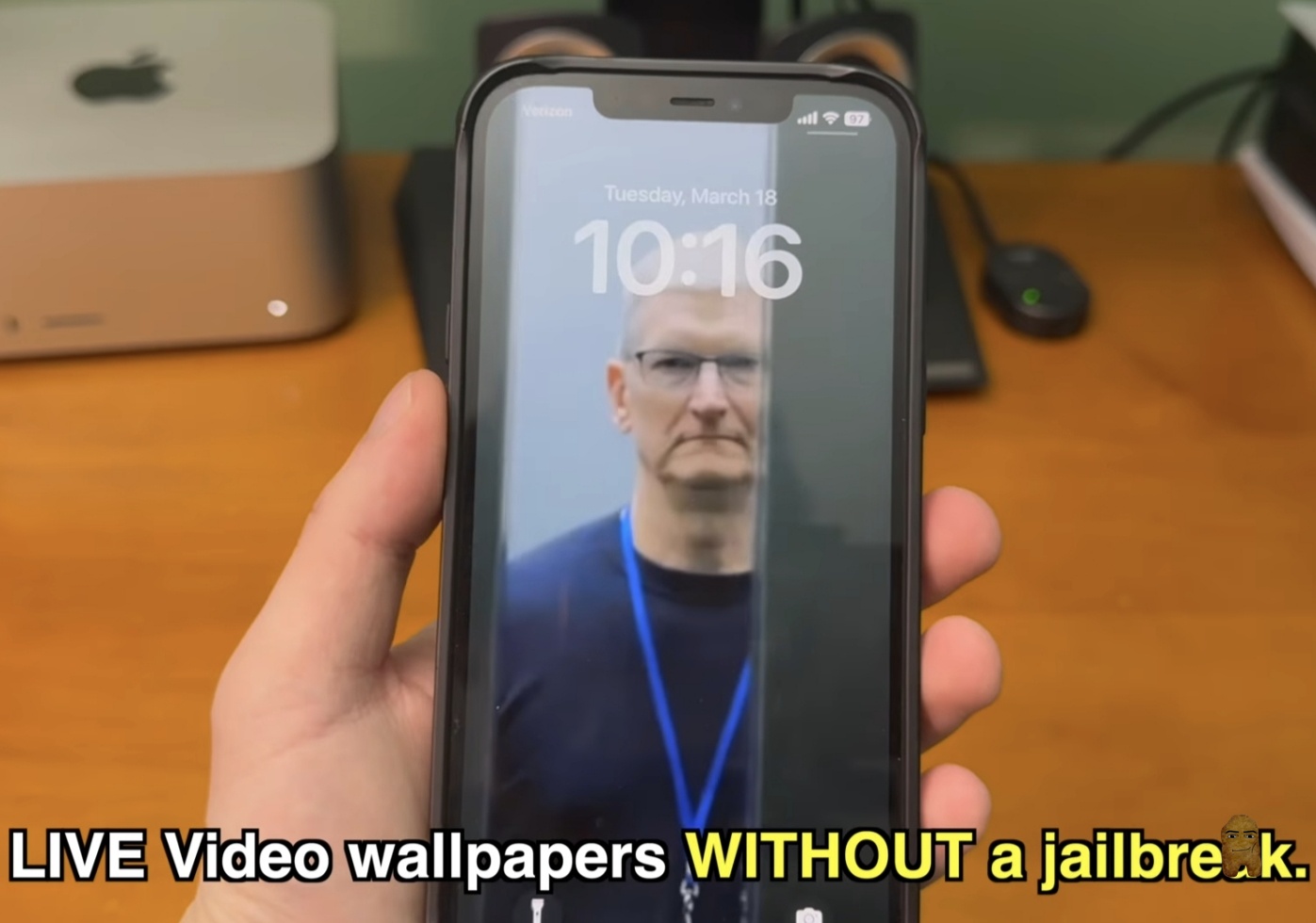
Nugget's live wallpaper functionality operates through a system component called Posterboard. Unlike older customization scripts that relied on the Mobile Gestalt system exploit, live wallpaper modification does not use an exploit. This makes the feature highly resilient against system updates.
While Apple has patched Mobile Gestalt exploits in recent firmware releases (disabling customization options like Always on Display and Dynamic Island modifications on older, unsupported models), the Posterboard live wallpaper feature remains fully functional on iOS 18.2 and up.
Prerequisites and Preparation
To successfully complete this installation, you will need a few standard tools:
- A desktop computer running Windows or macOS.
- A stable USB cable to connect your iPhone to your computer.
- A brief, loopable video file of your choice.
- A temporarily disabled "Find My iPhone" option on your target device.
Step-by-Step Installation Guide
Step 1: Download Nugget on Your Computer
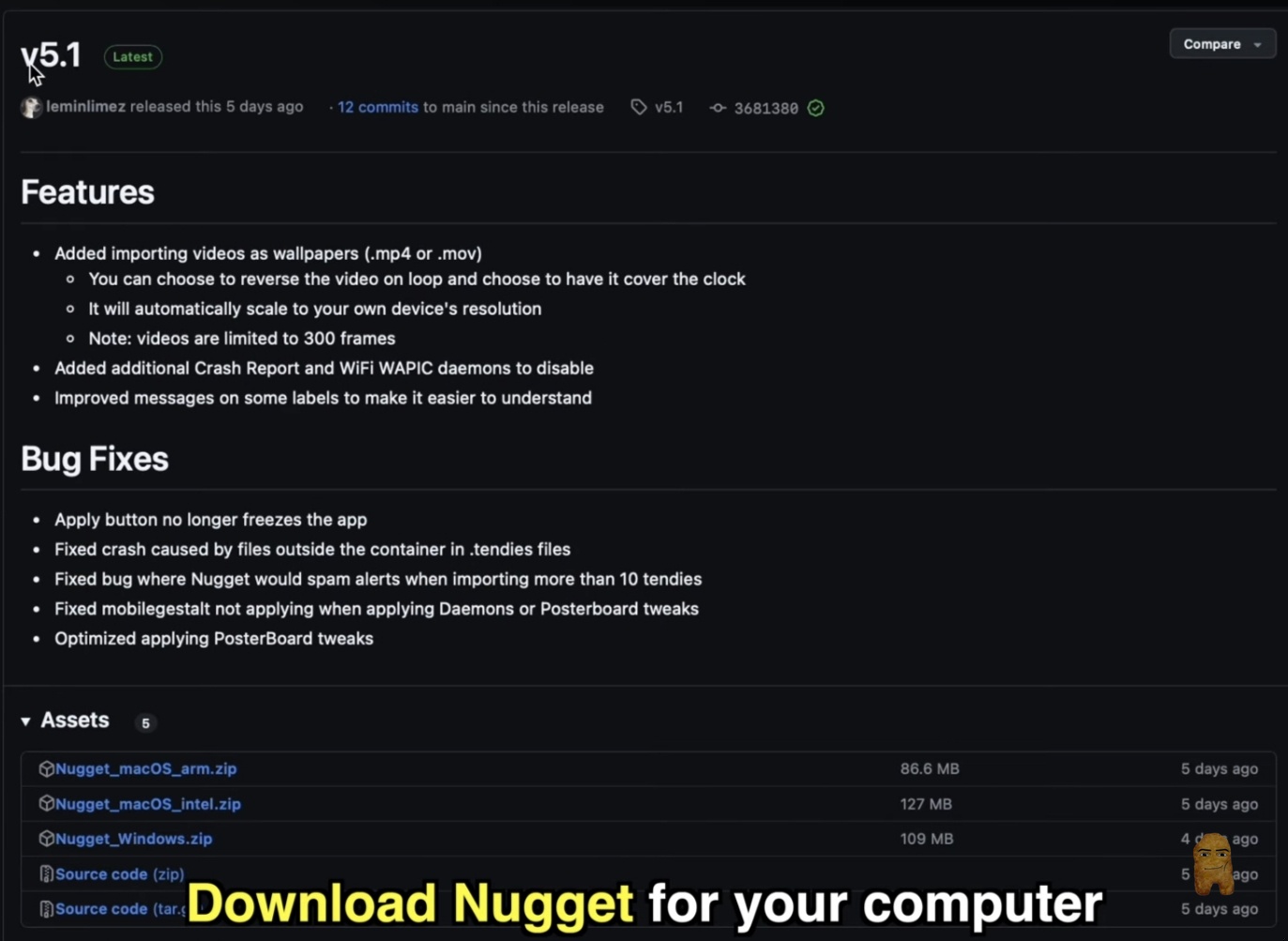
First, you must download the version of Nugget that matches your operating system.
- Open your web browser and navigate to the homepage or the official GitHub releases page.
- Locate the asset download list under the latest version (such as v5.1).
- Choose the appropriate zip file for your system:
- For Apple Silicon Macs (M1/M2/M3/M4): Select
Nugget_macOS_arm.zip. - For Intel Macs: Select
Nugget_macOS_intel.zip. - For Windows PCs: Select
Nugget_Windows.zip.
- For Apple Silicon Macs (M1/M2/M3/M4): Select
- Click the link to download the zip file to your computer.
Step 2: Disable Find My iPhone
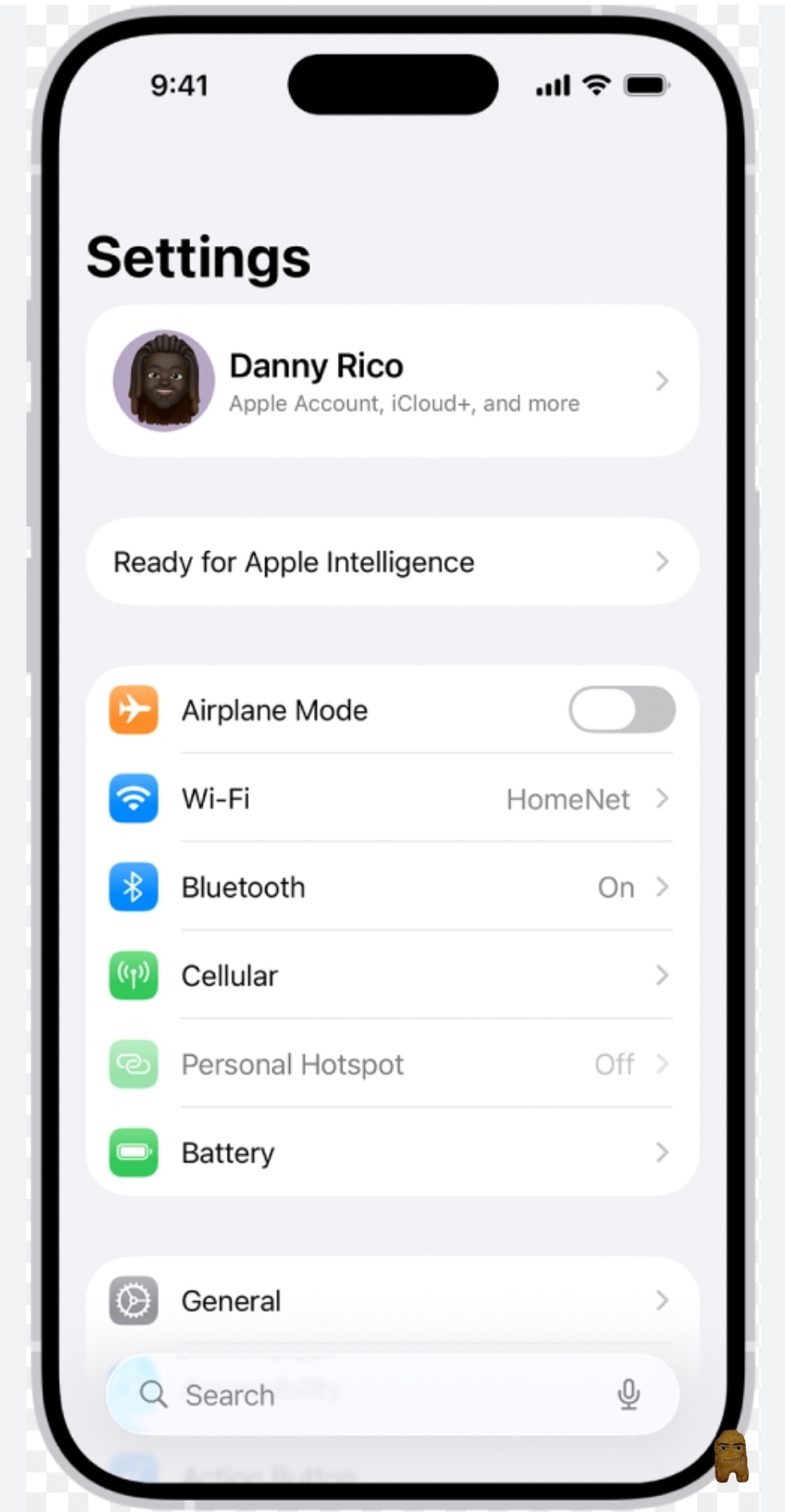
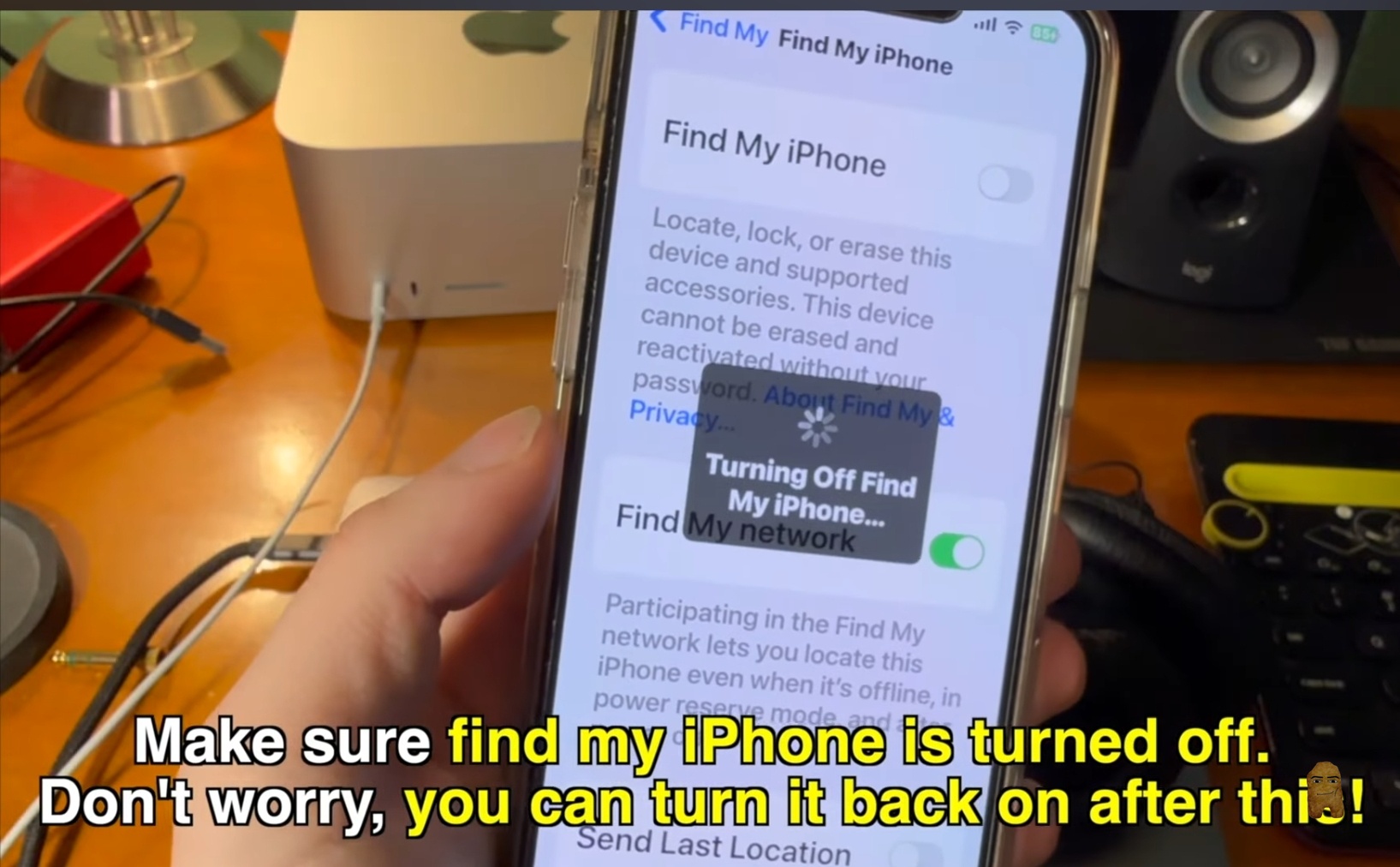
To let the Nugget utility restore custom wallpaper settings to your system, you must temporarily turn off "Find My iPhone."
- Open the Settings app on your iPhone.
- Tap your Apple Account profile name at the very top of the menu.
- Select the Find My menu option, then tap Find My iPhone.
- Tap the green toggle switch to turn the feature off.
- Enter your Apple Account password to authorize the change.
Step 3: Open Nugget and Manage OS Security Settings
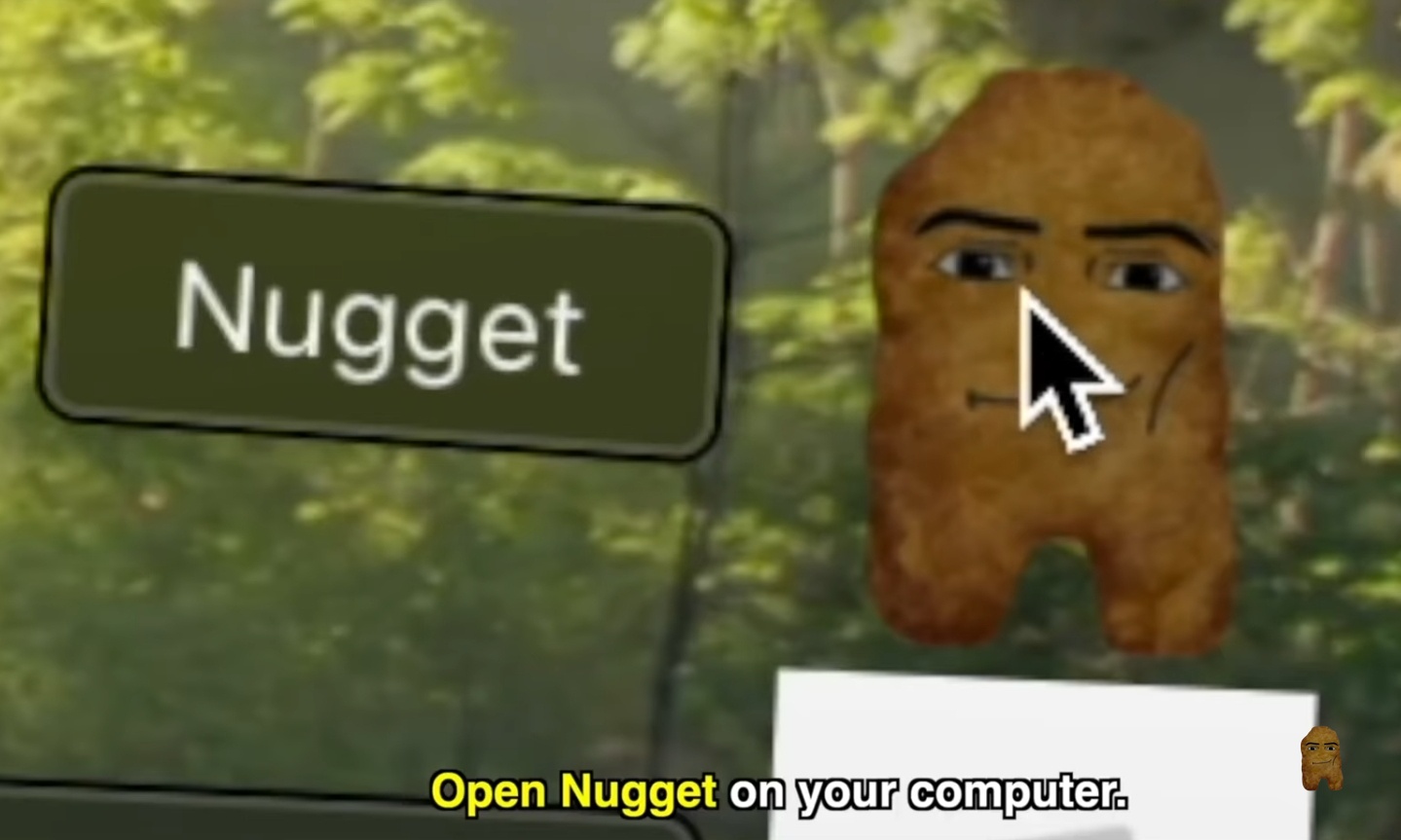
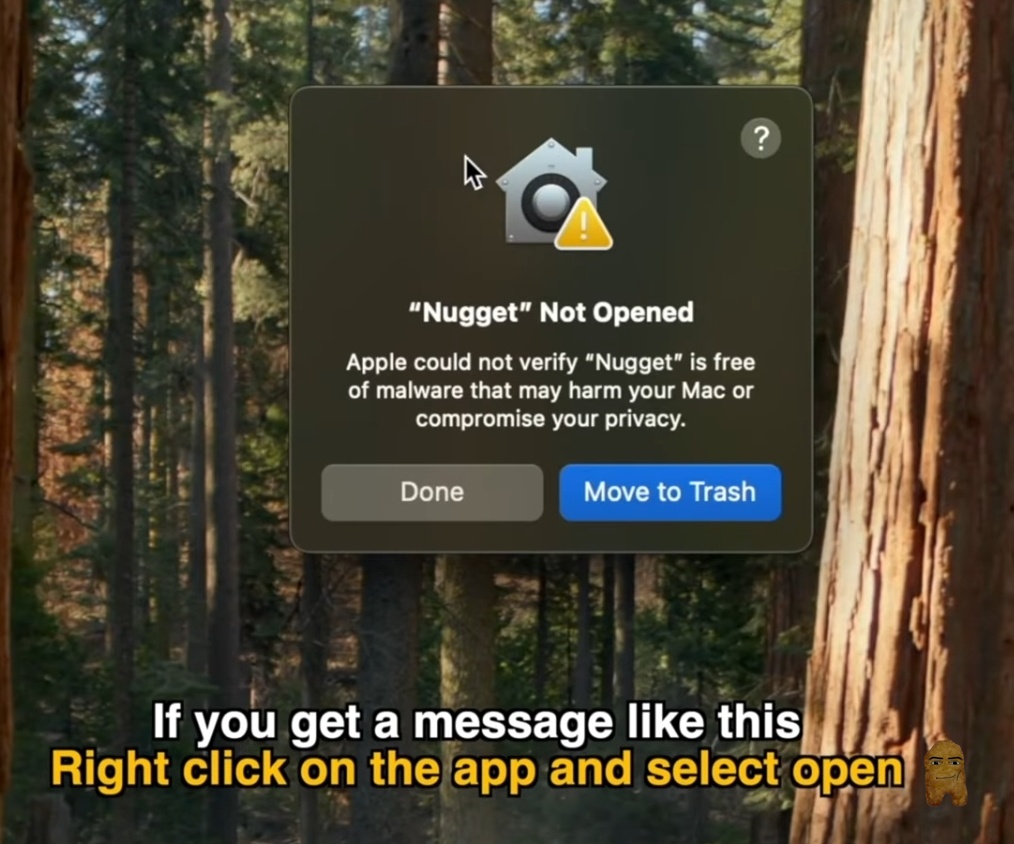
Once Nugget is downloaded, you must extract and open the executable program. Depending on your system's built-in gatekeeper settings, you may encounter a security warning blocking the launch.
- Locate the extracted Nugget folder on your computer.
- If you are on macOS and receive a block warning, right-click the Nugget icon and click Open.
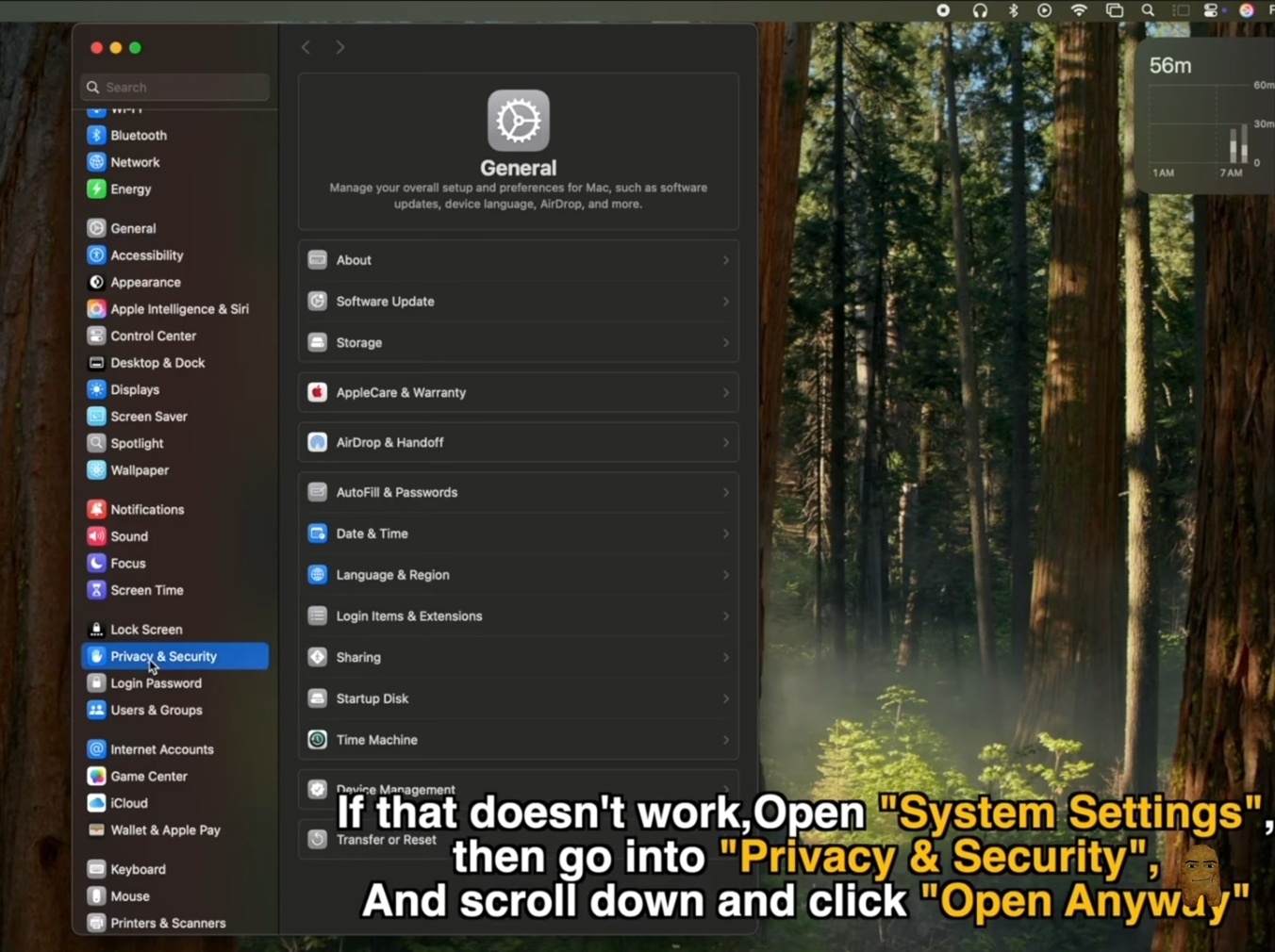
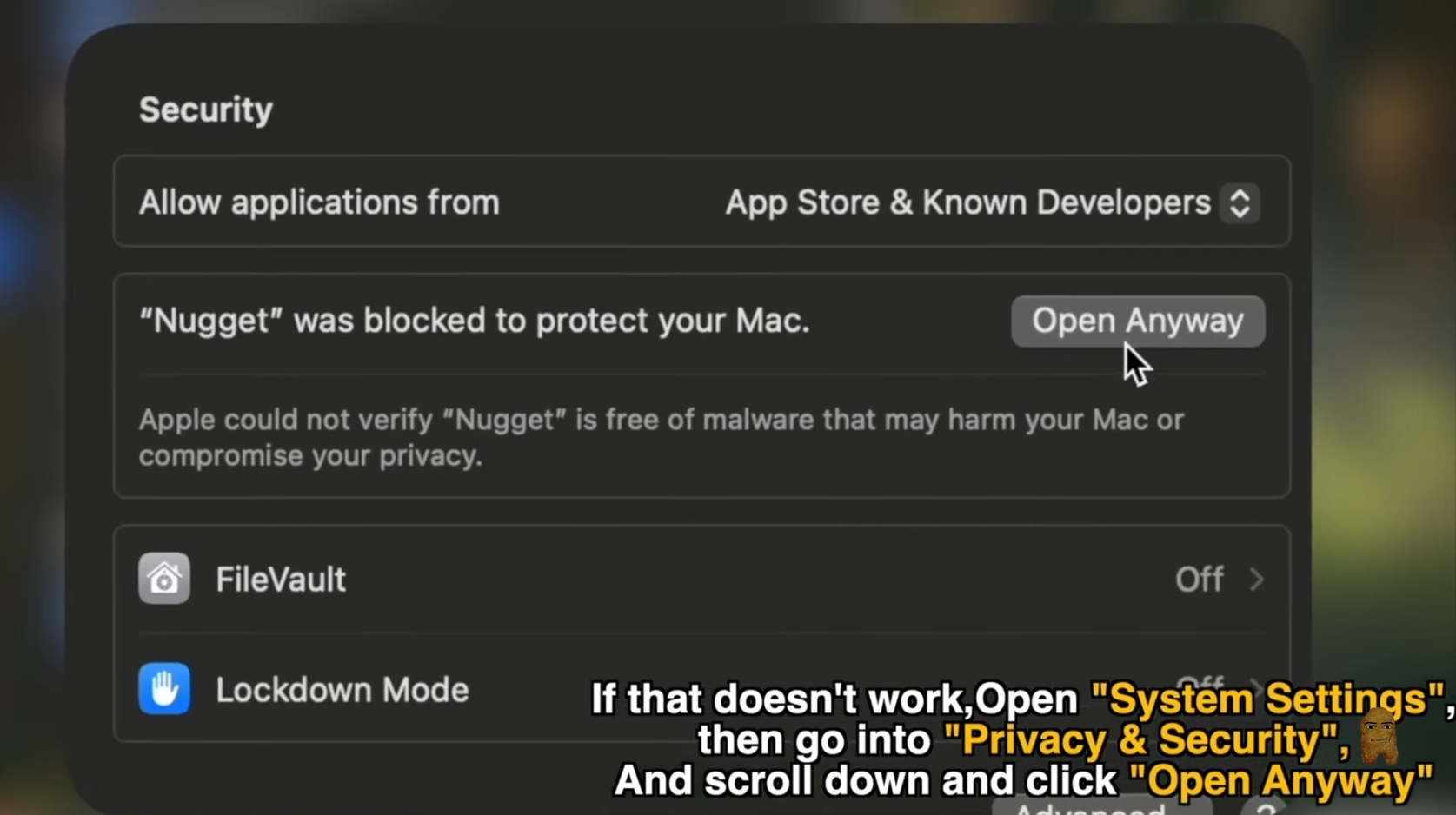
- If the right-click workaround does not bypass the warning, open your Mac's System Settings.
- Go to the Privacy & Security panel.
- Scroll down to the security section, locate the warning stating Nugget was blocked to protect your Mac, and click Open Anyway.
- Provide your system administrator password when prompted, then click Open on the secondary safety dialog.
Step 4: Connect Your iPhone and Trust the Computer
Next, establish a secure communication line between your iPhone and your computer.
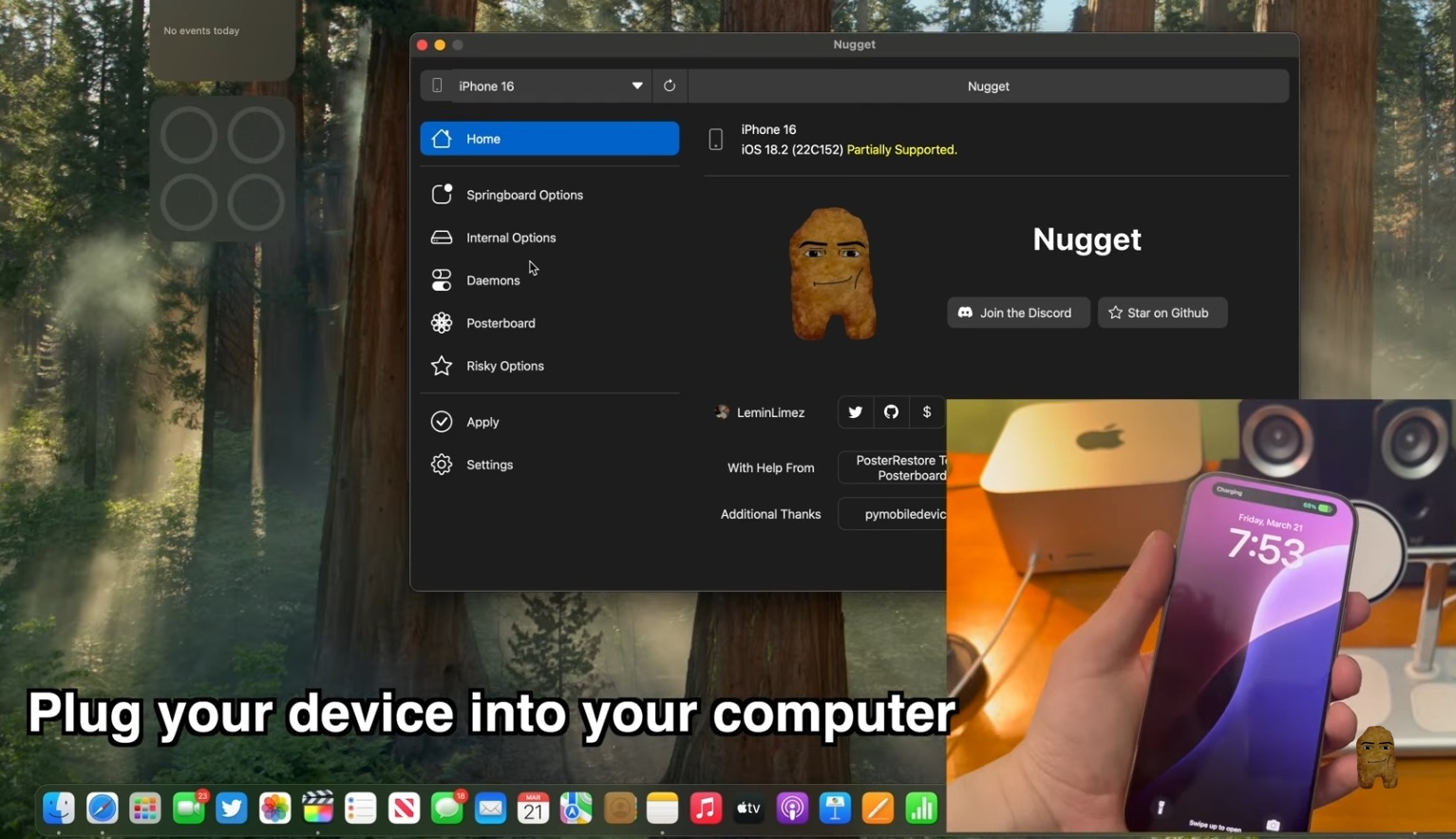
- Plug your iPhone into the computer using a USB cable.
- Launch Nugget; the tool will begin scanning for connected iOS hardware.
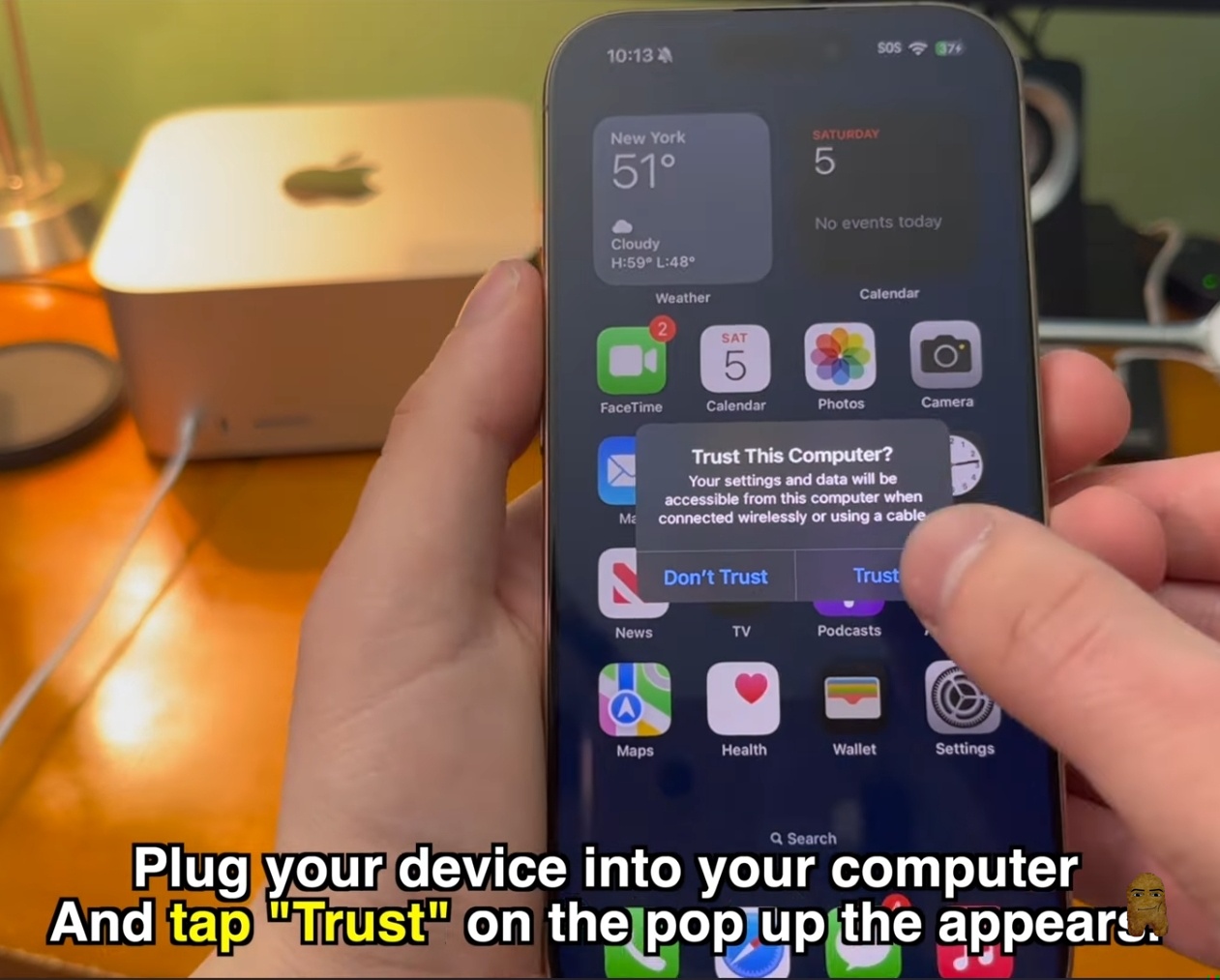
- Unlock your iPhone and check the screen for a security prompt. When the "Trust This Computer" popup appears, tap Trust.
- Enter your lock screen passcode to verify the connection.
Step 5: Access Posterboard and Choose Your Video
With your device detected, you can open the Posterboard customization menu.
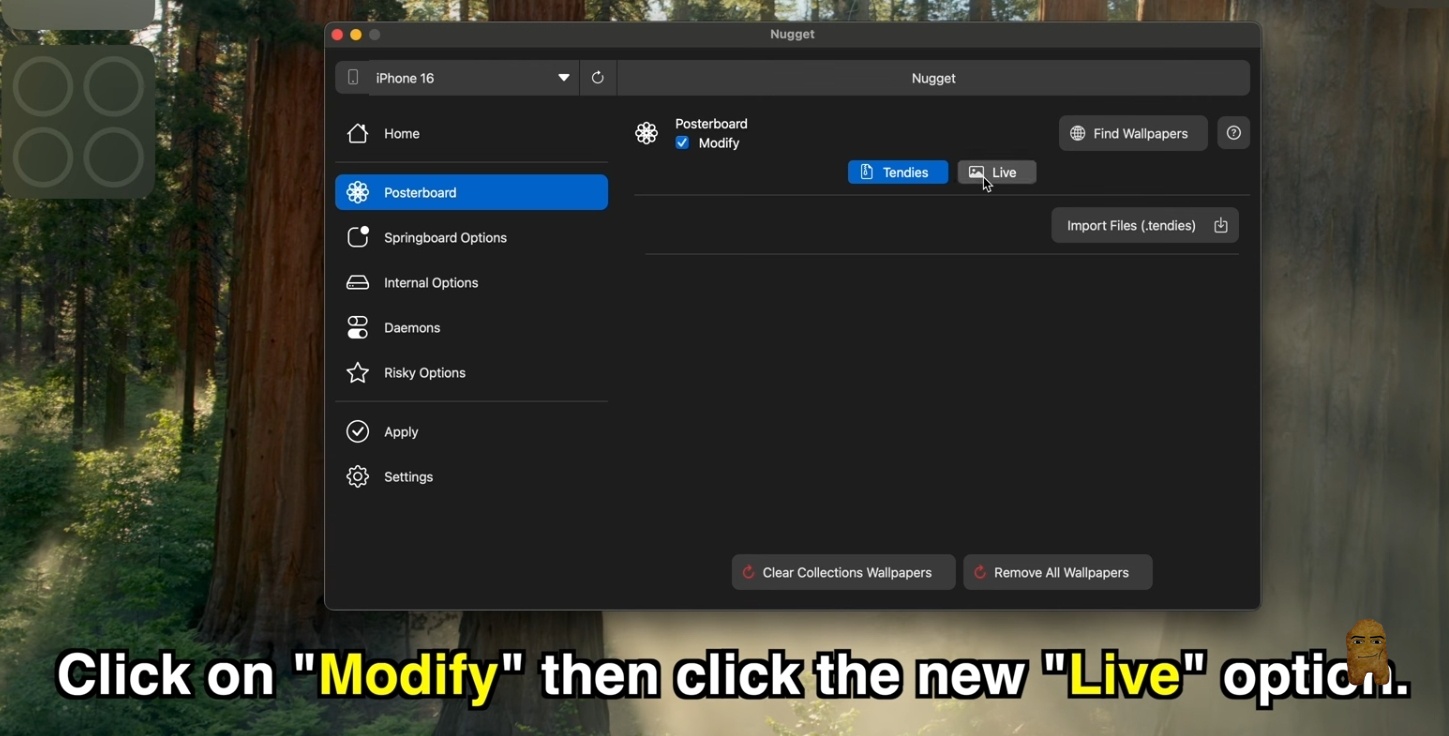
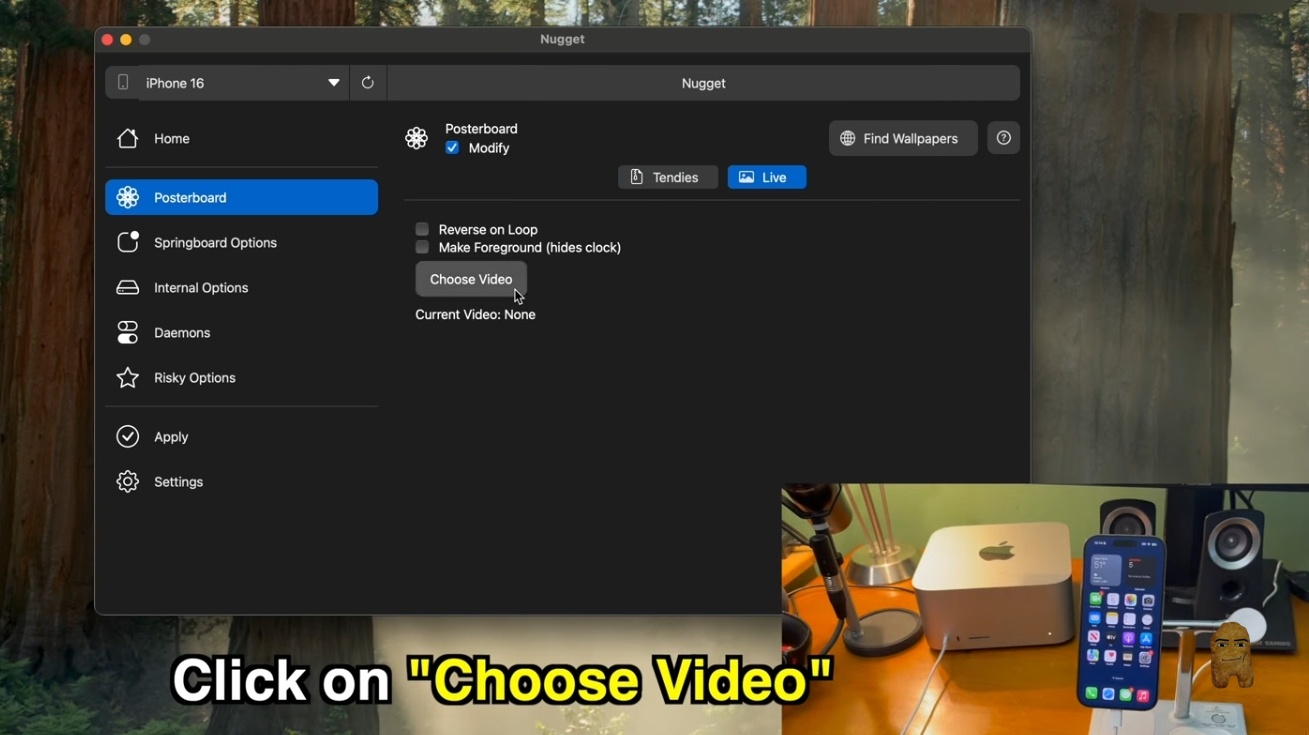
- In Nugget's left-side menu, click on the Posterboard option.
- Click on the Modify section and locate the Live tab (positioned immediately beside the "Tendies" option).
- Review the available options under the Live menu:
- Reverse on Loop: Checking this box reverses the video track direction when it loops.
- Make Foreground (hides clock): Checking this box layers the video assets over the system lock screen clock.
- Click the Choose Video button to select your media file.
Step 6: Handle Frame Limit Warnings and Trim Your Video
To loop as an animated background, the video clip must not exceed a specified frame count.
- Select your target video file from your computer's local folder.
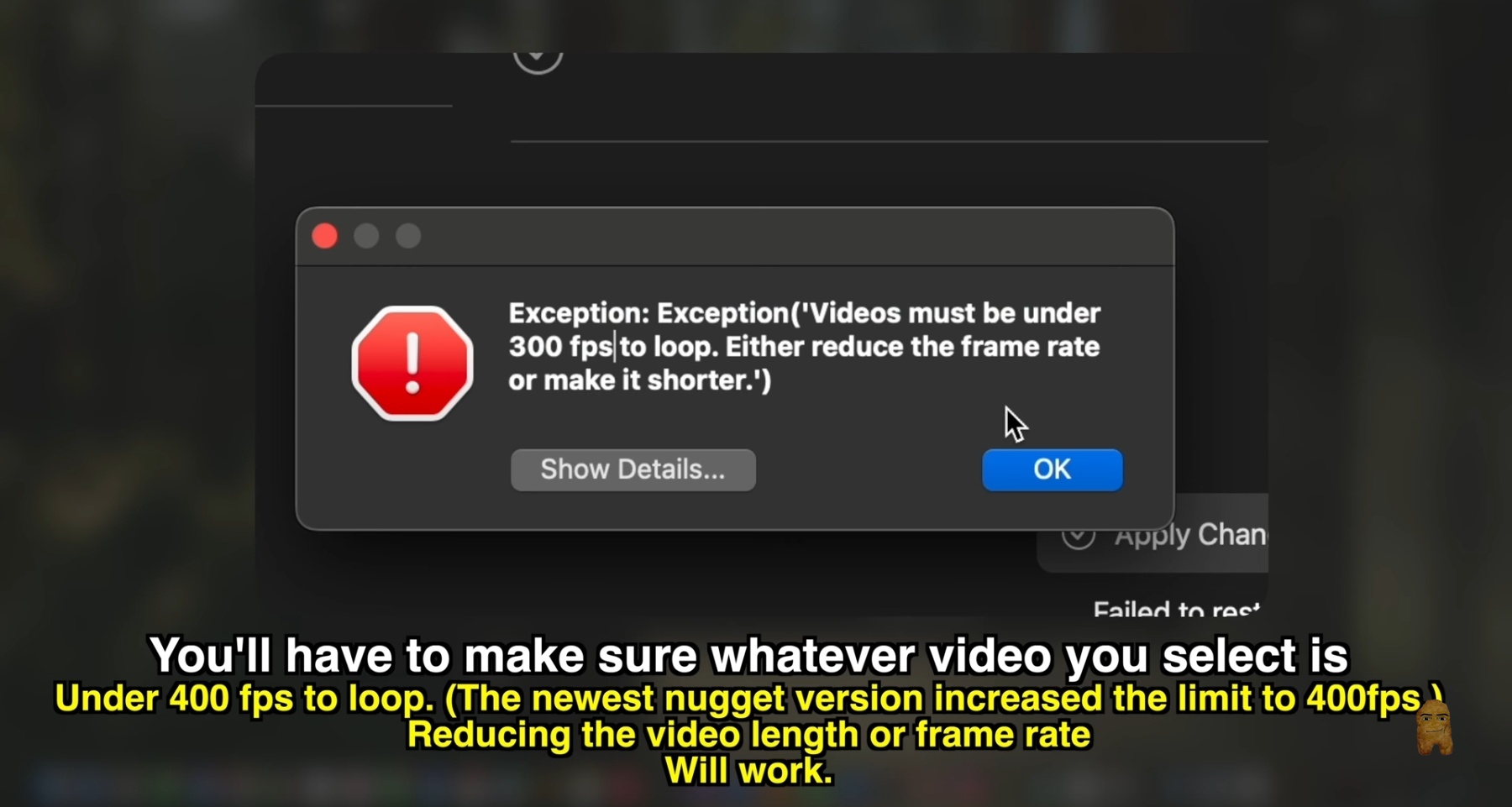
- If the video is too long or has too high of a frame rate, clicking "Apply" will trigger a crash dialog warning you that videos must remain under 300 frames to loop properly. Note that newer versions of Nugget have adjusted this restriction limit up to 400 frames.
- To shorten the video, open the file using an editor like QuickTime Player on macOS.
- Go to Edit in the top menu and select Trim (or press Cmd + T).
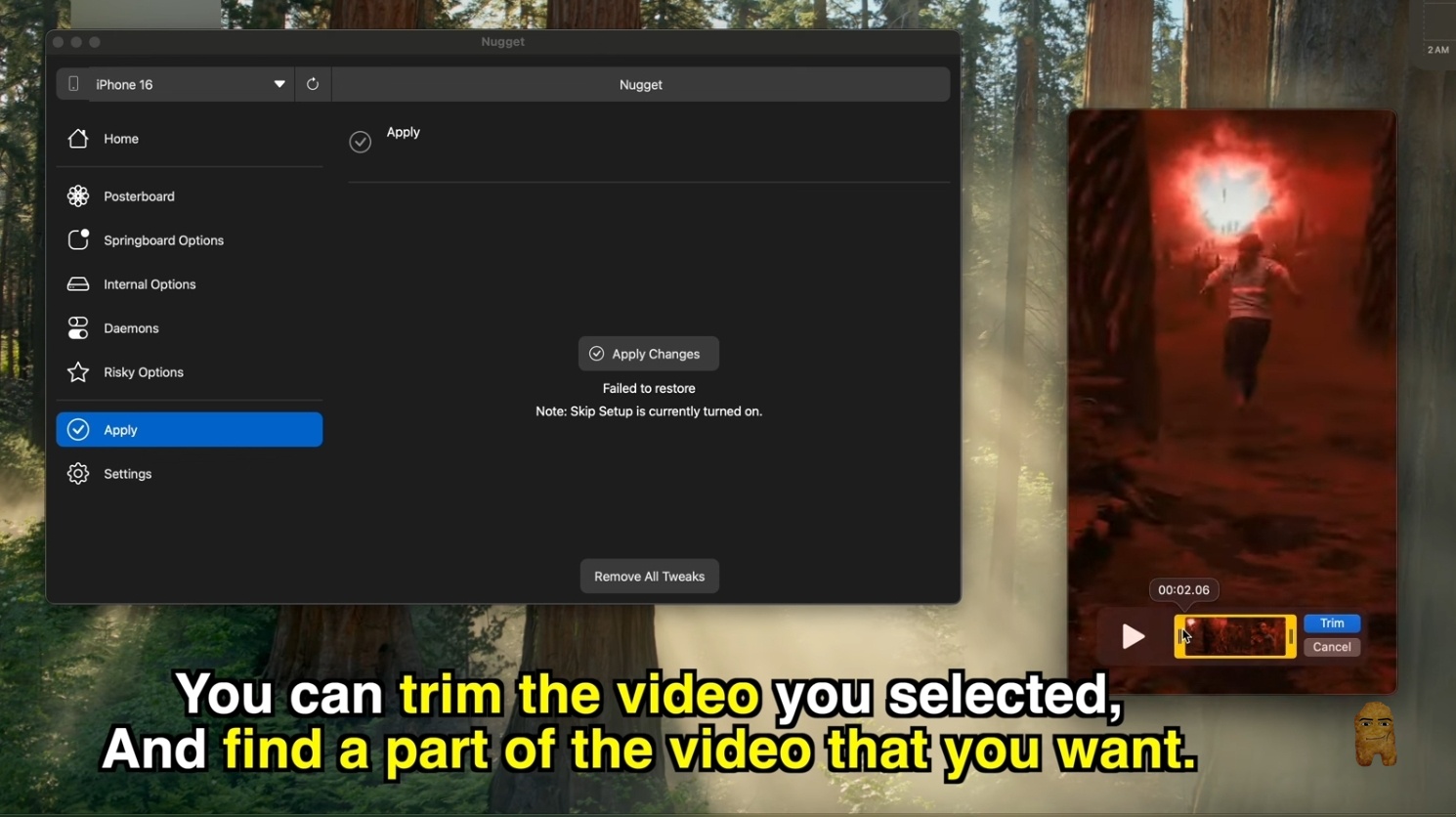
- Use the yellow selection sliders at the edge of the video scrubber timeline to shorten the clip to a brief, loopable segment.
- Click Trim and save the trimmed video as a new MP4.
Step 7: Apply the Configuration and Restore Your Device
Load your newly trimmed, compatible video back into the utility.
- Go back to Nugget’s Posterboard tab, select Choose Video, and choose your trimmed MP4 file.
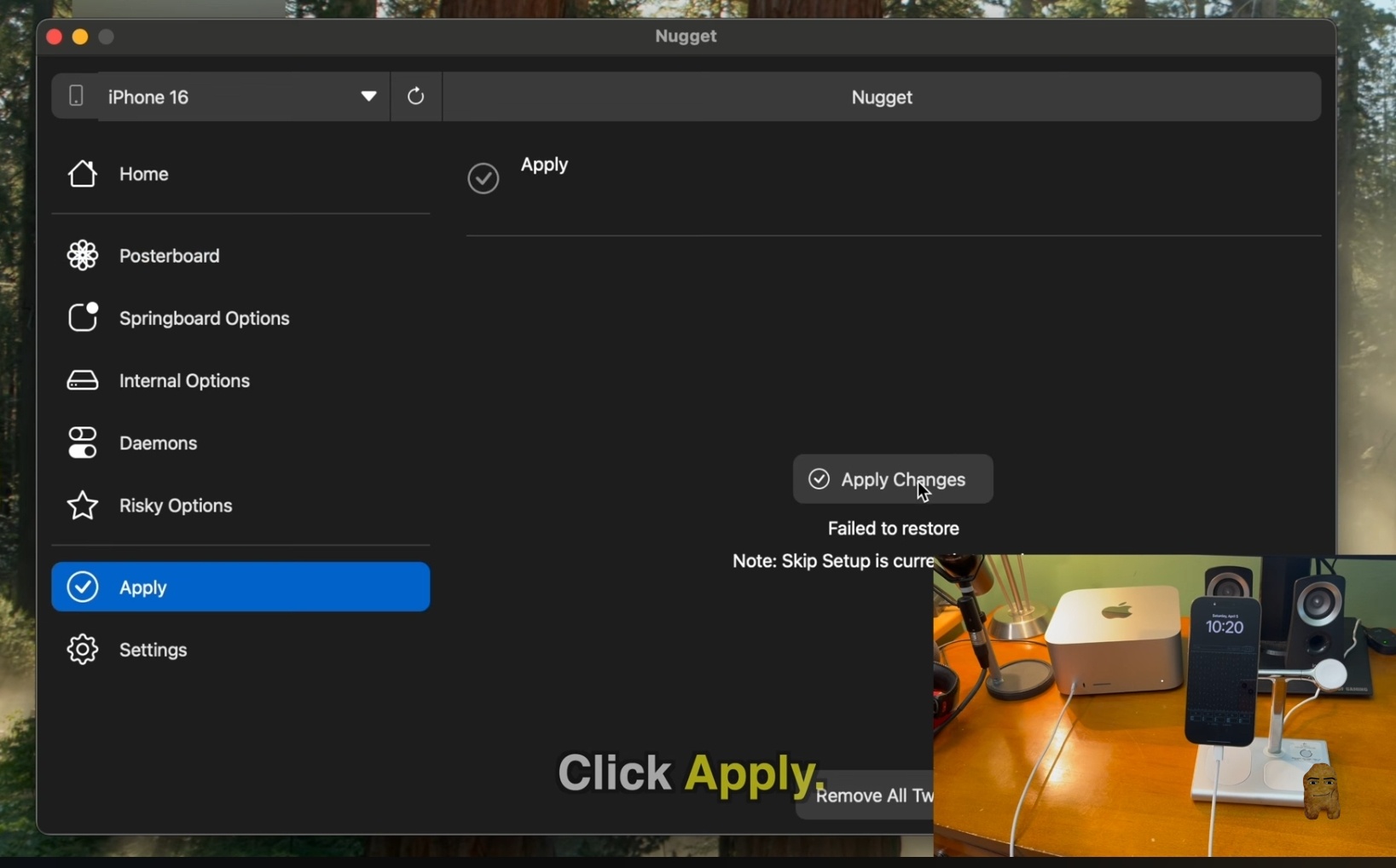
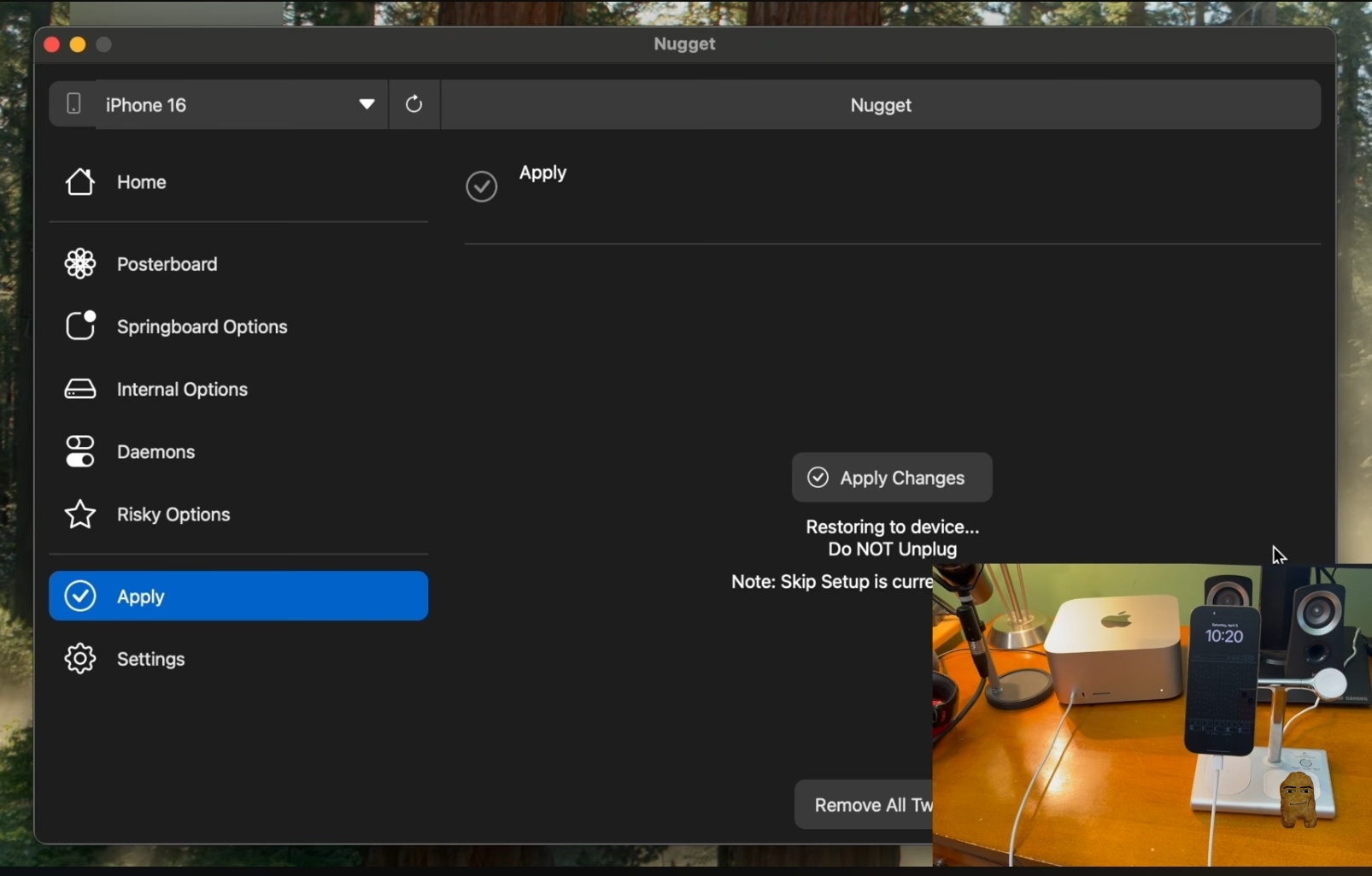
- Go to the Apply section in Nugget's sidebar menu.
- Click the Apply Changes button. Keep your iPhone connected while the software shows Restoring to device... Do NOT unplug until you see a success confirmation popup.
- Your iPhone will perform an automatic reboot. You will see the progress bar and Apple logo on the physical screen.
Step 8: Finalize the Wallpaper Settings on iOS
Once your device restarts, you can access the custom wallpaper from your system wallpaper drawer.
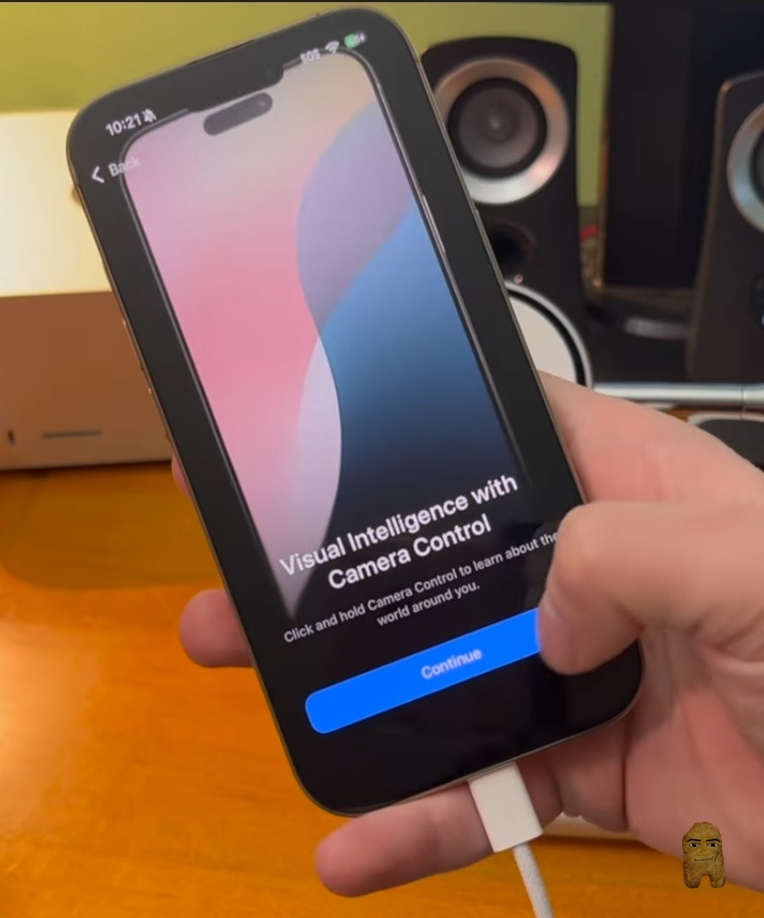
- Swipe up on your iPhone's lock screen and input your passcode to unlock the phone. Tap through any standard post-update intro screens (such as Camera Control informational views) until you reach the standard home screen.
- Go to your lock screen. Press and hold an empty section of the screen to open the lock screen customizer drawer.
- Tap the blue Add New (+) button.
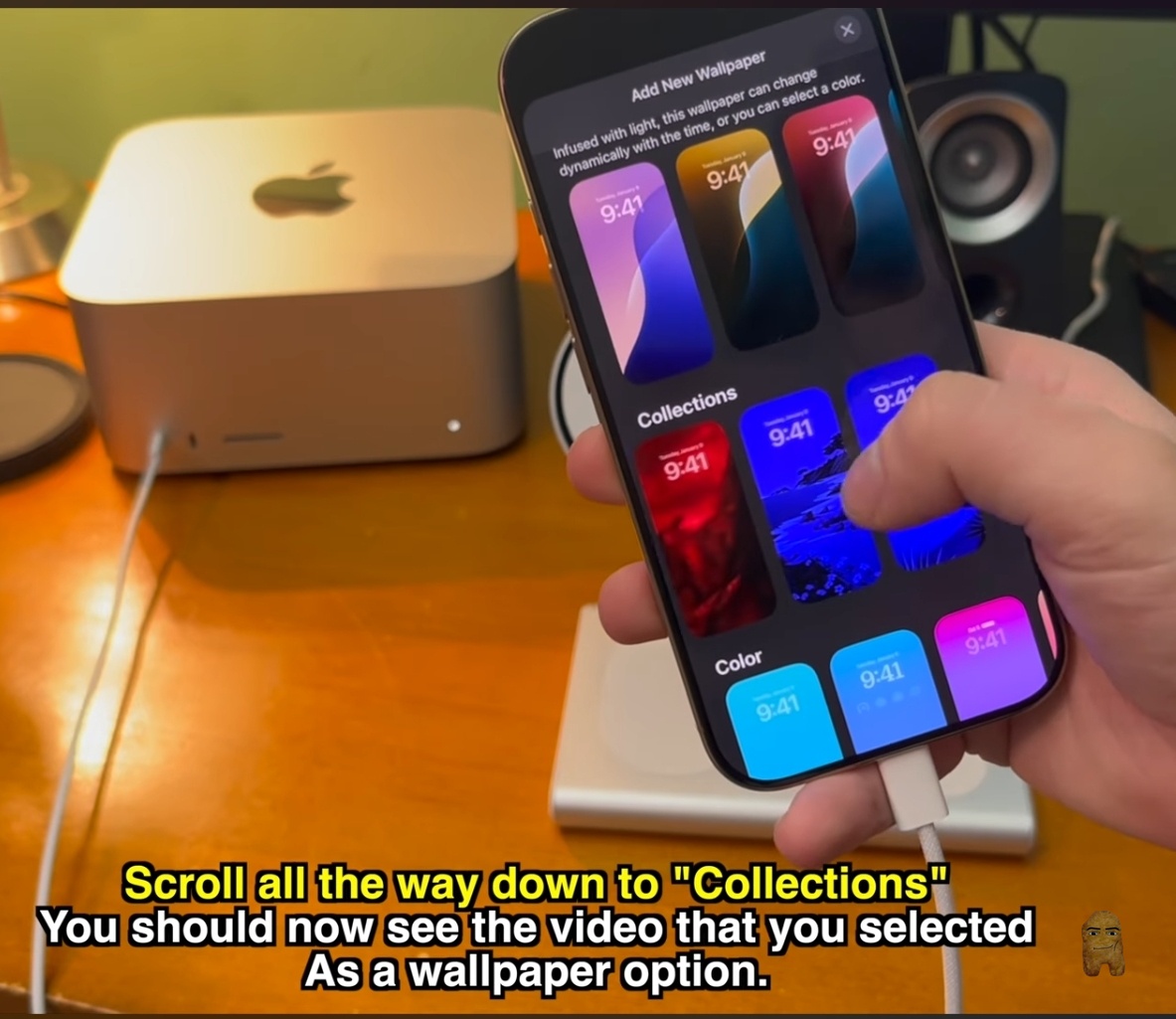
- Scroll all the way past standard categories until you reach the Collections section. Tap your new video thumbnail.
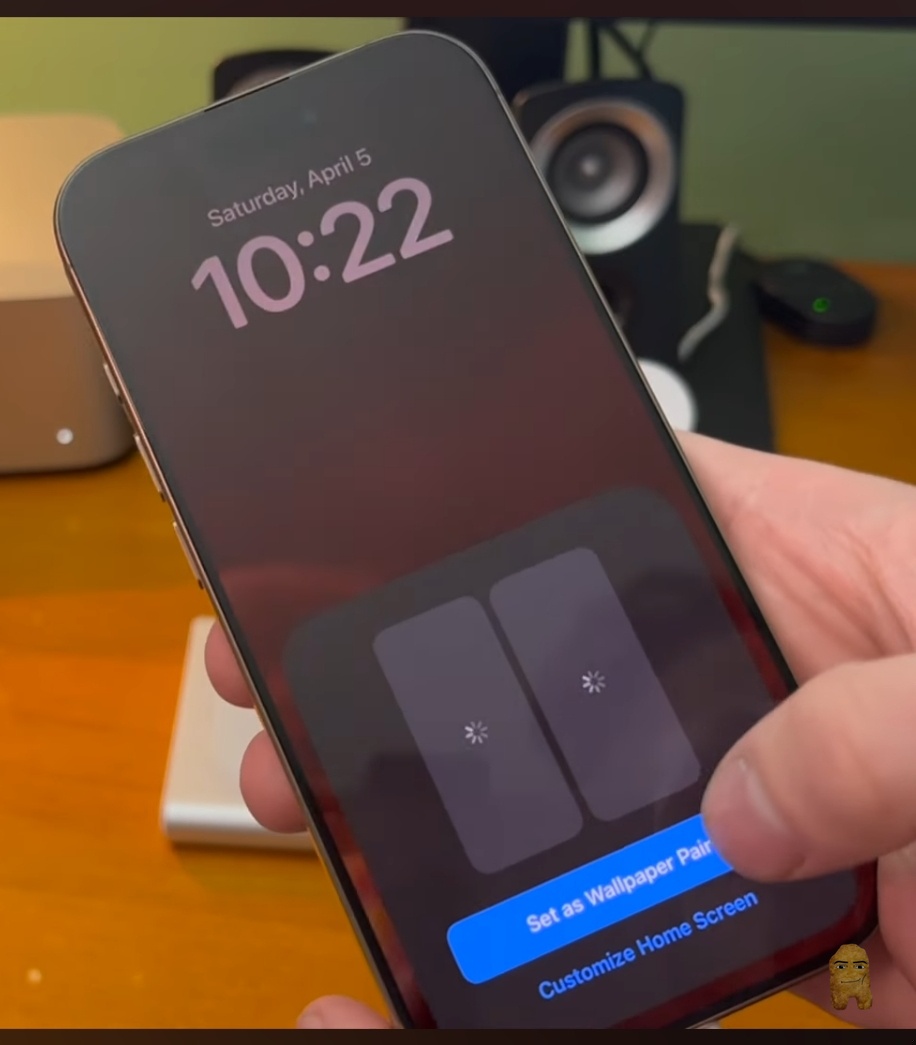
- Click Add in the top-right corner, select Set as Wallpaper Pair, and close the menu.
Step 9: Managing Wallpaper Collections and Clearing Limits
iOS limits the custom "Collections" drawer to a maximum of 15 wallpapers at any one time. If you exceed this number, you will need to clear your current collections to load new custom video layouts.
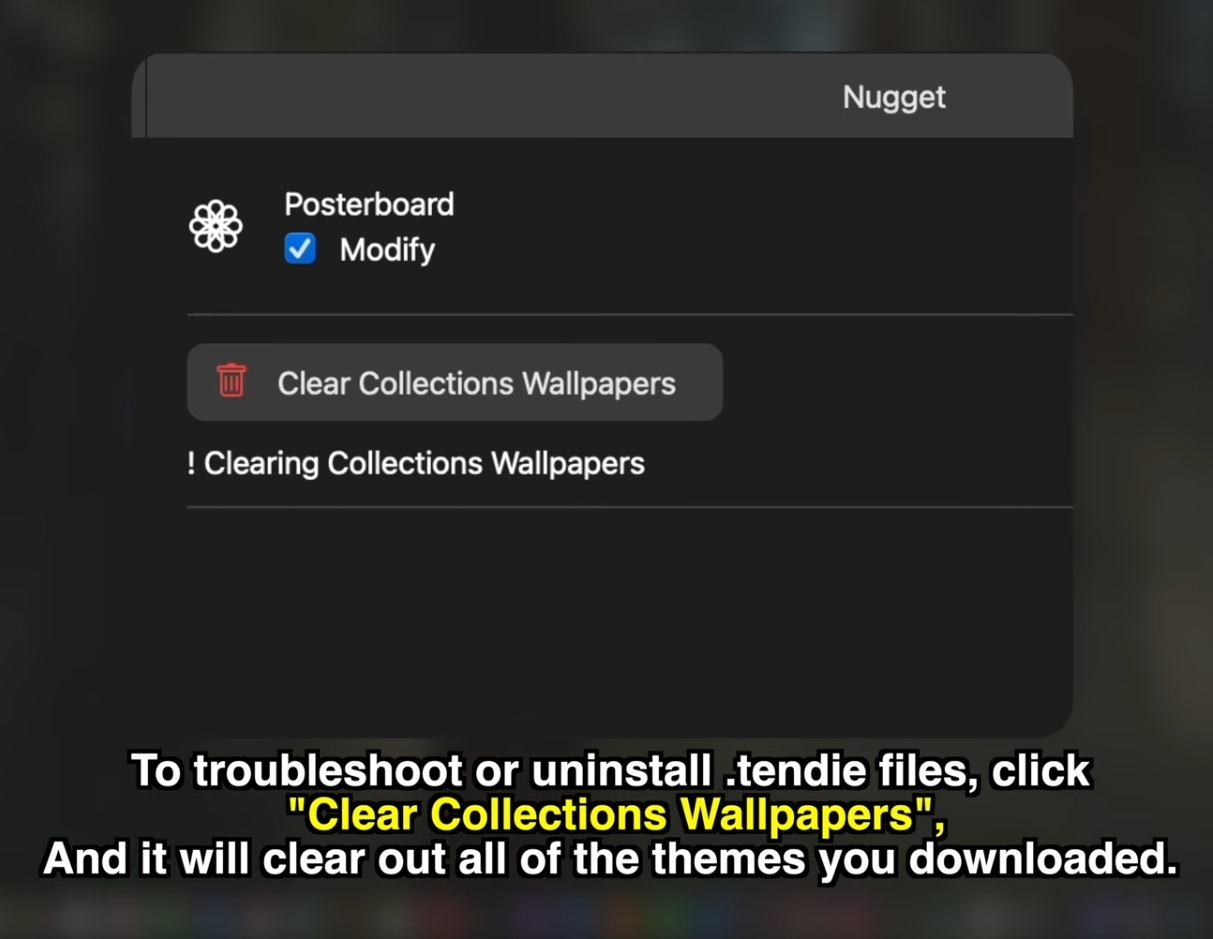
- To reset your limits or remove custom themes, connect your phone to Nugget and click the Posterboard option in the sidebar.
- Click the red Clear Collections Wallpapers option.
- Go to the Apply tab and click Apply Changes. Nugget will wipe the modified video wallpaper files, show a success popup, and prompt a reboot.
Official Video Walkthrough
To see the video wallpaper setup in action and follow along with a visual guide, watch the detailed video walkthrough below. It demonstrates the entire process, including configuring the Posterboard settings in Nugget and activating the video on your lock screen:
Subscribe to the channel for more iOS customization updates and detailed walkthroughs.
Troubleshooting & FAQ
Give the device a few minutes to process the written system files. If the option still does not appear, check if you have exceeded the 15-wallpaper system limit. If you have, use Nugget's "Clear Collections Wallpapers" utility to clean out your existing gallery before applying a new file. If you hit other roadblocks, refer to our detailed troubleshooting guide for more info.
Yes. You can turn Find My iPhone back on through your iCloud account settings as soon as Nugget finishes writing the files and your device restarts.
Yes, because this method accesses the system's Posterboard layout rather than exploiting system files, it is compatible with newer versions of iOS and modern devices. For more customization tips, check out our guide on how to get custom live wallpapers using the .tendies format.
Conclusion
Nugget's Posterboard feature provides a straightforward utility to configure custom video lock screens on iOS without needing a jailbreak. By managing the 15-wallpaper limit and trimming your media files to fit under the system frame limits, you can customize your device with custom video backgrounds. Remember to re-enable Find My iPhone once your wallpaper is successfully applied. For further interface modifications, check our guide on customizing iOS 18 features. Enjoy your newly customized dynamic lock screen!